
Why You Need a Docking Station for Your MacBook Pro
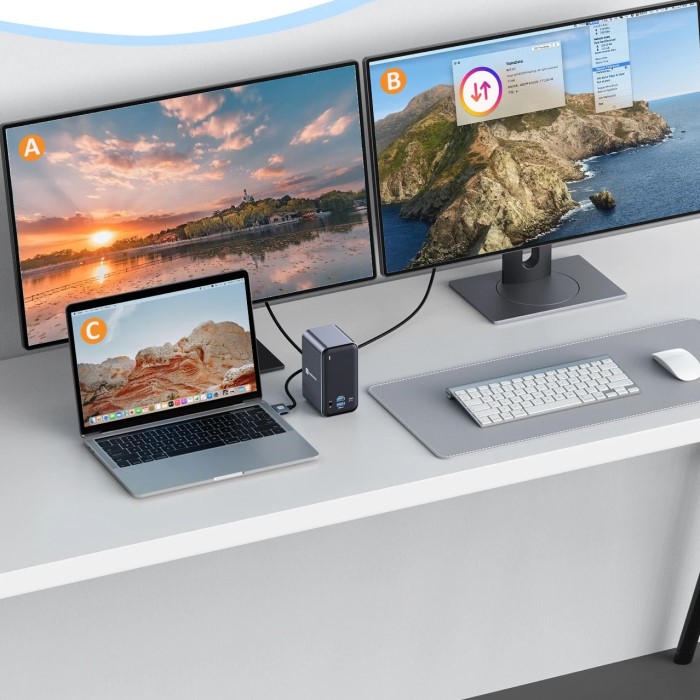
For anyone using a MacBook Pro, having the right accessories can significantly enhance productivity. One of the most valuable accessories is a docking station. The right MacBook Pro docking station creates a seamless transition between mobile and stationary use. It allows users to connect multiple peripherals such as monitors, keyboards, and external drives quickly and efficiently.
With increasing remote work and multitasking demands, the need for a reliable docking station is paramount. In this article, we will explore various aspects of choosing the perfect MacBook Pro docking station for work. We will discuss features to look for, common misconceptions, and recommendations that cater to different needs.
Benefits of Using a Docking Station
Docking stations provide several key advantages for MacBook Pro users:
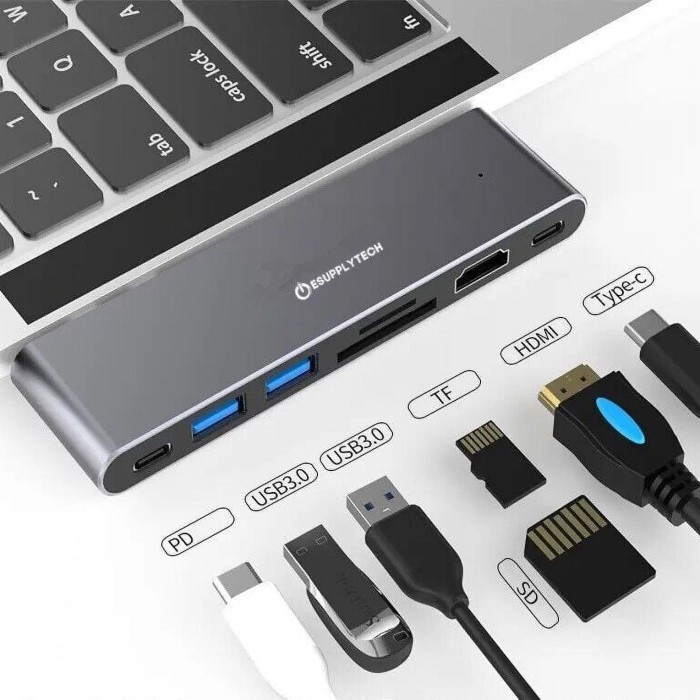
- Enhanced Connectivity: They offer additional ports for monitors, external drives, and peripherals.
- Seamless Charging: Many docks support power delivery, keeping your MacBook Pro charged while you work.
- Improved Organization: They reduce cable clutter by consolidating multiple devices into one hub.
- Multitasking Made Easy: Multiple screens and faster access to external devices boost productivity.
These benefits simplify complex workflows and make the MacBook Pro a more versatile tool.
Common Scenarios for Dock Usage
Docking stations are useful in various scenarios:
- Workstation Setup: Ideal for connecting external monitors, keyboards, and mice for a complete desktop setup.
- Creative Projects: Photographers and video editors can connect SD card readers and external drives.
- Business Meetings: Docks support projectors and Ethernet connections for seamless presentations.
- Travel: Portable docking stations enable professionals to carry essential functions on the go.
These situations demonstrate the practical value of a docking station for your MacBook Pro.
Key Features to Look for in a MacBook Pro Dock
Compatibility with MacBook Pro Models
Compatibility is the first feature to consider when choosing a docking station. Ensure the dock supports your MacBook Pro model, whether it’s the older Intel-based version or the latest M1/M2 chip models. Some docks are tailored for specific MacBook Pro generations. Verify compatibility information provided by the manufacturer to avoid mismatched connectivity or performance issues.
Number and Types of Ports
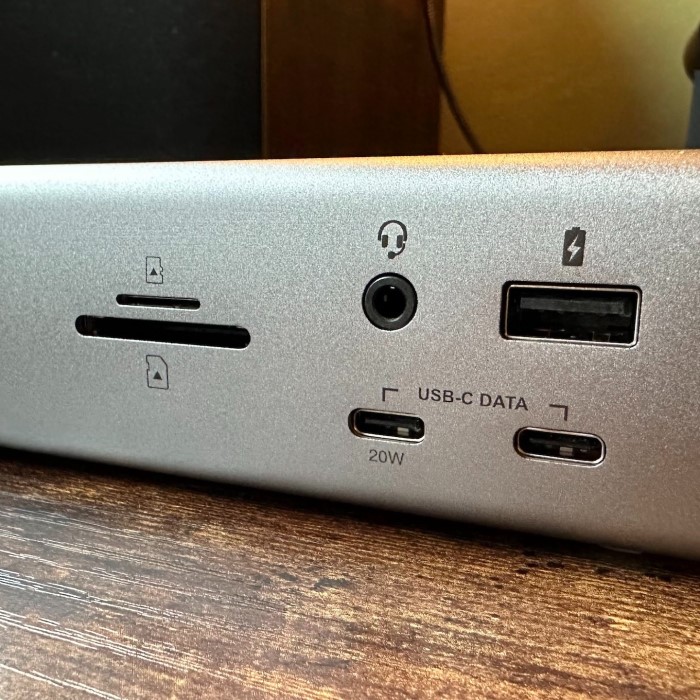
The ports available determine how versatile your dock will be. Look for docking stations with multiple USB ports, HDMI or DisplayPort for external monitors, and SD card readers. Ethernet ports are essential for stable internet connections, while audio ports add convenience for sound editing. Thunderbolt ports offer high-speed data transfer and advanced functionalities. Consider your workflow to decide which ports are a must-have.
Power Delivery and Charging Capabilities
Power delivery ensures your MacBook Pro remains charged while connected to the dock. Check the dock’s power output to confirm it matches or exceeds your MacBook Pro’s charging requirements. Many docks support high wattage, allowing your laptop and peripherals to stay powered simultaneously. Reliable power delivery allows uninterrupted work sessions and saves time searching for additional chargers.
Different Types of MacBook Pro Docking Stations
Not all MacBook Pro docking stations are the same. They vary in features, connectivity, and functionality. Choosing the right one depends on your specific needs and the compatibility with your MacBook Pro. Below, we’ll break down the main types of docking stations available, so you can find the best fit for your setup.

Thunderbolt 3 and 4 Docks
Thunderbolt docks are powerful and versatile options for advanced users. Designed to utilize the full potential of Thunderbolt 3 or 4 technology, these docks offer exceptional data transfer speeds of up to 40Gbps. They support dual 4K monitors or even a single 8K monitor for professional-grade setups.
Benefits of Thunderbolt docks include:
- High-Speed Data Transfer: Perfect for transferring large files quickly.
- Multiple High-Performance Ports: Often include USB-C, USB-A, HDMI, and Ethernet ports.
- Power Delivery: Many models can charge your MacBook Pro and connected devices simultaneously.
Remember that Thunderbolt docks are usually more expensive but deliver unmatched performance. They are ideal for creative professionals and users handling demanding workflows.
USB-C Docks
USB-C docks are a budget-friendly and versatile option for most users. They rely on the USB-C ports found on all modern MacBook Pro models. These docks support decent data transfer speeds and include a wide range of connectivity options.
Key features of USB-C docks:
- Essential Port Variety: Includes USB-A, HDMI, SD card readers, and more.
- Practical for Everyday Tasks: Supports external monitors, peripherals, and basic power delivery.
- Cost-Effective: A great option for students or casual users.
While less powerful than Thunderbolt docks, USB-C docks are still reliable for day-to-day usage and lighter workloads.
Multi-Port Hubs
Multi-port hubs are compact and portable solutions for users on the go. These hubs offer a mix of ports but usually don’t support high-end features like dual monitor setups or extensive power delivery.
Advantages of multi-port hubs:
- Lightweight and Portable: Fits easily into bags and backpacks.
- Basic Functionality: Includes USB ports, SD card readers, and HDMI for simple connectivity needs.
- Affordable: Perfect for travelers or minimalists.
Multi-port hubs are best for users who prioritize portability over advanced features. They work well for presentations, travel, or connecting a few devices during temporary setups.
By understanding these options, you can select the MacBook Pro docking station that aligns with your unique requirements and workflow.
Top Docking Station Brands for MacBook Pro
When selecting a MacBook Pro docking station, choosing the right brand is essential. Trusted brands ensure quality, performance, and reliability. Below, we’ll explore leading manufacturers and their pros and cons to help you decide.
Leading Brands in the Market
- CalDigit: Known for high-performance docks, CalDigit specializes in Thunderbolt solutions. Ideal for creative professionals.
- OWC (Other World Computing): OWC offers versatile docks with wide compatibility and multiple connectivity options.
- Anker: Popular for budget-friendly USB-C docks, Anker delivers reliable performance for basic users.
- Belkin: Belkin focuses on premium, easy-to-use docking stations with sleek designs.
- Plugable: Plugable manufactures affordable docks with well-balanced features for everyday tasks.
- Hyper: Compact and portable, Hyper docks provide excellent solutions for travelers.
These brands consistently deliver top-notch docking stations for MacBook Pro users.
Pros and Cons of Various Docking Manufacturers
CalDigit
- Pros: Exceptional build quality, high-speed Thunderbolt, and dual-monitor support.
- Cons: Premium price point; not ideal for casual users.
OWC
- Pros: Compatible with most MacBook Pro models; great for multitasking.
- Cons: Some models lack portability due to size.
Anker
- Pros: Affordable pricing, compact design, and decent connectivity.
- Cons: Limited advanced features compared to high-end docks.
Belkin
- Pros: Sleek designs, excellent power delivery, and robust connectors.
- Cons: Higher cost for premium models.
Plugable
- Pros: Cost-effective, easy setup, and reliable performance for lighter workflows.
- Cons: May lack high-speed ports for demanding tasks.
Hyper
- Pros: Lightweight and portable; well-suited for travel.
- Cons: Often limited port availability.
Each brand has unique strengths. Consider your needs and budget for the best choice.
Setting Up Your MacBook Pro Dock
A docking station enhances your MacBook Pro’s usability and productivity. Proper setup is crucial for optimal performance. Below, we guide you through the process of installing and troubleshooting your MacBook Pro docking station.
Step-by-Step Installation Guide
- Unbox and Inspect the Dock: Ensure all components are included and free from damage.
- Check Compatibility: Confirm the dock is compatible with your MacBook Pro model.
- Connect Power Supply: Plug the dock into a power source if it requires external power.
- Plug It Into Your MacBook Pro: Use the appropriate Thunderbolt or USB-C cable to connect the dock.
- Attach Peripherals: Connect monitors, keyboards, mice, and other devices to the dock’s ports.
- Configure Display Settings: Adjust external monitor settings in macOS under “System Settings” > “Displays.”
- Test Connectivity: Verify all attached peripherals, such as storage drives or Ethernet, function properly.
- Secure Cables: Organize and secure cables to avoid clutter or accidental disconnections.
By following these steps, you can ensure your dock is set up for smooth operation.
Troubleshooting Common Issues
Even the best docks may occasionally face issues. Here are some common problems and their solutions:
- Dock Not Detected by MacBook Pro: Verify the cable connection or try a different port. Update macOS to the latest version.
- Monitors Not Displaying: Confirm monitor cables are seated properly. Check display settings in macOS for configuration.
- Devices Not Recognized: Restart your MacBook Pro. Unplug and reconnect devices to the dock.
- Power Delivery Fails: Ensure the dock’s wattage matches your laptop’s charging requirements. Replace faulty cables.
- Frequent Disconnects: Inspect for loose connections or damaged cables. Switch to a different power outlet.
These tips can resolve most docking station issues, keeping your workflow uninterrupted. Regular updates and maintenance will also extend your dock’s lifespan.
Best MacBook Pro Docking Stations in 2025
Choosing the right docking station can enhance your MacBook Pro’s productivity. Here, we’ll explore some of the best options available in 2025. These recommendations are categorized based on specific needs and budgets, making it easier for you to decide.
Popular Options Based on Use Cases
- Creative Professionals:
- CalDigit TS4 Thunderbolt Dock: Known for superior build quality and multiple Thunderbolt ports. It supports dual 4K monitors and provides high-speed data transfer, ideal for photo and video editing.
- Belkin Thunderbolt 4 Dock Pro: A premium option with 40Gbps transfer speeds. It features multiple USB-C and USB-A ports, perfect for complex workflows.
- Business and Workstations:
- OWC Thunderbolt Dock: Offers great multitasking capacity with advanced connectivity. It includes Ethernet, USB, and DisplayPort support for seamless office setups.
- Plugable USB-C Triple Display Dock: Supports multiple displays and Ethernet connections, making it perfect for office tasks.
- Travel and Portability:
- HyperDrive DUO 7-in-2 USB-C Hub: Compact and portable, this hub supports basic connectivity for travelers on the go.
- Anker PowerExpand Direct 7-in-2: Lightweight and reliable, it offers essential features like HDMI and SD card support.
- Students and Everyday Users:
- Anker 13-in-1 USB-C Docking Station: Affordable yet versatile. With HDMI, USB-A, and SD card slots, it covers daily needs.
- Plugable USB-C Hub Multiport Adapter: A cost-effective choice for basic use, supporting external monitors and simple peripherals.
Budget-Friendly Recommendations
- Best Overall Value:
- CalDigit SOHO Dock: Mid-range pricing with excellent features. It supports 4K displays and fast file transfers.
- Anker 11-in-1 USB-C Hub: Affordable with essential ports and power delivery.
- Most Affordable Options:
- HooToo USB-C Hub: A minimalist option with basic ports, ideal for tight budgets.
- HyperDrive Slim USB-C Hub: Low-cost and portable; covers light connectivity requirements.
- Premium Features at Budget Prices:
- Plugable UD-3900 Dock: Offers dual monitor support at an economical price.
- Baseus 6-in-1 USB-C Hub: Combines portability with affordability. It supports HDMI, SD cards, and USB devices.
These suggestions cater to different needs and budgets, making it easier to find the perfect MacBook Pro docking station for 2025.
Tips for Choosing the Right Dock for Your Needs
Choosing the ideal MacBook Pro docking station depends on understanding your specific needs. By carefully assessing your workflow and budget, you can make a well-informed decision. Below are helpful tips to guide your selection process.
Determining Your Workflow Requirements
Different users require different docking station features. Consider these factors to match a dock with your needs:
- Connectivity Needs: List the devices you plan to connect. For instance, photographers may need SD card readers, while office professionals may require dual monitor support.
- Port Quantity and Type: Think about the type and number of ports needed for your peripherals. Options like USB-A, HDMI, Ethernet, and Thunderbolt ports should align with your workflow.
- Data Transfer Speed: Creative professionals handling large files should prioritize high-speed docks with Thunderbolt capabilities.
- Portability: Travelers may prefer lightweight, compact docks, while office setups favor full-featured ones.
- Future-Proofing: Choose a dock that can accommodate tech upgrades so it’s useful for years.
By mapping your requirements, you’ll narrow down the docks that meet your specific demands.
Balancing Features and Affordability
While some docks offer premium features, ensuring affordability is equally important. Here’s how to balance the two:
- Set a Budget: Decide how much you’re willing to spend before exploring options.
- Prioritize Essential Features: Focus on docks that deliver your essential needs over less-used features.
- Evaluate Brand Value: Trusted brands like CalDigit, OWC, and Anker offer quality products for various budgets.
- Compare Options: Check different models to find the best balance between cost and functionality.
- Look for Sales: Seasonal discounts or refurbished units can help you save money.
Balancing affordability with desired features ensures you get the best value for your investment.
By understanding your workflow and budget, choosing the right MacBook Pro docking station becomes easier and more effective.
Conclusion
In conclusion, choosing the right MacBook Pro docking station can greatly enhance your work experience. By understanding the essential features and types available, you can find a docking station that suits your specific needs and setup.
Whether you require a USB-C dock for basic functionality or a Thunderbolt 3 dock for high-end performance, the right station allows you to optimize your productivity and streamline your workspace. Remember to consider compatibility, port availability, and overall design when making your choice.
Investing in a high-quality docking station can transform how you work with your MacBook Pro, making multitasking easier and helping to keep your workspace organized. Happy drawing, and may your new docking station bring you closer to your goals!
 Griley