
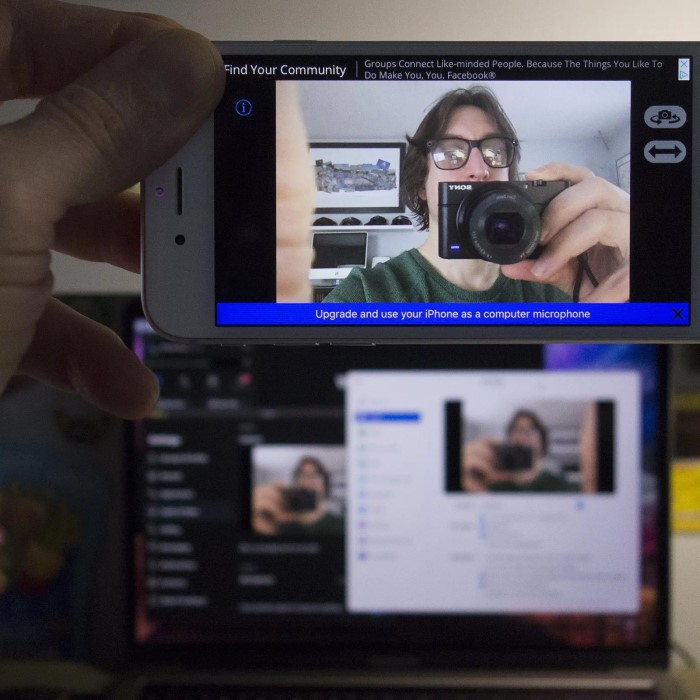
Introduction: Why Use Your iPhone as a Webcam?
In recent years, many people have turned to their smartphones for various tasks, one of which is using them as a webcam. The question of “how to use your iPhone as a webcam” has gained prominence, especially with the increasing necessity for high-quality video calls, live streaming, and online meetings. This article aims to provide you with detailed insights into transforming your iPhone into a powerful webcam. Whether you are a content creator or just someone who wants better video quality for virtual meetings, this guide will leave you equipped with all the necessary knowledge.
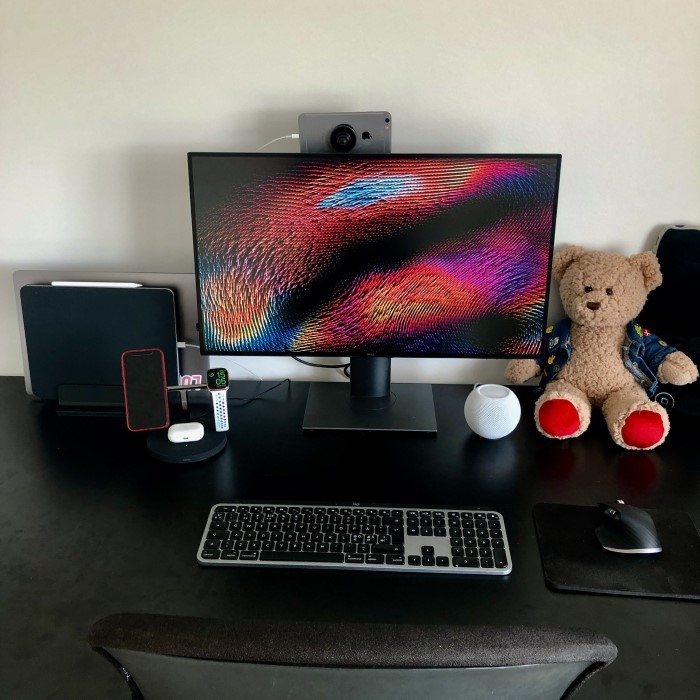
Why Use Your iPhone as a Webcam
Modern technology allows iPhones to serve as high-quality webcams. This opens up new possibilities for users.
Benefits of Using Your iPhone Camera for Video Calls
Using your iPhone camera greatly enhances video calls compared to traditional setups. Here are key advantages:
- Superior Image Quality: iPhones offer high-resolution video and advanced image processing. This provides crystal-clear visuals for calls.
- Easy Integration: With compatible apps, it’s simple to connect your iPhone to your computer.
- Portability: iPhones are lightweight and easy to set up anywhere, making them convenient.
- Cost Efficiency: Instead of buying an expensive standalone webcam, repurpose your iPhone with minimal accessories.
- Optimized Features: Portrait mode and advanced settings improve visual appeal during calls.
Comparing iPhone Camera Quality to Traditional Webcams
Traditional webcams can’t match the features of iPhone cameras. Key differences highlight why iPhones excel:
- Resolution: iPhone cameras support HD and even 4K video, whereas many webcams lag behind.
- Low-Light Performance: iPhones use advanced sensors to capture clear video in dim environments.
- Color Accuracy: iPhone cameras produce vibrant, true-to-life colors compared to most webcams.
- Dynamic Range: HDR on iPhones ensures balanced lighting for bright and dark areas.
- Flexibility: Video settings and framings on iPhones provide customization unavailable on traditional webcams.
Switching to your iPhone as a webcam not only upgrades video quality but also integrates current technology effortlessly into daily life. Whether for professional meetings or casual calls, the benefits are convincing.
Requirements to Get Started
Before turning your iPhone into a webcam, there are several key requirements to consider. These include ensuring your iPhone model is compatible, downloading the necessary apps, and having the proper equipment for an optimal setup.
Compatible iPhone Models
Not all iPhone models will work equally well as webcams. Here’s what you need to know:
- Modern Models Work Best: iPhones from SE (2nd generation) and iPhone 8 onward are compatible. They offer better cameras and support advanced apps.
- Check Software Version: Your iPhone should run iOS 13 or later for app compatibility.
- Dual Camera Utility: Devices with wide and ultra-wide camera lenses work even better for webcam use.
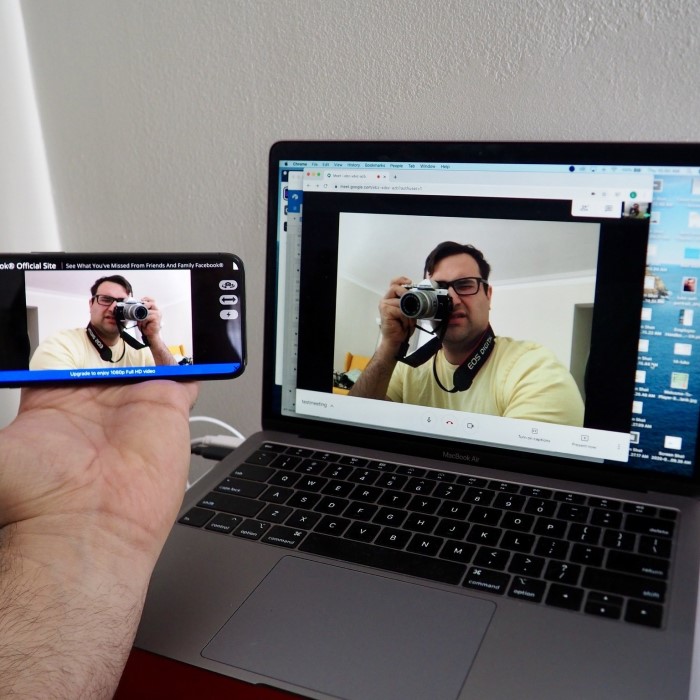
Necessary Apps and Software
Certain apps allow seamless connection and functionality for iPhones as webcams. Here’s what you need:
- Download Reliable Webcam Apps: Popular options include EpocCam, Camo, and iVCam.
- Install Companion Software: Some apps need desktop software for your Windows or Mac computer.
- Verify Connection Methods: Ensure the app supports both wired and wireless connections.
- Test System Compatibility: Check if your iPhone and computer operating system work with selected apps.
Equipment You May Need (Stands, Mounts, etc.)
Proper equipment ensures stability and ease of use when setting up your iPhone. You may need:
- Phone Stands: Adjustable stands let you place your iPhone at eye level for perfect angles.
- Tripods and Mounts: These ensure hands-free operation and reduce camera shakes.
- Cables for Wired Connection: USB or Lightning cables provide stable wired setups.
- External Lighting: Ring lights or LED panels enhance image quality in low-light spaces.
- Microphone Options: External microphones improve audio for calls and streaming.
By meeting these requirements, you can set up your iPhone quickly and use it as a reliable webcam for video calls, streaming, or content creation.
Setting Up Your iPhone as a Webcam
Turning your iPhone into a webcam is simple and efficient. With a few steps, you can start enjoying high-quality video for various purposes. Follow the instructions below to set up your iPhone correctly.
How to Download and Install Webcam Apps
To begin, you need a reliable webcam app. Here’s how to download and install one:
- Choose a Compatible App: Popular choices include EpocCam, Camo, and iVCam. Research which one fits your needs.
- Visit the App Store: Open the App Store on your iPhone.
- Search for the App: Type the app’s name, like “EpocCam,” in the search bar.
- Download and Install: Tap “Get” or the download icon to install the app.
- Install Companion Software (if needed): Some apps require software installed on your computer. Download it from the app’s website.
- Follow Setup Instructions: Open the app and follow on-screen instructions to configure your iPhone for webcam use.
Make sure to test the app after installation to confirm it works correctly.
Connecting Your iPhone to Your Computer (Wired and Wireless Methods)
After installing the app, connect your iPhone to your computer for use as a webcam. You can do this via wired or wireless methods:
Wired Connection Steps:
- Use a USB or Lightning Cable: Connect your iPhone to your computer with a high-quality cable.
- Allow Permissions: Unlock your iPhone and confirm “Trust This Computer” if prompted.
- Launch the Webcam App: Open the app on both your iPhone and computer.
- Select the Input Source: In your meeting or streaming software, set the app as your video source.
- Test the Connection: Ensure the video feed displays clearly.
Wireless Connection Steps:
- Connect to the Same Wi-Fi Network: Ensure your iPhone and computer share a Wi-Fi network.
- Launch the Webcam App: Open the app on your iPhone and computer.
- Follow Pairing Instructions: Pair the devices as instructed by the app.
- Select the Video Input Source: Choose the app as your camera option in software like Zoom or Skype.
- Ensure Stability: For best results, use a strong, stable Wi-Fi connection.
Both methods have their benefits. Wired connections offer stable quality, while wireless adds convenience. By following these steps, you can successfully learn how to use your iPhone as a webcam, enjoying enhanced video quality for all your online activities.
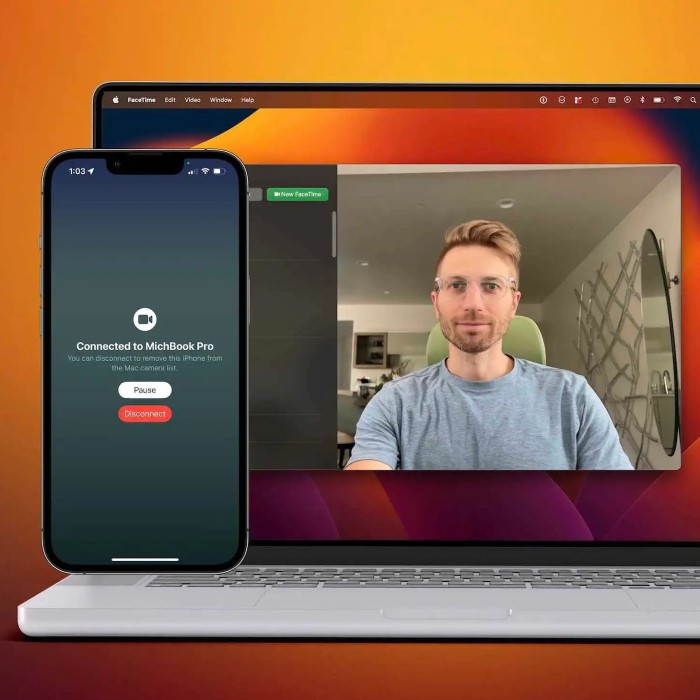
Best Apps for Turning Your iPhone Into a Webcam
Choosing the right app is crucial to successfully using your iPhone as a webcam. Many apps offer great features but focus on ease of use and compatibility. Below are details of top apps and essential features to look for.
Overview of Popular Webcam Apps (e.g., EpocCam, Camo, iVCam)
Several apps make it easy to set up your iPhone as a webcam. Here’s an overview of the best:
- EpocCam: EpocCam is a user-friendly app that works on both Mac and Windows. It supports HD video and lets you use either the front or rear iPhone camera. Its wireless capabilities ensure great flexibility.
- Camo: Camo offers high-quality streaming up to 1080p. It provides advanced image controls, like zooming and adjusting brightness. It’s highly recommended for professional video calls and broadcasting.
- iVCam: iVCam is another reliable choice, known for seamless wired and wireless connections. It can deliver 4K resolution video and supports multi-device switching.
- NeuralCam Live: Another emerging option, NeuralCam Live capitalizes on AI to optimize lighting and filters. It works well for casual video chats and social streaming.
- Reincubate Camo Studio: Exclusively for advanced users, this app offers features like frame rates and external camera syncing.
Each app caters to specific needs, whether professional meetings or casual streaming.
Key Features to Look For in Webcam Apps
When choosing a webcam app, certain features significantly improve your experience. Look for the following:
- Compatibility: Ensure the app works with your computer’s operating system, such as Mac or Windows. Compatibility with video platforms like Zoom and Microsoft Teams is essential.
- Video Quality Controls: Apps offering HD or 4K video enhance the quality of your calls.
- Wired and Wireless Options: Flexibility to connect your iPhone via USB or Wi-Fi can be incredibly convenient.
- Adjustable Settings: Look for apps that let you adjust brightness, contrast, and focus easily.
- Audio Integration: Some apps allow your iPhone to act as both a webcam and a microphone.
- Free and Paid Features: Decide based on whether the free version meets your requirements or if premium upgrades are worth investing in.
- Ease of Setup: Pick apps that offer clear instructions and fast connection setups.
By examining these features, you can choose the perfect app tailored to how you use your iPhone as a webcam.
Optimizing Video Quality
Enhancing video quality is essential for professional and personal use. Small adjustments can make a big difference.
Tips for Better Lighting and Framing
Good lighting and proper framing are key to creating visually appealing video output. Here’s how:
- Use Natural Light: Position yourself near a window for soft and even lighting.
- Add Artificial Light: Use ring lights or LED panels for consistent brightness.
- Avoid Shadows: Ensure light sources are in front of you, not behind.
- Neutral Backgrounds: Select a simple backdrop to keep the focus on you.
- Frame at Eye Level: Adjust your iPhone so the camera lens is at eye height.
- Use the Rule of Thirds: Place yourself slightly off-center for a balanced composition.
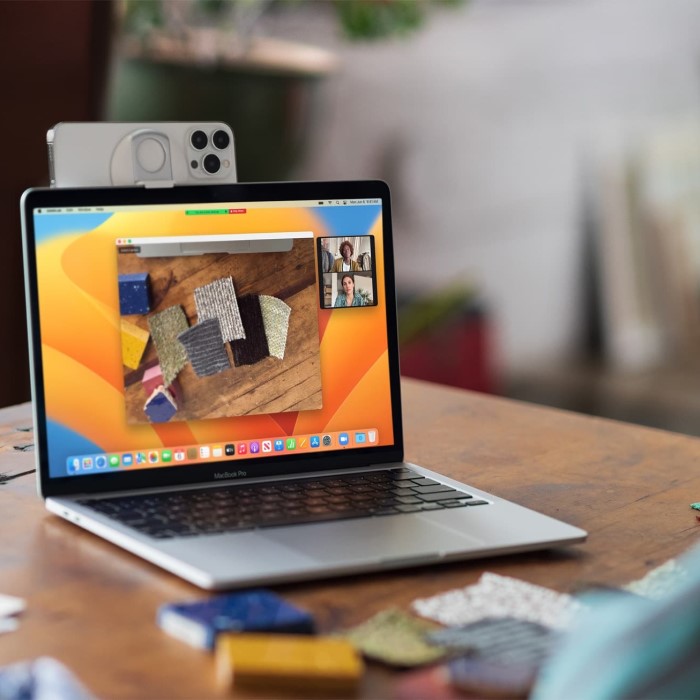
Settings to Adjust on Your iPhone
Customizing your iPhone’s settings can improve video clarity. Adjust these options:
- Enable Grid Lines: Go to Settings > Camera > Grid to frame your video properly.
- Switch to the Rear Camera: Rear cameras offer better resolution compared to the front.
- Adjust Exposure: Tap and hold on the screen to lock and fine-tune exposure levels.
- Enable HDR: Turn on HDR for better color and dynamic range in lighting.
- Choose the Right Lens: If your iPhone has multiple lenses, use the wide or ultra-wide one for flexibility.
- Keep the Lens Clean: Wipe the camera lens to ensure no smudges affect video clarity.
Using External Microphones for Better Audio
Good sound quality enhances overall communication. Use an external microphone for professional-grade audio:
- Choose a Quality Microphone: Lavalier or shotgun microphones work well for video calls and streaming.
- Connect Via Lightning or Bluetooth: Ensure compatibility with your iPhone’s connection type.
- Position the Microphone Correctly: Place it close to your mouth but out of the camera frame.
- Test Audio Levels: Record a sample to check sound clarity and adjust placement if needed.
- Mute Background Noise: Use microphones with noise-cancellation features to minimize unwanted sounds.
By focusing on lighting, framing, settings, and audio, you ensure a top-notch webcam experience.
Troubleshooting Common Issues
Setting up your iPhone as a webcam can come with challenges. Knowing the common issues and their solutions will help you keep your setup running smoothly.
Connection Problems and How to Solve Them
Connection issues can block your iPhone from working as a webcam. Here’s how to fix them:
- Check Your Cable or Wi-Fi: Ensure cables are intact or the Wi-Fi connection is stable.
- Restart Devices: Restart both the iPhone and computer to refresh connections.
- Update Apps and Software: Install updates for webcam apps and your operating system to prevent compatibility problems.
- Try Another USB Port: Switch to another USB port if your computer isn’t recognizing the device.
- Reinstall Apps: Delete and reinstall webcam apps to fix possible software errors.
Proper troubleshooting ensures uninterrupted usage as a webcam.
Lag or Low Video Quality Fixes
Video lag or poor quality can affect your webcam’s performance. Use these quick fixes:
- Close Background Apps: Free up CPU and RAM by closing apps on your iPhone and computer.
- Switch to a Wired Connection: Wired setups are faster and more reliable than Wi-Fi for video streaming.
- Improve Lighting: Use sufficient lighting to enhance video clarity and reduce graininess.
- Lower Resolution Settings: Choose 720p instead of 1080p to balance quality and performance.
- Update Network Hardware: Replace outdated routers for better Wi-Fi speed and reliability.
Optimizing hardware and settings leads to smoother video output.
Ensuring App and System Compatibility
Compatibility is crucial for your webcam setup to work properly. Follow these tips:
- Check iOS Version: Make sure your device runs iOS 13 or newer.
- Verify Computer Compatibility: Confirm your operating system supports the app (e.g., macOS or Windows).
- Match Software Versions: Ensure both iPhone and companion software are updated.
- Research App Requirements: Check whether the app supports wired or wireless modes for your setup.
- Restart Both Devices After Updates: Updates often fix bugs but reboot to activate changes fully.
By confirming compatibility, you can minimize issues during setup and operation.
Creative Uses Beyond Video Calls
Turning your iPhone into a webcam opens up exciting possibilities beyond video calls. Its superior camera quality and versatility make it a valuable tool for various creative applications.
Using Your iPhone Webcam for Streaming
Live streaming has gained massive popularity across platforms like Twitch, YouTube, and Facebook. Your iPhone can be an excellent choice for this purpose. Here’s why and how:
- High-Quality Streams: With HD and 4K capabilities, your iPhone ensures crystal-clear video quality during streams.
- Flexible Setup: Easily switch between front and rear cameras for different perspectives.
- Multiple Platforms Support: Apps like OBS Studio and Streamlabs integrate seamlessly with iPhone webcam applications.
Steps for Streaming Setup:
- Choose a compatible app, such as Camo or iVCam, for high-quality video.
- Connect your iPhone to your streaming software on your computer.
- Use a tripod or stand for stable framing. Adjust the position to your liking.
- Test microphone and video settings to ensure optimal performance before broadcasting.
When paired with external lighting and audio solutions, your streams will appear professional and polished.
Leveraging Your iPhone Webcam for Content Creation
Content creators often seek high-quality visuals for videos, tutorials, and demos. Your iPhone webcam is a reliable and efficient option:
- DIY Tutorials and Demos: Record tutorials with ease using your iPhone’s advanced features.
- Social Media Videos: Create engaging content for Instagram, TikTok, or YouTube.
- Photography and Videography: Use various lenses and settings for unique shots.
Tips for Content Creation:
- Use Portrait Mode: Add a blurred background for a professional look.
- Experiment with Angles: Take advantage of your iPhone’s portability for creative shots.
- Utilize Editing Tools: Combine the iPhone’s video feed with editing software to polish content.
Whether you’re live streaming or creating content, your iPhone webcam can be an essential part of your creative toolkit. Its versatility, combined with simple setup and integration, makes it a perfect choice for these ventures.
Conclusion: Enhance Your Streaming Experience
In conclusion, knowing how to use your iPhone as a webcam opens a world of possibilities for high-quality video content. With top-notch camera capabilities and a host of supportive applications, your iPhone can easily meet most streaming and video call needs. From professional meetings to casual catch-ups, the flexibility and quality offered by your iPhone can elevate your experience. As you become familiar with the setup and optimization techniques mentioned, you will notice a significant improvement in your video quality, leading to more successful interactions. So grab your iPhone and transform the way you connect with others today!
 Griley