
Introduction: The Importance of Defragmentation
In today’s fast-paced digital world, having a slow-performing computer can be incredibly frustrating. A sluggish system can affect productivity, online gaming, video streaming, and much more. One effective method to enhance your computer’s performance is learning how to defrag hard drive. Defragmentation reorganizes fragmented data on your hard drive, allowing your PC to run more efficiently. In this comprehensive guide, we will explore the importance of defragmentation, steps to defrag your hard drive, best practices for maintaining performance, and answers to frequently asked questions about the process.
Understanding Hard Drive Fragmentation
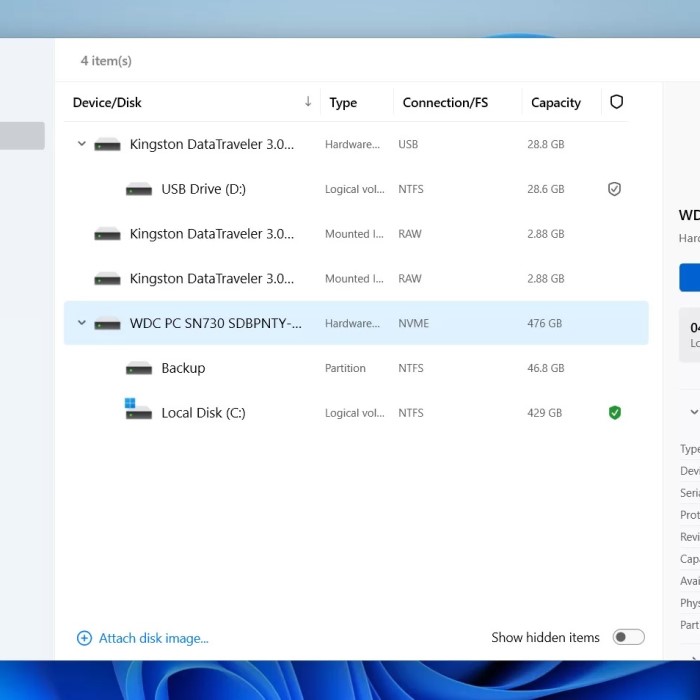
To appreciate the benefits of defragmentation, we should first understand what hard drive fragmentation is and how it occurs. Fragmentation is the process where files are stored in non-contiguous spaces on a hard drive.
- How Fragmentation Happens: Whenever you save, delete, or modify files, free space on your hard drive becomes fragmented. The next time a file is saved, the system may not find a contiguous area of empty space, so it splits the file into pieces.
- Impact on Performance: Fragmented files can significantly slow down your computer’s performance. When files are scattered across the disk, the hard drive’s read/write head has to move more often to access all parts of a file, leading to longer retrieval times and decreased efficiency.
- Mechanics of HDD vs. SSD: It’s important to distinguish that fragmentation primarily affects traditional Hard Disk Drives (HDDs). Unlike HDDs, Solid State Drives (SSDs) work differently. They use NAND flash memory with no mechanical parts, which means fragmentation does not impact their performance in the same way.
Why Defragment Your Hard Drive?
Defragmenting your hard drive can bring several advantages that lead to noticeable improvements in your computer’s performance:
Increased Speed:
-
- Defragmentation is a process that rearranges fragmented data on your hard drive, grouping files that are scattered across different locations into contiguous blocks.
- When files are stored in contiguous blocks, the read/write head of the hard drive has to move less, which significantly reduces the time it takes to locate and access those files.
- As a result, users often experience faster boot times, as the operating system can load more efficiently from a well-organized drive.
- Additionally, applications and files open more quickly when data is efficiently stored, leading to an overall smoother system performance and better user experience.
Enhanced Longevity:
-
- Fragmentation can lead to excessive wear and tear on your hard drive. When the read/write head has to move back and forth to access fragmented files, it increases mechanical activity.
- By reducing fragmentation, the number of movements made by the read/write head is minimized, which can help reduce mechanical strain on the drive.
- Fewer movements not only contribute to immediate performance improvements but also help prolong the overall lifespan of the drive, reducing the likelihood of drive failure over time.
- This benefit is particularly important for traditional hard disk drives (HDDs), which rely on moving parts, compared to solid-state drives (SSDs) that are less affected by fragmentation.
Better Storage Utilization:
-
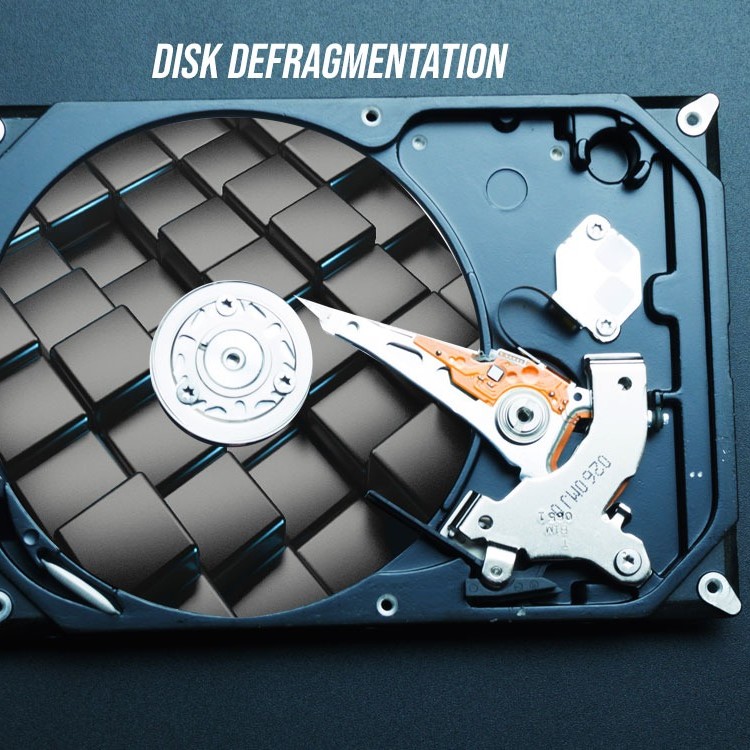
- Over time, as files are added, deleted, or modified, they can become fragmented, which means they occupy non-contiguous spaces on the hard drive.
- This fragmentation can lead to inefficient use of storage space, making it challenging to save new files or applications, even if there appears to be sufficient free space.
- Defragmentation helps consolidate scattered data, optimizing the storage layout and making it easier to store additional files efficiently.
- By creating larger contiguous blocks of free space, users may find it easier to save larger files or install new applications without encountering storage limitations.
Improved Reliability:
-
- Managing fragmentation effectively contributes to the overall reliability of the hard drive and the system.
- When files are fragmented, the reading and writing processes can become more complex, increasing the chances of data corruption or errors during these operations.
- By defragmenting a drive, you ensure that files can be read and written more smoothly, reducing the risk of corruption and ensuring data integrity.
- Consequently, with fewer interruptions and a more organized file structure, users can have greater confidence in the reliability of their data access and storage processes.
How to Defrag Your Hard Drive: A Step-by-Step Guide
Now that we’ve explored the benefits of defragmentation, let’s look at how to defrag hard drive effectively.
1. Backup Your Data
Before performing defragmentation, it’s wise to back up your important files. While the process is generally safe, backing up ensures you have copies of your data in case of unforeseen issues. Use cloud services or external drives for this purpose.
2. Check Your Disk for Errors
Running a disk check before defragmentation is essential to identify and rectify issues that may interfere with the defrag process:
- Open Command Prompt: Type
cmdinto the search bar, right-click, and select “Run as administrator.” - Run Disk Check: Execute the command
chkdsk C: /f /r(substituting C: with your drive letter). Follow the instructions to schedule a disk check at the next restart.
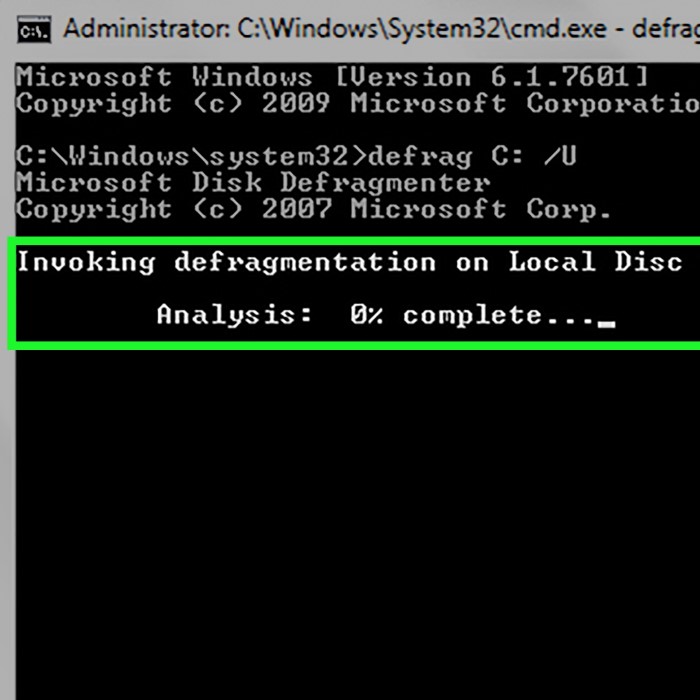
3. Access the Built-in Defragmentation Tool
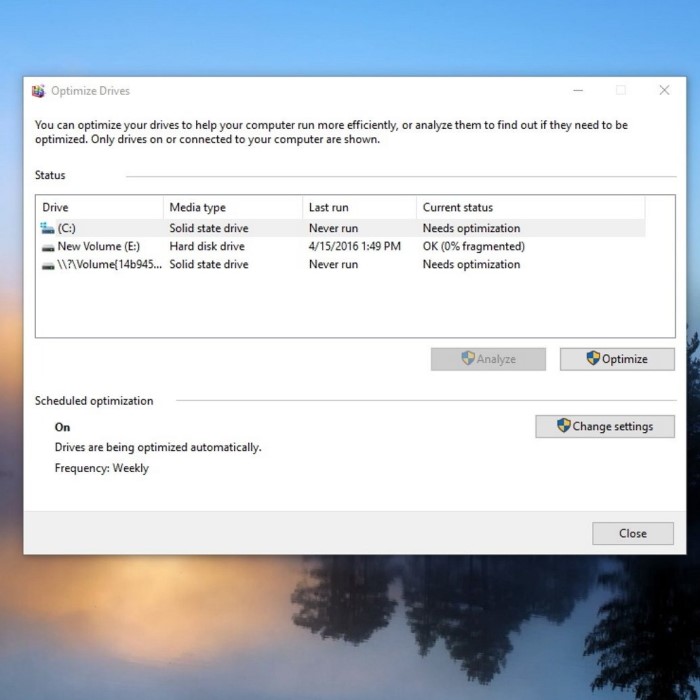
Windows has a built-in defragmentation tool that simplifies the process:
Open the Tool:
-
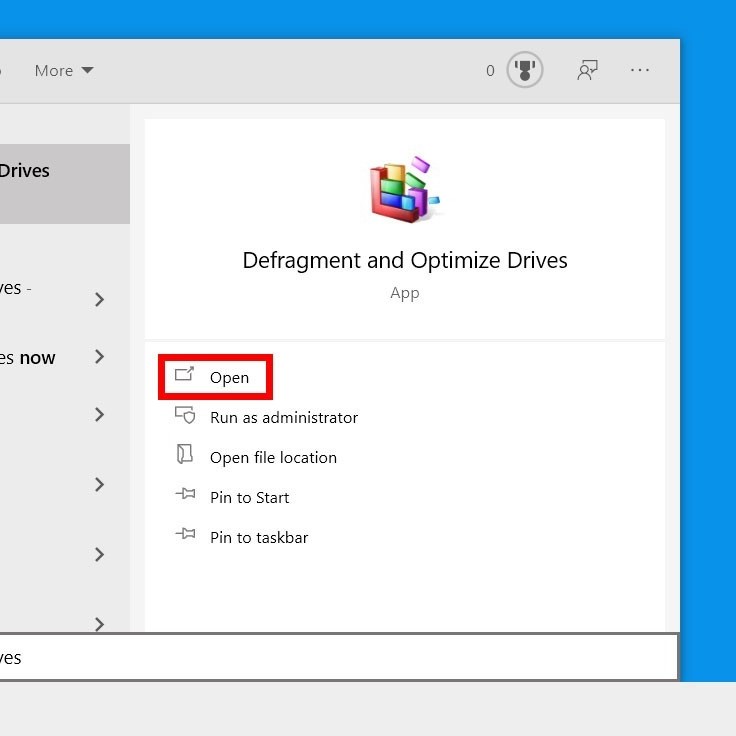
- To access the defragmentation tool, begin by clicking on the Windows Start menu, usually located at the bottom-left corner of your screen.
- In the search bar, type “Defragment and Optimize Drives.” This should bring up the tool in the search results.
- Click on the tool’s icon to open it. This built-in utility in Windows is designed to help improve the performance of your hard drives by reorganizing fragmented data.
Select Your Drive:
-
- Once the defragmentation tool is open, you will see a list of all the drives connected to your computer, including both internal and external drives.
- Identify and select the specific drive you want to defragment. The primary disk is typically labeled as “C:,” which is where the operating system and most applications are installed.
- If your system has multiple drives, take care to select the correct one, as different drives may have varying levels of fragmentation based on usage patterns.
Analyze the Drive:
-
- After selecting the desired drive, look for a button labeled “Analyze” within the tool’s interface and click on it.
- The analysis process will take a few moments as the tool examines the drive and calculates the level of fragmentation present.
- Once the analysis is complete, you will receive a report showing the percentage of fragmentation on the drive, which indicates how much the data is scattered across the disk.
- This information will help you determine whether defragmentation is necessary; in general, a fragmentation level above 10% suggests that the drive would benefit from defragmentation to improve performance.
4. Start the Defragmentation Process
If fragmentation is above the recommended levels, proceed with the defrag:
- Click the “Optimize” button to initiate the process. Depending on your drive’s size and fragmentation, this may take several minutes to hours.
- Monitor the Process: While defrag is underway, avoid using high-demand applications, as this could slow down the process.
Best Practices for Maintaining a Defragmented Hard Drive
To ensure your hard drive remains optimized after defragmentation, consider implementing these best practices:
- Schedule Regular Defragmentation
Setting up a regular schedule for defragmenting your hard drive can help keep it in top shape. In Windows, the tool can be set to run monthly or weekly.
- Monitor Disk Space
Keep an eye on how full your disk is. Fragmentation increases as storage approaches capacity, so regular cleanup is essential.
- Use Disk Cleanup Tool
Utilizing the Disk Cleanup tool can help eliminate temporary files and unnecessary data, further assisting in preventing fragmentation.
- Limit Large File Transfers
Transferring many large files at once can lead to fragmentation. Whenever possible, transfer files in small batches.
- Consider SSD for Better Performance
If you frequently handle substantial files or run resource-intensive applications, consider upgrading to an SSD. They provide faster read/write speeds and do not require defragmentation.
Common Questions and Answers
To clarify some common doubts about hard drive defragmentation, here are frequently asked questions:
Does defragging speed up PC?
Yes, defragging significantly speeds up HDDs by reducing file fragmentation, which allows the hard drive to read and retrieve files more efficiently.
Is it safe to defrag a hard drive?
Yes, defragmentation is generally safe. However, it is advisable to back up important data before proceeding, as a precaution against data loss during the operation.
How do I defrag my hard disk?
You can defrag your hard disk using the built-in “Defragment and Optimize Drives” tool in Windows. Select the drive and click on “Optimize” to begin.
How often should I defragment my hard drive?
It typically depends on usage, but for most users, defragmenting once a month is advisable. For more intensive usage, like gaming or video editing, consider defragmenting more frequently.
Conclusion: Your Path to an Optimized Hard Drive
In conclusion, learning how to defrag hard drive is an essential skill for maintaining a healthy computer system. Regular defragmentation leads to increased speed and reliability, ultimately enhancing your overall computing experience. By following the processes outlined in this guide, you can effectively manage your hard drive’s performance and ensure it functions smoothly.
Remember that while defragmentation is vital for HDDs, SSDs require different approaches for optimization. Tailor your maintenance routine according to your hardware to achieve optimal performance. By investing time in these practices, you not only extend the life of your hard drive but also unlock the full potential of your PC. Take control of your computer’s efficiency today and enjoy the benefits of a well-maintained hard drive!