
Introduction to eSIM Technology on iPhone
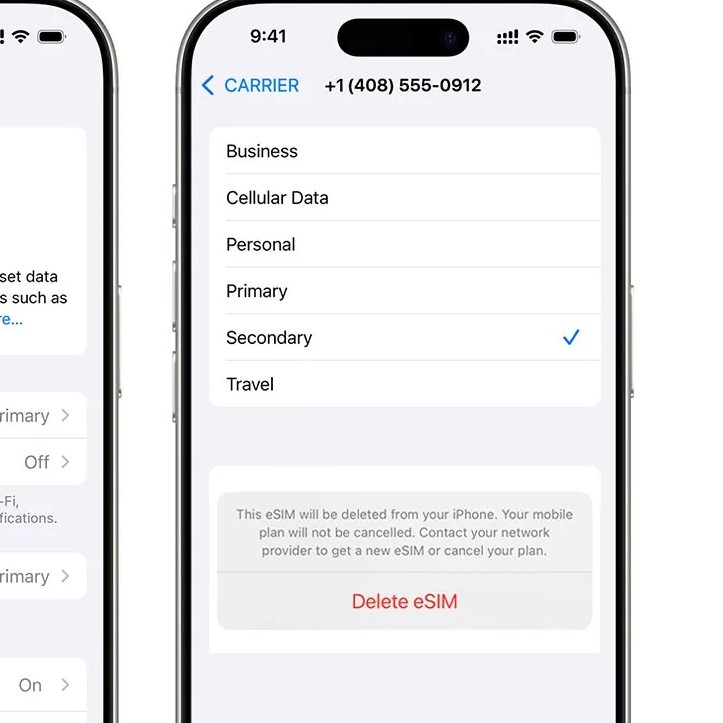
In recent years, the emergence of eSIM (embedded SIM) technology has revolutionized how we manage mobile connectivity. Unlike traditional SIM cards that need to be physically inserted and removed, eSIM technology allows users to switch carriers and manage their mobile plans digitally. This flexibility, however, can sometimes lead to confusion, especially when it comes to tasks such as how to remove eSIM from iPhone. Whether you want to switch carriers or revert to using a physical SIM card, knowing the correct steps is essential.
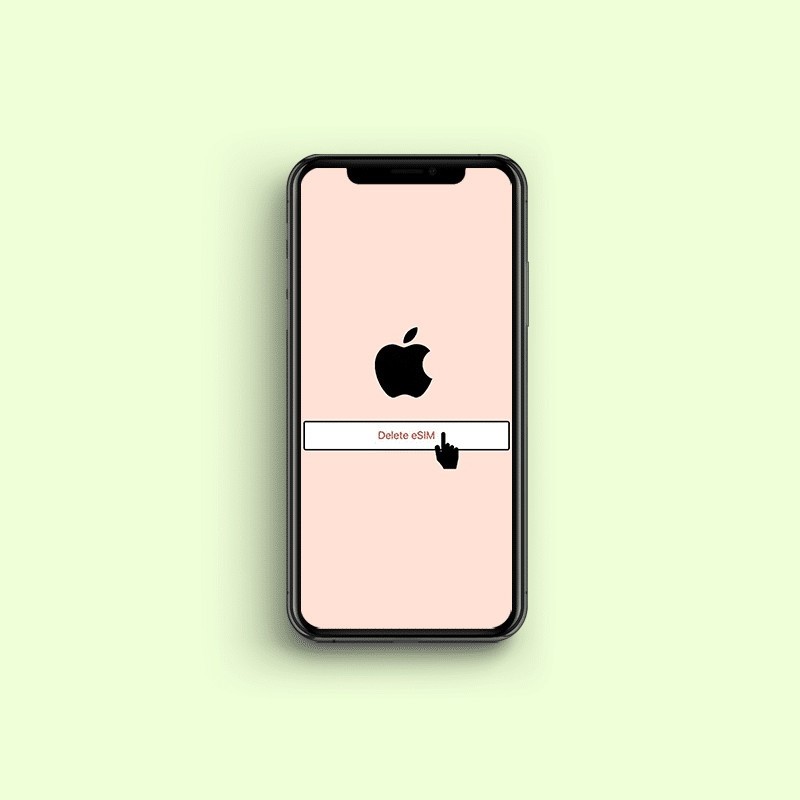
In this comprehensive guide, you will learn how to effectively remove the eSIM from your iPhone, tackle common issues that might arise, and gain insights into the technology itself.
Understanding eSIM Technology
What is eSIM?
eSIM, or embedded SIM, is a digital version of a SIM card that is built directly into your device. This advanced technology allows you to activate a cellular plan without using a physical SIM card, offering a level of convenience and flexibility that has changed the mobile experience for many users.
- Advantages of eSIM:
- Multiple Profiles: An eSIM can support multiple cellular plans, making it easier for travelers or users who need to switch between personal and business lines.
- Space Efficiency: By eliminating the need for a physical SIM card slot, devices can be designed to be more compact.
- Instant Activation: Many carriers allow you to activate eSIMs immediately via QR codes or apps, cutting down on waiting times.
- Challenges:
- Switching Back to Physical SIM: Some users face challenges when trying to revert to using a traditional SIM card.
- Limited Compatibility: Not all carriers offer eSIM support, which may limit your options depending on where you are located.
Preparing for eSIM Removal
1. Backing Up Your Data
Before making any changes, it’s a good practice to back up your iPhone. This precautionary measure ensures you can recover your data if anything goes awry during the removal process.
- Use iCloud to back up your device:
- Go to Settings > [Your Name] > iCloud > iCloud Backup and select Back Up Now.
- Alternatively, you can use iTunes: Connect your iPhone to your computer, launch iTunes, and select your device for backup.
2. Gather Necessary Information
When removing an eSIM, it helps to have information about your carrier and any new SIM details ready. This information will be beneficial if you are planning to activate a new plan or switch to a physical SIM.
- Write down any essential details related to your current eSIM, including the carrier name and any account information.
- If switching to a new physical SIM, ensure you have that SIM card on hand.
Step-by-Step Guide to Remove eSIM from iPhone
Now, let’s go through the detailed steps on how to remove eSIM from iPhone effectively.
1. Open Your iPhone Settings
- Start by navigating to the Settings app on your iPhone. The Settings app is typically represented by a gear icon on your home screen.
2. Access Cellular Settings
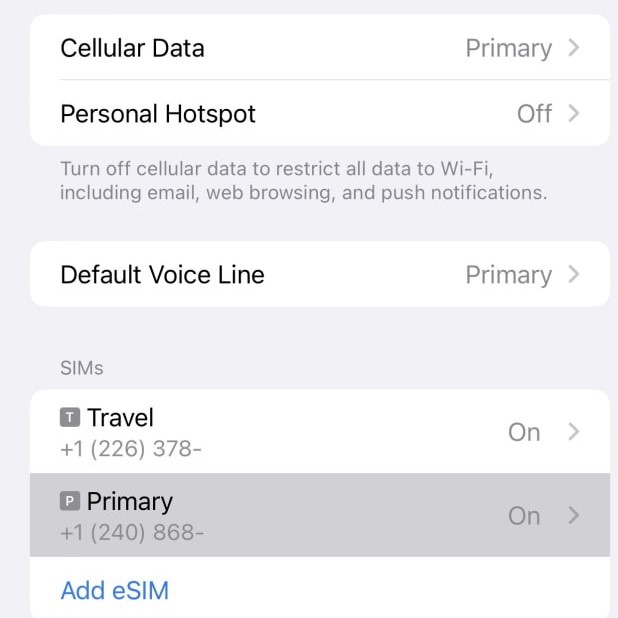
- In the Settings menu, tap on Cellular (or Mobile Data for some regions). This section will display all the cellular plans currently configured on your device, including any active eSIM profiles.
3. Select the eSIM Profile
- Within the Cellular settings, identify the eSIM profile you wish to remove. It will usually be labeled with the name of your carrier.
4. Remove the eSIM
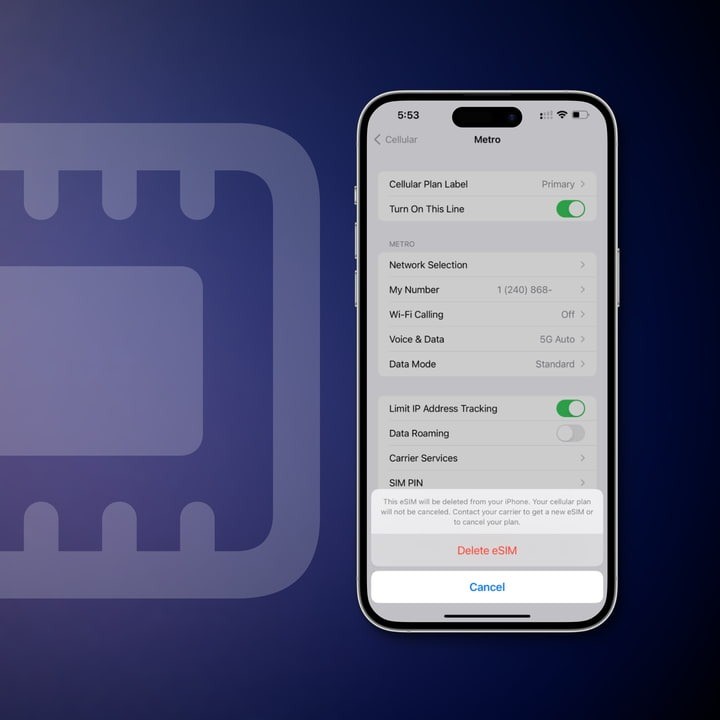
- Tap on the eSIM profile to open its settings. Scroll down until you see the option that says Remove Cellular Plan.
- Tap on Remove Cellular Plan, and a confirmation message will appear, asking if you are sure you wish to proceed.
5. Confirm Removal
- Confirm your choice to remove the plan. This action will delete the eSIM profile from your device, and your iPhone will no longer utilize that cellular plan.
- After the removal is complete, your iPhone may display a message to confirm that the eSIM configuration has remove successfully.
Common Troubleshooting Tips
1. Activation Problems
Sometimes, issues can occur during the eSIM removal process. Here are some tips for troubleshooting:
Software Update
- Importance of Software Updates: Keeping your iPhone’s software up to date is crucial as updates often include bug fixes, security enhancements, and new features that improve overall performance.
- How to Check for Updates:
- Open the Settings app on your iPhone.
- Navigate to General.
- Select Software Update.
- Here, you will see if there are any available updates for your device.
- Benefits of Updating: By regularly updating your iPhone, you can resolve various issues, as many problems address in the latest software versions. This can result in a smoother and more efficient user experience.
Restart Your iPhone
- What Restarting Does: Restarting your iPhone can clear out temporary glitches and refresh the device’s memory, potentially resolving any problems that may have arisen during usage.
- How to Restart:
- For iPhones with Face ID: Press and hold the side button and either volume button until the slider appears, then slide to power off.
- For iPhones with a Home button: Press and hold the top (or side) button until the slider appears, then slide to turn it off.
- After the device is off, wait a few seconds, then press and hold the side button again until the Apple logo appears.
- Benefits of Restarting: Restarting your iPhone can help eliminate minor software issues, improve performance, and resolve connectivity problems, making it a simple yet effective troubleshooting step.
2. Double-Check Carrier Requirements
Each carrier may have specific guidelines for removing eSIM. It’s wise to consult your carrier’s website or customer service for detailed instructions tailored to their services.
Frequently Asked Questions (FAQs)
How to go back from eSIM to normal SIM?
Insert the SIM Card
- Purpose of Inserting the SIM Card: When switching back to a normal SIM card, it is essential to replace your current SIM with a physical one to restore mobile connectivity and access to cellular data.
- Steps to Power Off Your iPhone:
- To ensure a smooth insertion of the SIM card, first turn off your iPhone. This can be done by pressing and holding either the side button and a volume button (for iPhones with Face ID) or by pressing the top (or side) button (for models with a Home button).
- Slide to power off when prompted.
- Locating the SIM Card Tray:
- Find the SIM card tray, which is typically located on the side of your iPhone.
- Use a SIM eject tool or a paperclip to gently insert into the small hole next to the tray, causing it to pop out.
- Inserting the SIM Card:
- Carefully place the physical SIM card into the tray, ensuring that it is oriented correctly.
- Push the tray back into the iPhone until it clicks securely in place.
Activate the SIM
- Turning On Your iPhone: After successfully inserting your normal SIM, turn your iPhone back on by pressing and holding the side button until the Apple logo appears.
- Initial Setup After Insertion: Once your iPhone has powered up, allow it a moment to recognize the new SIM card and establish a connection to the network.
- Accessing Cellular Settings:
- Navigate to the Settings app on your iPhone.
- Select Cellular from the menu options. This section allows you to manage your mobile network settings.
- Selecting Your New SIM for Activation:
- If necessary, choose your new SIM card from the list of available options.
- Follow any on-screen prompts to complete the activation process. This may involve entering a PIN code or confirming your network selection, depending on your carrier.
- Verifying Activation: After adjusting the settings, check the top of your screen for cellular signal bars, which indicate that your new SIM is successfully activated and ready for use.
How to remove activating eSIM?
If you are trying to stop the activation process of an eSIM that is currently being set up, go into Settings > Cellular, tap on the eSIM profile, and select Remove Cellular Plan. This action will cancel the activation.
Can I just delete my eSIM?
You cannot simply delete an eSIM; it must be removed through the settings. Follow the steps provided above to ensure complete removal of the eSIM profile from your device.
How to switch from eSIM to normal iPhone?
Switching from eSIM back to a standard SIM card involves inserting the physical SIM into your iPhone’s SIM slot. After insertion, go to Settings > Cellular, and ensure the physical SIM is selected for use.
Conclusion: Efficiently Managing Your eSIM
In conclusion, understanding how to remove eSIM from iPhone is an essential skill for users who may need to change plans or revert to a traditional SIM card. With eSIM technology becoming more prevalent, knowing how to navigate this system will enhance your mobile experience.
The removal process is straightforward and, by following the steps laid out in this article, you can ensure a smooth transition. Always remember to back up your data and remain informed about your carrier’s requirements for a hassle-free experience.
With the knowledge you’ve gained here, you are now empowered to manage your eSIM settings confidently. This ensures that you can adapt to any change in your mobile connectivity needs, thus maximizing the utility of your iPhone.