

Introduction: How to Change Keyboard Language on Mac
If you use a Mac and often type in different languages, knowing how to change keyboard language is essential. Changing the keyboard language can enhance your typing experience significantly, allowing you to switch between various languages seamlessly. In this comprehensive guide, we will explore the steps required to change the keyboard language on a Mac, ensuring you can easily adapt your settings to meet your specific needs.

Why Change Your Keyboard Language?
Changing your keyboard language provides flexibility and improves global communication. It allows users to type in multiple languages, enhancing productivity and creativity. Whether you are bilingual, learning a new language, or frequently communicating internationally, it can be invaluable.
Benefits of Multi-Language Keyboard Support
- Boosts Multilingual Communication: Helps type easily in different languages. No need for external tools.
- Enhances Language Learning: Supports learning new languages with hands-on practice.
- Improves Workplace Efficiency: Ensures seamless communication for global businesses. Switch effortlessly between languages.
- Facilitates Accurate Typing: Lets you use special characters and symbols for specific languages.
Common Scenarios for Language Change
- Traveling Abroad: Type and communicate in local languages while traveling or studying.
- Work Requirements: Professionals working with international clients often need different keyboard layouts.
- Learning Languages: Students find it easier to type and practice in the language they’re studying.
- Cultural Preservation: Helps people maintain their native languages in a digital environment.
By adapting your keyboard’s settings, you can type more comfortably and meet specific language needs.
Preparing to Change Your Keyboard Language
How to change keyboard language? Changing your keyboard’s language requires proper preparation to ensure a smooth process. Before taking any steps, it is essential to check your system’s current settings and determine the language that best meets your needs.
Checking Current Keyboard Settings
- Locate keyboard settings: Open your device’s settings menu to find the keyboard options.
- Examine default settings: Check the currently installed keyboard language and layout.
- Confirm compatibility: Make sure your device supports additional languages for seamless usage.
- Identify shortcuts: Learn any existing shortcuts for switching languages easily later.
Doing this step ensures that you are aware of your current setup, preventing possible conflicts with new configurations.
Identifying the Language You Need
- Consider multilingual communication: Select the language used in your work or frequent communication.
- Match language with location: Choose the language spoken where you live or travel.
- Determine typing preference: Pick a language that supports specific characters or symbols needed.
- Support for learning goals: Choose the language if you are practicing or studying it.
By identifying the language you need, you streamline the process of adding new options and improve typing accuracy for your tasks or goals.
How to Change Keyboard Language on Windows
How to change keyboard language? Switching the keyboard language on Windows is straightforward. The process involves activating the necessary settings and adding new language options. Follow these steps to make the change seamless.
Changing the Language via Settings
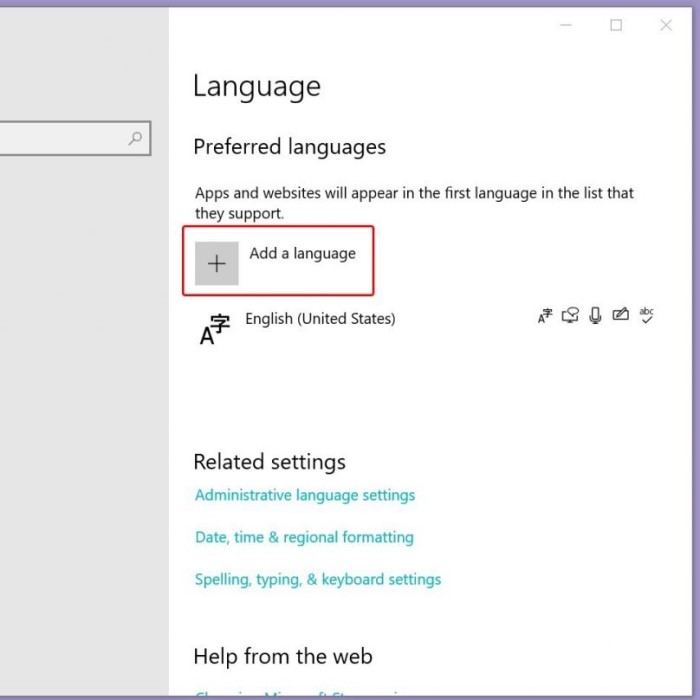
- Open Settings: Click on the Start menu and select “Settings” (gear icon).
- Go to Language Options: Navigate to “Time & Language” and then choose “Language.”
- Check Installed Languages: Make sure your desired language is listed under “Preferred languages.”
- Add a Language if Needed: Click “Add a language,” search for the required one, and install it.
- Set as Default: Select the newly added language and click “Set as default.”
- Test the Language Change: Open any text editor and type to confirm the change.
Adding New Languages and Keyboard Layouts
- Access Keyboard Settings: In “Time & Language,” go to “Keyboard.”
- Add a Keyboard Layout: Click “Add a keyboard” under the current language.
- Choose Your Layout: Select a specific keyboard layout for your preferred language.
- Switch Layouts Easily: Use the language bar or shortcuts to toggle between layouts.
- Customize Shortcuts (Optional): Modify key combinations in “Advanced Keyboard Settings.”
By following these steps, you can effectively enable and manage multiple keyboard languages on Windows. This feature significantly improves typing accuracy and communication across different languages.
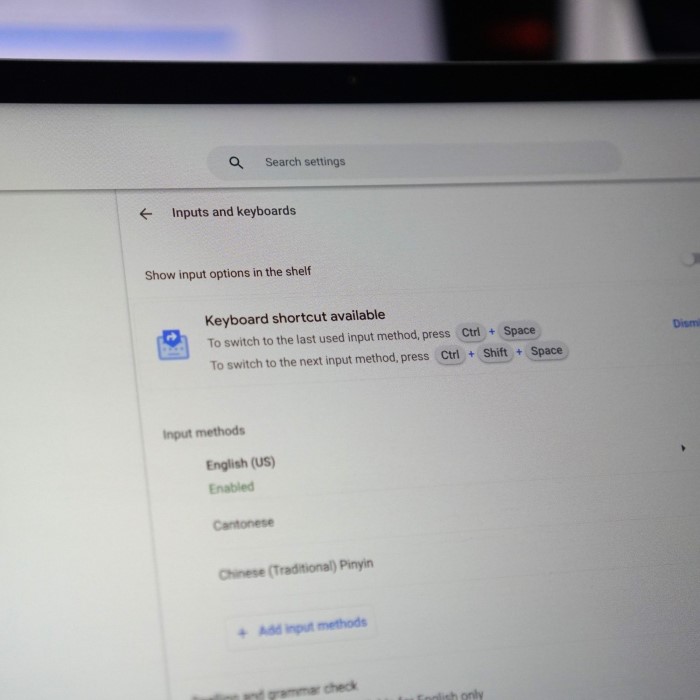
How to Change Keyboard Language on macOS
Changing your keyboard language on macOS is simple and efficient. macOS offers intuitive settings to support multilingual needs. Here’s how you can set up and switch between multiple languages seamlessly.
Setting Up System Preferences for Multiple Languages
- Open System Preferences: Click on the Apple menu and select “System Preferences.”
- Choose Language Options: Select “Keyboard,” then click the “Input Sources” tab.
- Add a New Input Source: Click the “+” button to add a new language or keyboard layout.
- Search and Select a Language: Browse the list or type the language name in the search bar.
- Enable the Input Source: Select your preferred language and click “Add.”
- Reorganize Input Sources (Optional): Drag languages to change the priority order.
This setup allows easy switching and customizes macOS for multilingual environments.
Switching Between Added Languages on macOS
- Use the Input Menu: Click the flag icon in the menu bar to view added languages.
- Switch Languages: Select the desired language from the dropdown list.
- Use Keyboard Shortcuts: Press “Control + Space” or customize shortcuts for quick language toggling.
- Test Your Settings: Open a document and type to confirm the language change.
- Pin Frequent Languages: Keep commonly used languages accessible for faster switching.
By following these steps, macOS users can easily manage multiple keyboard languages. This enhances typing convenience and adaptability for diverse language preferences.
Switching Keyboard Language on Mobile Devices
Changing keyboard language on mobile devices is simple and user-friendly. Both Android and iOS systems provide intuitive settings to facilitate language switching. This guide explains how to adapt your smartphone according to your multilingual needs.
Changing Language on Android
Switching the keyboard language on Android devices is a quick process. Follow these steps:
- Open Settings: Go to your Android device’s Settings menu.
- Navigate to Language Options: Select “System” and tap on “Languages & input.”
- Access Virtual Keyboard Options: Click on “Virtual keyboard” and choose your installed keyboard (e.g., Gboard).
- Add a New Language: Tap “Languages” and click on “Add a language.”
- Select Your Desired Language: Browse the list and select your preferred language.
- Set Keyboard Layout: Choose the layout that suits your typing style.
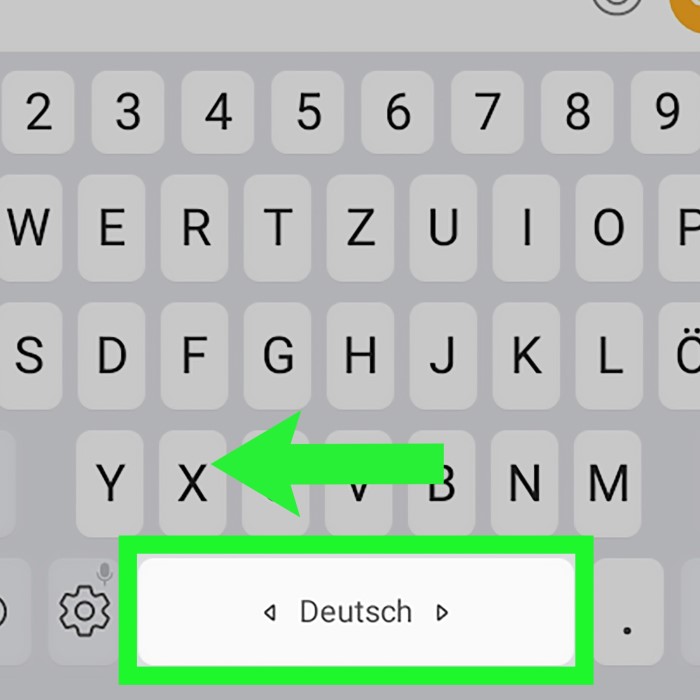
- Switch Languages While Typing: Tap and hold the spacebar or use the globe icon to toggle languages.
These steps will allow seamless typing in multiple languages on your Android device.
Changing Language on iPhone and iPad
iPhone and iPad users can easily switch languages using the following steps:
- Open Keyboard Settings: Go to “Settings,” then tap on “General.”
- Access Keyboard Options: Select “Keyboard” and click on “Keyboards.”
- Add a New Keyboard: Tap “Add New Keyboard” and choose your desired language.
- Enable Language Options: Set the newly added language as an active keyboard.
- Switch Languages During Typing: Tap the globe icon on your keyboard to toggle between installed languages.
- Test Your Settings: Open any app and type to confirm the language change.
By setting up multiple languages on iOS, you can enhance productivity and communication globally.
Keyboard Shortcuts for Language Switching
Using keyboard shortcuts for switching languages saves time and improves typing efficiency. Most operating systems offer pre-set shortcuts and allow you to customize them based on your preference.
Default Shortcuts for Windows and macOS
- Keyboard Shortcuts on Windows:
- Common Shortcut:
Alt + Shiftto switch between installed languages quickly. - Alternative Shortcut:
Windows Key + Spacebaroffers a more seamless toggle.
- Common Shortcut:
- Keyboard Shortcuts on macOS:
- Default Shortcut:
Control + Spaceswitches between input languages efficiently. - Additional Option: Customize the shortcut in “System Preferences” under “Keyboard” > “Shortcuts.”
- Default Shortcut:
Learning default shortcuts can significantly speed up the transition between different languages.
Customizing Keyboard Shortcuts for Easier Access
Customizing shortcuts provides better control when switching languages frequently. Here are the steps for Windows and macOS:
- Customizing on Windows:
- Open “Settings” and go to “Time & Language.”
- Navigate to “Language” > “Input” and choose “Advanced keyboard settings.”
- Click on “Language bar options” to set up custom shortcuts.
- Customizing on macOS:
- Open “System Preferences” and click “Keyboard.”
- Navigate to “Shortcuts” and select “Input Sources.”
- Modify shortcuts for faster access according to your preference.
By setting up personalized shortcuts, you streamline language switching, especially in multitasking environments.
Troubleshooting Keyboard Language Issues
Switching keyboard languages can sometimes lead to unexpected problems. Identifying and resolving these issues ensures smooth typing and communication. Below, we will address common problems and provide actionable solutions.
Common Problems and Their Solutions
- Keyboard Layout Isn’t Switching:
- Problem: Pressing shortcuts doesn’t switch between languages.
- Solution: Check if the languages are properly added in the settings. Restart your device.
- Incorrect Languages Displayed:
- Problem: The keyboard displays a different language than intended.
- Solution: Recheck your “Preferred languages” list and set the correct default option.
- Shortcut Conflicts:
- Problem: Pre-set shortcuts conflict with other app hotkeys.
- Solution: Customize shortcuts through advanced keyboard settings in your system.
- Special Characters Not Working:
- Problem: Unable to type language-specific symbols or accents.
- Solution: Use the on-screen keyboard to validate character placement and layout.
- Keyboard Lag When Switching:
- Problem: Switching languages leads to keyboard slowdowns.
- Solution: Update your operating system and keyboard apps to their latest versions.
By troubleshooting these common problems, you ensure a consistent typing experience across languages.
Ensuring Accurate Character Mapping
Precise character mapping ensures smooth typing in each language. These steps can help avoid misaligned keys:
- Pick the Correct Keyboard Layout:
- Ensure your selected layout matches your language’s standard.
- Use Online Tools for Reference:
- Refer to virtual keyboards to understand unfamiliar layouts.
- Check Installed Fonts:
- Ensure the necessary fonts for specific languages are installed.
- Test with Multilingual Documents:
- Type in different languages to ensure characters appear correctly.
- Update or Reinstall Drivers:
- For hardware keyboards, outdated drivers may cause mismapping. Keep them updated.
By addressing these mapping issues, users avoid errors and improve typing efficiency in any selected language.
Tips for Easier Keyboard Language Management
Managing multiple keyboard languages becomes simpler with the right practices and tools. These tips will help you adjust and enhance your multilingual typing experience.
Using Virtual Keyboards or Online Tools
- Explore Virtual Keyboard Options:
- Begin by navigating to your system settings to discover the range of virtual keyboard options available on your device.
- Consider checking online resources or platforms that provide various virtual keyboard layouts, which can offer additional languages or custom designs tailored to your typing preferences.
- Test Language Layouts:
- Before making any final adjustments to your keyboard settings, take the time to experiment with different language layouts.
- This will allow you to assess how each layout works in practice and ensure that they align with your specific typing requirements and comfort level.
- Use Online Transliteration Tools:
- To facilitate typing in different scripts, leverage online transliteration tools that convert your typed text into the desired language script.
- These tools are especially useful for languages that utilize different alphabets, enabling you to communicate effectively without needing to learn a new typing system.
- Check Character Placement:
- Utilize virtual keyboards to familiarize yourself with the placement of symbols, accents, and other special characters that may be difficult to locate in unfamiliar layouts.
- This exploration can enhance your typing accuracy and speed by helping you to memorize their positions as you practice.
- Practice On-the-Go:
- For individuals who frequently need to type in different languages while away from their primary devices, opt for mobile-friendly online keyboards.
- These tools provide a convenient solution for quick language checks and efficient typing, making it easier to communicate or work from anywhere.
Virtual keyboards and online tools are great for learning and experimenting with new layouts.
Practicing Typing in a New Language
- Write Frequently: Draft emails, notes, or text messages in the new language.
- Use Language-Learning Apps: Some apps help you practice typing while improving language skills.
- Enable Autocorrect Features: Turn on autocorrect to learn correct spelling and identify common errors.
- Practice Daily: Regular typing builds confidence and improves language fluency over time.
- Set Goals: Aim to type a specific number of words daily in the new language.
With consistent practice, you’ll adapt quickly to multilingual typing and improve your proficiency.
Conclusion: The Benefits of Changing Your Keyboard Language
In conclusion, knowing how to change keyboard language on your Mac is a valuable skill for anyone looking to enhance their typing experience. This ability allows you to communicate effectively in multiple languages, adapt to various keyboard layouts, and facilitate language learning. By following the steps outlined in this article, you can easily manage your keyboard language settings and improve your productivity.
Regularly practicing typing in different languages will also strengthen your proficiency, paving the way for better understanding and use of those languages. Embrace the possibilities of multilingual typing, and enjoy the benefits that come with successfully changing your keyboard language.
 Griley