

Introduction
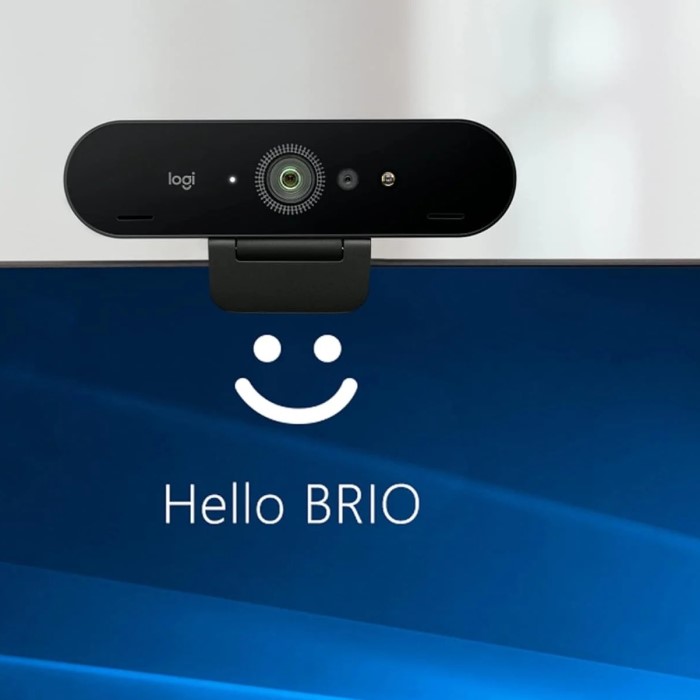
The Logitech Brio webcam has become a staple for streamers, content creators, and remote workers. As the demand for high-quality video streaming continues to grow, especially in the age of virtual meetings and online content sharing, having the right equipment is vital. The Logitech Brio webcam stands out as one of the top choices among users seeking professional-grade video quality without the need for complicated setups. This article serves as the ultimate guide to understanding the Logitech Brio webcam, outlining its features, setup processes, and tips on maximizing your streaming quality in 2025.
Key Features
Understanding the features of the Logitech Brio webcam can assist you in making an informed decision.
1. 4K Ultra HD Video Quality
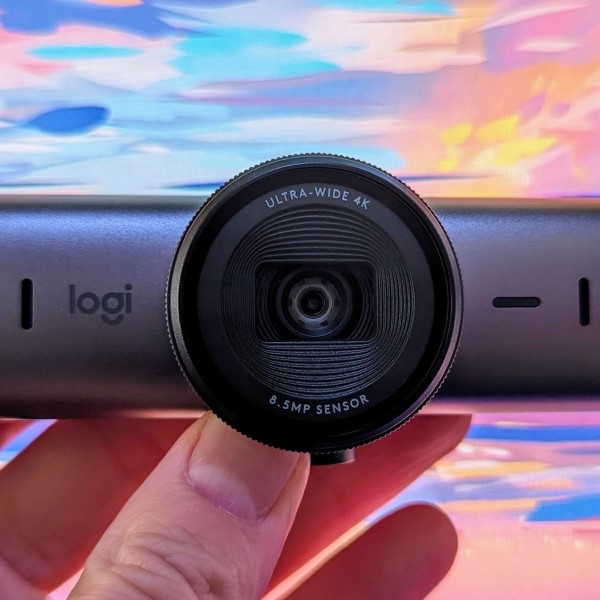
One of the standout features of the Logitech Brio webcam is its ability to capture video in 4K Ultra HD. This resolution provides stunning clarity, allowing streamers to deliver high-definition content.
- Benefits of 4K Quality: The clarity of 4K allows viewers to observe even the finest details in your video feed. This level of quality can significantly improve the overall viewer experience, especially in gaming and professional streams.
- Versatility: The Logitech Brio supports multiple resolutions, including 1080p and 720p, which can be adjusted based on your streaming platform and bandwidth availability. This versatility makes it suitable for various applications, from casual video calls to professional broadcasts.
2. HDR and Auto Light Correction
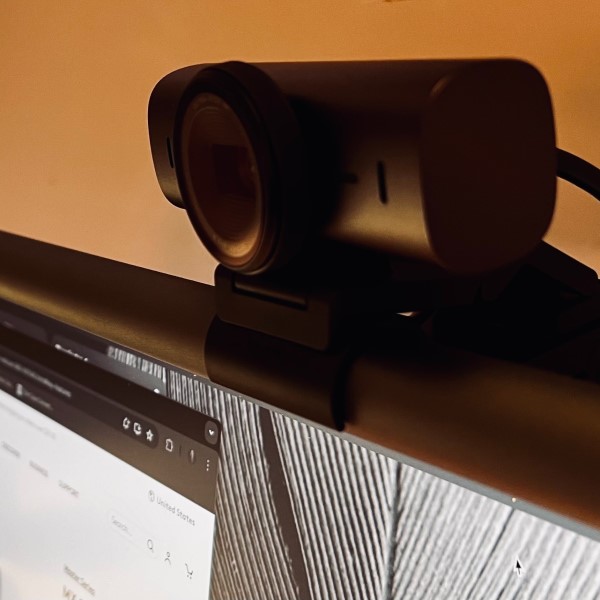
Another impressive feature is the High Dynamic Range (HDR) capability combined with auto light correction. This technology enhances the overall video quality significantly.
- Adaptive Lighting: Whether you are in a dimly lit room or well-lit environment, the HDR adjusts automatically. This ensures that your video feed remains clear and vibrant regardless of your surroundings’ lighting conditions.
- Improved Visibility: By enhancing contrast and brightness, HDR makes colors pop and details visible, which is essential for creating engaging content that captivates audiences.
3. Fast Autofocus and 90-Degree Field of View
The Logitech Brio is equipped with fast autofocus and a wide field of view, making it suitable for different streaming scenarios.
- Fast Autofocus: This feature ensures that the webcam quickly adjusts to keep users in sharp focus, whether they are sitting still or moving around during a stream.
- Wide Field of View: With a field of view of up to 90 degrees, this webcam supports group settings, allowing multiple users to fit within the frame. This is particularly beneficial for collaborative streaming sessions or conferences.
Setting Up Your Logitech Brio Webcam
Installing and setting up the Logitech Brio webcam is straightforward. Below are steps to ensure proper configuration for optimal use.
1. Unboxing and Initial Setup
Start by unboxing your Logitech Brio webcam and inspecting the included components, which typically include:
- Webcam: The Brio unit itself.
- USB Cable: Usually a USB 3.0 cable for high-speed data transmission.
- Documentation: Quick-start guide and warranty information.
Installation Steps
Connect the Webcam
- Connecting to Your Computer: Begin by locating the USB cable provided with your Logitech Brio webcam. To ensure a successful connection, take the USB end of the cable and plug it into an available USB port on your computer.
- Optimal USB Compatibility: The Logitech Brio is designed to support USB 3.0 connections, which offer faster data transfer rates compared to USB 2.0. When choosing a USB port, always opt for a USB 3.0 port if available. This choice will enhance video quality and decrease latency, ensuring a smoother streaming experience.
- Verifying the Connection: After plugging in the webcam, it’s a good idea to check for any on-screen prompts indicating that the camera is recognized by your operating system. Most operating systems will automatically install the necessary drivers without requiring any additional setup.
Positioning the Camera
- Optimal Placement for Best Results: Positioning the Logitech Brio webcam correctly is essential for achieving the best video quality. The webcam should ideally be placed on top of your monitor or laptop screen, aligning it with your eye level. This positioning helps create natural eye contact during video calls or streaming sessions.
- Adjustable Clip Design: The Logitech Brio features an adjustable clip that can fit a variety of screen sizes. This clip allows you to securely attach the webcam to different monitors, from thin bezels on laptops to thicker frames on desktop monitors.
- Adjusting the Angle: Once the webcam is attached, ensure that it is angled correctly. Tilt the webcam slightly downward or upward if necessary to capture your face clearly and improve the overall framing of your shot.
Download Necessary Software
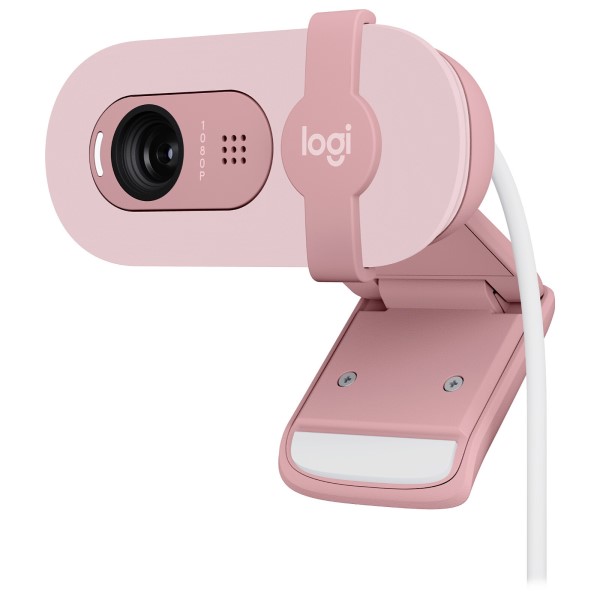
- Utilizing the Webcam’s Full Potential: While the Logitech Brio can function with most standard applications such as Zoom and Skype, downloading Logitech’s Capture software can significantly enhance your experience. The software provides additional features and settings that improve video quality and functionality.
- Access to Advanced Settings: By downloading and installing Logitech Capture, you gain access to advanced camera settings. This software allows you to customize image adjustments, such as brightness, contrast, and saturation, ensuring you achieve the desired look in your video streams.
- Video Recording Capabilities: Additionally, Logitech Capture lets you record high-quality videos directly from the webcam, offering options for multiple video sources and split-screen functionality. This is particularly useful for content creators and streamers looking to produce professional-grade video.
- Easy Installation Process: To get started, visit the Logitech website to download Capture software. Follow the on-screen instructions to install it on your computer. Once installed, open the program and select the Logitech Brio as your camera source to begin customizing your settings.
2. Configuring Camera Settings
Once connected, it is essential to ensure that the settings are configured to suit your needs.
- Adjust Video Resolution: Open the settings in your preferred streaming application (like OBS Studio or Zoom) and select the Logitech Brio as your video source. Adjust the resolution settings as needed.
- Enhancing Image Quality: Utilize Logitech’s software to access advanced settings. Experiment with brightness, contrast, and other adjustments to achieve the desired image quality.
3. Testing Your Setup
Conduct a test stream or video call to ensure everything is functioning correctly.
- Quality Check: Perform a test recording or a call with a friend to review audio and visual quality.
- Microphone Setup: If you are using the integrated microphone, ensure it’s enabled. However, many streamers opt for external microphones for higher audio fidelity.
Optimizing Your Streaming with Logitech Brio
To fully utilize the capabilities of your Logitech Brio webcam, consider the following optimization tips:
1. Perfecting Your Lighting
Lighting is critical for achieving professional-quality video.
- Natural Light: Whenever possible, position yourself in front of natural light sources, which can enhance your video without drastic adjustments.
- Artificial Lighting: If natural light is not sufficient, consider investing in softbox lights or ring lights.
2. Background Setup
A clean and clutter-free background can enhance your professional appearance, keeping viewers focused on you.
- Digital Backgrounds: If you want to avoid showing your actual background, explore using virtual backgrounds or green screens, which can be set up conveniently with the help of various streaming software.
3. Engaging Yourself with Viewers
Interaction is crucial to engaging streams. Utilize the camera’s capabilities to present yourself clearly.
- Framing: Position yourself centrally in the frame and maintain an appropriate distance to ensure your facial expressions and gestures are visible.
- Eye Contact: Look directly into the camera when speaking. This approach creates a connection with your audience, making them feel more engaged.
Common Issues
While the Logitech Brio webcam is highly reliable, users might encounter issues. Here are common problems and their solutions:
1. Lagging or Choppy Video
If you experience choppy video during streams, consider the following:
- Check Internet Speed: Slow internet speeds may cause lag. Run a speed test to ensure you have sufficient bandwidth.
- Adjust Video Quality: Lower the resolution settings in your streaming software if you notice performance issues.
2. No Audio
When audio is not working, ensure the microphone settings are correctly configured:
- Select the Right Device: In your streaming software, verify that the Logitech Brio’s microphone is selected as the input device.
- Check System Settings: Ensure your operating system recognizes the microphone input and that the volume levels are adjusted appropriately.
3. Inconsistent Focus
If the camera fails to maintain focus:
- Clean the Lens: Dust or fingerprints on the lens can impact clarity. Use a microfiber cloth to clean the lens gently.
- Adjust Focus Settings: If necessary, tweak the focus settings in the Logitech Capture software or your streaming application.
FAQs
What makes the Logitech Brio better than other webcams?
The Logitech Brio stands out due to its 4K Ultra HD video quality, HDR support, and fast autofocus. These features ensure both clarity and professional-grade performances suitable for streaming and video calls.
Is the Logitech Brio compatible with all video conferencing software?
Yes, the Logitech Brio is compatible with most popular video conferencing software, including Zoom, Skype, and Microsoft Teams.
Can I use the Logitech Brio for live streaming on platforms like Twitch?
Absolutely! The Logitech Brio is an excellent choice for live streaming on platforms such as Twitch, thanks to its high-resolution video quality and adjustable settings.
How do I clean my Logitech Brio webcam?
To clean your Logitech Brio, gently wipe the lens using a microfiber cloth to avoid scratching. Avoid using harsh chemicals, and ensure the webcam is unplugged during cleaning.
Conclusion: Maximizing Your Logitech Brio Experience
Understanding how to utilize the Logitech Brio webcam can significantly enhance your streaming and video conferencing experiences. By following the guidelines provided in this ultimate guide, you can take full advantage of the device’s features to create high-quality content.
Whether you’re a seasoned streamer or new to the world of online content creation, the Logitech Brio is designed to meet your needs, offering impressive video quality and versatile features. With proper setup and optimization, you can ensure engaging and professional-looking streams or calls that capture your audience’s attention. Embrace the power of the Logitech Brio webcam and elevate your streaming game in 2025!