
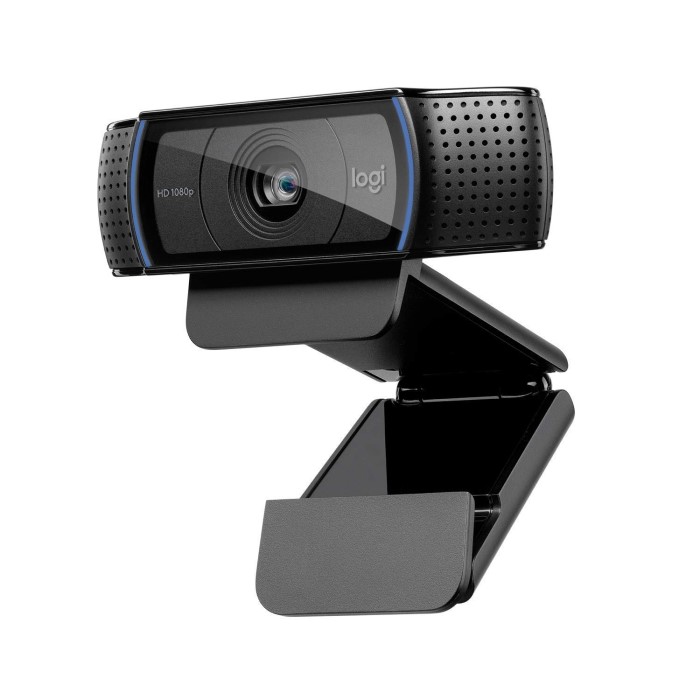
Introduction to the C920 Webcam
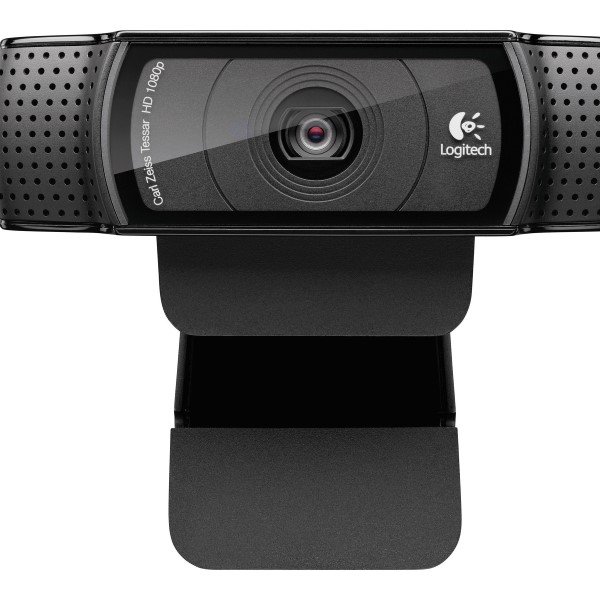
In today’s world, where remote work and virtual communication have become the norms, having a reliable webcam is essential. The C920 webcam, manufactured by Logitech, has emerged as one of the go-to choices for professionals and content creators alike. It combines cutting-edge technology with user-friendly features to create a product that meets the demands of streaming, video conferencing, and content creation. Understanding what makes the C920 webcam ideal for professional use can help you elevate the quality of your videos and virtual meetings.
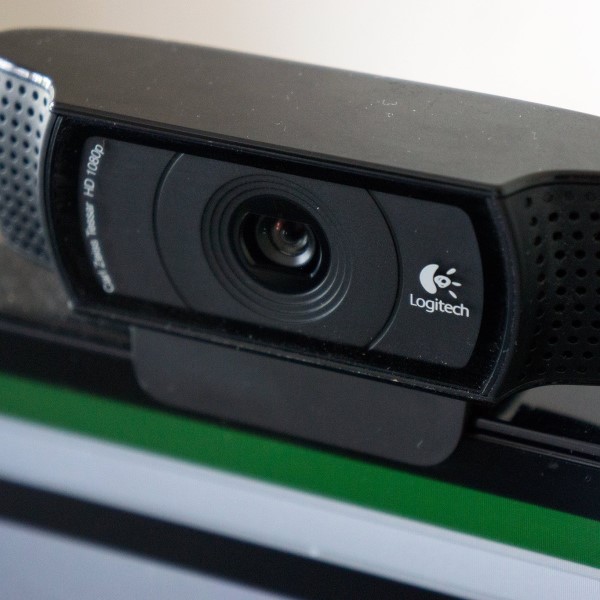
As we explore the various aspects of the C920 webcam, we will cover its standout features, setup processes, benefits over competitors, and why it continues to be a top choice for professionals in 2025.
Key Features of the C920 Webcam
1. High-Definition Video Quality
One of the most significant advantages of the C920 webcam is its exceptional video quality.
- 1080p Resolution: The C920 captures video at Full HD 1080p resolution at 30 frames per second. This high-definition video results in sharp and clear images, making it perfect for professional streaming, online meetings, and recordings.
- TrueLife Technology: The C920 is equipped with Logitech’s TrueLife technology, which enhances the color and brightness. This feature ensures that your video output appears vibrant and professional, even in suboptimal lighting conditions.
2. Built-in Dual Microphones
Audio quality is just as crucial as video quality in professional settings.
- Stereo Audio Recording: The C920 webcam features built-in dual stereo microphones that deliver clear, natural sound. This helps ensure that your voice is heard distinctly during conference calls or streams, minimizing audio-related distractions.
- Noise Reduction: The microphones are designed to reduce background noise, enhancing the overall audio experience. This is particularly useful in busy office environments where external sounds might interfere with clarity.
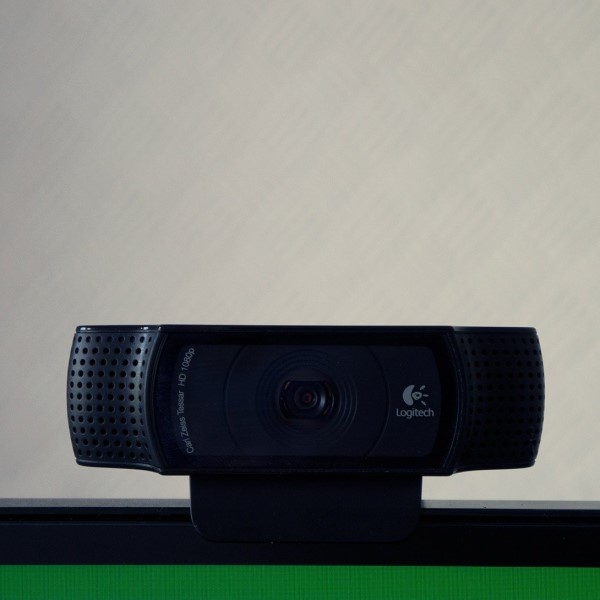
3. Compression and Frame Rate Options
Flexibility in video compression and frame rates can significantly affect your streaming quality.
- H.264 Video Compression: The C920 webcam utilizes H.264 video compression technology, which allows for high-quality video while minimizing bandwidth usage. This feature is essential for streaming platforms that impose bandwidth limitations.
- Variable Frame Rates: The C920 offers the capability to adjust frame rates based on your needs. For instance, if you prioritize smoother movement in your videos, you can select higher frame rates, which is especially useful in gaming streams.
Easy Setup and Compatibility
1. Plug-and-Play Design
Setting up the C920 webcam is incredibly simple, which is largely due to its plug-and-play functionality.
- USB Compatibility: You can easily connect the C920 to your computer using a standard USB 2.0 or 3.0 port. Once connected, the system recognizes the device automatically, allowing you to start streaming or conferencing without complex configurations.
- Compatibility with Operating Systems: The C920 is compatible with various operating systems, including Windows, macOS, and Linux, making it a versatile option for different users.
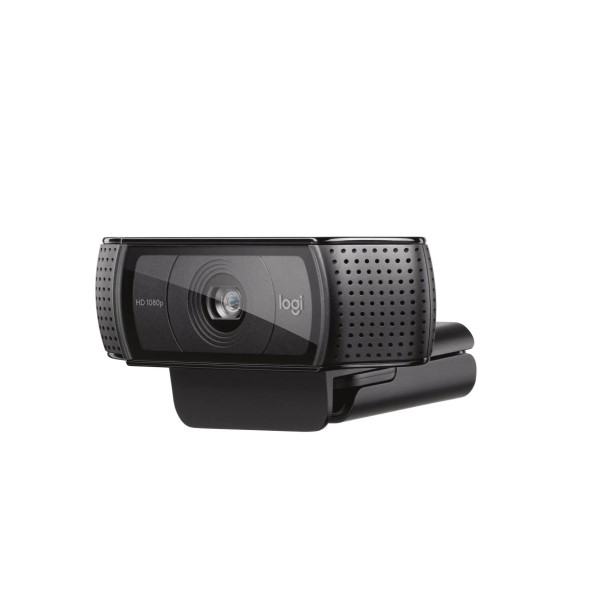
2. Integration with Streaming Software
The C920 works seamlessly with popular streaming and video conferencing software.
- Supported Software: Applications like Zoom, Skype, OBS Studio, and Microsoft Teams readily recognize the C920 webcam, allowing for an efficient setup without additional software.
- Logitech Capture Software: To maximize your webcam’s potential, downloading Logitech’s Capture software can provide additional features like customizable settings for video resolution, brightness adjustments, and video frame enhancements.
Why the C920 Stands Out Among Competitors
1. Comparison with Other Models
While there are numerous webcams available, the C920 consistently outperforms many competitors in various aspects.
- C920 vs. C922 and C925e: Compared to newer models like the C922, which offers background replacement features and dynamic light correction, the C920 remains competitive due to its balance of quality and affordability. Meanwhile, the C925e is designed more for business use rather than home streaming.
- User Preferences: Many professionals prefer the C920 for its reliability and performance, often citing it as their webcam of choice over both older and newer models.
2. Value for Money
The pricing of the C920 makes it highly attractive in comparison.
- Affordable Option: Given its advanced features, including HD video quality and dual microphones, the C920 provides excellent value for money. Users can achieve professional-grade video conferencing without breaking the bank.
- Long-term Investment: Because the C920 is widely regarded as a reliable investment, many professionals choose it knowing it will meet their needs for years, reducing the need for upgrades.
Optimizing Your Streaming Experience with the C920
1. Perfecting Your Setup
To achieve the best results from your C920 webcam, consider optimizing your workspace.
- Lighting Conditions: Proper lighting is essential for achieving the best video quality. Utilize natural light or invest in softbox lights or ring lights to illuminate your face and reduce harsh shadows.
- Background Setup: Ensure your background is tidy and free from distractions. If necessary, consider using a virtual background feature during online meetings to maintain a professional appearance.
2. Testing Audio and Video
Conducting tests is crucial before going live or joining a meeting.
Record a Test Video
- Utilizing Logitech Capture Software: Start by launching the Logitech Capture software on your computer. This user-friendly application is designed to provide enhanced features and settings for your Logitech C920 webcam, allowing you to maximize its potential. If you haven’t installed it yet, download it from the Logitech website and follow the installation instructions.
- Creating a Short Video: Once the software is open, look for the record button. Click it to begin capturing a short test video. Aim for a length of around 30 seconds to 2 minutes. This timeframe allows you to adequately evaluate important factors such as video quality and audio clarity without consuming too much storage.
- Evaluating Video Quality: After recording, take the time to view the video playback. Pay attention to the overall clarity and sharpness of the image. Check for any blurriness, pixelation, or artifacts that might indicate a problem. Consider lighting conditions during this test; natural light or properly positioned artificial lights can greatly enhance your video quality.
- Assessing Framing and Composition: As you watch the playback, observe the framing of your shot. Ensure that your face is centered in the video and adequately fills the frame. Adjust your position relative to the camera if necessary, so that your head and shoulders are fully visible. Proper framing is crucial for viewer engagement and professionalism.
- Checking Audio Clarity: Listen carefully to the audio in your test video. Ensure that your voice is clear and easy to understand without any distortion. This is important for effective communication during live streams or video calls. If you hear background noise or other interruptions, note this, as it may require further adjustments.
Adjust Settings as Needed
- Identifying Issues: If you encounter any problems during the playback, such as inconsistent brightness, poor contrast, or unclear sound, it’s important to address these issues promptly to improve your video quality. Recognizing these issues early on can help establish a more professional presence in your streaming or recording endeavors.
- Accessing Software Settings: Return to the Logitech Capture software to make adjustments. Look for the settings or preferences menu, which typically features options for managing video and audio quality. The software provides various sliders and controls that allow you to modify settings like brightness, contrast, saturation, and audio levels.
- Adjusting Brightness and Contrast: To enhance visibility, you can adjust the brightness and contrast settings. Increasing brightness may help if your video appears dark, while adjusting contrast can help define edges and details better. Experiment with these settings until you achieve a balanced, natural look.
- Fine-Tuning Audio Settings: If you noticed any clarity issues with your sound, revisit audio settings within the software. Adjust the microphone gain if your voice is too quiet or too loud. Additionally, if background noise was an issue, consider using a noise suppression feature if available or repositioning your webcam to minimize ambient sound.
- Re-Test After Adjustments: After modifying the settings, record another short test video to see if the changes improved quality. It’s a good practice to compare the new recording with the previous one to judge the effectiveness of your adjustments. Continue experimenting with settings until you reach the desired level of video and audio quality.
FAQs About the C920 Webcam
Is the C920 or C922 better?
The C922 has additional features like background removal, but the C920 offers excellent quality for a lower price. Your choice should depend on your specific needs.
Is the Logitech C920 good?
Yes, the Logitech C920 is highly regarded for its video quality and audio performance, making it suitable for a variety of professional uses.
Which is better, C920 or C920S?
The C920S includes a privacy shutter, while the C920 does not. If privacy is a priority, the C920S may be the better choice for you.
Is the Logitech C920 compatible with PC?
Yes, the Logitech C920 is compatible with Windows PCs, macOS, and many Linux distributions, so it works well across different systems.
Conclusion: The C920 Webcam as a Professional Choice
In conclusion, the C920 webcam stands out as an exceptional choice for professionals seeking high-quality video and audio at an affordable price. With its combination of features, ease of setup, and competitive pricing, it continues to be a top choice in 2025.
Whether you’re streaming, conferencing, or creating content, the C920 webcam offers reliable performance that meets the needs of diverse users. Investing in this webcam can significantly enhance your online presence and contribute to more professional interactions. By optimizing your setup and utilizing its features effectively, you can make the most out of your Logitech C920 experience and deliver engaging content to your audience!