

Introduction: Why a Lit-Up Keyboard Matters
In the modern digital age, a keyboard that lights up is more than just a fancy accessory; it can drastically enhance your user experience. Whether you are a gamer who thrives in low-light conditions or a professional who frequently works late hours, knowing how to make keyboard light up is incredibly useful. Backlit keyboards not only provide better visibility in the dark but also add a stylish element to your workspace. In this guide, we will explore the various methods to turn on your keyboard’s lighting features, delve into troubleshooting common issues, and answer frequently asked questions about keyboard backlighting.

Understanding Your Keyboard Features
How to make keyboard light up? Before diving into the specifics of activating keyboard lighting, it’s essential to recognize the differences between keyboard types and their lighting features:
Mechanical Keyboards
Mechanical keyboards are preferred by many gamers and typing enthusiasts due to their tactile feel and durability.
- Backlighting Options: These keyboards often come with RGB (Red, Green, Blue) lighting, allowing users to customize colors and effects through dedicated software.
- Custom Controls: Each key may have independent lighting settings, enabling users to program specific colors for the keys they use most.
Membrane Keyboards
Membrane keyboards are generally quieter but less durable than mechanical ones.
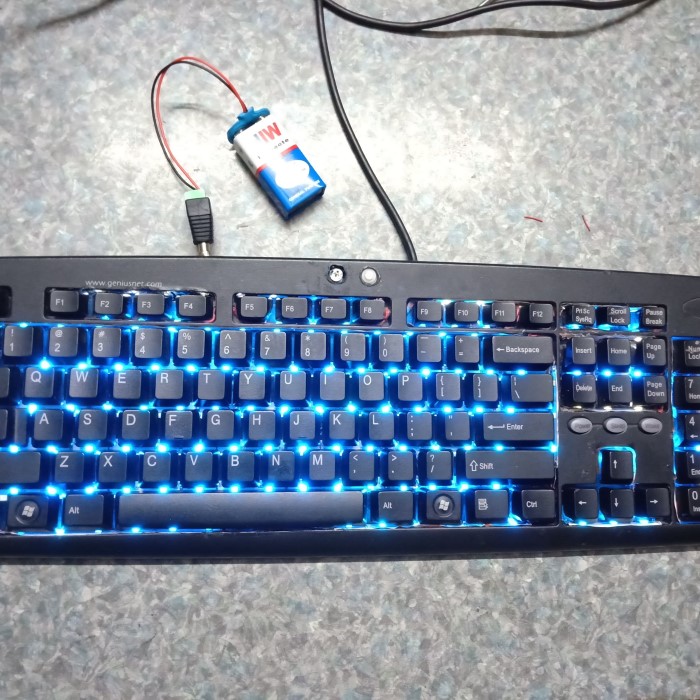
- Limited Lighting: Most membrane keyboards offer basic backlighting options, often only in single colors like white or blue. Some might have adjustable brightness, but options are limited.
- Integrated Lighting: These keyboards may light up as soon as you start typing and can include features for specific lighting patterns.
Laptop Keyboards
Most laptops come with built-in keyboard backlighting, which is designed for convenience.
- Automatic Adjustments: Many laptop keyboards automatically adjust their backlighting based on ambient light conditions, enhancing usability.
- Function Key Control: Typically, laptops provide dedicated function keys that allow users to control the brightness and toggle the keyboard backlight on or off.
How to Make Your Keyboard Light Up
Now that you understand the types of keyboards, let’s delve into the methods of making your keyboard light up, including shortcuts and software adjustments.
Method 1: Using Keyboard Shortcuts
Most keyboards come with specific shortcut keys to enable or adjust the backlighting:
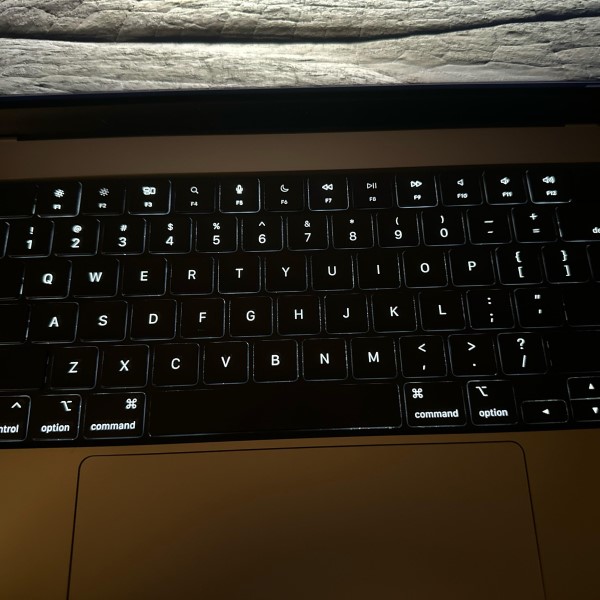
- Identify the Backlight Key: Look for a key on your keyboard with a lighting symbol, often located on the function row (F1 to F12). For example, it might be represented by a small light bulb or a keyboard icon.
- Press the Shortcut: Common combinations include:
- FN + F3 or FN + F4: These keys often control brightness levels and toggle the backlight on.
- FN + Spacebar: Some keyboards use this combination to activate backlighting.
- Cycle Through Settings: Pressing the backlight key repeatedly may cycle through different brightness levels, turning it off, dimming it, and brightening it.
Benefits: Using shortcuts is quick and doesn’t require navigating any menus, making it an efficient method to adjust your keyboard lighting on the fly.
Method 2: Configuration via Software
For advanced lighting options and complete customization, explore the manufacturer-specific software:
- Download Required Software: Brands like Razer, Logitech, and Corsair provide dedicated software for keyboard customization (e.g., Razer Synapse, Logitech G HUB).
- Install and Open the Software: Once the software is installed, launch it to access lighting controls.
- Access Lighting Settings: Look for a ‘Lighting’ or ‘Backlighting’ section within the software. Here, you can customize colors, effects, and brightness settings.
- Select Your Preferred Options: Programs may offer:
- Static Colors: Choose a single color to illuminate your keyboard.
- Wave Effects: Add effects such as color cycling or pulsating lights.
- Profile Management: Allow the creation of profiles specific to certain games or applications, enabling different lighting settings depending on the task.
Method 3: Using Device Settings
Laptops and some external keyboards allow users to adjust lighting through system settings:
- Windows Settings:
- Windows 10/11: Go to “Settings” > “Devices” > “Typing”. Here, you may find options to adjust backlight settings if your hardware supports it.
- Mac Users:
- System Preferences: Open “System Preferences” > “Keyboard”. Ensure that “Adjust keyboard brightness in low light” is enabled. You can also manually change levels using the brightness keys.
- Power Settings: On laptops, consider checking your power settings. Backlighting may dim automatically to conserve battery life, which can adjust in the power management settings.
Troubleshooting Common Issues
How to make keyboard light up? If your keyboard light is not functioning as expected, there are several steps you can take to troubleshoot the issue:
Check Keyboard Connections
- Verify Connection Type: For external keyboards, confirm whether the connection is through USB or Bluetooth.
- Test Different Ports: If you are using a USB keyboard, try connecting it to a different USB port on your computer. Sometimes, certain ports may malfunction, and switching ports can help identify the issue.
- Check Wireless Connections: For Bluetooth keyboards, check that the keyboard is paired with your device. Go to your device’s Bluetooth settings and ensure that the keyboard appears in the list of connected devices. Re-pair the device if necessary.
- Laptop Keyboard Checks: If you are using a laptop, verify that the internal keyboard is enabled. Some laptops have function keys that can disable the keyboard; check for any corresponding key with a keyboard icon.
Restart Your Device
- Simple Fix: A quick restart is often the first step in troubleshooting all kinds of computer issues. It clears the temporary memory and stops any background processes that might be causing glitches with the keyboard.
- How to Restart: To restart effectively, save any ongoing work to prevent losing data. Click on the Start menu (for Windows) or Apple menu (for Mac) and select ‘Restart’ from the options. This action ensures that all programs are closed cleanly.
- Post-Restart Check: After your device has restarted, check the keyboard functionality. Validate whether the lighting features are now operational. If the problem persists, additional troubleshooting steps may be necessary.
Reinstall Drivers
- Identify Driver Issues: Sometimes, keyboard lighting issues arise due to outdated or corrupted drivers. Reinstalling these drivers can solve functionality problems related to the keyboard.
- Access Device Manager: On Windows, right-click the Start button and select “Device Manager.” This utility provides a list of all hardware components on your system.
- Locate the Keyboard: In Device Manager, find the “Keyboards” category. Expand it to see the list of connected keyboards. Right-click on the keyboard you wish to troubleshoot.
- Uninstall the Driver: Choose the “Uninstall device” option from the context menu. Confirm any prompts that appear. This process removes the current driver.
- Automatic Reinstallation: Restart your computer. Upon restarting, Windows should automatically detect the keyboard and reinstall the necessary drivers. This process can resolve various issues related to keyboard functionality.
Consult Manufacturer’s Support
- Reference User Manual: Always check the user manual included with your keyboard or laptop. It often contains valuable information specific to your model regarding keyboard functionalities and troubleshooting processes.
- Visit the Manufacturer’s Website: Go to the official website of the keyboard manufacturer. Most companies provide downloadable manuals, FAQs, and troubleshooting guides tailored to specific models.
- Contact Customer Support: If standard troubleshooting steps don’t resolve the issue, consider reaching out to customer support. Most manufacturers have dedicated support teams that can assist with technical problems.
- Forums and Community Support: Online forums and communities can be valuable resources for troubleshooting. Often, other users have experienced similar issues and can offer solutions or advice based on their experiences.
Frequently Asked Questions (FAQs)
How do I turn the light on my keyboard?
To turn the light on your keyboard, use the designated keyboard shortcut (often FN + a function key) or adjust the settings in the specific software provided by your keyboard manufacturer.
What is the shortcut key for keyboard light?
The shortcut key varies by brand, with common combinations being FN + F3 or FN + F4. Refer to your keyboard’s manual for the exact key combination to activate the backlight.
How to make a keyboard light up constantly?
To make your keyboard light up constantly, access your keyboard’s software settings and set the lighting mode to static or constant. Deactivate any timeouts or automatic shut-off features that might turn the lights off after inactivity.
Does my PC have keyboard light?
Most modern laptops come with built-in keyboard lighting. To check, look for a light symbol on the keyboard or consult the manufacturer’s specifications. For external keyboards, check the connectivity and features listed by the manufacturer.
Conclusion: Elevate Your Typing Experience
Understanding how to make keyboard light up enhances not only your typing experience but also improves functionality and aesthetics. Whether through keyboard shortcuts, software settings, or system preferences, these methods provide simple pathways to illuminating your workspace effectively.
By regularly updating your software and maintaining your workspace, you’ll ensure that your keyboard remains an asset, boosting productivity and enjoyment while typing. Embrace these techniques, and let your keyboard shine as a vibrant part of your computing experience!
With these comprehensive insights and guides, you’re equipped to customize your keyboard backlighting to not only fit your functional needs but also reflect your personal style. Whether gaming, working, or simply browsing, a light-up keyboard makes a world of difference!