
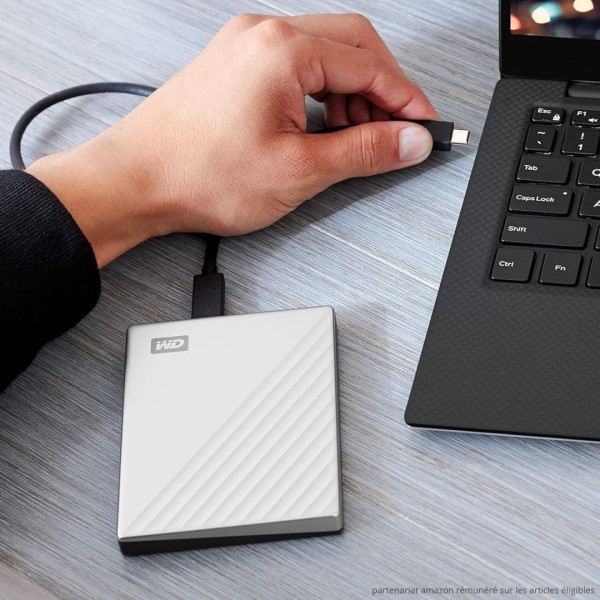
Introduction: The Importance of External Hard Drives
With digital storage becoming an increasingly vital part of our daily lives, knowing how to use an external hard drive effectively is essential. Whether for personal, educational, or professional use, external hard drives offer a reliable and portable solution for data storage. They allow users to back up important files, transfer data between devices, and manage storage efficiently.
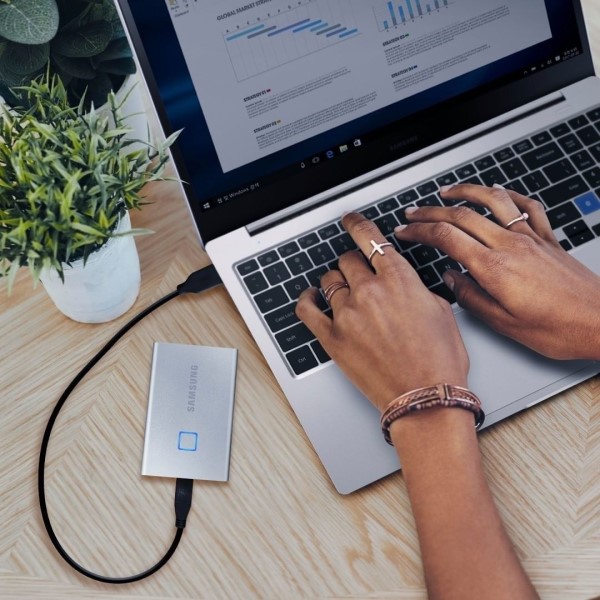
However, with the convenience of an external hard drive comes the necessity for secure usage practices. Data breaches and file corruption can put sensitive information at risk. In this comprehensive guide, we will explore essential tips on how to securely use an external hard drive, ensuring your data remains safe and your device functions optimally.
Types of External Hard Drives
- Hard Disk Drives (HDDs): HDDs are affordable and offer high storage capacities. They use spinning disks to read and write data. They are best for general storage but are slower than SSDs.
- Solid-State Drives (SSDs): SSDs offer faster read and write speeds. They are compact, durable, and energy-efficient. Though pricier, they are a better option for quick data access.
- Portable Drives: Lightweight drives designed for travel or daily use. They are small and easy to carry.
- Desktop Drives: Larger drives designed for stationary use on desks. They provide higher capacity, often powered externally.
Popular Brands and Models
Several trusted brands dominate the external hard drive market. Below are some popular names:
- Western Digital (WD): Known for reliable HDDs and SSDs. Models like My Passport and Elements are widely popular.
- Seagate: Offers durable drives like Backup Plus and Expansion. A solid choice for cost-effective storage.
- Samsung: Famous for high-speed SSD options. Samsung’s T-series is known for compact designs and fast performance.
- SanDisk: Popular for portable SSDs like Extreme Portable SSDs. Ideal for travel and quick file transfers.
- LaCie: Preferred by creative professionals. Rugged series drives are durable and protect data during rough handling.
Choose the type and brand based on your needs. Consider factors like storage size, speed, and durability.
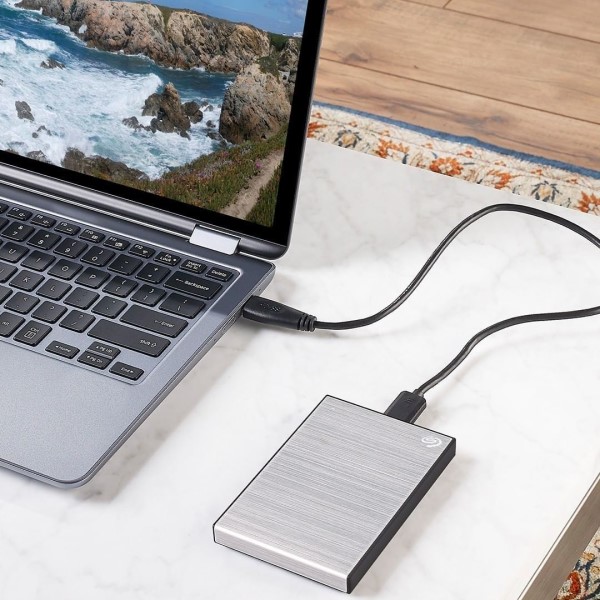
Advantages of Using External Hard Drives
External hard drives offer several benefits that make them indispensable for many users. Here are the key advantages:
Storage Expansion
External hard drives provide much-needed extra storage space. This is especially useful for devices with limited internal storage, like laptops. You can use them to store large files, games, and software. They also prevent your computer from slowing down by reducing internal storage usage. Choose drives with higher capacities if you need to store extensive data.
Portability and Convenience
Most external hard drives are lightweight and portable. You can carry your data anywhere, be it work, school, or travel. Portable drives make it easy to share files between devices or with others. The plug-and-play feature adds to their convenience, as most drives work instantly after connection.
Data Backup and Security
External hard drives are an excellent option for backing up important files. Create backups of sensitive data to protect it from system failures or cyberattacks. Many drives offer encryption features to secure your data from unauthorized access. Regular backups using external drives provide peace of mind and safeguard vital information.
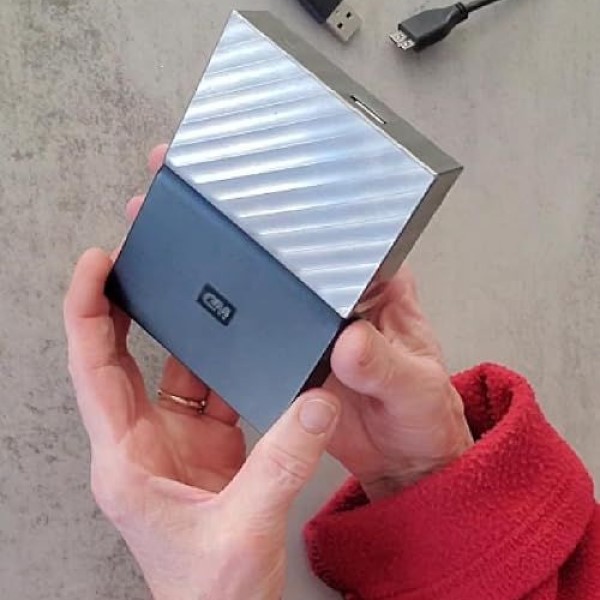
Setting Up an External Hard Drive
Setting up an external hard drive is simple. Follow these steps to start using it effectively.
Connecting the Drive to Your Computer
- Locate the USB or other port on your computer.
- Plug the external hard drive’s cable into the port.
- Wait for the device to be detected automatically.
- Most modern computers recognize drives instantly.
- If not, check your computer’s system settings.
- For external drives with external power sources, connect the power cable first.
- Once connected, the drive should appear in “My Computer” or “This PC.”
Formatting the Drive for Compatibility
- Identify the file system required for your use:
- NTFS: Best for Windows users.
- exFAT or FAT32: Suitable for both Windows and macOS.
- Open the format utility on your computer.
- On Windows, right-click the drive and select “Format.”
- On macOS, use “Disk Utility.”
- Select the desired file system and name your drive.
- Check the “Quick Format” option for faster formatting.
- Click “Start” or “Erase” to format the drive.
- Warning: Formatting erases all stored data.
Initial Configuration Steps
- Label your external hard drive for quick identification.
- Create folders for organizing files properly.
- Install driver software if required for advanced functions.
- Enable encryption if the drive supports security features.
- Test the setup by transferring a small file to the drive.
- Edit the device settings for sleep mode to conserve power if desired.
Following these steps ensures your external hard drive is ready for use efficiently and securely.
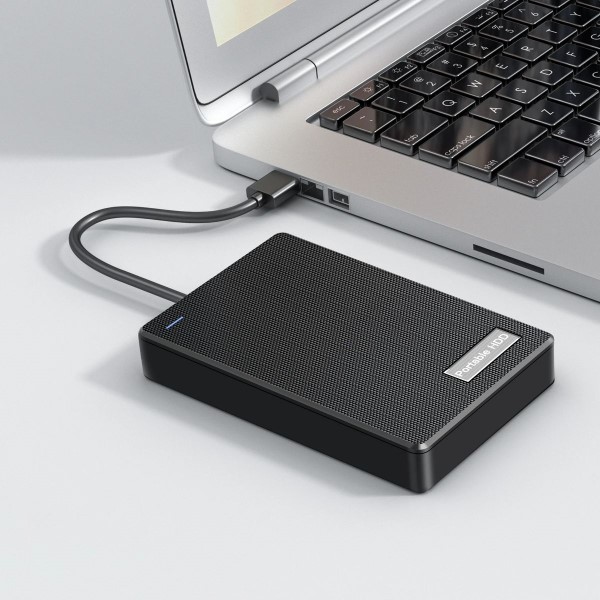
Using an External Hard Drive
How to use an external hard drive? External hard drives are versatile tools for file management and data storage. Knowing how to use them effectively can save you time and trouble. Below are essential steps and tips.
Transferring Files to and from the Drive
- Connect the Drive: Ensure the external hard drive is properly plugged into your computer. Wait for it to appear in your file explorer.
- Select Files: Choose the files you want to move. Use the copy or cut commands.
- Paste to Drive: Open the external drive folder and paste the files there. This transfers the data.
- Drag and Drop: Alternatively, drag files directly to the drive folder for quick transfers.
- Eject Safely: Always eject the drive using the “Safely Remove Hardware” option. This avoids file corruption.
Organizing Files Effectively
- Create Folders: Group files by type, such as “Photos,” “Videos,” or “Documents.” This keeps them organized.
- Use Naming Conventions: Use consistent file and folder names. For example, include dates or keywords.
- Delete Redundant Files: Remove duplicates or outdated files. This frees up space.
- Back Up Important Files: Save essential files in a dedicated backup folder. Create copies if needed.
- Use Software Tools: Some external drives come with organization tools. Use them for better file management.
Accessing Saved Data on Different Devices
- Check Compatibility: Ensure the file system (e.g., NTFS or exFAT) works with the other device.
- Plug into USB Port: Insert the external drive into the other device’s port. Wait for it to detect.
- Browse Files: Navigate through the drive to access and open saved data.
- Transfer Across Platforms: Use exFAT or FAT32 file systems for effortless sharing between Windows and macOS devices.
- Install Necessary Apps: For some systems, you may need drivers or apps to open certain files.
Using an external hard drive efficiently involves proper setup and thoughtful file management. Follow these steps to optimize its use and keep your data secure.
Troubleshooting Common Issues
How to use an external hard drive? External hard drives may sometimes encounter problems. Knowing how to address these issues can save time and prevent data loss. Below are common problems and solutions.
Drive Not Recognized by Computer
- Check Connections: Ensure the drive is properly connected to the computer’s USB or other port.
- Test on Another Device: Plug the drive into a different computer or port to rule out hardware issues.
- Inspect Cables and Ports: Replace damaged cables or avoid using faulty USB hubs.
- Update Drivers: Check if your computer needs updated drivers for the external drive.
- Go to “Device Manager” on Windows and update drivers.
- On macOS, check “Disk Utility.”
- Assign a Drive Letter: On Windows, use “Disk Management” to assign a letter if the drive is invisible.
- File System Compatibility: Verify the file system is compatible (e.g., exFAT for both Windows and macOS).
- Reset the Computer: Restart your system to refresh connections and device detection.
Slow File Transfer Speeds
- Use Correct Ports: Ensure you’re using USB 3.0 or higher for faster speeds. Older ports are slower.
- Avoid Overheating: Keep the drive cool as heat may slow performance.
- Close Background Applications: Stop any apps using excessive system resources.
- Defragment HDDs: For hard disk drives, defragment the drive to improve file transfer speeds.
- Test Transfer Rates: Use tools to measure speed performance and detect issues in the drive.
- Check File Size: Large files may take longer to transfer than smaller ones.
- Replace Slow Cables: Use high-quality cables designed for fast data transfer.
Fixing Corrupted or Unreadable Drives
- Run Error Checks: Use built-in tools to scan and fix file system errors.
- On Windows, right-click the drive and select “Properties > Tools > Check.”
- On macOS, check with “Disk Utility” tools.
- Recover Data: Use recovery software to retrieve corrupted files before proceeding.
- Popular tools include Recuva or EaseUS. Avoid overwriting the damaged data.
- Reformat Drive: If all else fails, format the drive. Be aware this erases all data.
- Use “NTFS” for Windows or “exFAT/FAT32” for cross-platform usage.
- Update Firmware: Install the latest firmware updates from the manufacturer’s website.
- Consult Professionals: For severe damage, contact data recovery experts for assistance.
Handling these common issues carefully protects your data and ensures optimal performance. Regular maintenance helps avoid recurring problems.
Maintenance and Best Practices
Maintaining an external hard drive is essential for optimal performance and longevity. Follow these tips to ensure its smooth operation and extended lifespan.
Cleaning and Proper Storage
- Keep It Dust-Free: Wipe your drive regularly with a soft cloth to avoid dust build-up.
- Store in a Safe Place: Place the drive in a dry and cool environment to prevent damage.
- Avoid Frequent Drops: Use protective cases to safeguard the drive during travel.
- Disconnect When Not Used: Unplug the drive after use to prevent unnecessary wear.
- Handle Cables Carefully: Ensure cables are intact and connected securely.
Updating Firmware and Drivers
- Check for Firmware Updates: Visit the manufacturer’s site for regular updates.
- Update Driver Software: Keep Windows or macOS drivers updated for seamless detection.
- Install Manufacturer Utilities: Use recommended tools for monitoring and optimizing storage.
- Scan for File System Errors: Periodically run error checks for smooth operation.
- Restart Devices After Updating: Restart the computer to apply updates.
Extending the Lifespan of Your External Hard Drive
- Avoid Overloading: Don’t fill the drive to maximum capacity. Leave space for smoother operations.
- Use Backup Strategies: Regularly back up files to avoid data loss in case of failure.
- Control Temperature: Prevent overheating by allowing ventilation during use.
- Limit Continuous Use: Disconnect after long periods to minimize strain.
- Follow Proper Disconnect Protocols: Use safe eject features to prevent drive corruption.
Regular maintenance ensures your external hard drive works reliably and lasts longer.
Alternatives to External Hard Drives
External hard drives are useful, but there are alternatives for data storage. Consider the following solutions:
Cloud Storage Options
Cloud storage stores your data online, offering flexibility and accessibility. Here’s why it’s a great alternative:
- Remote Access: Access your files anywhere with an internet connection.
- Automatic Syncing: Files update across devices in real time.
- Scalable Storage: Increase storage as needed without buying hardware.
- File Sharing: Easily share folders with colleagues or friends.
- Data Security: Providers offer encryption and backups to protect your files.
- Popular providers include Google Drive, Dropbox, and OneDrive.
- Subscription Costs: Monthly or yearly plans may suit your budget better than purchase costs.
Network Attached Storage (NAS)
NAS allows file sharing within a private network. This is ideal for homes or offices.
- Centralized Storage: Store files in one device, accessible to all authorized users.
- High Capacity: NAS devices often have larger storage than external drives.
- File Sharing: Streamlined sharing between multiple users through your network.
- Remote Access: Access NAS files even when away.
- Data Backup: Many NAS devices come with built-in backup features.
- Cost Considerations: Initial costs are high but useful for groups needing large-scale storage.
Comparing Benefits and Limitations
- Capacity:
- External Hard Drives: Affordable, but limited storage.
- Cloud Storage: Unlimited options with scalable plans.
- NAS: Large capacity for shared files.
- Accessibility:
- External Hard Drives: Requires physical connection.
- Cloud Storage: Accessible from any location.
- NAS: Accessible within networks and remotely.
- Security:
- External Hard Drives: Data risks from theft or damage.
- Cloud Storage: Protected by encryption but vulnerable to hacking.
- NAS: Offers both encryption and physical security.
- Cost:
- External Hard Drives: One-time purchase cost.
- Cloud Storage: Ongoing subscription fees.
- NAS: High upfront and maintenance costs.
Choose the best option based on your budget and storage needs.
Conclusion
In conclusion, understanding how to use an external hard drive is essential for anyone navigating the world of digital storage. By selecting the right device, following proper installation steps, and adhering to best practices for safe usage, you can maximize the benefits of your external hard drive while minimizing risks. Remember that regular backups, secure storage, and proper organization will help ensure the longevity and reliability of your data storage solutions. Whether for personal use or professional needs, external hard drives are an invaluable tool in our increasingly digital lives. With these tips in mind, you’ll be well-prepared to manage your data securely and efficiently.
 Griley