
Understanding the Basics of Processor Heat
Every computer user eventually encounters the concept of heat management. The Central Processing Unit, or CPU, acts as the brain of your computer. It performs billions of calculations every single second. This intense activity generates a significant amount of thermal energy. Consequently, understanding the cpu temperature range is vital for maintaining a healthy system. Many users ignore this aspect until problems arise. However, proactive monitoring can extend the lifespan of your hardware significantly. Heat is a natural byproduct of electrical resistance within the silicon chips. As the processor works harder, it draws more power. This increased power consumption directly results in higher temperatures. Therefore, knowing what is normal and what is dangerous is the first step in computer maintenance.
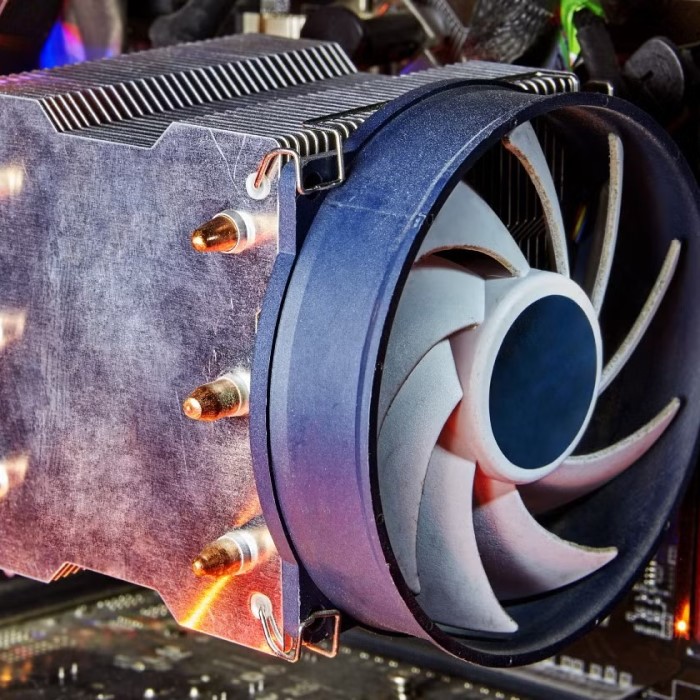
Furthermore, the concept of a “safe” temperature is not static. It changes based on the specific processor model and the workload. For instance, a high-end gaming processor runs hotter than a basic office processor. The manufacturers design these chips with specific thermal limits in mind. These limits are often referred to as the T-junction maximum. Exceeding this limit can cause permanent damage to the silicon.
Therefore, staying within the safe cpu temperature range is crucial for stability. When a CPU gets too hot, it slows down to protect itself. This phenomenon is known as thermal throttling. It results in a significant drop in performance. You might notice your computer becoming sluggish during intense tasks. In the following sections, we will explore these dynamics in detail. We will help you identify the signs of overheating. We will also provide actionable solutions. By the end of this guide, you will have a comprehensive understanding of how to keep your processor cool.
What is a Normal CPU Temperature Range?
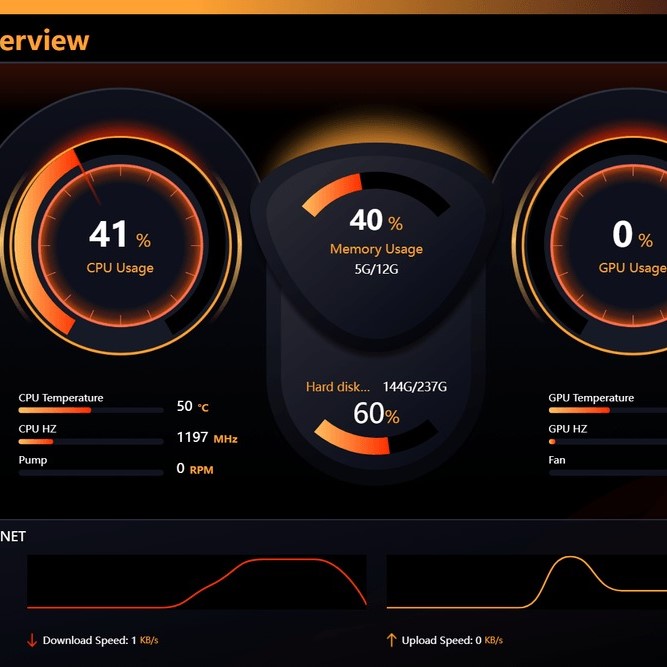
Defining “normal” requires us to look at two distinct states. These are the idle state and the load state. When your computer is doing very little, the CPU is in an idle state. During this time, the processor should be relatively cool. For most modern processors, an idle temperature between 30°C and 50°C is considered healthy. If your idle temperatures are consistently above 50°C, you might have a cooling issue. This could indicate poor airflow or a cooling system that is not functioning correctly. Consequently, monitoring idle temps gives you a baseline for your system’s health. It is the easiest metric to check when you are not running heavy programs. On the other hand, the load temperature is what happens when you work the CPU hard. Activities like gaming, video editing, and 3D rendering push the processor to its limits.
Under a heavy load, the cpu temperature range shifts upward significantly. A safe temperature under load typically falls between 60°C and 85°C. This range allows for optimal performance without risking damage. Most modern CPUs are designed to handle temperatures up to 100°C before shutting down. However, running constantly near that limit is not advisable. It can degrade the silicon over time. Furthermore, different manufacturers have different standards. For example, AMD and Intel processors have slightly different thermal behaviors. Intel chips tend to run a bit warmer than AMD chips in some generations. Nevertheless, staying below 85°C under heavy load is a good rule of thumb for almost all processors. If your temperatures regularly exceed 90°C, you are entering the danger zone. At that point, you need to take immediate action to cool things down. Understanding these benchmarks helps you diagnose potential issues early.
Identifying the Signs of CPU Overheating
Overheating rarely happens without warning. Your computer will usually send you several signals that something is wrong. Recognizing these signs early can prevent permanent hardware failure. One of the most obvious signs is performance throttling. You might be playing a game or editing a video. Suddenly, the frame rate drops drastically. Or the rendering process slows to a crawl. This happens because the CPU deliberately reduces its speed to lower its temperature. Consequently, the user experience becomes choppy and unresponsive. This is a defense mechanism built into the processor. It prevents the chip from burning itself out. If you notice this pattern, check your temperatures immediately. It is a clear indicator that your cooling solution cannot keep up with the heat generation.
In addition to performance drops, physical symptoms are often present. The most common symptom is excessive fan noise. When the CPU gets hot, the motherboard tells the fans to spin faster. They try to push more air through the heatsink. This results in a loud whooshing or humming sound. If your computer sounds like a jet engine taking off, it is struggling to cool itself. Moreover, you might notice that the computer case feels hot to the touch. This is especially true for laptops. The heat transfers from the CPU to the case. Another critical sign is unexpected shutdowns. If the CPU exceeds its maximum cpu temperature range, it will force the computer to turn off. This is an emergency safety measure.
The Critical Role of Thermal Paste
Thermal paste is a substance that many users overlook. Yet, it plays a vital role in heat management. It sits between the CPU and the cooler. Its primary job is to fill microscopic imperfections in the metal surfaces. Even smooth-looking metal surfaces have tiny air gaps. Air is a terrible conductor of heat. Consequently, these gaps impede the transfer of thermal energy. Thermal paste, also known as thermal interface material (TIM), fills these gaps. It creates a continuous path for heat to travel from the CPU to the heatsink. Without it, your CPU would overheat almost instantly. The quality and application of this paste are essential for maintaining a healthy cpu temperature range. Over time, thermal paste can dry out and lose its effectiveness. It becomes crusty and hard. When this happens, heat transfer efficiency drops significantly.
Therefore, reapplying thermal paste is a common maintenance task. It is often the solution for older computers that start overheating. Applying thermal paste correctly is an art. Too little paste, and you leave air gaps. Too much paste, and it acts as an insulator, trapping heat in. A pea-sized drop in the center of the CPU is generally the best method. When you press the cooler down, the pressure spreads the paste evenly. Furthermore, not all thermal pastes are created equal.
Some are basic silicone-based pastes included with stock coolers. Others contain conductive metals like silver or liquid metal. These high-end pastes can lower temperatures by several degrees. However, metal-based pastes are risky. If they spill onto the motherboard, they can cause a short circuit. For most users, a high-quality non-conductive paste is the safest and most effective choice. Checking your thermal paste should be step one if you notice rising temperatures.
Optimizing Airflow and Case Ventilation
The cooling solution on the CPU is important, but it cannot work in a vacuum. It needs a constant supply of fresh, cool air. This is where case ventilation comes into play. A well-designed airflow system moves cool air across the components and expels hot air out of the case. If the hot air stays trapped inside, the ambient temperature inside the case rises. This makes it much harder for the CPU cooler to do its job. Consequently, the CPU temperature will increase. There are two main types of airflow configuration: positive pressure and negative pressure. Positive pressure means you have more intake fans than exhaust fans. This forces air out through the cracks and vents. It helps keep dust out. Negative pressure means you have more exhaust than intake. This pulls air in through every gap, which can suck in dust.
To maintain a good cpu temperature range, you should aim for balanced or slightly positive pressure. You should also consider the placement of your fans. Front fans should act as intakes, pulling cool air in. Rear and top fans should act as exhausts, pushing hot air out. This creates a steady stream of air. Furthermore, cable management is often an ignored aspect of airflow. Messy cables can block air paths. They act like walls inside your case.
Using zip ties to organize cables behind the motherboard tray improves airflow. It also makes your build look cleaner. Additionally, you must clean your dust filters regularly. A clogged front filter starves your system of air. It acts like a blanket, trapping heat inside. Cleaning these filters every few months can drop your temperatures by several degrees. Good airflow is the foundation of a cool computer. Without it, even the most expensive CPU cooler will struggle.
Choosing the Right Cooling Solution
Not all CPU coolers are created equal. Most processors come with a “stock” cooler in the box. While these are adequate for basic tasks, they often struggle with heavy workloads. If you are experiencing overheating, upgrading your cooler is the most direct solution. There are two main categories of coolers: air coolers and liquid coolers. Air coolers use a metal heatsink and a fan. They are reliable and easy to install. Large air coolers with big towers of metal fins are very effective. They rely on surface area to dissipate heat. On the other hand, liquid coolers, or All-In-One (AIO) coolers, use a pump to move liquid. This liquid travels to a radiator where fans blow air through it. AIO coolers are often more efficient at moving heat quickly. They are a great choice for high-end CPUs that run very hot.
When choosing a cooler to manage your cpu temperature range, consider your case size. Large air coolers might not fit in smaller cases. They can block your RAM slots. Liquid coolers require space for the radiator. You must ensure your case supports the radiator size you want to buy. Furthermore, the noise level is another factor. Some coolers have loud fans. Others are designed for silence. Look for coolers with larger fans. Larger fans can spin slower to move the same amount of air as a smaller fan. This reduces noise. Investing in a quality cooler is investing in the longevity of your processor. It allows your CPU to maintain its boost speeds for longer periods. This results in better performance for gaming and productivity. Do not skimp on the cooler. It is a critical component in your system’s health.
Monitoring Tools and Software
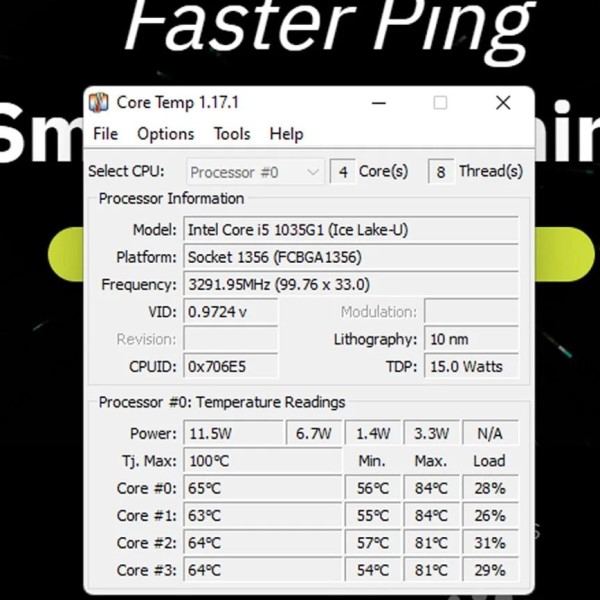
You cannot manage what you do not measure. To keep track of your temperatures, you need reliable software. Fortunately, there are many free tools available for this purpose. One of the most popular tools is HWMonitor. It provides a comprehensive overview of your system’s vitals. Another excellent tool is Core Temp. This program focuses specifically on the CPU. It shows the temperature of each individual core. This is useful because some cores run hotter than others. You can minimize these programs to the system tray. This allows you to keep an eye on the temperature while you are doing other tasks. Monitoring your cpu temperature range during different activities helps you understand your system’s baseline.
Moreover, some motherboards come with their own software. These applications often allow you to control fan curves. A fan curve tells the fan how fast to spin based on the temperature. You can set the fans to be quiet when the CPU is cool. Then, they ramp up speed only when the CPU gets hot. This balances silence and cooling performance. For gamers, MSI Afterburner is a popular choice. While it is designed for graphics cards, it also monitors CPU stats. You can display these stats on screen while gaming. This lets you see if your CPU is throttling during intense gaming sessions. Regular monitoring helps you catch issues before they become disasters. If you see temperatures slowly creeping up over weeks, you know it is time to clean your dust filters or check your thermal paste.
Frequently Asked Questions About CPU Temperatures
Many users have specific questions regarding the safety of their processors. Below, we answer the most common queries to help you feel confident about your hardware health.
Is 90 degrees C hot for a CPU?
Yes, 90 degrees Celsius is considered very hot for a CPU. While most modern processors can technically survive at this temperature, it is unsafe for long-term use. At 90°C, you are very close to the thermal throttling limit. This heat can degrade the silicon and other components over time. You should aim to keep your CPU well below this temperature. If you see 90°C frequently, you need to improve your cooling solution immediately.
Is 70C too hot for CPU?
For most users, 70°C is not too hot. In fact, 70°C is often considered a perfectly safe and normal temperature under a heavy load. If you are gaming or rendering video, seeing temperatures in the low 70s is standard. However, if your CPU is at 70°C while idling, that is a problem. Idle temperatures should be much lower. Context is key. Under load, 70°C is a comfortable and healthy operating temperature.
What temperature is too hot for a CPU?
Generally, anything consistently above 85°C under load is entering the danger zone. While CPUs have safety switches to shut down at around 100°C, sustained heat above 85°C can shorten the lifespan of the processor. It can also lead to thermal throttling, which reduces your computer’s speed. You should consider 90°C as the absolute maximum limit to avoid. Ideally, you want your load temperatures to stay in the 70s or low 80s.
Conclusion
Maintaining the health of your computer requires attention to detail. The temperature of your processor is the most critical metric to watch. Throughout this article, we have explored the ideal cpu temperature range. We have identified the warning signs of overheating. We have also provided practical solutions to keep your system running cool. From reapplying thermal paste to optimizing airflow, these steps are accessible to every user. You do not need to be a professional technician to manage heat. A few simple tools and a bit of knowledge are all you need. Ignoring heat issues will only lead to instability and hardware failure. Therefore, proactive maintenance is the key to longevity.
By regularly checking your temperatures and keeping your system clean, you ensure optimal performance. Your computer will thank you with years of reliable service. Remember, a cool CPU is a fast CPU. When the processor stays cool, it can maintain its maximum clock speeds. This results in a smoother, more responsive experience for you. Whether you are a gamer, a content creator, or an office worker, these principles apply to everyone. Heat is the enemy of performance. With the insights provided in this guide, you are now equipped to win the battle against heat. Keep an eye on that cpu temperature range and enjoy a healthy, high-performing computer for years to come.