
Introduction
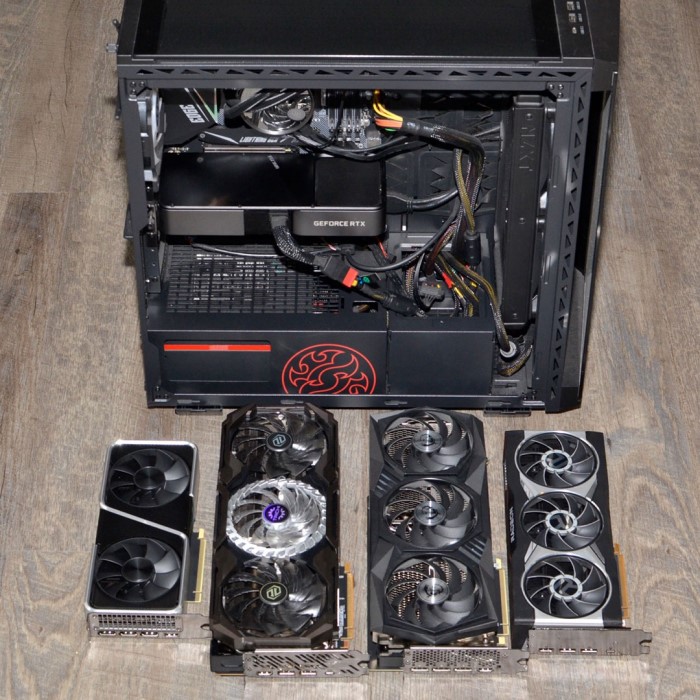
Graphics cards are essential for rendering images on your computer screen. They process and deliver visual data, making gaming, video editing, and graphic design possible. The graphics card you have can affect your computer’s performance greatly.
Knowing ‘what is my graphics card’ helps you understand your PC’s capabilities. It lets you decide if you need an upgrade for better performance or to support new software.
There are integrated and dedicated graphics cards. Integrated cards are part of the CPU and are good for basic tasks. Dedicated cards are separate units with their own memory, suited for intensive tasks.
In summary, a graphics card is a vital component of your computer that impacts how well you can run visually demanding programs. Identifying your card is the first step to optimizing your computing experience.
Methods to Determine Your Card Model
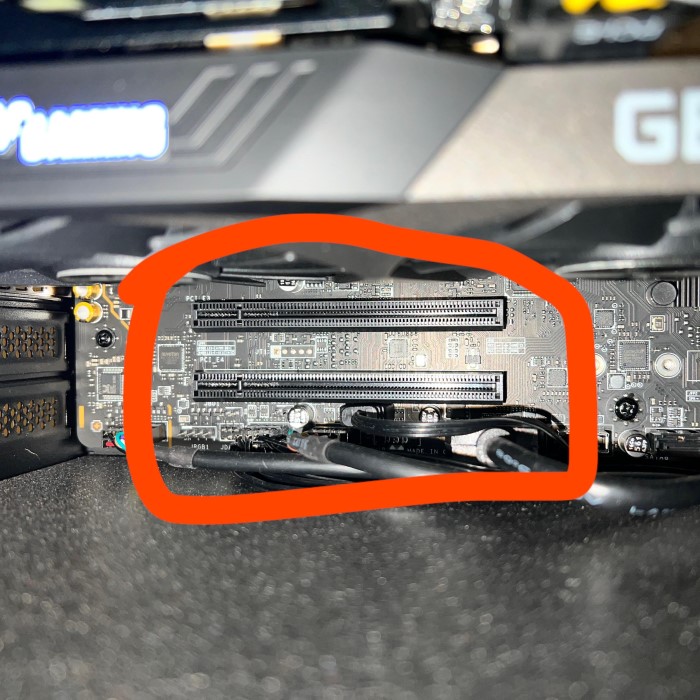
Identifying the model of your graphics card is straightforward. You can use built-in tools on your operating system or third-party software. This section will guide you on how to find out ‘what is my graphics card’ using different methods.
Using System Information on Windows
If you use a Windows system, finding your graphics card model is quite easy. Here’s how:
- Press ‘Win + R’ to open the Run dialog box.
- Type ‘dxdiag’ and press Enter to launch the DirectX Diagnostic Tool.
- Navigate to the ‘Display’ tab.
- Under ‘Device’, check the details next to ‘Name’ and ‘Manufacturer’ for your graphics card information.
These steps will help you access information about your graphics card without any hassle.
Checking Graphics Card Details on MacOS
For MacOS users, the process varies slightly but remains simple:
- Click on the Apple logo at the top left corner of your screen.
- Select ‘About This Mac’ from the dropdown menu.
- In the ‘Overview’ tab, click ‘System Report’.
- Scroll down to ‘Graphics/Displays’ under the ‘Hardware’ section.
Here, you’ll find the details of your graphics card model and any other relevant information.
Utilizing Third-Party Software
In addition to the operating system’s tools, third-party software can also help determine your graphics card model. These programs often provide comprehensive information and may include features for monitoring performance or updating drivers. Some popular options are GPU-Z, CPU-Z, and Speccy. Download and install the software, then follow the instructions to find the specifics of your graphics card.
All these methods will answer your question, ‘what is my graphics card’ and help you understand more about your system’s capabilities. Next, we will look at the importance of knowing your graphics card details.
Importance of Knowing Your Graphics Card
Discovering ‘what is my graphics card’ has several benefits. Knowing your graphics card is crucial for many reasons. When you are aware of your GPU model, you can make informed choices about software requirements. You will know which games or programs you can run smoothly on your PC. This knowledge also guides you in deciding if an upgrade is needed.
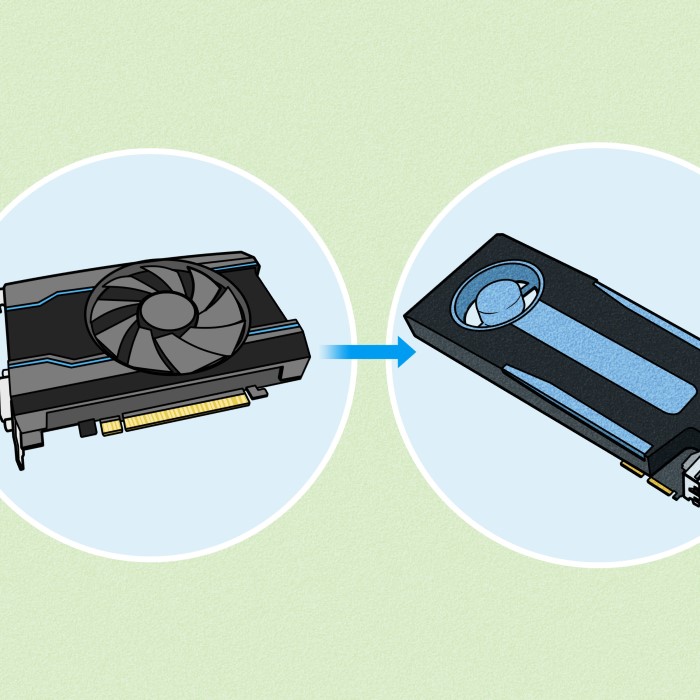
Understanding your graphics card can reveal whether your system matches the recommended specs. This is important for running the latest software and games without issues. If your GPU is outdated, you may experience lag and poor performance.
Furthermore, knowing your card helps in troubleshooting. Many computer problems are graphics-related. When issues arise, knowing your card’s specifics speeds up the solution process. You can pinpoint whether the problem is with the hardware or software.
Lastly, when seeking technical support or buying new hardware, like monitors, knowing your GPU details is helpful. It ensures compatibility and prevents returns or additional expenses.
In short, understanding your card is a key part of managing and optimizing your computer’s performance.
Understanding Graphics Card Specifications
Understanding the specifications of your graphics card can be as important as identifying the model itself. When you ask ‘what is my graphics card’, you’re also uncovering essential details that determine your PC’s potential for gaming, video editing, and graphic design. Here are the key specs to look for:
GPU Model:
The GPU model specifies the precise version of a graphics card you are using.
Commonly recognized names include powerful options such as the NVIDIA GeForce RTX 3080 or AMD Radeon RX 6800.
Each model may have unique features and capabilities tailored for different types of users, from gamers to professionals.
Video Memory (VRAM):
Video Memory, or VRAM, is crucial for determining how well a graphics card can perform, especially at high resolutions.
Generally, more VRAM allows for the storage of larger textures and frame buffers, which enhances rendering quality.
VRAM is commonly measured in gigabytes (GB), with higher values indicating better performance in demanding applications and games.
Memory Type:
The type of memory used in a GPU can significantly affect its speed and efficiency.
DDR5 and GDDR6 are two prevalent types of memory found in modern cards.
GDDR6, being the newer standard, tends to be faster and more efficient than its predecessor, resulting in improved overall performance.
Core Clock Speed:
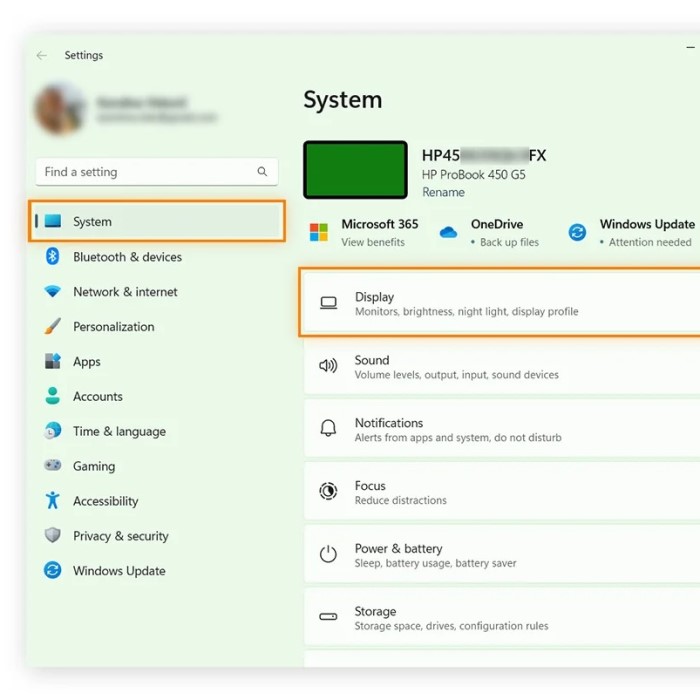
Core clock speed, measured in megahertz (MHz), is an indicator of how quickly a GPU can process data.
Higher clock speeds can enhance the speed at which the card executes instructions, leading to better frame rates in gaming and smoother rendering in graphics applications.
It’s important to note that while a higher clock speed can contribute to performance, it must be balanced with other specifications for optimal results.
Memory Bandwidth:
Memory bandwidth refers to the rate at which data is transferred between the GPU and the VRAM.
This parameter is crucial because it impacts how quickly the GPU can access data, affecting overall performance.
Memory bandwidth is generally measured in gigabytes per second (GB/s), with higher numbers indicating that the GPU can handle more data simultaneously.
Shader Cores/CUDA Cores:
Shader cores (or CUDA cores, in the case of NVIDIA cards) are responsible for executing various calculations necessary for rendering graphics.
The quantity of these cores directly correlates with the GPU’s ability to manage complex visual effects and high-resolution graphics.
Typically, a greater number of cores allows for parallel processing, improving the card’s performance in tasks such as 3D rendering and real-time graphical simulations.
Output Ports:
Output ports on a graphics card, including HDMI, DisplayPort, and DVI, dictate the types of monitors and displays that can be connected.
The presence and type of these ports affect your ability to utilize multiple monitors and different resolutions.
It’s important to consider the output options when choosing a graphics card, as they need to align with your display setup for optimal use.
By understanding these specifications, you can better comprehend your card’s capabilities. This knowledge prepares you for software that demands high performance, and it also guides you in upgrading your system efficiently. When you know what to look for, the question ‘what is my graphics card’ doesn’t just tell you what you have; it tells you what you can achieve with your computer.
How to Upgrade Your Graphics Card
Upgrading your graphics card can unleash your PC’s full potential. If you’ve checked ‘what is my graphics card’ and decided it’s time for an upgrade, follow these simple steps:
- Research: Determine the right graphics card for your needs. Look for better performance, more VRAM, and higher clock speeds.
- Compatibility: Make sure the new card is compatible with your system’s motherboard, power supply, and case size.
- Uninstall Drivers: Before removing the old card, uninstall its drivers from your operating system.
- Safety Measures: Power off your computer and disconnect all cables. Use an antistatic wrist strap to prevent damage.
- Remove Old Card: Open the case, unscrew the card from the slot, and gently remove it from the motherboard.
- Install New Card: Align the new card with the slot and press down firmly. Screw it to secure its position.
- Power Connection: Connect any necessary power cables to the new card.
- Boot Up: Close the case, reconnect cables, and power up your computer. Check if the new card is recognized.
- Driver Installation: Install the latest drivers for your new graphics card.
- Testing: Run a game or software to test the performance of your new upgrade.
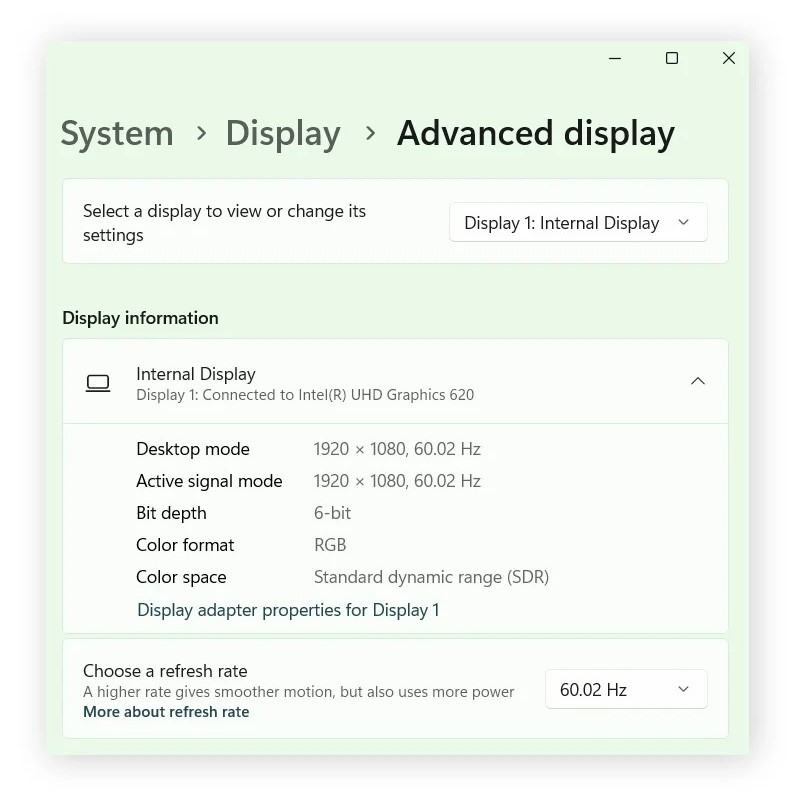
Remember, upgrading your graphics card should result in a noticeable improvement in performance. Always handle components carefully and follow manufacturer instructions for best results. With these steps, you’ll maximize your PC’s capabilities and enhance your computing experience.
Troubleshooting Common
When you know ‘what is my graphics card’, troubleshooting becomes easier. Common card issues can cause frustrating performance problems. Here’s how to tackle them efficiently:
Driver Problems:
Out-of-date or corrupted drivers are significant contributors to various hardware issues, particularly with graphics and sound functionalities.
To resolve these problems, it is essential to regularly update drivers. Users can accomplish this by visiting the manufacturer’s official website to download the latest drivers tailored for their specific hardware model.
Alternatively, updates can also be performed through the device manager on the operating system, ensuring that the software running the hardware is current and compatible.
Overheating:
Overheating can severely affect the performance and lifespan of your computer components, especially the CPU and GPU.
Common causes of overheating include dust accumulation inside the PC case and inadequate cooling systems, such as faulty or inefficient fans.
To prevent overheating, it is crucial to regularly clean the interior of the PC, removing dust and debris from components such as heat sinks and fans.
Additionally, ensuring there is proper airflow within the case, possibly by rearranging or adding fans, can help to maintain optimal temperatures.
Artifacts:
Artifacts manifest as odd visual glitches or distortions on the screen and can be indicative of a failing card.
If these visual anomalies appear, users should first try reseating the graphics card, making sure it is securely connected to the motherboard.
Furthermore, updating the drivers associated with the graphics card can sometimes resolve these visual issues; however, if the problem persists, it could signal that the graphics card is damaged and may require replacement.
Low Performance:
A noticeable decrease in performance can arise from several factors, including insufficient power supply or bottlenecks caused by other hardware components.
To diagnose the issue, it is important to check the power supply specifications, ensuring that it meets the requirements of all installed components.
Additionally, performance bottlenecks can occur when components such as the CPU, RAM, or storage devices are not adequate for the workload, necessitating an evaluation and potential upgrade of these components.
No Video Output:
When there is no video output, users should first ensure that the graphics card is properly seated in its slot, as a loose connection can prevent it from functioning correctly.
It is also essential to check that all cables connecting the monitor and graphics card are secure and in good condition.
In addition to inspecting cables, users should test different ports and alternate cables to rule out port-specific failures or damaged cables contributing to the lack of video signal.
Strange Noises:
If a computer emits unusual sounds, such as grinding or rattling, it may be a sign of a failing fan or other mechanical issues.
It is crucial to locate the source of these noises by listening closely to determine which fan or component is affected.
Upon identifying the problematic fans, they should be inspected for dust buildup or damage, and if they are not operating correctly, they should be replaced to ensure proper cooling and functioning of the system.
By addressing these common issues, you can restore your graphics card’s health. Remember, always handle your graphics card with care and follow safety procedures.
Conclusion: Enhancing Your Computing Experience
Throughout this guide, we’ve explored how to pinpoint ‘what is my graphics card’. This knowledge is crucial. It enhances how we interact with our PCs. It also guides our decisions in upgrades and troubleshooting.
Recognizing your graphics card enables you to tailor your computer use. It helps tackle demanding tasks like gaming and creative projects. In short, it’s about unlocking your computer’s full potential.
Taking the time to understand your graphics card pays off. It means smoother experiences and fewer hurdles in your digital life. When issues do arise, you’re well-equipped to handle them efficiently.
Whether it’s for an upgrade or a quick fix, knowing your graphics card details is empowering. So the next time you’re faced with a decision about your PC’s graphics capabilities, remember the importance of the question ‘what is my graphics card’. Armed with this info, you’re ready to make the most out of your computing experience.
We hope this guide has given you the confidence to manage and optimize your PC’s graphics. With the right knowledge and tools, you can ensure that your computer meets all your visual needs.
 Griley