
Introduction: Understanding Your Motherboard’s Role
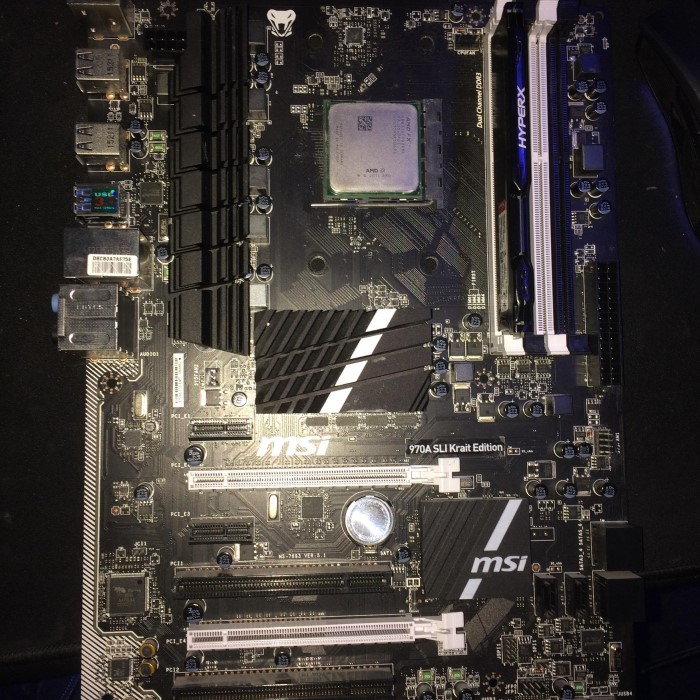
The motherboard is a fundamental component of any computer system. It serves as the main printed circuit board (PCB), connecting all hardware components, including the CPU, RAM, and storage. When issues arise, especially when your PC fails to start or exhibits erratic behavior, the motherboard might be at fault. Knowing how to tell if motherboard is dead can save you time, money, and frustration when diagnosing and fixing your computer issues. This extensive guide will help you identify signs of motherboard failure, provide diagnostic techniques, and guide you through potential solutions.

Common Signs of a Dead Motherboard
How to tell if motherboard is dead? Identifying a dead motherboard can often feel like a daunting task. However, knowing the typical symptoms can help you narrow down the issue effectively. Below are some of the most common indicators that your motherboard may be failing or dead.
1. No Power or Response
Perhaps the most alarming sign of motherboard failure is when your computer shows no signs of life. If pressing the power button results in no power to the system—no lights, fans, or any indication of functionality—this could indicate a dead motherboard.
- What to Check:
- Ensure that the power supply unit (PSU) is functioning correctly. Check connections and verify that power cables are securely attached.
- Consider testing the PSU using a PSU tester or swapping it with a known working unit to rule out power issues.
2. Random Restarts or Unusual Shutdowns
Another sign of a potentially dead motherboard is when the system experiences random restarts or refuses to stay powered on. If your computer shuts down unexpectedly or reboots without warning, this can also lead to confusion regarding the root cause.
- What to Investigate:
- Check for overheating components, such as the CPU or GPU, which can cause the motherboard to shut down as a protection mechanism.
- Look for error messages or codes that occur during boot. These may provide clues to related hardware failures.
3. Failure to Boot or Complete POST
When you turn on your computer, the motherboard undergoes a test called the Power-On Self Test (POST). If the POST process fails—evident if you’re unable to reach the operating system—it may indicate a motherboard issue.
- Indicators:
- Listen for beep codes through the system speaker if one is available. Different beep patterns usually correlate to specific failure components and indicate where the problem lies.
- Check for diagnostic LEDs on the motherboard itself, as many modern boards include these features to help pinpoint issues.
4. Boot Error Screens
If your motherboard is showing persistent boot error screens, freezes, or blue-screen-of-death (BSOD) events, these could also indicate issues with the motherboard.
- Next Steps:
- Note the specific error messages displayed, which can lead to further diagnostics about potential hardware failures.
- Run diagnostics on other components like RAM, as faulty memory can also cause similar symptoms.
5. Physical Damage or Burnt Components
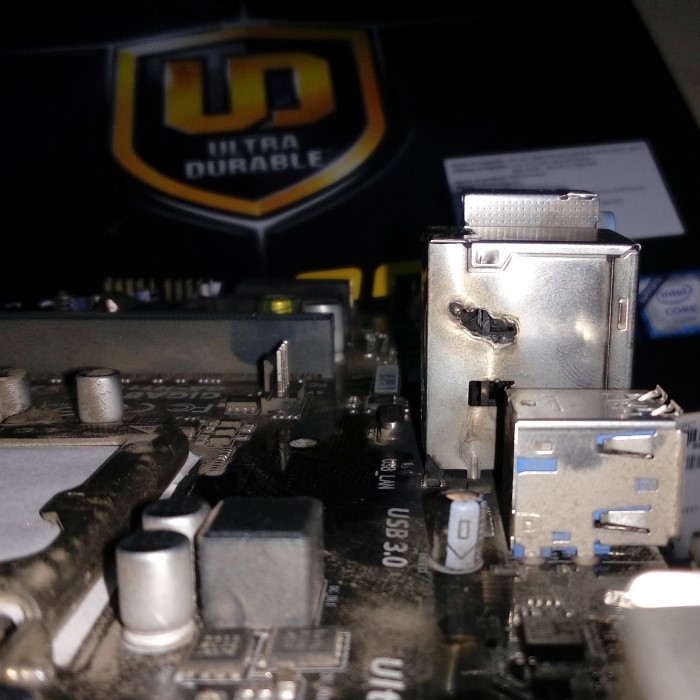
Visual inspection is a critical step in diagnosing hardware issues. If you see burn marks, discolored areas, bulging capacitors, or physical cracks on the motherboard, these issues typically indicate severe damage.
- What to Look For:
- Carefully examine both sides of the motherboard for any anomalies.
- If damage is found, the motherboard may need to be completely replaced.
How to Diagnose a Dead Motherboard
How to tell if motherboard is dead? Diagnosing motherboard issues can be intricate, but careful methodical steps can help pinpoint the problem. Here, we’ll delve into some effective diagnostic approaches that you can implement.
1. Check the Power Supply Unit (PSU)
Before concluding that your motherboard is dead, ensure that your PSU isn’t causing the issue:
- Procedure:
- Confirm that the PSU switch is on and that it is properly plugged into the outlet.
- Use a multimeter or PSU tester to confirm the voltages are within the correct ranges. A failing PSU may not provide adequate power, causing the system to appear non-functional.
2. Examining Cables and Connections
Double-check every cable connection in your system. Loose connections can lead to various issues that mimic motherboard failures.
- Key Points:
- Inspect the 24-pin ATX power connector and the CPU power connector for secure connections.
- Ensure that all data cables are securely attached to the motherboard, including SATA cables from hard drives or SSDs.
3. Boot with Minimal Components
To effectively troubleshoot, try booting with the least number of components necessary:
- How-To:
- Remove all non-essential components such as additional RAM sticks, hard drives, and peripheral devices connected to the USB ports.
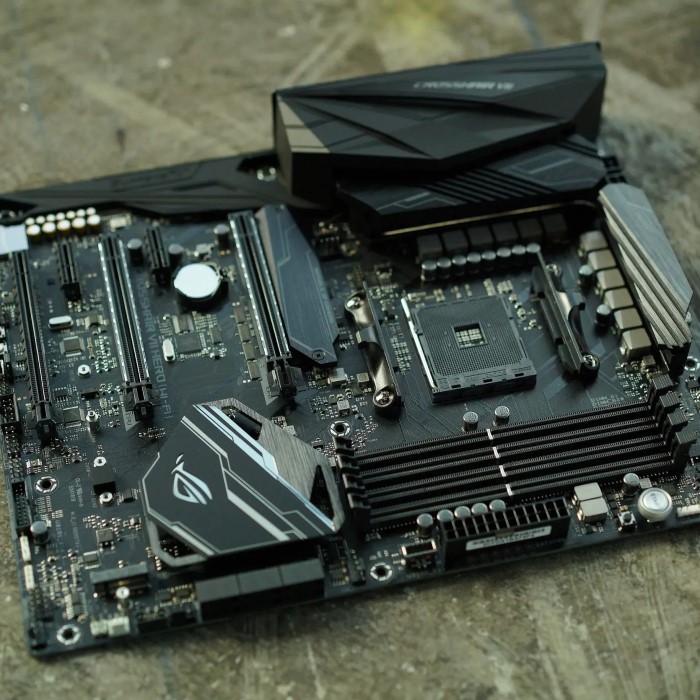
- Leave only the CPU, one stick of RAM (in the correct slot), and integrated graphics (if available). This setup can minimize potential failures from other components.
4. Utilize Diagnostic Tools
Investing in specialized diagnostic tools can streamline the troubleshooting process:
- Options:
- Software like MemTest86 can help rule out problems with RAM.
- Motherboard manufacturers may provide proprietary diagnostic software that can be run from a USB drive.
5. Inspect the BIOS/UEFI Settings
Sometimes, incorrect BIOS settings can lead to boot failures or other issues:
- What to Do:
- Access the BIOS/UEFI during power-up (usually via the DEL, F2, or Esc key).
- Check settings related to the hardware configuration and restore factory settings if necessary.
How to Tell If a Motherboard Needs to Be Replaced
How to tell if motherboard is dead? Deciding whether to replace a motherboard can be a challenging choice. Here are critical factors to consider:
1. Persistent Boot Issues
If you’ve exhausted all troubleshooting options without success, it may be time to consider replacement.
- Assessment:
- Continuous inability to boot or to rectify errors after multiple troubleshooting steps can indicate that the motherboard is beyond repair.
2. Age and Compatibility
Older motherboards may no longer support new technology:
- Consideration:
- If your motherboard is several years old and you want to upgrade components (like the CPU or RAM), investing in a new motherboard might be worthwhile.
3. Repair Costs
Evaluate the potential repair cost versus the price of a new motherboard:
- Strategy:
- If extant repairs come close to or exceed the cost of a new motherboard, consider replacement as a more sensible option.
How to Tell If Your Motherboard is Fried
1. Signs of Electrical Damage
Components on the motherboard may exhibit clear signs of electrical damage:
- Indicators:
- Burnt areas, melted traces, or blown capacitors mean that the motherboard has likely been fried and will need replacement.
2. No Display Output
If your monitor shows a black screen or says no signal:
- Troubleshooting:
- After checking whether all components are working properly, a lack of display can indicate a dead motherboard, especially if other signs align.
3. Unusual Smells or Sounds
If you detect a burning smell or hear unusual pop sounds:
- Action Required:
- Turn off your PC immediately. These signs typically indicate hardware failure, and the motherboard may need replacing.
Is a Dead Motherboard Fixable?
1. Minor Repairs
In some instances, minor issues can be resolved:
- How-To:
- If bulging capacitors or minor solder connections are the problem, you may opt for a DIY repair or a professional service.
2. Professional Repair Services
For complex issues, professional services can be an option:
- Considerations:
- Hiring a skilled technician can help with detailed repairs. However, be mindful of costs, as they can accumulate.
3. Replacement Considerations
Why Replacement is Often Necessary
-
- When troubleshooting leads to the conclusion that repairs are impractical or too costly, replacing the motherboard becomes a clear choice.
- A damaged motherboard can lead to ongoing issues that hinder the overall performance of your computer.
- In some cases, investing in repairs may not yield effective results, especially if the motherboard has significant underlying issues.
Benefits of Replacing the Motherboard
-
- Time Savings: A new motherboard can significantly reduce the time spent on troubleshooting and repairs. Instead of dealing with an unreliable board, setting up a new one can get your system running smoothly again in less time.
- Enhanced Features: New motherboards often come with upgraded technology, such as improved processor support, faster RAM compatibility, and better connectivity options (like USB-C and more PCIe slots). This allows for future upgrades and improved performance.
- Improved Performance: A new motherboard can refresh the entire system. It may rectify previous hardware bottlenecks and offer enhanced thermal performance, which contributes to overall improved system stability and speed.
Consideration of Costs
-
- Long-Term Investment: While the upfront cost of a new motherboard might seem high, consider it a long-term investment. A reliable motherboard can prolong the lifespan of your PC and prevent future issues.
- Future-Proofing: By choosing a modern motherboard, you safeguard against obsolescence. Technologies evolve quickly, and investing in a newer model ensures better compatibility with future hardware and software developments.
Choosing the Right Motherboard
-
- Compatibility: When replacing a motherboard, consider compatibility with your existing components, such as the CPU and RAM. Selecting a board that fits well with your current setup is crucial for seamless integration.
- Brand Reputation: Opt for motherboards from reputable manufacturers known for quality and reliability. Reading reviews and research into brand performance can guide you in making an informed choice.
- Features and Specifications: Evaluate the specifications to ensure the motherboard meets your computing needs, whether for gaming, content creation, or general use. Features like overclocking capabilities, onboard audio quality, and supported storage types are essential considerations.
Conclusion: Your Guide to Motherboard Health
In conclusion, understanding how to tell if motherboard is dead is vital for anyone who faces computer issues. By recognizing the signs of failure, performing thorough diagnostics, and knowing when to replace or repair, you can save both time and money.
Addressing motherboard problems can often feel daunting, but empowered with the right knowledge, you can approach the situation with confidence. Whether you’re an experienced tech enthusiast or someone navigating this issue for the first time, do not hesitate to consult professionals when in doubt. Proper evaluation and maintenance will keep your computer running efficiently and extend its lifespan.
Arming yourself with this guide will ensure that you’re well-prepared to tackle any motherboard-related issues that may arise in the future. Never underestimate the importance of a healthy motherboard in maintaining your computer’s performance and reliability!