
Introduction: The Importance of Computer Security
In today’s fast-paced digital world, protecting sensitive information is essential. With increasing threats to personal and professional data, learning how to lock computer with keyboard shortcuts becomes a vital skill. Locking your computer swiftly can prevent unauthorized access, especially in shared or public settings. Whether you step away from your desk briefly or leave your computer unattended for an extended period, knowing quick methods to secure your system is invaluable.
In this article, we will delve into simple keyboard shortcuts that can help you lock your computer effectively. We will also explore practical tips for enhancing your overall computer security. By the end of this guide, you’ll have a clear understanding of how to lock your computer quickly and securely using just the keyboard.
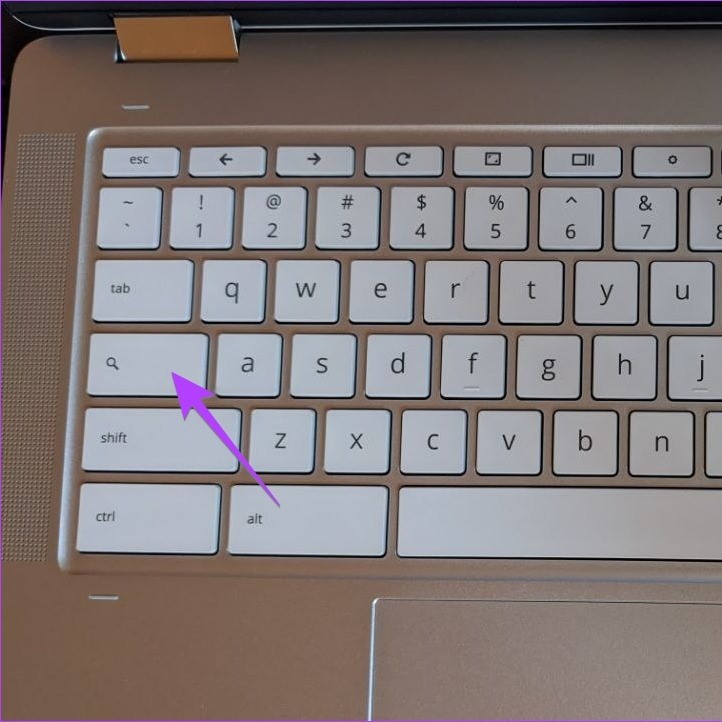
Understanding Why Locking Your Computer Matters
A. Protecting Sensitive Information
Locking your computer is a straightforward yet powerful way to keep your files and personal data secure.
- Preventing Unauthorized Access: Whenever you leave your computer unattended, there is a risk that others may access your information. Locking the screen ensures that only you can access your files.
- Safeguarding Confidential Data: If you handle sensitive documents, such as financial records or personal identification information, locking your computer can significantly reduce the risk of data breaches.
B. Enhancing Productivity
Locking your computer also plays a role in maintaining your workflow.
- Quick Reaccess: Keyboard shortcuts allow for quick locking, making it easier to step away without wasting time.
- Minimal Disruption: With a locked computer, you can return to your work immediately after unlocking, minimizing distractions and maintaining focus.
When your computer is left unlocked, unauthorized users can change settings, install malicious software, or tamper with files.
- Maintaining System Integrity: By locking your computer, you protect it from potential threats posed by others, ensuring that your system remains in its desired state.
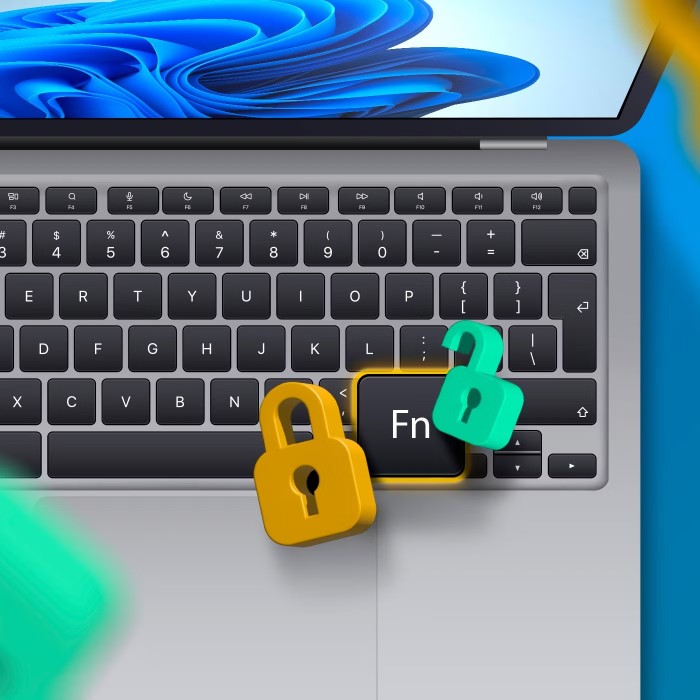
How to Lock Computer with Keyboard: Shortcut Methods
1. Using Windows Lock Shortcut
How to lock computer with keyboard? For Windows users, there are several efficient ways to lock your computer using keyboard shortcuts.
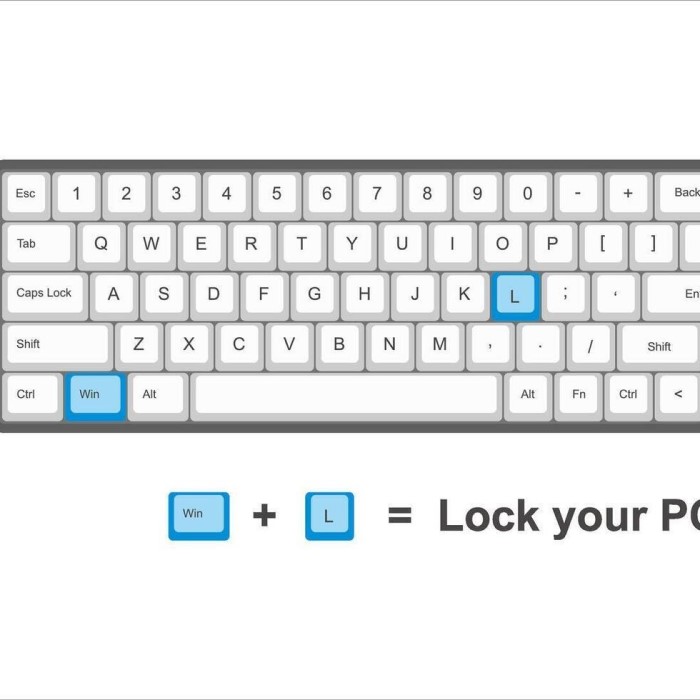
A. Windows + L
- The Quickest Method: The most common and straightforward shortcut to lock your computer is pressing Windows Key + L. This command immediately locks your screen.
- User Experience: When you engage this shortcut, you’ll see the lock screen, prompting you to enter your password or PIN upon returning. This method is fast and requires no additional steps.
2. Using Ctrl + Alt + Delete
Another approach involves the Ctrl + Alt + Delete method.
A. Accessing the Security Screen
- Detailed Security Options: By pressing these keys together, you will be taken to a security screen with several options, including “Lock this computer.”
- Additional Security Features: This method also provides options for logging off, switching users, and accessing Task Manager if needed.
While keyboard shortcuts are efficient, some users prefer using the mouse to lock their computer.
A. Lock Through the Start Menu
- Start Menu Locking: You can lock your computer by clicking on the Start menu button, selecting your user profile icon, and then choosing “Lock” from the dropdown list.
- Convenience for Non-Keyboard Users: This option optimally suits those who are less comfortable with keyboard shortcuts.
Locking a Mac Computer with Keyboard
1. Using Command + Control + Q
For Mac users, there are efficient ways to lock the screen as well.
A. The Easy Lock Shortcut
- Quick Command: Press Command + Control + Q to lock your Mac immediately. This shortcut provides a swift way to secure your device.
- User-Friendly Interface: Once you press the keys, a lock screen will appear, prompting you to enter your credentials.
2. Activating Hot Corners
Mac users can also create hot corners for quick screen locking.
A. Setting Hot Corners
- Customizable Settings: Users can set a specific corner of the screen to activate the lock feature. This customization allows for intuitive locking based on usage habits.
- Location Customization: To set this up, navigate to System Preferences > Desktop & Screen Saver > Screen Saver tab > Hot Corners and customize your preferred corner.

Alternative Methods to Lock Your Computer
1. Installing Specialized Software
A. Third-Party Applications
Consider installing applications designed specifically for enhanced locking features.
- Custom Security Features: Some programs allow users to configure locks based on specific criteria such as inactivity duration, reinforcing security without manual intervention.
- Privacy Protection: These applications provide additional layers of security, allowing customized responses when leaving the computer unattended.
2. Setting Automatic Lock Options
A. Time-Based Locking
Many operating systems allow users to configure automatic locking times based on inactivity.
- Configuration Settings: You can set your computer to lock automatically after a specified time of inactivity, ensuring that you never forget to lock it manually.
- Enhanced Security: This feature provides added security for devices needing constant protection.
Tips for Enhancing Security While Locking Your Computer
1. Use Strong Passwords
A. Password Complexity
Setting a strong password or PIN is essential for securing your computer effectively.
- Password Requirements: Aim for combinations of upper and lower case letters, numbers, and special characters to enhance security.
- Regular Changes: Change your passwords regularly and avoid using easily guessable information.
2. Enable Two-Factor Authentication
A. Additional Security Layers
If your system allows, consider enabling 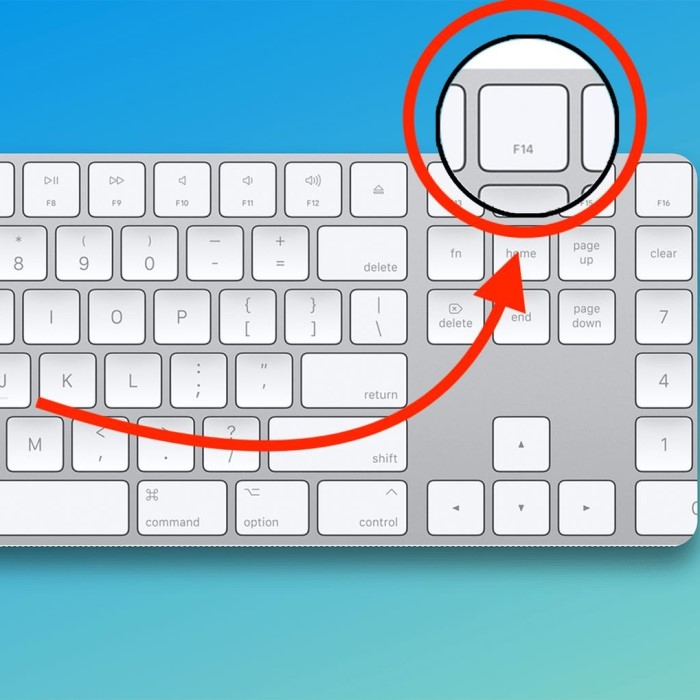 two-factor authentication (2FA).
Extra Verification:
- Definition: Extra verification, also known as two-factor authentication (2FA), involves an additional step in the login process that requires users to present two different forms of identification before they gain access to their accounts.
- Forms of Identification: The second form of identification can include various methods, such as:
- Text Message Code: A one-time code sent to your mobile device that you must enter after your password.
- Authentication Apps: Applications like Google Authenticator or Authy that generate time-sensitive codes for you to input during login.
- Biometric Data: Fingerprints or facial recognition systems that provide a unique form of identification.
- Layered Security: This additional layer of security ensures that even if someone manages to obtain your password, they would still need access to your secondary verification method to log in.
- Risk Reduction: Implementing two-factor authentication significantly lowers the chances of unauthorized individuals accessing your computer or accounts, as it adds a barrier that must be defeated.
- Enhanced Security: 2FA protects sensitive information by complicating the login process for potential attackers who may only possess your password but lack the necessary second form of verification.
- User Awareness: Understanding how two-factor authentication works helps users take proactive steps to safeguard their personal information and digital assets.
- Adoption Across Platforms: Many online services and applications now support two-factor authentication, encouraging users to activate this feature to enhance their security posture.
- Long-term Protection: By consistently using extra verification methods, users can build a habit of prioritizing security, which contributes to ongoing protection against evolving threats.
3. Educate Yourself About Phishing Attacks
A. Security Awareness
Being aware of phishing and social engineering tactics is crucial.
Identifying Threats:
- Stay Informed: Regularly read articles, watch webinars, or attend workshops focused on cybersecurity to keep up-to-date with the latest threats and tactics used by cyber attackers.
- Understand Common Tactics: Familiarize yourself with the most prevalent methods used by attackers, such as phishing scams, social engineering, malware, and ransomware, to better recognize potential threats.
- Utilize Resources: Make use of reputable resources such as cybersecurity blogs, government websites, and educational platforms that provide insights and updates on emerging threats.
- Engage with Experts: Connect with cybersecurity professionals through forums or networking events to gain direct insights and advice on how to protect yourself against common threats.
Practicing Caution:
- Critical Thinking: Always scrutinize the legitimacy of requests for your personal or financial information. Ask yourself if the request seems appropriate or if the source is credible.
- Verify Sources: If you receive unexpected communications (emails, phone calls or messages), verify the sender by checking official websites or contact numbers rather than responding directly to the communication.
- Be Wary of Urgency: Attackers often create a sense of urgency to provoke hasty decisions. Take your time to evaluate the communication before taking any action.
- Educate Others: Share knowledge about verifying sources and recognizing suspicious communications with friends and family to promote a culture of caution and awareness in your community.
Frequently Asked Questions
What is the shortcut key for lock?
The shortcut key to lock a Windows computer is Windows Key + L. For Mac users, it’s Command + Control + Q.
Which is the locking key on the computer keyboard?
There isn’t a dedicated “locking key” on most keyboards. Instead, users rely on keyboard shortcuts or the operating system interface (like the Start menu) to lock their computers.
What does Ctrl + Alt + L do?
The Ctrl + Alt + L shortcut is not a standard command on many systems. Instead, on some systems, it may be configured to perform a lock function, similar to other shortcuts. Check your specific system settings to see if this shortcut can be customized.
This comprehensive guide should provide clarity on how to lock your computer using keyboard shortcuts and improve your overall security practices while using your device. Happy typing and secure computing!
Conclusion: Mastering Keyboard Security
In conclusion, knowing how to lock computer with keyboard shortcuts is a valuable skills set that enhances your computer security. By understanding various keyboard options and functions, you can seamlessly lock your computer to protect sensitive information and improve overall productivity.
Whether you are using a Windows PC or a Mac, the shortcuts and methods provided in this article ensure you can secure your workspace quickly and efficiently. Remember to complement these actions with strong passwords and other security measures to create a comprehensive defense against unauthorized access.