
Introduction
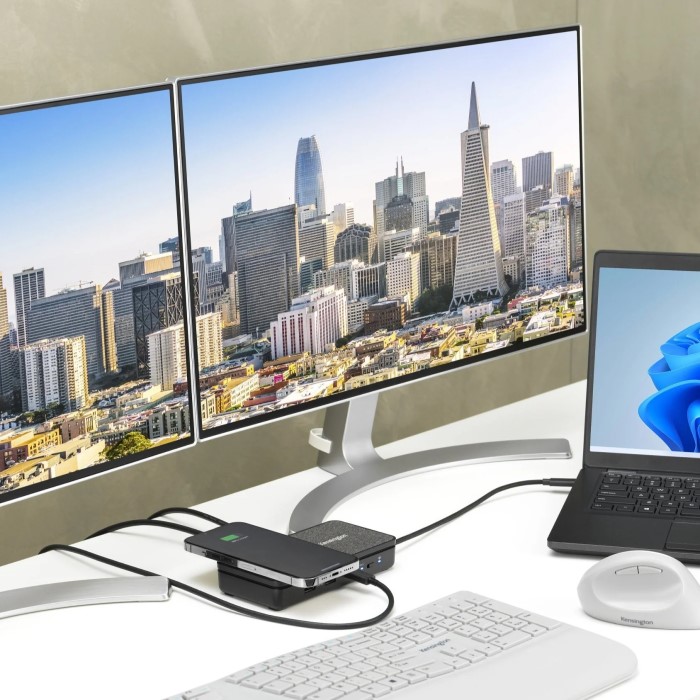
In today’s fast-paced digital world, enhancing productivity has become a primary goal for professionals and remote workers alike. One effective way to achieve this is by utilizing a monitor docking station. This powerful device allows you to connect multiple monitors and other peripherals, enabling seamless multitasking and a more organized workspace.
As the trend toward dual screen setups grows, understanding how to enhance your workspace with the right tools is essential. In this article, we will explore the benefits of a monitor docking station, how it can enhance your dual screen setup, and tips to maximize its effectiveness.
What is a Monitor Docking Station?
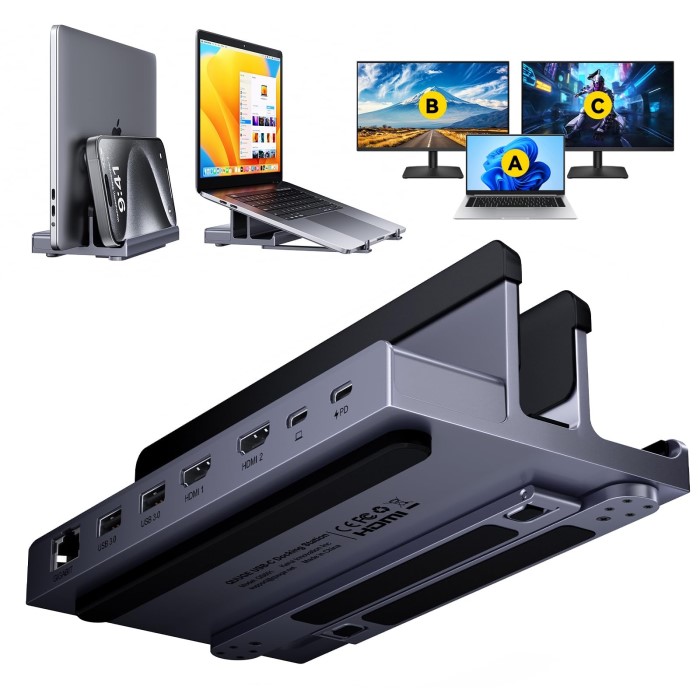
A monitor docking station is a device that connects multiple peripherals to a laptop or desktop computer through a single connection. These devices typically have various ports, enabling users to connect external monitors, keyboards, mice, storage devices, and more.
Key Functions of a Monitor Docking Station
- Connect Multiple Monitors: One of the primary functions of a docking station is its ability to connect multiple monitors. This feature is especially useful for professionals who require extended display space for working on spreadsheets, coding, or performing creative tasks.
- Increase Connectivity: Docking stations provide a myriad of ports, including USB, HDMI, DisplayPort, and Ethernet. This expands the number of devices that can be connected to your computer, enhancing your overall workflow.
- Simplify a Cluttered Workspace: With a monitor docking station, users can keep their workspace organized. Instead of multiple cables running from each device, a single connection to the docking station can simplify the setup considerably.
- Power Delivery: Many modern docking stations offer power delivery features, allowing users to charge their laptops through the docking station while connected, eliminating extra clutter from power adapters.
Benefits of Using
1. Enhanced Productivity
Work efficiency often increases when multiple monitors are used. A docking station enables this by connecting two or more displays simultaneously. This setup facilitates:
- Multitasking: Users can easily drag and drop content between screens, making it simple to compare documents or run concurrent applications.
- Focus: With a larger workspace, distractions can be minimized. You can dedicate one screen to a specific task while keeping another for reference materials or communication.
2. Improved Organization
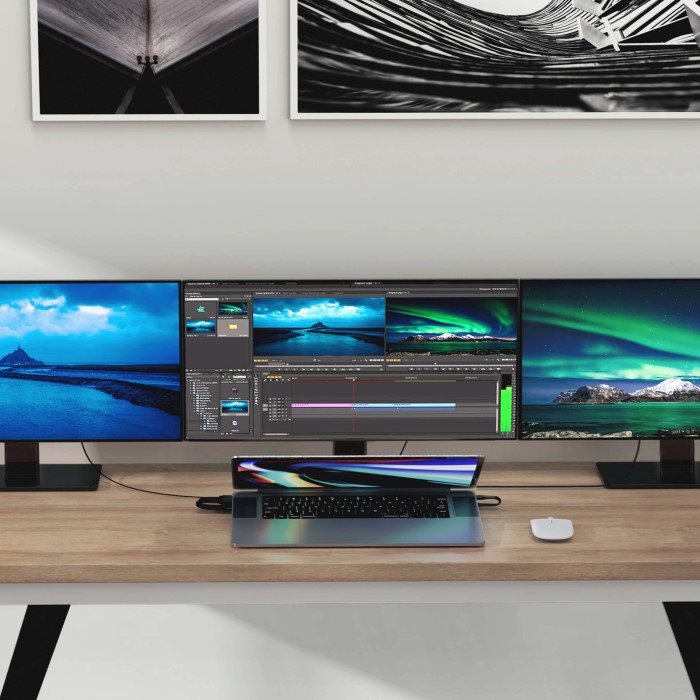
Using a monitor docking station helps keep your workspace tidy. A well-organized environment leads to better focus and productivity. Consider the following:
- Space Management: Docking stations allow you to position monitors at higher or more ergonomic levels, saving desk space.
- Fewer Cables: By consolidating connections into one docking station, you reduce the clutter of cables and connectors, leading to a neater work area.
3. Flexibility and Mobility
Docking stations offer the flexibility to connect to different devices without constant reconfiguration. This feature is beneficial for:
- Remote Workers: If you’re transitioning between home and office setups frequently, a docking station can make the change seamless, as you won’t have to reconnect cables each time.
- Multiple Device Compatibility: Many docking stations support a wide range of devices, making it simpler to switch between different laptops or computers.
Choosing the Right Monitor Docking Station for Your Needs
When selecting a monitor docking station, consider the following factors to ensure you’re making the right choice for your dual screen setup:
1. Compatibility with Devices
Ensure that the docking station you choose is compatible with your laptop or desktop. Check for:
Operating System:
-
- Compatibility with macOS or Windows: It is crucial to understand that certain docking stations are specifically optimized for either macOS or Windows operating systems. This optimization can affect performance and functionality.
- Research Before Purchase: To avoid potential connectivity problems, take the time to research and read reviews about how well a specific docking station performs with your desired operating system. Look for user experiences and compatibility notes.
- Potential Connection Issues: Using a docking station that is not fully compatible with your operating system can lead to issues such as drivers not installing properly, peripherals not being recognized, or reduced functionality of connected devices.
USB Ports:
-
- Identify Required Connections: Before selecting a docking station, confirm whether your devices require USB-C, USB 3.0, or Thunderbolt 3 connections. Each type of USB port offers different speeds and capabilities, which can impact overall performance.
- Future Compatibility Considerations: Think about your future needs as well. Consider whether you might upgrade your devices later, and ensure that the docking station you choose supports the latest connection standards to maintain compatibility.
- Device Versatility: A docking station with multiple types of USB ports can enhance versatility, allowing you to connect various devices without needing additional adapters or converters. This will enable a hassle-free setup for current and future devices.
2. Number of Monitors Supported
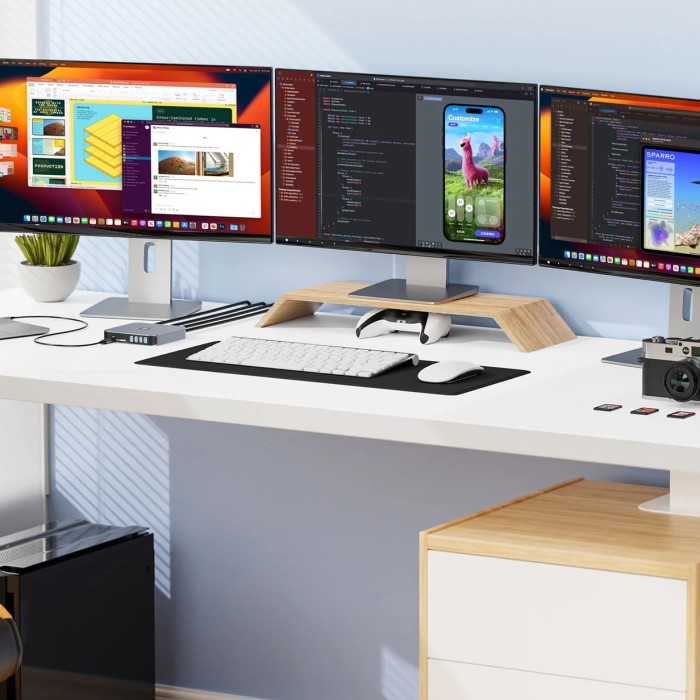
Different docking stations support varying numbers of monitors. Decide how many screens you need and choose a docking station that can handle your requirements.
3. Port Selection
Evaluate the types and numbers of ports available on the docking station. Consider:
- HDMI and DisplayPort: Ensure the docking station includes enough video outputs to support your monitors.
- USB Ports: Depending on your peripherals, assess the number of USB-A and USB-C ports available.
4. Power Delivery Options
If convenience is important, consider a docking station that provides power to your laptop while you work. Check the wattage to ensure it meets your device’s charging needs.
5. Build Quality and Brand Reputation
Choose a reputable brand known for manufacturing high-quality docking stations. Reading reviews and customer feedback can provide insights into the build quality and reliability of the product.

Setting Up Your Dual Monitor Docking Station
Once you have chosen your monitor docking station, follow these steps to set it up effectively:
1. Unpack and Inspect the Docking Station
- Ensure the contents of the package include all necessary components: the docking station, power adapter, and relevant cables.
- Check for any visible damage to the device and report any issues to the retailer or manufacturer.
2. Position the Docking Station
- Find a convenient and accessible location on your desk for the docking station. Keep it close to your laptop to ensure easy connectivity.
- Use cable management solutions to help keep cords organized and out of the way.
3. Connect to the Laptop
- Plug the docking station’s power adapter into an outlet and connect it to the station.
- Use a USB-C or Thunderbolt cable to connect the docking station to your laptop. Ensure a secure fit to maintain reliable connectivity.
4. Connect Your Monitors
- Attach your external monitors to the docking station using HDMI or DisplayPort cables, depending on what your monitors support.
- Switch on the monitors and your laptop. The operating system often detects the displays automatically.
5. Adjust Display Settings
- Navigate to your laptop’s display settings to configure the arrangement of your monitors.
- Choose to extend or duplicate the screen display based on your preferences. Adjust resolutions as needed for optimal clarity.
6. Connect Additional Peripherals
- Plug in your keyboard, mouse, speakers, or any other USB devices into the docking station. This will streamline access to all your peripherals.
- Use the audio ports for connecting headphones or external speakers if necessary.
Frequently Asked Questions
As you familiarize yourself with monitor docking stations, you might have some questions. Here are answers to some common FAQs:
What does a monitor docking station do?
A monitor docking station connects multiple peripherals to a laptop or desktop computer via a single connection. It allows users to connect external monitors, USB devices, and even power sources while reducing cable clutter.
Can I use a monitor as a docking station?
Monitors typically do not function as docking stations. However, some advanced monitors come with built-in hub features, allowing limited connectivity options, but a dedicated docking station provides a more comprehensive solution.
Will a docking station allow multiple monitors?
Yes, many docking stations are designed to support dual or multiple monitors. Always check the specifications of the docking station to ensure it can handle the desired number of displays.
What ports are on the Dell K20A docking station?
The Dell K20A docking station includes several ports, such as USB 3.0, USB-C, HDMI, and DisplayPort, as well as Ethernet and audio input/output ports, allowing a wide range of connections for devices.
Conclusion
In conclusion, incorporating a monitor docking station into your workspace can significantly enhance your dual screen setup, leading to improved productivity and organization. Understanding the benefits, features, and setup processes makes it easy to optimize your work environment.
By choosing the right docking station and setting it up effectively, you can experience the advantages of dual monitors, making multitasking simpler and more efficient. Embrace the possibilities that come with a well-organized workspace, and take full advantage of the technology available to you!