
Introduction
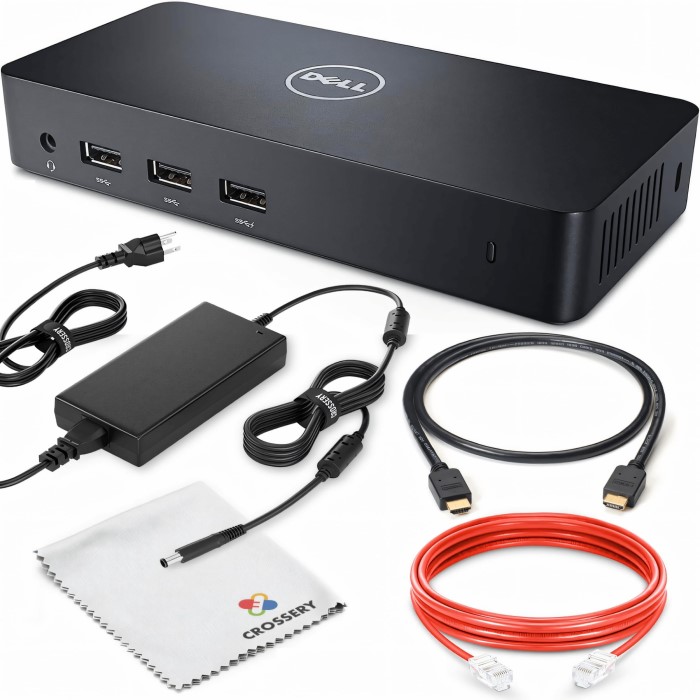
The Dell D3100 docking station is a versatile and powerful accessory designed to expand connectivity and enhance productivity for laptop users. With its ability to connect multiple peripherals through a single cable, the D3100 simplifies workspace organization and offers a seamless user experience. It includes various ports for connecting monitors, external drives, and other essential devices. However, as is common with many tech devices, users may occasionally face challenges with their docking stations. This article focuses on troubleshooting commonly encountered issues with the Dell D3100 docking station and offers effective solutions to ensure optimal performance.
Overview of Common Issues
Power Connection Problems
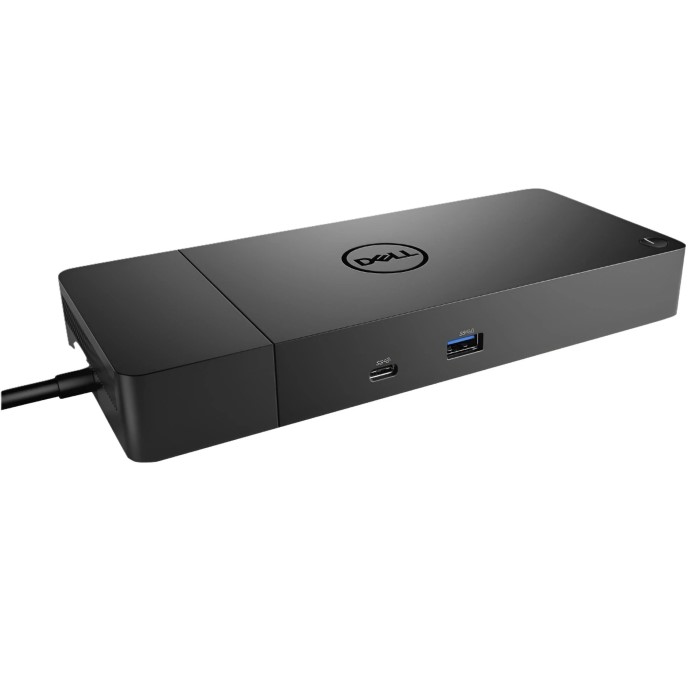
One of the most frequent problems faced by Dell D3100 users relates to power connection issues. Many users report instances where the docking station fails to power on or inadequately charges connected laptops. Identifying the root cause of these power-related issues is crucial for maintaining the performance of your devices.
- Ensure Proper Connection: Start by verifying that the power cable is securely connected to both the docking station and a working electrical outlet. A loose connection can easily lead to power problems.
- Check the Power Adapter: If there is no power indication on the docking station, consider testing the power adapter with another outlet to confirm that it is functioning properly. You may even want to use a multi-meter to test the adapter output.
- Inspect Indicator Lights: Examine the indicator lights on the docking station. A red or off power indicator usually signifies an issue. If the docking station shows no signs of life, it could be a sign of a deeper hardware issue.
- Test with Another Device: If possible, connect the docking station to a different laptop to see if power issues persist. This can help isolate the problem to either the dock or the original device.
Data Transfer Issues
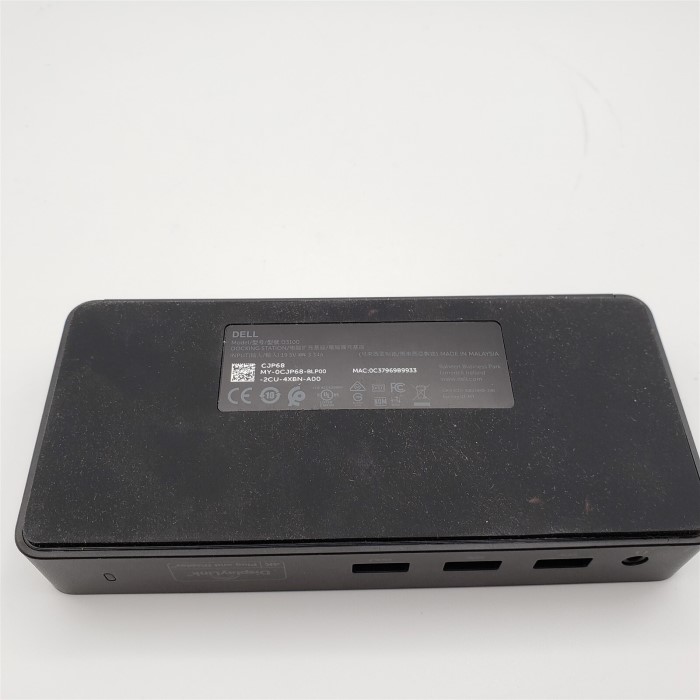
Another area where users may face challenges is data transfer problems. These issues can include external devices not being recognized or experiencing slow data transfer rates, which can significantly disrupt workflow.
- Connection Integrity: Begin by ensuring that all cables are securely connected. The USB cables connecting peripherals should fit snugly into the respective ports on the docking station and the connected laptop.
- Check USB Device Functionality: If specific USB devices are not functioning as expected, try connecting them to different ports on the docking station or directly to the laptop. This helps identify if the issue lies with the device itself or the docking station.
- Drivers and Firmware Updates: Outdated drivers can lead to data transfer complications. Ensure that the latest drivers and firmware updates are installed for both the docking station and the connected device. Dell’s support website provides easy access to the latest software downloads.
- Data Speed Testing: Use various file transfer tests to check the transfer speed of USB devices. If slow transfer rates are persistent, consider using a USB 3.0 or higher compatible device for optimal performance.
Monitor Connectivity Issues
Connecting multiple monitors is a standout feature of the Dell D3100 docking station, but sometimes issues can arise in this area, diminishing the user experience. Users may find that their monitors do not connect properly or fail to display content as expected.
- Check Monitor Compatibility: Ensure that the monitors being connected to the D3100 are compatible with the docking station. Some monitors may have specific requirements or resolutions that could hinder proper functionality.
- Verify Connections: Inspect the cables connecting the docking station to the external monitors. Ensure they are securely connected and that the correct ports are being utilized. The dock provides two DisplayPort and one HDMI output, so ensure you utilize these correctly.
- Adjust Display Settings: If monitors are connected yet not displaying correctly, you may need to adjust your operating system’s display settings. In Windows, for instance, right-click the desktop and select ‘Display settings’ to configure multi-monitor setups, such as extending or mirroring the desktop.
- Reset Monitors: Sometimes, simply unplugging the monitor from the dock and plugging it back in can prompt a refresh, allowing the system to recognize the display.
Network Connection Problems
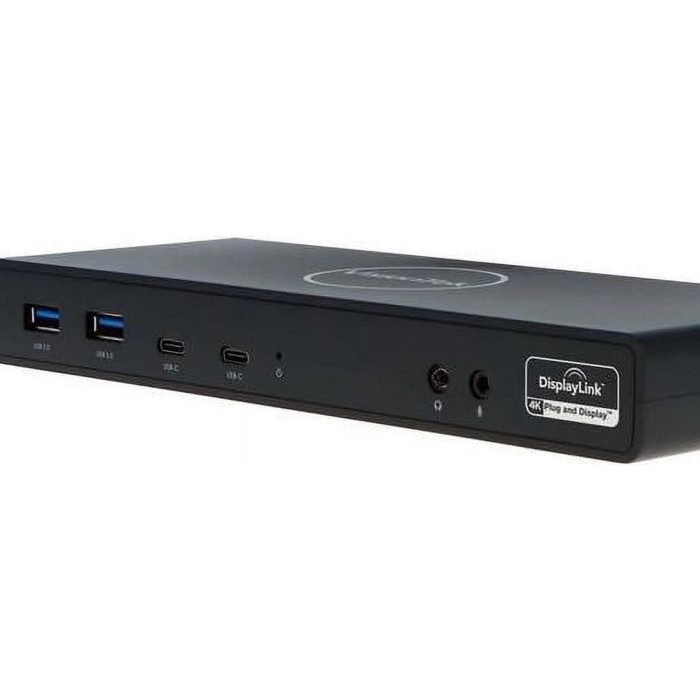
The Dell D3100 offers Ethernet port functionality, allowing users to connect to a wired network. However, problems may arise that lead to intermittent or no connectivity.
Check Ethernet Connection
- Secure Connection:
- Begin by ensuring that the Ethernet cable is firmly and securely plugged into the docking station’s Ethernet port.
- A loose connection can impede the transfer of data, leading to connectivity issues. It’s important to push the cable in fully until you hear a click, indicating it’s properly connected.
- Router Connection:
- Next, check that the other end of the Ethernet cable is connected to the router.
- Verify that the cable is plugged into a functional port on the router, as using the wrong port or a damaged one can disrupt connectivity.
- If possible, inspect the port for any visible signs of damage, such as bent pins.
Test Different Cables
- Identifying Cable Issues:
- If you continue to experience connectivity problems, consider trying a different Ethernet cable.
- Faulty cables are a common cause of network issues and replacing them can quickly determine if the cable itself is the culprit.
- Quality of Cables:
- When selecting a replacement cable, ensure that it is of good quality and meets the required specifications for your network speed needs.
- Using well-rated cables can improve reliability and performance, reducing the chances of future connectivity issues.
Inspect Network Settings
- Access Network Settings:
- After confirming that all physical connections are intact, check the network settings on your laptop for any configuration issues.
- Navigate to the Control Panel or System Preferences, depending on your operating system, to access the network settings menu.
- Adapter Configuration:
- Ensure that the settings for the network adapter are appropriately configured for wired connections.
- Check that the adapter is set to obtain an IP address automatically, as manual settings might lead to conflicts or connectivity errors.
- Diagnose Connection Problems:
- Many operating systems also provide built-in troubleshooting tools for network connections.
- Running a diagnostics check can identify any configuration issues and suggest potential fixes, making it easier to resolve connectivity problems.
Restart Devices
- Performing a Restart:
- Restart both the router and your laptop to refresh the network connection. This simple action can resolve various connectivity issues that may arise from temporary system glitches.
- Power down the router completely by unplugging it from the wall, waiting for about 30 seconds, and then plugging it back in. Similarly, shut down your laptop and restart it.
- Re-enable Ethernet Adapter:
- After restarting, ensure that the Ethernet adapter is enabled in your laptop’s device settings.
- Sometimes, the adapter may automatically disable during a reboot, so checking this setting can reinstate the connection.
- Testing Connection Again:
- Once both devices have fully restarted, test the Ethernet connection to see if the issue has been resolved.
- If problems persist after following these steps, further troubleshooting may be necessary, such as checking the router’s firmware or contacting your internet service provider for assistance.
FAQs
How many monitors can a Dell D3100 support?
The Dell D3100 docking station can support up to three monitors simultaneously. Users can connect one monitor via HDMI and two additional monitors through DisplayPort, optimizing productivity across multiple screens.
What is the price of the Dell docking station D3100?
The price of the Dell D3100 docking station varies based on the retailer and any ongoing promotions, typically ranging from 100to200 as of 2025. It’s advisable to compare prices from different vendors for the best deal.
What ports are on the Dell D3100?
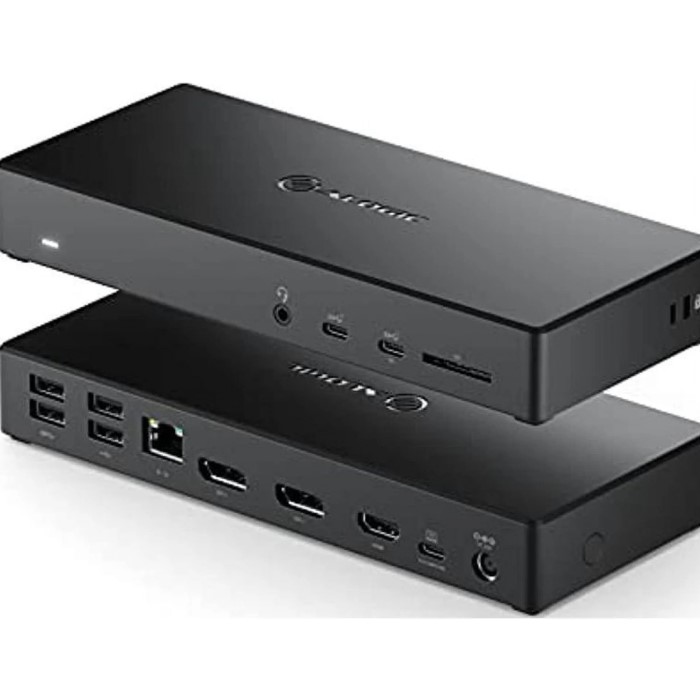
The Dell D3100 docking station includes a variety of ports, providing extensive connectivity options:
- Three USB 3.0 ports for fast peripheral connections.
- One USB-C port for modern devices.
- Two DisplayPort outputs for connecting multiple monitors.
- One HDMI output for additional display options.
- One Gigabit Ethernet port for wired network connections.
- An audio line-out port for external audio devices.
These features collectively provide great versatility for various user needs.
Can a Dell docking station work with any laptop?
While primarily designed for Dell laptops, the Dell D3100 docking station is compatible with any laptop that supports USB 3.0 or USB-C connections. For extensive functionality, particularly with multiple monitor connections, ensure the laptop possesses the required graphics capabilities.
Conclusion
In conclusion, the Dell D3100 docking station is an essential tool that enhances productivity through its array of connectivity options. However, users may run into common issues such as power connection problems, data transfer failures, monitor connectivity challenges, and network issues. Understanding these problems and applying the troubleshooting steps outlined above can significantly improve your experience with the docking station.
As you utilize the Dell D3100, remember that maintaining updated drivers and proper cable connections is key to optimal performance. Should the issues persist or if further assistance is needed, don’t hesitate to reach out to Dell’s customer support for professional help. By being proactive about troubleshooting, you can fully leverage the capabilities of the Dell D3100 docking station and ensure a smooth, efficient workspace.