
Introduction: Why Change Your Keyboard on Android?
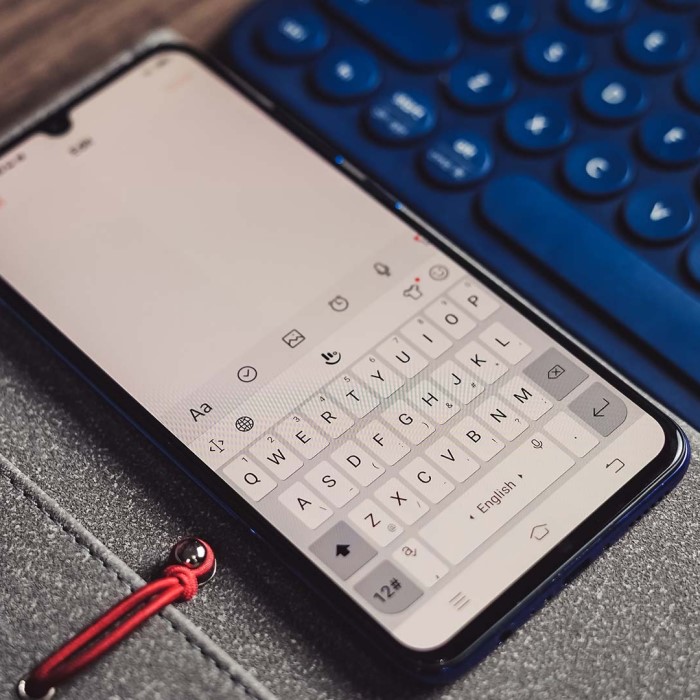
In today’s digital world, typing efficiently on your smartphone is crucial. If you’re looking for ways to improve your messaging, writing, or any text input, changing your keyboard can make a significant difference. How to change keyboard on Android is an essential topic for those seeking a better user experience. Whether you want improved autocorrect features, emoji integration, or a different layout, selecting the right keyboard can streamline your interaction with your device. This comprehensive guide will walk you through the steps to change your keyboard, introduce popular options, and provide tips for maximizing your keyboard’s potential.
Understanding Default Keyboards on Android
Most Android devices come pre-installed with a default keyboard application. While these keyboards can suffice for basic typing tasks, they may lack advanced features that users desire. For instance, many default keyboards do not support multiple languages, advanced prediction algorithms, or customizable themes.
When considering how to change keyboard on android, it’s vital to understand what features you need. Are you looking for emojis and GIFs? Do you prefer voice typing? Understanding your requirements can help you select the best keyboard application for your needs.
Additionally, many users find that the default keyboard does not allocate enough screen space for typing comfortably. Changing the keyboard can resolve this issue, providing a more enjoyable typing experience.
Steps to Change Your Keyboard on Android
Changing your keyboard on an Android device is a straightforward process. Follow these steps to ensure a successful switch:
1. Access Your Device Settings
To begin, open the Settings app on your Android device. This can typically be done by tapping the gear icon from your app drawer or notification panel.
2. Go to Language and Input Settings
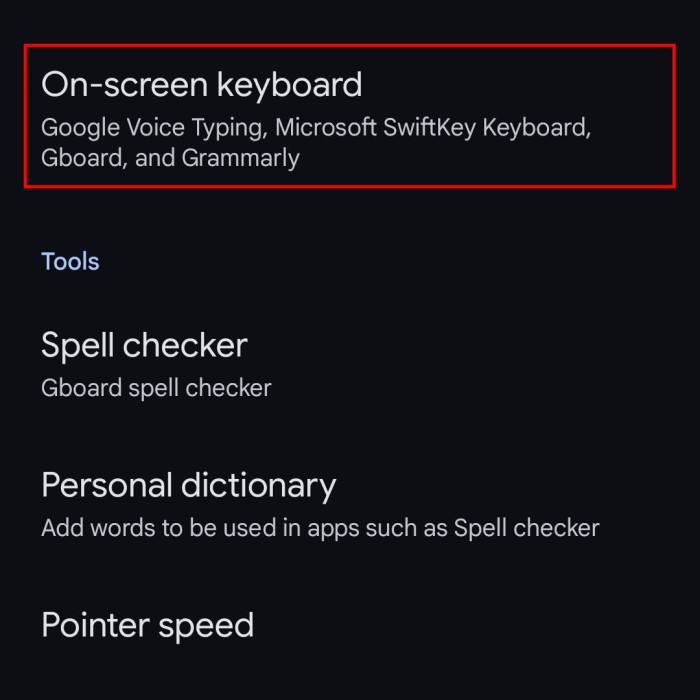
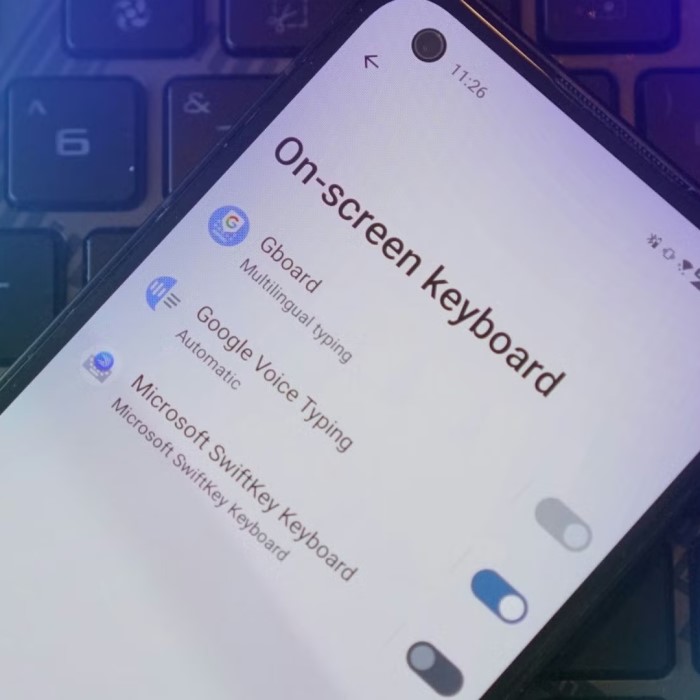
From the Settings menu, look for System or General Management, then tap on Language and Input. Here, you can see the keyboards currently installed on your device.
3. Select Current Keyboard
Under the Keyboard and Input Methods section, tap on Current Keyboard or a similar option. This will display the keyboard you are currently using.
4. Choose a New Keyboard
If you already have another keyboard installed, select it from the list. If you want to explore new options, tap on Add Keyboard or Download new keyboards. This takes you to the Google Play Store, where you can find various popular keyboard apps.
5. Installing a New Keyboard
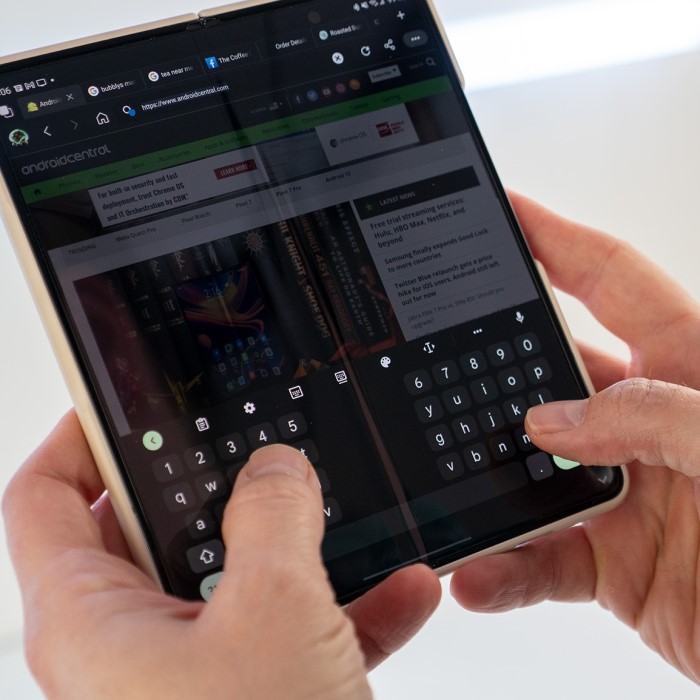
Once you’ve found a suitable keyboard app like Gboard, SwiftKey, or any other, tap Install. After installation, return to the language and input settings.
6. Enable the New Keyboard
Select the newly installed keyboard from your list of available keyboards. You may need to grant necessary permissions or enable the keyboard in the settings.
7. Set as Default Keyboard
After enabling it, set the new keyboard as your default option. This step ensures that you will use this keyboard in all your applications.
8. Customize Your Keyboard Settings
Finally, explore the settings of your new keyboard. Most keyboard apps provide options for themes, layouts, and features. Adjust these settings according to your preferences for a personalized typing experience.
Popular Android Keyboards to Consider
Now that you know how to change your keyboard on Android, it’s essential to explore popular keyboard options that can enhance your typing experience further. Let’s take a look at some of the best Android keyboards available in 2025:
Gboard
One of the most popular keyboards, Gboard, developed by Google, offers seamless integration with Google services. Features include:
- Integrated Google Search
- Emoji and GIF support
- Glide typing for efficient input
- Voice typing capabilities
Gboard also allows for theming and customizable options to suit individual preferences.
SwiftKey
SwiftKey, owned by Microsoft, is another favorite among Android users. Its standout features include:
- Advanced prediction and autocorrect
- Multi-language support
- Customizable layout and themes
- Emoji prediction based on the text context
SwiftKey learns from your typing habits, leading to improved suggestions over time.
Fleksy
Fleksy is best known for its speed and customization options. Key features include:
- Gesture typing and customizable shortcuts
- Various themes and extensions
- Support for 60+ languages
Fleksy prides itself on its minimalist design, creating an efficient typing environment without distractions.
Chrooma Keyboard
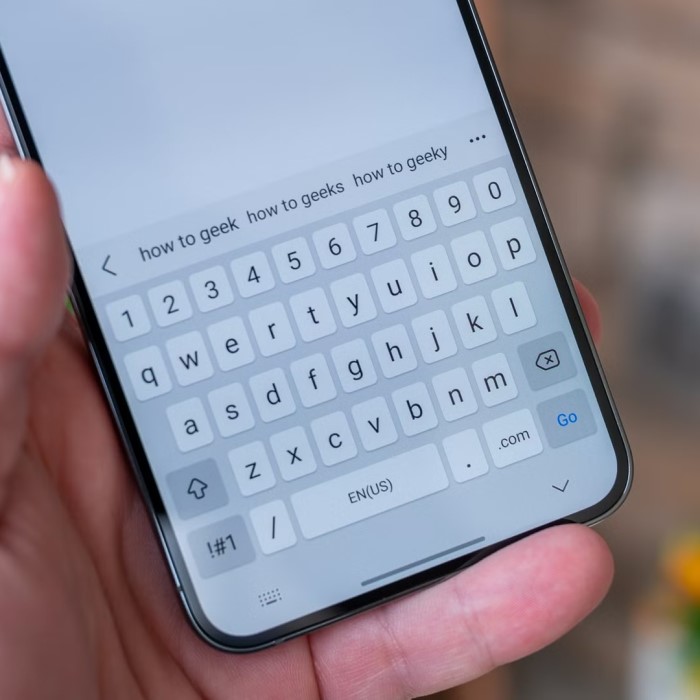
Chrooma Keyboard uses AI to adapt to your writing style and offers unique color themes based on the app you’re using. Features include:
- Smart emoji suggestions
- Night mode and one-handed mode
- Gesture typing and customizable layouts
Chrooma provides an aesthetically pleasing typing experience without compromising functionality.
Tips for Enhancing Your Keyboard Experience
Having changed your keyboard, you can take additional steps to ensure your typing experience remains seamless. Here are some tips to consider:
Explore Settings
- Diverse Features: Each keyboard app comes equipped with a wide range of settings that you can modify to suit your typing preferences. These features may include auto-correct sensitivity, which determines how aggressively the keyboard corrects typos, and predictive text, which suggests words or phrases as you type.
- Customization Options: Some keyboards allow you to change layouts, switch between different languages, or adjust the size of the keys. Dive into the settings menu to explore options like key vibration feedback, sound settings, and font styles, enabling a more personalized typing experience.
- Testing Adjustments: After changing settings, take some time to test how they affect your typing. Make adjustments based on your comfort level, ensuring that the keyboard works optimally for your specific needs and preferences.
Use Shortcuts
- Creating Shortcuts: Many keyboard apps allow users to create shortcuts for frequently used phrases, email addresses, or even entire responses. For example, typing “omw” could automatically expand to “On my way!” This feature saves time and reduces the hassle of repetitive typing.
- Efficiency Boost: By utilizing shortcuts, you can streamline your communication, especially in messaging apps where rapid typing is essential. This can be particularly useful for professionals who often send similar replies or messages.
- Organize Shortcuts: As you create more shortcuts, consider organizing them into categories or themes. This organization makes it easier to remember and access them quickly, further enhancing your typing efficiency.
Practice Gesture Typing
- Understanding Gesture Typing: Gesture typing, also known as swipe typing, allows users to input words by sliding their fingers from letter to letter rather than tapping each key individually. This method can significantly speed up text entry.
- Getting Comfortable: Although gesture typing may require a bit of practice to master, try it out in a comfortable setting. Focus on forming words without lifting your finger, allowing for a smoother flow of typing as you gain confidence.
- Customization Techniques: Explore settings related to gesture typing, such as correcting errors automatically or adjusting sensitivity. Taking the time to fine-tune these features can enhance your overall typing experience.
Emoji and GIF Integration
- Utilizing Emojis: Most modern keyboards offer a built-in emoji keyboard, making it easy to add humor and emotion to your texts. Familiarize yourself with frequently used emojis to make your messages more engaging and expressive.
- Incorporating GIFs: Many keyboard apps also include a GIF feature, allowing users to search for animated images directly from the keyboard. This added functionality can spice up conversations and provide a visual element that plain text cannot offer.
- Express Yourself: Don’t hesitate to use emojis and GIFs liberally in your communications. They can help convey tone, humor, and emotion more effectively, especially in informal discussions with friends and family.
Stay Updated
- Importance of Updates: Keeping your keyboard app updated is crucial for accessing the latest features, improvements, and security enhancements. Developers frequently release updates that fix bugs, improve performance, and add new capabilities.
- Automatic Updates: Consider enabling automatic updates through the Google Play Store or your device’s settings. This will ensure you receive the latest version of your keyboard without needing to remember to check manually.
- Explore New Features: With each update, take the time to explore any new features or settings added to your keyboard app. This proactive approach allows you to utilize the latest technology to enhance your typing efficiency and enjoyment.
FAQs About Changing Keyboards on Android
How do I get my keyboard back to normal on Android?
If your keyboard appears to be malfunctioning or presenting errors, try restarting your device. If that doesn’t work, go back to Settings, select Language and Input, and choose your original keyboard as the default option again.
How do I change the keyboard type?
You can change the keyboard type through the Language and Input settings menu on your device. Simply select your desired keyboard from the list of installed keyboards, then set it as your default.
How do I change the keypad settings?
To change your keypad settings, go to Settings, tap on Language and Input, and select your current keyboard. Within the keyboard settings, you can customize various options, including themes, layouts, and other typing preferences.
Conclusion
Changing your keyboard on Android can significantly enhance your typing experience. By understanding how to change keyboard on Android and exploring various options available in 2025, you can tailor your device to meet your needs. Whether you require advanced features, customizable layouts, or better emoji integration, there’s a keyboard out there for everyone. Ultimately, optimizing your keyboard will simplify your text input and make your interaction with your device more enjoyable. So take the plunge and experiment with different keyboards to find the one that suits you best!