
Introduction
In today’s rapidly advancing technological landscape, having a robust and efficient computer is essential. One of the most crucial components that greatly influence a desktop’s performance is its desktop memory, also known as RAM (Random Access Memory). Upgrading your desktop memory can enhance your computer’s ability to handle demanding applications, execute multiple tasks smoothly, and improve overall responsiveness. This article will explore various desktop memory options available in 2025, helping you make informed decisions to elevate your computing experience.
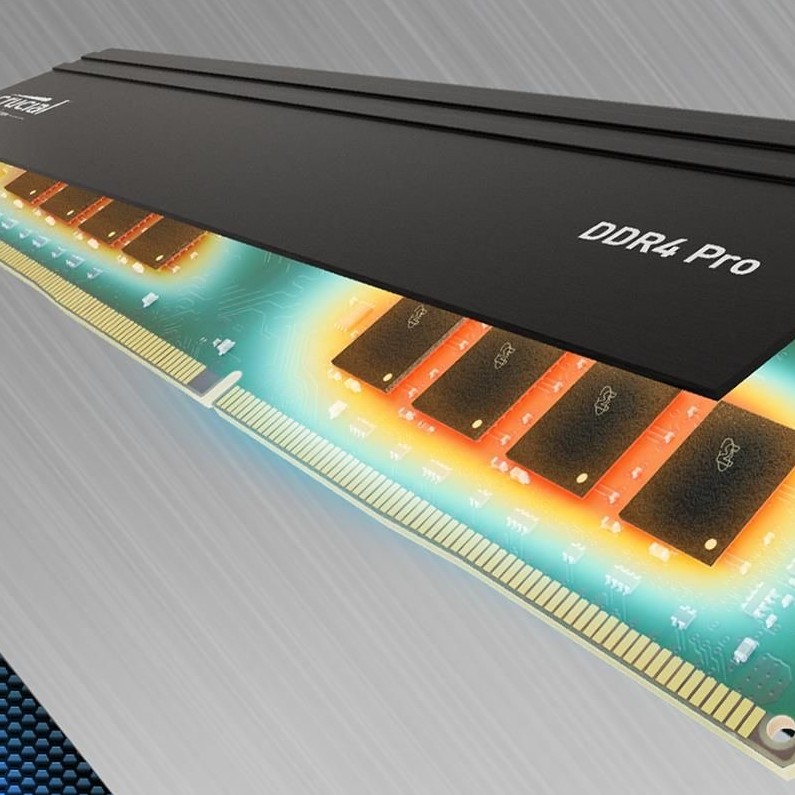
As software applications become increasingly demanding, having adequate memory is no longer a luxury but a necessity. Whether you are a gamer, a creative professional, or a casual user, understanding desktop memory’s role in your system will help you optimize performance. We will cover the different types of desktop memory, how to choose the right options for your needs, and provide top recommendations for upgrading your system.
The Importance
How Desktop Memory Works
Desktop memory (RAM) is essential for the smooth operation of a computer. It temporarily stores data that the CPU needs to access quickly while performing tasks. RAM is considered volatile memory, meaning it loses its contents when the computer is turned off. When you run applications, your operating system loads the program from your hard drive or SSD into the RAM for faster access.
This is where the size of your RAM becomes crucial: the more memory you have, the more applications you can run simultaneously without experiencing slowdowns. Insufficient RAM leads the system to rely on slower storage devices, causing lag and delayed performance.
Impact of Low Memory
When your desktop has insufficient memory, users may experience various issues, including:
Slow Application Performance
- Identifying Slow Loading Times: When you notice that programs take significantly longer to open, it could be a clear indication that your system is struggling with insufficient memory. Slow application performance often manifests as delayed responses, where applications stutter or have extended loading screens.
- Frustration During Multitasking: Switching between applications can become frustratingly slow. For example, if you regularly use multiple programs such as word processors, web browsers, and media players, transitioning from one to another may cause delays. This interruption can disrupt your workflow and hinder productivity, particularly during time-sensitive tasks.
- Impact on User Experience: As applications slow down, users can experience increased stress and irritation. Regular delays can damage overall satisfaction with the computer, prompting users to consider upgrades or replacements to enhance performance.
- Potential Causes: Several factors could contribute to slow application performance, including insufficient RAM, an overloaded CPU, fragmented storage drives, or outdated software. Identifying the root cause is essential when seeking solutions to enhance application responsiveness.
System Freezes
- Understanding System Freezes: A system freeze occurs when your computer becomes unresponsive, displaying a frozen screen with no further action. This can happen at any time but is particularly common during instances of heavy usage when multiple applications and processes are running simultaneously.
- Challenges During Heavy Usage: Engaging in resource-intensive tasks like gaming, video editing, or running virtual machines can significantly increase the demand for system resources. If the memory is insufficient, your computer may struggle to manage these tasks, leading to complete lockups.
- Difficulty Completing Tasks: When a computer freezes, completing even simple tasks becomes impossible. Users may lose unsaved work, leading to frustration and inconvenience. Rebooting the system is often the only option, which can result in productivity losses and workflow interruptions.
- Preventative Measures: To reduce the incidence of system freezes, consider upgrading your desktop memory or optimizing your system settings. Closing unnecessary applications and monitoring running processes can help alleviate some strain on resources.
Excessive Page File Usage
- What is Page File Usage?: The page file serves as a virtual memory extension on your hard drive. When your computer runs out of physical RAM, the operating system uses the page file to swap inactive memory data to disk. While this feature helps manage memory demands, it isn’t a substitute for having adequate physical RAM.
- Impact on Load Times: When excessive page file usage occurs, the operating system requires more time to fetch data from the slower hard drive rather than accessing it directly from faster RAM. This situation results in longer load times for programs, leading to a noticeable decrease in performance.
- Performance Degradation: When your system heavily relies on the page file, users may experience sluggish performance. Opening applications may take longer, and the overall computing experience can feel significantly bogged down. This effect is most pronounced during multitasking or resource-demanding activities.
- When to Consider an Upgrade: If you consistently encounter excessive page file usage, it may indicate that you need to upgrade your desktop memory. Increasing the amount of physical RAM can reduce the dependency on the page file, leading to improved system response and efficiency.
As a result, having an adequate amount of desktop memory is crucial for maintaining a productive and enjoyable computing experience.
Types
When considering an upgrade, it’s essential to understand the different types of desktop memory available:
DDR (Double Data Rate) RAM
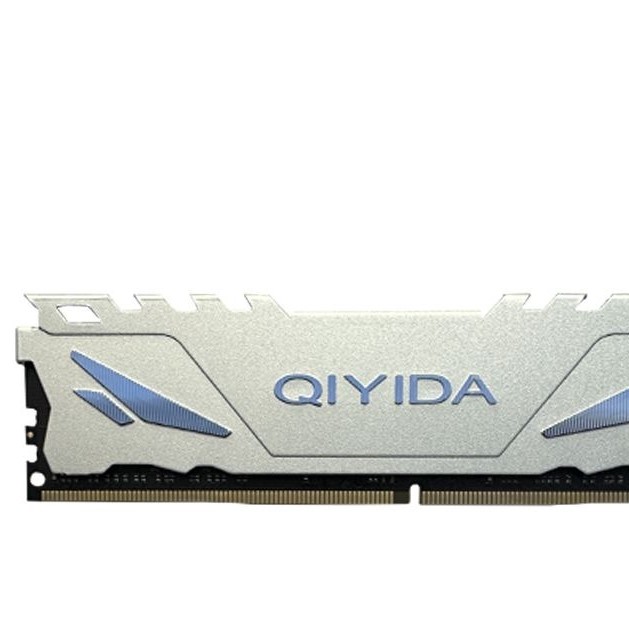
- DDR4: As the most widely used memory type in modern desktops, DDR4 RAM offers improved speed and efficiency compared to its predecessors. It typically ranges from 2133 MHz to 3600 MHz in speed, making it suitable for most applications, including gaming and content creation.
- DDR5: The newest entrant to the market, DDR5, is starting to gain traction in 2025. This memory type promises even greater speeds, higher bandwidth, and improved power efficiency, making it a compelling option for high-performance systems. If you’re building a new desktop or upgrading a compatible motherboard, investing in DDR5 can future-proof your setup.
SDRAM (Synchronous Dynamic RAM)
SDRAM is an older memory type, primarily replaced by DDR variants. However, knowing that SDRAM can appear in older systems can help you identify parts that may need upgrading.
SO-DIMM vs. DIMM
- DIMM (Dual Inline Memory Module): DIMMs are the standard memory module for desktops. They come in various capacities and speeds and are designed for motherboards with desktop form factors.
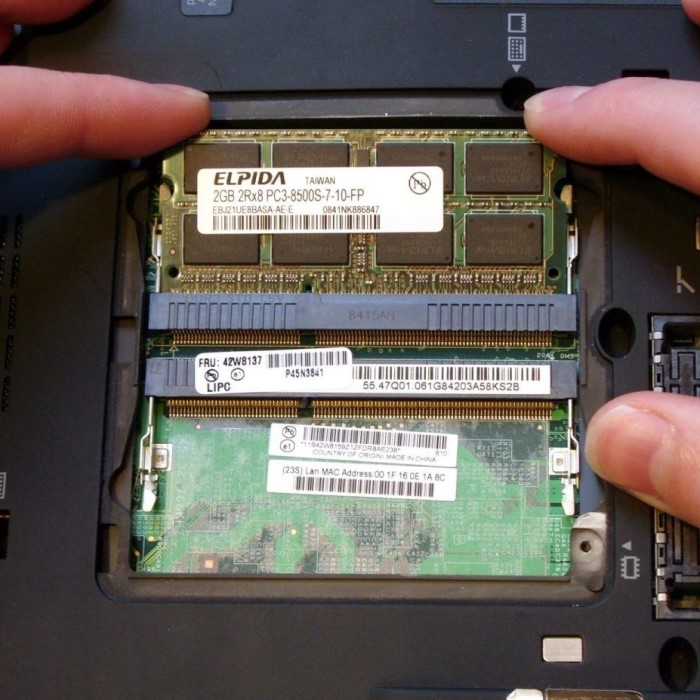
- SO-DIMM (Small Outline DIMM): SO-DIMM modules are typically used in laptops and compact desktops. They are smaller than standard DIMMs but serve the same purpose. If you’re upgrading a laptop, ensure you choose SO-DIMM compatible memory.
Choosing the Right Desktop Memory
Assessing Your Needs
Before choosing desktop memory, it’s essential to assess your specific usage requirements. Different tasks place varying demands on system memory, including:
- Gaming: Gamers benefit significantly from higher RAM capacities. Aim for at least 16GB if you plan on playing modern titles smoothly.
- Creative Work: For video editing, graphic design, and other resource-intensive tasks, 32GB or more is recommended to handle large project files without hiccups.
- Casual Use: If you primarily use your desktop for web browsing, word processing, and light tasks, 8GB may suffice.
Compatibility and Maximum Capacity
Once you’ve identified your needs, check your motherboard’s specifications for compatibility. Factors to consider include:
- Memory Type: Ensure that the RAM type (e.g., DDR4 or DDR5) matches what your motherboard supports.
- Maximum Supported Capacity: Motherboards have specific limits on how much RAM they can handle. Refer to the manufacturer’s documentation to determine the maximum supported memory capacity.
- Number of Slots: Check how many RAM slots your motherboard has. This will influence whether you need to purchase single modules or matched sets for dual-channel performance.
Buying from Reputable Brands
Investing in quality memory from reputable brands is vital for performance and reliability. Consider brands such as:
- Corsair: Known for their performance RAM with options like Vengeance LPX and Vengeance RGB.
- G.Skill: Popular for their Ripjaws series, which offers high performance and attractive designs.
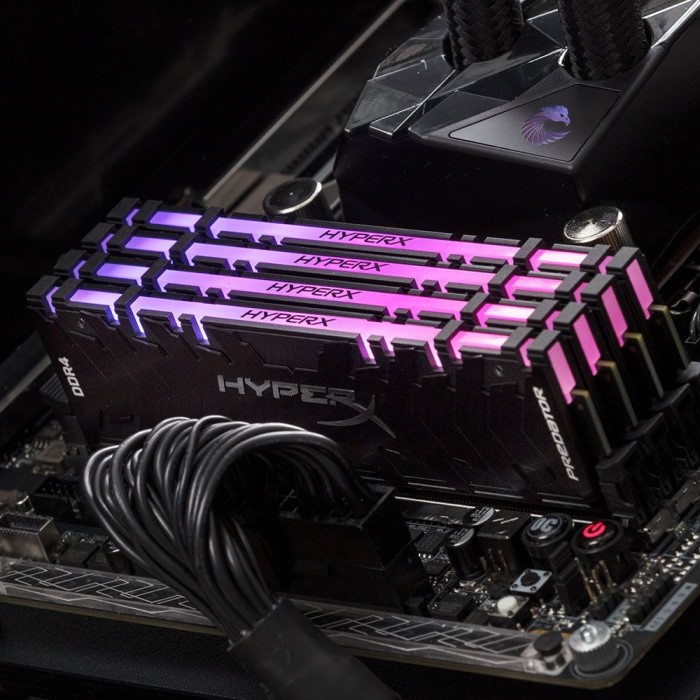
- Kingston: Renowned for their HyperX line, known for speed and gaming performance.
- Crucial: Offers reliable and affordable options for general users.
Recommended Desktop Memory Options for 2025
Top Picks for Desktop Memory
- Corsair Vengeance LPX DDR4: This memory offers a great balance of performance and affordability. It comes in various speeds and capacities, making it ideal for users looking to upgrade without spending too much.
- G.Skill Ripjaws V DDR4: Known for its reliability and impressive performance, this RAM is suitable for both gamers and professional users alike. It features a sleek design and competitive pricing.
- Kingston HyperX Fury DDR4: With its automatic overclocking technology, this RAM provides additional performance without the need for manual adjustments. It’s an excellent option for gamers who want to enhance their gaming experience.
- Crucial Ballistix Max DDR4: This is a great choice for users seeking high-performance RAM that is also competitively priced. The Ballistix Max series provides excellent speeds and is aimed at gamers and content creators.
- G.Skill Trident Z RGB DDR4: For those looking for aesthetics and performance, this RAM offers customizable RGB lighting alongside impressive specifications.
Future-Proofing with DDR5
If you are building a new system, consider investing in DDR5 RAM. Brands are starting to release RAM modules that enhance performance further, supporting the latest motherboards. By opting for DDR5, you can ensure that your system remains capable of handling future applications and demands.
FAQs
What is the Memory of a Desktop?
The memory of a desktop refers to RAM (Random Access Memory), which is used for temporarily storing data that the CPU actively uses or processes. It is essential for smooth multitasking and application performance.
What is Good Memory for a Desktop?
Good memory for a desktop depends on your usage. For general tasks, 8GB is sufficient. Gamers and content creators often benefit from 16GB or 32GB of RAM for better performance and multitasking.
Do I Need 8GB or 16GB of Memory?
If you primarily use the computer for browsing and basic tasks, 8GB is generally adequate. However, for gaming, video editing, and other demanding applications, 16GB or more is recommended to prevent slowdowns.
How Much RAM Does a Desktop Have?
Desktops can come with a wide range of RAM capacities. Most modern systems start at 8GB, while high-performance or gaming systems may come with 16GB, 32GB, or even more, depending on user needs and motherboard capabilities.
Conclusion
In conclusion, upgrading your desktop memory is one of the most impactful ways to enhance your computer’s overall performance. Understanding the different types of RAM, determining your specific needs, and selecting the right modules can significantly improve your computing experience.
With memory standards continuing to evolve, choosing the best option for your desktop in 2025 is crucial for future-proofing your setup. Whether you’re a casual user, a student, or a creative professional, investing in quality desktop memory ensures that your system runs smoothly and efficiently.
By following the insights and recommendations provided in this article, you can confidently select the best desktop memory options for your unique needs. As the demands of modern software increase, arming your computer with adequate RAM will help you navigate your tasks smoothly and efficiently.
Embrace the possibilities that come with upgrading your desktop memory—fast, responsive performance is just a module away!