
Introduction
If you own an iPad, you’ve likely encountered the split keyboard feature, which is designed to improve your typing experience. While many users appreciate the convenience it provides, some encounter difficulties when their keyboard unexpectedly splits or doesn’t return to its full size. If you find yourself typing with a split keyboard and want to know how to fix it, you’re in the right place. In this comprehensive guide, we’ll detail everything you need to know about how to fix split keyboard on iPad and provide you with quick solutions, tips, and commonly asked questions to enhance your typing experience.

Understanding the Split Keyboard Feature
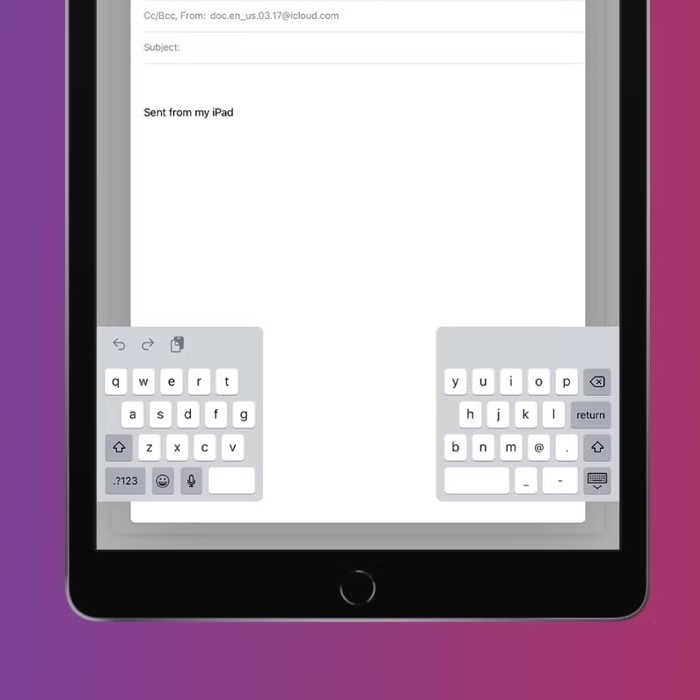
The split keyboard feature is a unique element of iPad’s user interface that allows a user to separate the keyboard into two halves. This design can make typing more comfortable, especially for users who prefer to hold their iPad with one hand and type using their thumbs. However, there are times when this feature becomes more of a hindrance than a help. Let’s delve a bit deeper into this feature and develop a better understanding of its use and how it can be manipulated.
What Is a Split Keyboard?
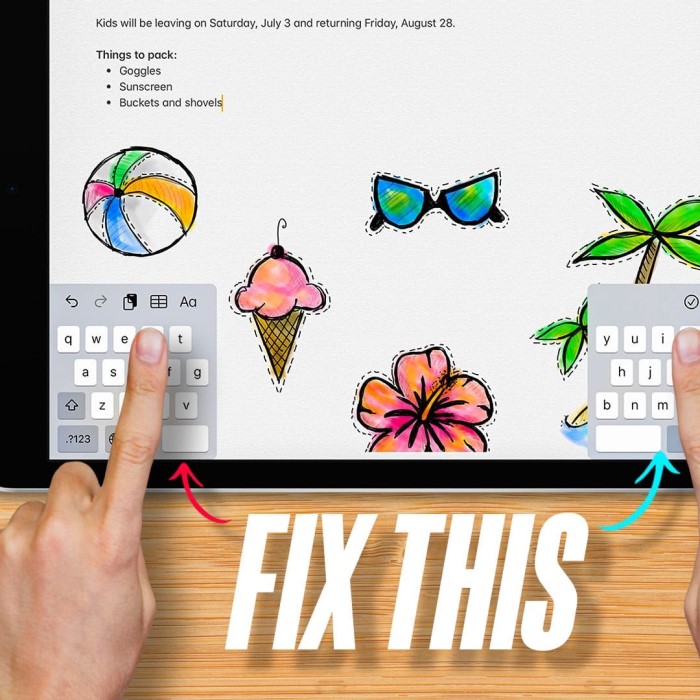
The split keyboard is an adjustable feature on the iPad, enabling users to split the keyboard into two sections that are located towards the edges of the screen, allowing for ease of thumb typing. This feature can be easily toggled within the keyboard settings; however, it can sometimes be accidentally activated.
Common Reasons for Issues
Users often experience issues with the split keyboard due to a variety of reasons. Frequent causes include:
Accidental Activation
The split keyboard feature is one that users can easily trigger without intending to do so. Here are some insights into how this happens:
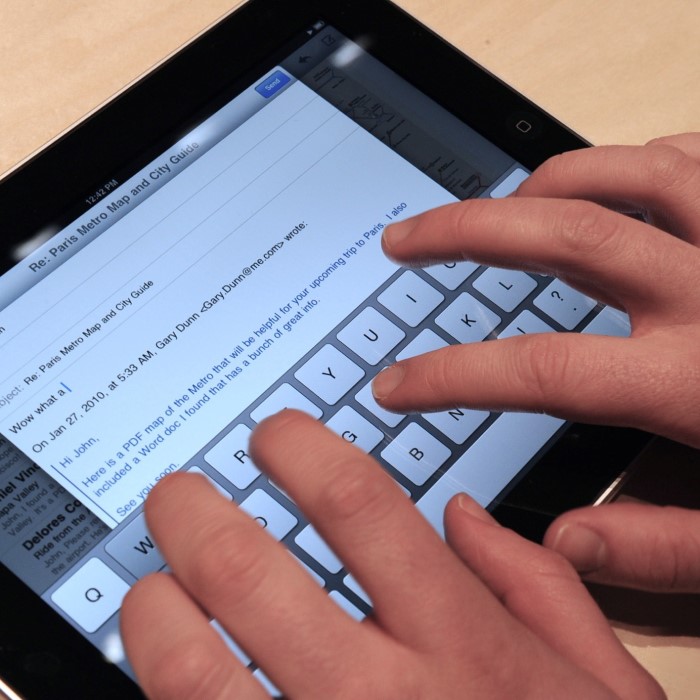
- Touch Gestures: While navigating or interacting with the iPad, users might unintentionally swipe or tap in a way that activates the split keyboard. This is particularly common when users are holding their device in one hand and attempting to reach for buttons or items on the screen.
- Inexperience with the Feature: New users or those unfamiliar with the iPad’s features may not realize that certain gestures, like swiping inward from the edges of the keyboard, can instantly split it.
- Unwanted Finger Movements: In moments of haste or when typing quickly, fingers might move in unintended directions, leading to accidental activation of the keyboard’s split state. Such slip-ups can be frustrating, especially if users are unaware of how to revert it.
System Glitches
Tech devices, including the iPad, can experience minor software bugs that affect normal functionality. Here’s how system glitches can impact the split keyboard:
- Post-Update Issues: Sometimes, after installing the latest iOS update, users may notice that previously functioning features begin to misbehave. These glitches can manifest as unresponsive keys, unexpected keyboard configurations, or problems with the software recognizing touch gestures.
- Temporary Bugs: Even in stable software versions, temporary bugs may occur due to memory management issues or conflicts with other running applications. These transient problems can cause the keyboard to split without the user’s command or fail to join back together upon request.
- Device-Specific Variations: Different models of the iPad may experience unique glitches based on hardware specifications. As a result, some users may encounter split keyboard issues more frequently than others based on their specific device model or characteristics.
User Confusion
User error often arises not from actual malfunctions but from a lack of understanding about how to use specific features. Here’s how confusion can lead to problems with the split keyboard:
- Feature Misunderstanding: Users may not fully grasp how the split keyboard is activated or deactivated, leading them to think there’s a malfunction when, in fact, the split mode is simply on. This lack of understanding can create unnecessary frustration.
- Inadequate Instructions: Sometimes, the guidelines provided within the iPad’s user manual or online help resources may not be comprehensive enough for users to confidently toggle between the keyboard modes. Without clear directions, users struggle to rectify the situation.
- Panic and Assumption: When the keyboard unexpectedly splits, users might panic and assume that their device has a serious issue. This reaction can lead them to overlook straightforward solutions or adjustments they could have made to restore the keyboard to its normal layout.
Initial Troubleshooting Steps
Before diving into technical fixes, it’s advisable to try some straightforward troubleshooting techniques. Here are some steps you can take to quickly address minor issues related to a split keyboard:
- Check Your Keyboard Settings
Navigating to the keyboard settings can often resolve the split issue. Follow these steps:- Open your iPad and go to Settings.
- Scroll down to “General” and tap “Keyboard.”
- From this menu, check if the “Split Keyboard” option is enabled. You can toggle it off if it’s currently on.
- Restart Your iPad
A simple restart can work wonders, especially for fixing temporary glitches. Restarting your iPad can refresh the system and resolve many minor issues:- Hold down the power button until the “slide to power off” prompt appears.
- Slide it to turn off your device.
- Once it’s off, hold the power button again until the Apple logo appears to restart your iPad.
How to Fix Split Keyboard on iPad
If basic troubleshooting steps have not resolved your issue, there are several more specific solutions you can implement. Below is a detailed guide on how to fix split keyboard on iPad effectively:
1. Disable the Split Keyboard Feature
If the split keyboard feature is causing frustration, disabling it is a simple process:
- Open any app that involves typing, such as Notes, Messages, or any text field.
- When the split keyboard appears, touch and hold the keyboard key located at the bottom right corner.
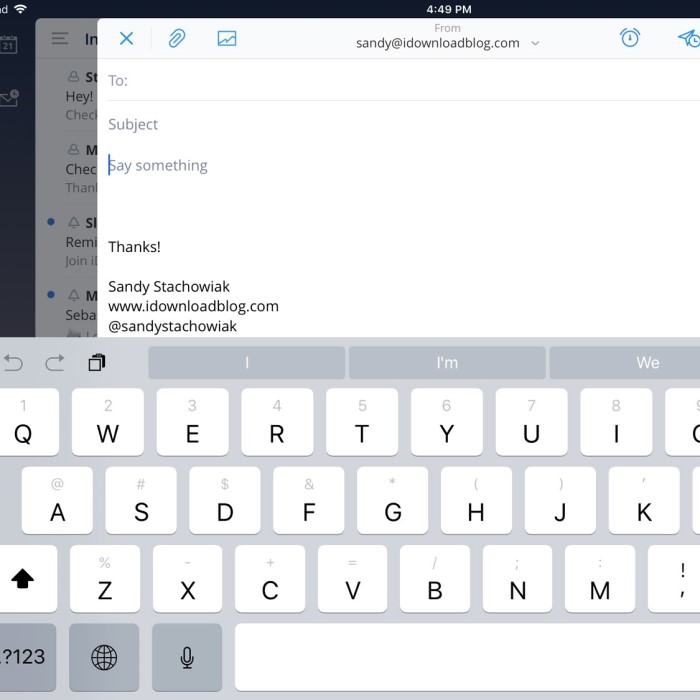
- Drag it toward the center of the screen. This should merge the two halves into a single keyboard layout.
2. Reset Keyboard Dictionary
Resetting the keyboard dictionary is another effective step that can resolve issues related to keyboard functionality:
- Go to Settings > General > Transfer or Reset iPad > Reset.
- Select “Reset Keyboard Dictionary.” This process clears custom words, but it can also fix typing issues originating from the keyboard settings.
3. Update Your Software
Keeping your iOS updated ensures that your device runs smoothly. Software updates often include bug fixes that can address keyboard issues:
- Go to Settings > General > Software Update.
- If an update is available, press “Download and Install,” and follow the prompts.
Advanced Tips for a Smoother Typing Experience
To ensure that your iPad typing experience remains seamless, consider implementing these additional tips:
Explore Third-Party Keyboards
The App Store offers a wide variety of third-party keyboard applications that can significantly enhance your typing experience by providing options beyond the default keyboard. Consider the following points:
- Customization Options: Many third-party keyboards allow for extensive customization, including themes, layouts, and key sizes. This means you can tailor the keyboard to your personal preferences for a more comfortable typing experience.
- Popular Alternatives: Some of the most popular third-party keyboard choices include:
- Microsoft SwiftKey: Known for its predictive text capabilities, SwiftKey learns from your typing habits to improve suggestions and autocorrect features.
- Gboard: Google’s Gboard not only offers various layouts but also integrates Google Search directly within the keyboard, providing easy access to information without leaving your current app.
- Grammarly Keyboard: This option goes a step further by incorporating grammar and spell check features, helping you produce error-free texts as you type.
- Enhanced Features: Many of these keyboards come with additional features such as swipe typing, emoji suggestions, and multilingual support, which can significantly improve your efficiency and overall typing performance.
Using an External Keyboard
If you often find yourself typing on your iPad for long periods, investing in a Bluetooth keyboard is a beneficial consideration. Here are some advantages of using an external keyboard:
- Traditional Typing Experience: External keyboards provide a full-sized typing experience, which can enhance comfort and speed, especially for users who are accustomed to desktop or laptop keyboards.
- Increased Productivity: With an external keyboard, you can type faster and more accurately, which is particularly advantageous for tasks such as writing, coding, or editing documents. The tactile feedback of physical keys can help reduce typing errors and enhance overall efficiency.
- Portability: Many Bluetooth keyboards are lightweight and portable, making them easy to carry along with your iPad. This means you can maintain productivity whether you’re at home, in a café, or on the go.
Adjust Accessibility Settings
If you are facing challenges related to visibility or the overall functionality of your keyboard, exploring your iPad’s accessibility settings is essential. Here are some adjustments that can improve your typing experience:
- Increase Text Size: If you find the text difficult to read while typing, consider increasing the font size within the accessibility settings. This adjustment can make it easier to see what you’re typing, reducing eye strain and improving accuracy.
- Voice-to-Text Features: Utilizing voice-to-text functionalities can be a game changer for users who struggle with typing. This feature allows you to dictate text aloud, which the device converts into written words, enabling you to write faster and with less physical exertion.
- Customization for Enhanced Usability: Apart from text size, explore other accessibility options such as color contrast settings or audio descriptions. Tailoring these features to your preferences can help alleviate any frustrations you experience while typing on your iPad.
FAQs
How do I get my keyboard back to normal on my iPad?
To revert your iPad keyboard to its full size, simply touch and hold the keyboard button at the bottom right and select the “Dock” option. This merges the split keyboard.
How do I get my iPad keyboard back to full screen?
Open a text field, then if you see the split keyboard, press and hold the keyboard button on the lower right side. Pull it toward the center to restore the full-screen keyboard layout.
How to get the split screen back to normal on iPad?
If you’re experiencing a split screen, drag the divider that separates the two apps to the edge of the screen, effectively closing one of the applications. This will return the screen to normal view.
Conclusion
How to fix split keyboard on ipad? Encountering issues with the split keyboard on your iPad doesn’t have to be a burden. By understanding how this feature works and employing the simple solutions discussed, you can quickly fix the split keyboard on iPad and enhance your overall typing experience. Make it a habit to explore your keyboard settings regularly and keep your software up to date to mitigate future issues. Remember, tech devices often require a bit of maintenance, and knowing how to troubleshoot common problems is key to a smoother user experience. Don’t hesitate to revisit this guide whenever you find your keyboard in a split position again!