
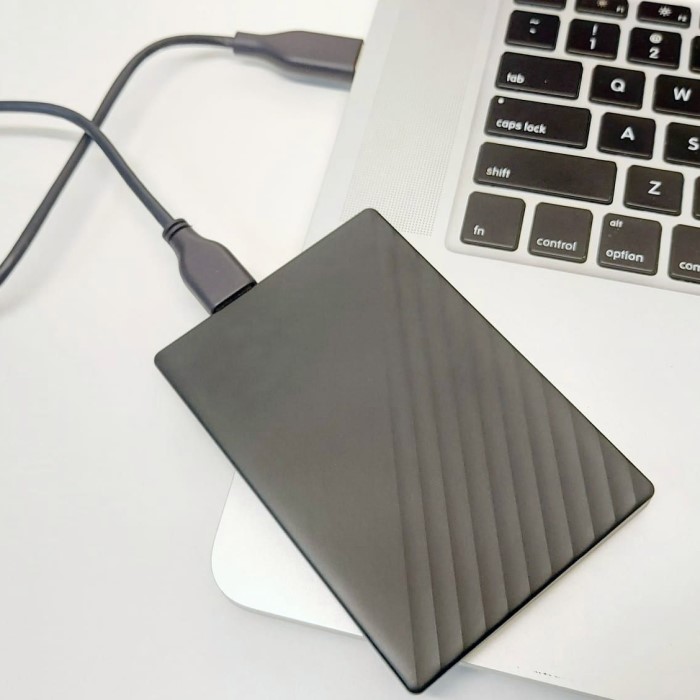
Introduction: Challenges with External Hard Drives
External hard drives play a pivotal role in modern data management. They offer users a reliable medium to store large volumes of data, back up essential files, and transfer information between devices. However, external drives can encounter various issues that may leave users frustrated and searching for solutions. If you’ve found yourself asking, “How to fix external hard drive?”, you’re in the right place.
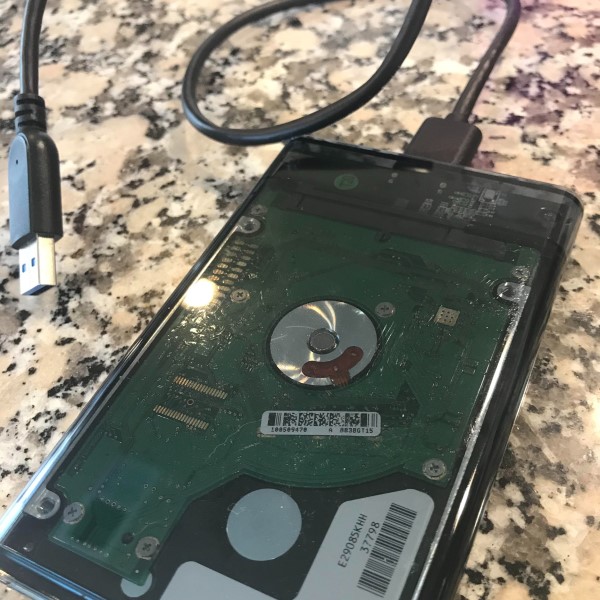
This article is designed to help you understand the common problems associated with external hard drives and guide you through practical methods for fixing them. From connection problems to file system corruption, we will cover how to troubleshoot issues for both Mac and PC users. With the right information and tools at your disposal, you can restore your external hard drive’s functionality and ensure it continues to serve your storage needs effectively.
Common Issues with External Hard Drives
Understanding the Root Causes
Before diving into how to fix external hard drives, it’s essential to identify the common issues users experience. By understanding the root causes of these problems, you will be better equipped to take effective measures.
- Connection Issues:
- Physical problems, such as faulty USB cables or loose connections, often lead to failure in recognizing the external drive. Users should inspect both the USB cable and ports for damage.
- Power Supply Problems:
- Some external drives require an external power source, while others draw power solely from the USB connection. Insufficient power can lead to malfunctions, so it’s important to ensure the drive receives adequate power.
- File System Corruption:
- Improper ejection of the drive, abrupt power outages, or software errors can cause file system corruption. If the file system is damaged, the computer may not recognize the drive, or you might encounter unreadable files.
- Hardware Failures:
- External hard drives possess mechanical components that can wear out over time. Age, usage, and exposure to physical conditions can contribute to hardware failures, making the drive unusable.
By identifying these potential causes, you can take appropriate action to fix your external hard drive problems effectively.
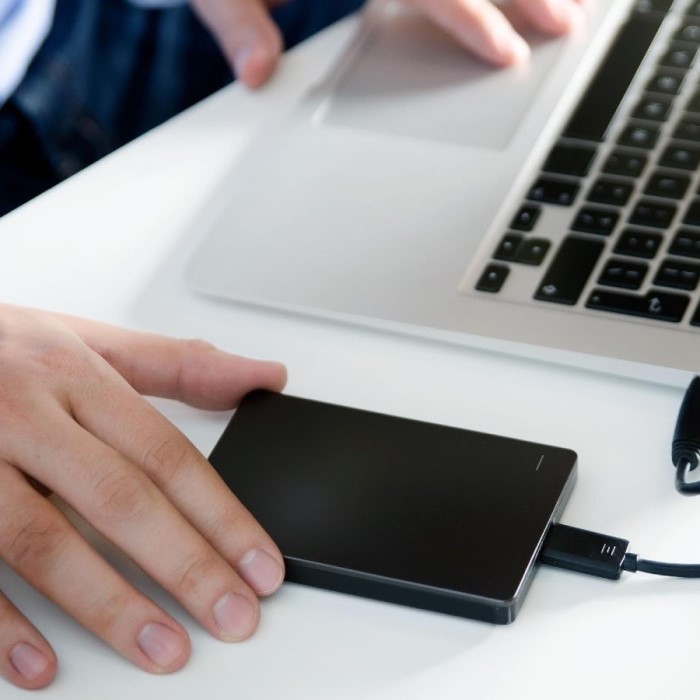
Fixing External Hard Drives on Mac
Step-by-Step Guide for Mac Users
For Mac users facing issues with external hard drives, there are several methods to troubleshoot and resolve concerns. Here’s a detailed guide to help you through the process:
1. Check Physical Connections
Start by ensuring that the external hard drive is securely connected. Inspect the USB cable for any visible damage or wear. A loose connection might prevent the drive from being recognized. Try connecting the drive to different USB ports to rule out port issues. Restarting your Mac after reconnecting the drive can also refresh the connection.
2. Use Disk Utility
Mac comes equipped with a built-in Disk Utility application that can help diagnose and repair issues with external drives. Here’s how to use it effectively:
- Open Finder, navigate to Applications, and then click on Utilities. Open Disk Utility.
- In Disk Utility, select your external hard drive from the list on the left side.
- Click the First Aid button located at the top of the window, then confirm by selecting Run.
- Disk Utility will scan and attempt to repair any directory structure problems or disk errors it finds. This process may take some time, depending on the size of the drive.
By using Disk Utility, many users successfully resolve file system errors that could have rendered their external drives inaccessible.
3. Reformat the Drive (If Necessary)
If running First Aid does not solve the problem, you may need to reformat the drive. However, this will erase all data, so ensure you have a backup of important files before proceeding.
- In Disk Utility, select the external drive and click on the Erase button.
- Choose an appropriate file system format, such as APFS or ExFAT (which is compatible with both Mac and Windows).
- Click Erase again to confirm.
After reformatting, your drive should be recognized, allowing you to use it once more. However, be mindful that formatting results in total data loss, so use this option as a last resort.
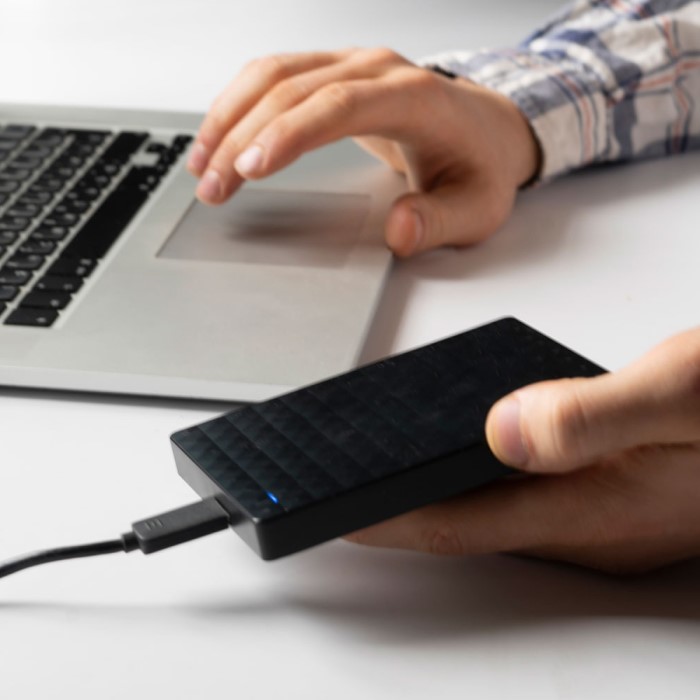
Recovery Solutions for Mac
If you have lost data due to the drive’s issues, you can utilize data recovery software like Stellar Data Recovery or Disk Drill specifically designed for Mac. These tools can help recover files that seem lost due to repair or formatting efforts.
Fixing External Hard Drives on Windows
Step-by-Step Guide for PC Users
Windows users also face common external hard drive issues, and they can utilize effective methods to correct them. Follow these steps to diagnose and remedy problems with your external drive.
1. Check Connections
Just like Mac users, Windows users should begin by checking cable connections. Inspect the USB cable for wear and try different USB ports on your computer. Sometimes simply unplugging and replugging the drive helps as well.
2. Access Disk Management
If the external hard drive is still not detected, you can access Disk Management to see if the system recognizes it:
- Right-click on the Start Menu and select Disk Management.
- In the Disk Management window, look for your external drive. If it appears without a drive letter, right-click on the drive and select Change Drive Letter and Paths.
- Assign a new drive letter by clicking Add and choosing an available letter. This can force Windows to recognize the drive.
This process often enables users to access external drives that the system previously overlooked.
3. Run CHKDSK Command
Running the Check Disk command can help identify and resolve file system issues:
- Open the Command Prompt as an administrator by searching for “cmd,” right-clicking it, and selecting “Run as administrator.”
- Type
chkdsk X: /f(replace X with your external drive’s assigned letter) and press Enter. - Allow the process to complete; CHKDSK will scan and repair file system errors.
Following this command can fix minor issues and restore access to your external hard drive.
4. Format the Drive (If Necessary)
If problems persist, formatting the drive might be necessary. Just like on Mac, you need to be cautious, as this will erase all data:
- Right-click the external drive in Disk Management and select Format.
- Choose a file system format, and follow the prompts to complete the formatting.
After the drive is formatted, it should be usable again. Remember to restore any data from backups when the formatting is complete.
Data Recovery Tools for Windows
To recover lost files that may have disappeared, users can consider reliable data recovery software such as Recuva or EaseUS Data Recovery Wizard. These applications assist in recovering files before or after formatting or any errors.
Preventive Measures and Best Practices
Regular Backups
The best way to prevent data loss is by performing regular backups. Utilize backup applications that automate the process of saving your important files to both local storage and the cloud. Regular backups can significantly reduce the chances of losing valuable information if your external drive fails.
Safely Eject Drives
Always make it a habit to eject your external hard drive safely before disconnecting it from the computer. On Windows, right-click the drive in File Explorer and select Eject. On Mac, drag the drive icon to Trash. Safely ejecting the drive prevents file system corruption and ensures all read/write actions are completed.
Monitor Drive Health
Keep an eye on the health of your external drive by utilizing built-in monitoring tools or third-party applications that track performance metrics. Regular monitoring can help identify potential failure signs before an issue becomes critical.
Frequently Asked Questions About External Hard Drives
Can an external hard drive be repaired?
Yes, many issues with an external hard drive can be repaired using built-in tools or software designed for diagnosing and fixing problems. If the drive is physically damaged, repair services may be required.
How to fix an external hard drive not working?
To fix a non-working external hard drive, check all physical connections, utilize Disk Management to assign a drive letter, and run diagnostic tools like Disk Utility (Mac) or CHKDSK (Windows).
How to fix an unreadable external hard drive?
If an external hard drive is unreadable, use the Disk Utility or CHKDSK tools to attempt repairs. If those do not work, data recovery software may be needed.
How to know if an external hard drive is corrupted?
Signs of corruption include unreadable files, error messages when accessing the drive, slow performance, and missing data. Use diagnostic tools to assess the health and file system of the external drive.
Conclusion: Taking Action for External Hard Drive Issues
In conclusion, knowing how to fix external hard drive problems is invaluable for any user who relies on external storage. This article has covered methods for effectively troubleshooting and repairing external hard drives for both Mac and PC users. From checking connections to utilizing tools like Disk Utility and CHKDSK, each step provides ways to regain access to your drive and restore functionality.
Additionally, by implementing routine backups and monitoring your drive’s health, you can reduce the likelihood of facing issues in the future. Should difficulties arise, use the strategies outlined in this guide to resolve problems quickly and efficiently. By staying proactive, you can maintain the integrity of your data and ensure that your external hard drive remains a reliable asset in your digital toolkit.