
Understanding the Importance of Personalization
The Apple Watch is more than a simple gadget. It is a reflection of your personal style. Therefore, customizing it is essential for a better experience. Many users keep the default face for a long time. They might not realize the potential for change. However, learning how to change apple watch face settings can transform your device. It goes from a standard tool to a unique accessory. You can match your watch to your outfit. You can also match it to your daily activities. For instance, a busy professional might prefer a face with many complications. These complications show stock prices or calendar events.
On the other hand, a runner might want a simple digital display. This helps them see their pace and heart rate quickly. Consequently, the ability to switch faces offers incredible flexibility. It allows the device to adapt to you. It does not force you to adapt to the device. Furthermore, changing the face keeps the watch feeling fresh. Technology often feels stale after a few months. A new look can make your old device feel brand new. It sparks joy and interest again. Therefore, taking a few minutes to learn this process is valuable. It enhances the user experience significantly. In this article, we will explore the various methods. We will look at the direct method on the watch. We will also discuss the iPhone app method. By the end, you will be a master of customization.
The Direct Method: Changing Faces on Your Wrist
The easiest way to change your watch face is directly on the Apple Watch itself. This method is quick and intuitive. It is perfect for when you are on the go. First, you need to wake up your watch screen. You can raise your wrist or tap the display. Next, you must navigate to the current watch face. If you are in an app, press the Digital Crown once. This takes you to the clock view. Once you see the face, press and hold the display firmly. You do not need to press the button; press the screen itself. This action is called a “Force Touch” in older terminology. However, on newer models, a long press works just as well.
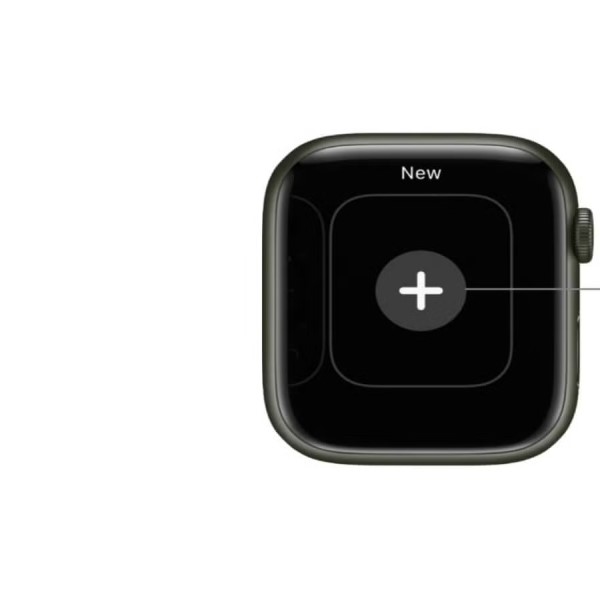
Consequently, the screen will zoom out. You will see a gallery of your current faces. You can swipe left or right to browse through them. When you find one you like, simply tap it. The watch will vibrate slightly. This confirms your selection. The new face is now active. Additionally, you can swipe all the way to the left. Here, you will see a “+” button. This allows you to add a new face from the gallery. This direct method is excellent for switching between favorites. It takes only a few seconds. You do not need to take your phone out of your pocket. It is the most convenient way to change your look instantly. However, it has some limitations regarding deep customization. You can only choose from what is already saved. But for a quick switch, it is unmatched.
The iPhone Method: Using the Watch App
While the on-wrist method is fast, the iPhone offers more control. You can manage your faces in greater detail using the Watch app. This is the preferred method for organizing your collection. First, unlock your iPhone and open the Watch app. This app is where most watch settings live. Tap on the “Face Gallery” tab at the bottom. You will see a list of every available face. The variety is truly impressive. You can scroll through options like “Infograph,” “Activity,” or “Photos.” Furthermore, this screen allows for deep customization before you even save the face. For example, you can select specific colors for the hands.
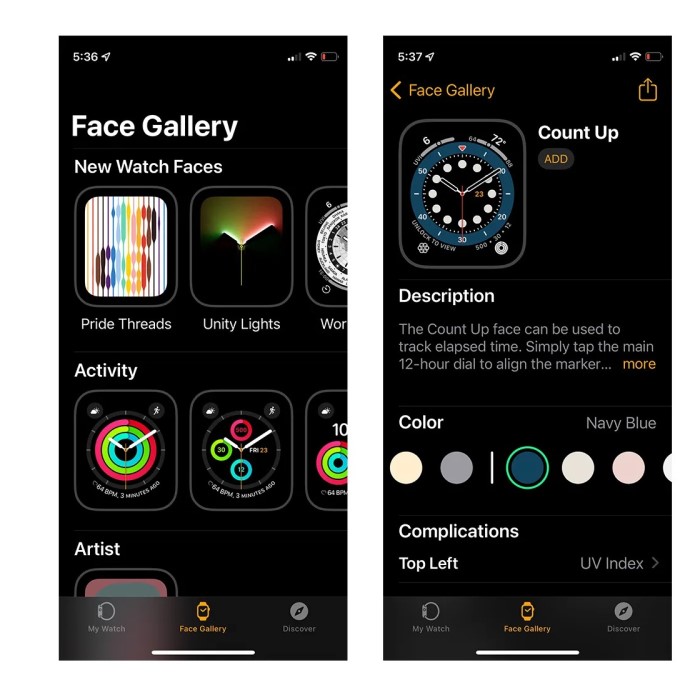
You can choose different styles for the hour markers. Most importantly, you can add “complications.” These are small widgets on the watch face. They display information from other apps. You might want your activity rings on the top. You might want the weather on the bottom. The iPhone app lets you drag and drop these elements. Once you are happy with your design, tap “Add.” The new face will automatically appear on your watch. Consequently, you can create a perfect setup without fiddling with the small watch screen. This method is much easier for aging eyes or those who prefer precision. It also allows you to manage your gallery. You can remove faces you no longer use. This keeps your rotation clean and organized. It ensures you do not have to swipe endlessly to find your favorite look.
Exploring the Face Gallery and Types
How to change apple watch face? The Face Gallery on your iPhone is a treasure trove of options. It is easy to get lost in the possibilities. Each face serves a different purpose. Understanding them helps you choose the best one. First, there are the classic analog faces. These include the “California” and “Classic” faces. Then, there are the digital faces. The “GMT” face shows multiple time zones at once. This is great for travelers or people with international colleagues. The “Chronograph” face offers stopwatch functionality right on the main screen. It is excellent for athletes. Furthermore, Apple has introduced artistic faces. The “Breathe” face is calming. It encourages you to take a moment for mindfulness. The “Typography” face lets you focus on the numbers. It is a modern, minimalist design. Additionally, there are photo faces.
You can use your own photos or albums. The “Portraits” face uses depth data from iPhone photos. It creates a stunning layered effect. The time floats over the subject of the photo. Consequently, the watch becomes a digital photo frame. It adds a personal touch that is hard to beat. Exploring these categories is fun. You should try faces you would not normally consider. You might find a new favorite. The Face Gallery is constantly updated with new designs. Therefore, it is worth checking back often.
Customizing Complications for Functionality
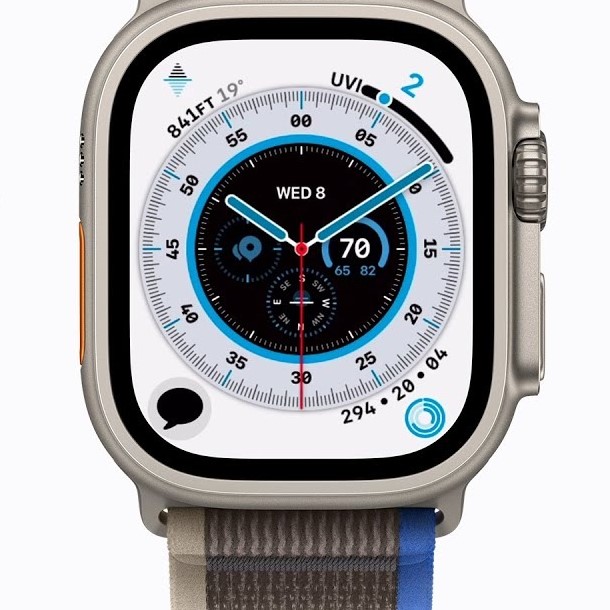
How to change apple watch face? Complications are the heart of the Apple Watch’s utility. They turn a simple watch face into a powerful dashboard. Learning to use them is crucial. A complication is a small display of data. It comes from an app installed on your watch. For example, the Weather app shows the current temperature. The Calendar app shows your next event. When you learn how to change apple watch face layouts, you must consider complications. On the iPhone app, you will see slots for complications. These are usually in the corners or the center. You can tap a slot to choose what appears there. The options are vast. You can put your activity rings in one corner. You can put the UV index in another. Moreover, third-party apps also offer complications. Apps like Uber, Spotify, or Todoist can display data.
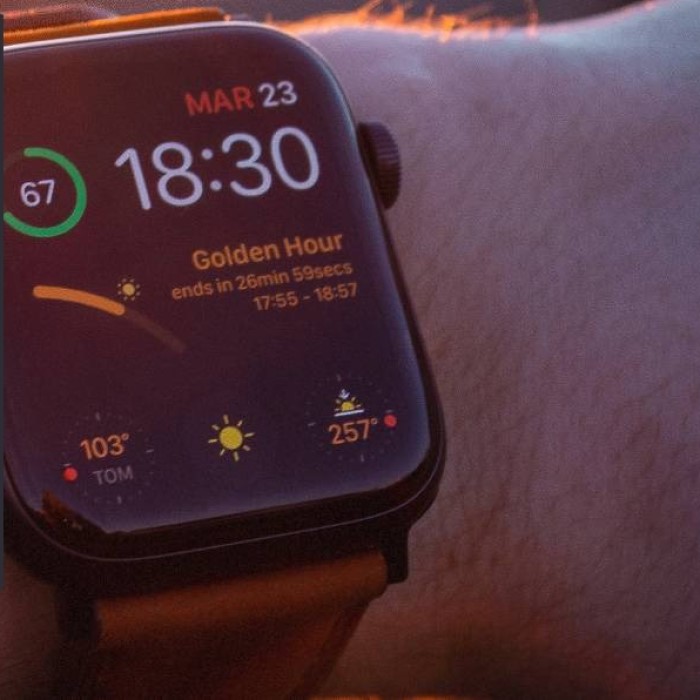
This means you do not have to open the app to see key information. You can simply glance at your wrist. This saves a tremendous amount of time. It keeps you focused on your day. Furthermore, some faces support “Full Screen” complications. This is common in the “Infograph” faces. These larger circles can show detailed graphs or round images. When customizing, think about your daily needs. Do you need to see your schedule? Or do you need to see your timer? Tailor each watch face to a specific activity. You can have a “Work” face with your calendar. You can have a “Workout” face with your heart rate. This level of customization makes the Apple Watch truly smart. It anticipates your needs before you even ask.
Managing and Organizing Your Collection
How to change apple watch face? Over time, you might accumulate many watch faces. This can lead to a cluttered experience. You might find yourself swiping past dozens of faces to find the one you want. Therefore, organization is key to a smooth user experience. Managing your collection is simple. You should regularly review your saved faces. Go to the Watch app on your iPhone. Under the “My Watch” tab, you will see your current collection. Here, you can tap “Edit” to rearrange the order. Drag your most used faces to the top. This makes them easily accessible. Additionally, you should delete faces you no longer use. To remove a face, swipe left on it. A red “Delete” button will appear. Tap it to remove the face. This keeps your rotation lean and efficient. It ensures that every face you see is one you actually use.
Furthermore, you can limit the number of available faces directly on the watch. In the Face Gallery, you can choose which faces appear in your “Synced” list. This helps prevent accidental swipes. A clean interface is a fast interface. If you have too many options, it leads to decision fatigue. By curating your list, you streamline your daily routine. You will always have the right face for the right moment. It takes a bit of maintenance. However, the improved usability is worth the effort.
Advanced Tips: Sharing and Saving Faces
How to change apple watch face? One of the lesser-known features is the ability to share faces. You can share your custom creations with friends. This is a fun way to show off your style. If your friend has an Apple Watch, they can use your design. To share a face, press and hold the screen on your watch. Swipe to the face you want to share. Tap the “Share” button. This looks like an arrow pointing up. You can then send it via Message or Mail. Your friend simply taps the link to add it to their watch. This is great for matching faces with a partner or team. Additionally, you can save faces as “Favorites.” This is done in the iPhone app.
If you see a face you like in the gallery, you can mark it for later. Furthermore, you can discover new faces from other users. Social media platforms often have communities dedicated to Apple Watch faces. People post screenshots of their setups. They share the specific colors and complications they use. This provides endless inspiration. You might find a color combination you never thought of. You might find a new use for a specific complication. Consequently, the community aspect extends the functionality of the device. It makes the watch a social tool. Do not hesitate to share your best setups. You might help someone else improve their experience. This feature adds another layer of enjoyment to the product.
Troubleshooting Common Issues
Sometimes, things do not go as planned. You might encounter issues while changing faces. One common problem is the face not changing. If you swipe and nothing happens, try a restart. To restart your watch, hold the side button. Slide the “Power Off” slider. Wait a few seconds and turn it back on. This often fixes minor software glitches. Another issue is missing complications. Sometimes, an app you want to use is not in the list. First, ensure the app is installed on your watch. You can check this in the Watch app on your iPhone. Scroll down to “Available Apps.” If the app is not installed, tap “Install.”
Once installed, the complication should appear. Furthermore, faces might disappear after a software update. This happens occasionally. Usually, you just need to re-select them from the gallery. Your data is not lost; it is just hidden. Another issue is the “Joker” face or other special faces missing. Ensure your watch is updated to the latest watchOS. Some faces require the newest software version. Go to “General” and then “Software Update” to check. If you see a red exclamation mark, contact Apple Support. But for most users, a simple restart or reinstall fixes the problem. Technology is not perfect. But these issues are easily solvable. Do not let a small glitch ruin your customization fun. With a few taps, you will be back on track.
Understanding Watch Face Privacy
Privacy is a growing concern for many users. It is important to know what data your watch face displays. While complications are convenient, they can expose information. For example, a face might show your upcoming calendar event. If you are in a public place, someone might read it over your shoulder. Therefore, consider your environment. You might want a simple face for your commute. Save the detailed faces for when you are at home or in a trusted office. Additionally, some faces use your location data. The Weather complication, for instance, needs your location. Apple is very strict about privacy.
Apps must ask permission to use your location. You can control these settings in the iPhone Watch app. Tap “Privacy” and then “Location Services.” Here, you can see which apps have access. You can change them to “Never,” “Ask Next Time,” or “While Using.” It is wise to review these settings periodically. Furthermore, be careful with photos on your watch face. While the “Photos” face is personal and fun, it displays your memories. You might not want a private photo popping up during a meeting. The “Album” face lets you choose specific photos. This gives you more control than the “Favorites” face. You can curate a safe-for-work album. This ensures your watch remains professional. Enjoying customization does not mean sacrificing privacy. With a little thought, you can have both style and security.
Frequently Asked Questions
How do I customize my Apple Watch face?
You can customize your face directly on the watch. Press and hold the screen, then tap “Edit.” You can also use the Watch app on your iPhone for more detailed options. There, you can change colors and add complications easily.
How do I change the front screen on my Apple Watch?
To change the front screen, swipe left or right while on the watch face. This cycles through your saved faces. You can also access the gallery by long-pressing the screen and swiping to the end to add new ones.
How do I change the clock display on my Apple Watch?
You can choose between analog and digital displays. Go to the Watch app and select a face. Some faces are purely digital, like the “Activity Digital.” Others are analog. You can adjust the settings within each face’s customization menu.
How do I change the wallpaper of an Apple Watch?
The Apple Watch uses “faces,” not wallpapers. However, you can use the “Photos” face. This sets your chosen photo as the background. In the Watch app, select the Photos face and choose your desired album to display your images.
Conclusion: Mastering Your Device
The Apple Watch is a powerful tool for daily life. However, its true potential shines when you make it your own. Learning how to change apple watch face options is just the beginning. It opens the door to a fully personalized experience. You can switch from a professional look to a fitness tracker in seconds. You can organize your complications to see what matters most. This level of control makes the device indispensable.
It stops being just a gadget. It becomes a partner in your routine. The process is simple yet profound. Whether you use the direct swipe on the wrist or the detailed iPhone app, the power is in your hands. Remember to keep your collection organized. Review your privacy settings. And do not be afraid to try bold new looks. With these tips, you can navigate your device with confidence. You will never have to settle for a boring watch face again. Enjoy the process of discovery. Make your Apple Watch truly yours.