
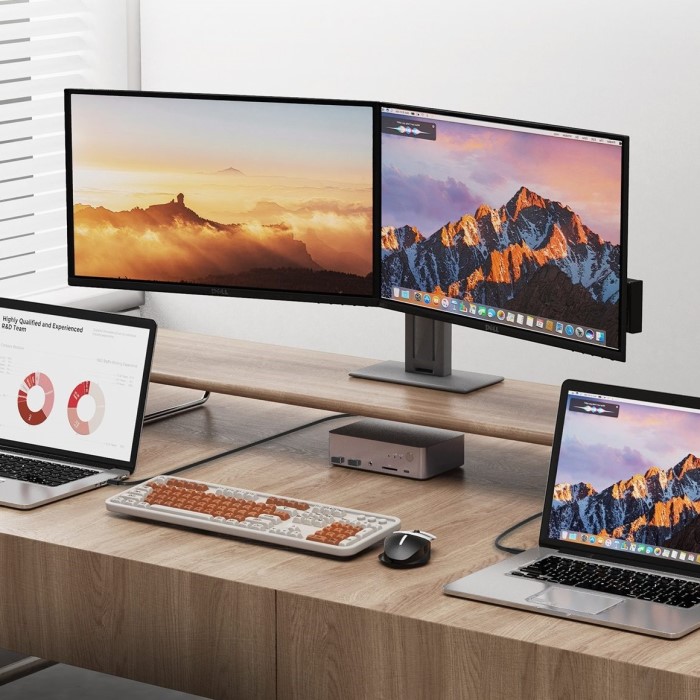
Introduction: The Benefits of a Dual Monitor Workspace
Modern computing demands efficiency and multitasking capabilities. Consequently, many users seek to expand their digital workspace. A single screen often feels cramped. It limits your ability to view multiple applications simultaneously. Therefore, learning how to connect two monitors is an essential skill for productivity in today’s environment. A dual monitor setup effectively doubles your visual real estate. You can keep your email open on one screen. Meanwhile, you can work on a document on the other. This configuration significantly reduces the time spent switching between tabs. Furthermore, it enhances your overall workflow organization. Gamers also benefit greatly from this setup. They can play games on the primary display. They can simultaneously browse guides or chat with friends on the secondary display.
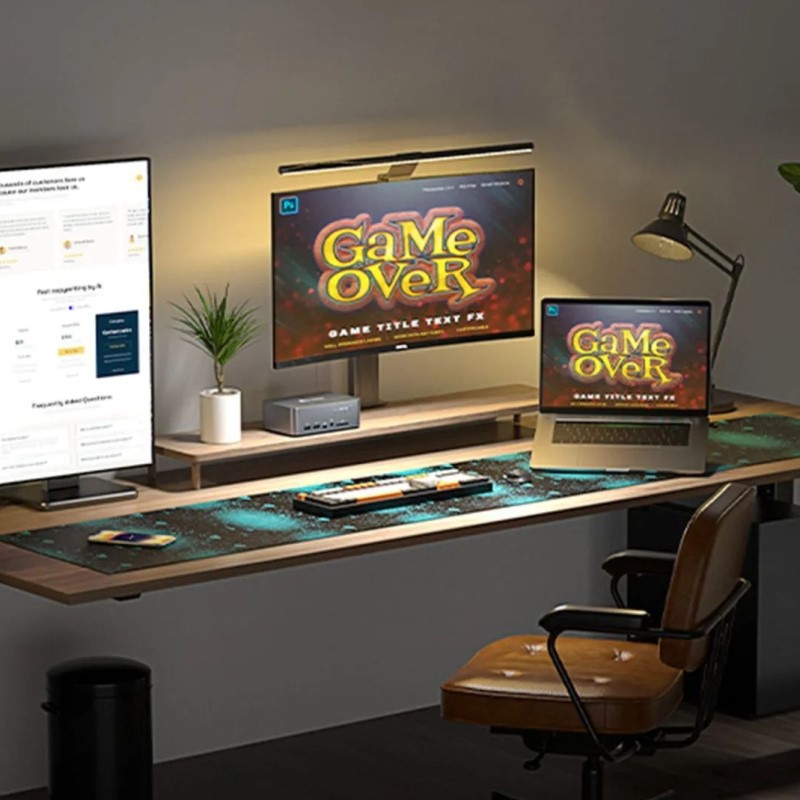
The transition from one screen to two is transformative. It changes how you interact with your computer entirely. Many professionals find their output increases immediately. Therefore, the investment in a second monitor pays off quickly. However, the technical process might seem daunting initially. Some users worry about compatibility issues. Others feel confused by the various cable types. This guide simplifies the entire procedure. We will walk you through every single step. You will learn about hardware requirements. We will also discuss software configuration. By the end of this article, you will have a fully functional dual monitor system. You will wonder how you ever managed with just one screen.
Checking Your Computer’s Graphics Capabilities
You must verify your computer’s hardware before purchasing a second monitor. Most modern desktops and laptops support multiple displays. However, older models might have limitations. First, look at the back of your desktop computer. You need to locate the video output ports. These are usually situated on the graphics card. They are often distinct from the motherboard ports. Common ports include HDMI, DisplayPort, and DVI. You need at least two available ports to proceed. Sometimes, the graphics card provides three or four ports. In that case, you are ready to go. Conversely, you might only see one port. This scenario complicates the setup process. You may need to install a dedicated graphics card. Alternatively, you could use a USB adapter for laptops.
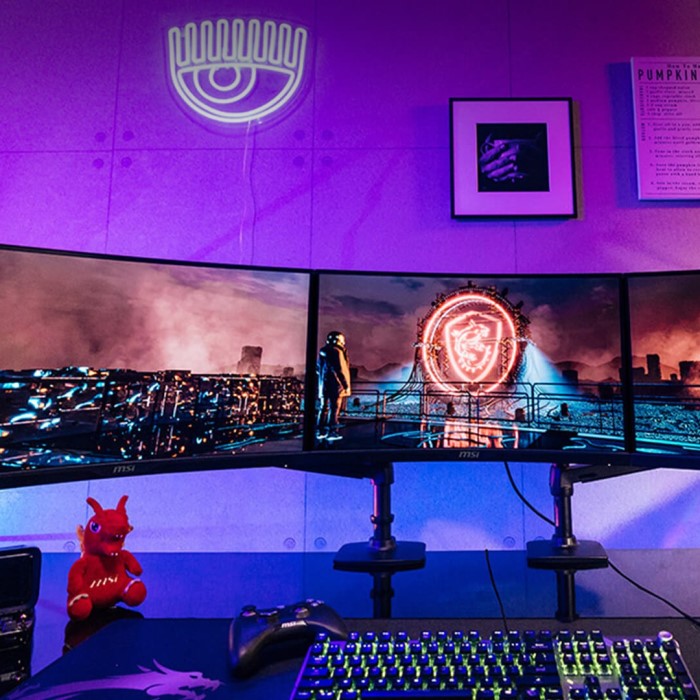
Furthermore, laptop users should check the sides of their device. Most laptops feature an HDMI or a USB-C video output. You can easily connect an external monitor to these ports. The laptop’s own screen serves as the second display automatically. However, you must check the specifications of your laptop. Some older laptops do not support extended desktop mode. Additionally, operating systems handle multiple displays differently.
Windows has built-in support for multiple screens. MacOS also offers robust multi-display features. Therefore, you rarely need special drivers for basic functionality. Nevertheless, updating your graphics drivers is always a good practice. It ensures the best performance and compatibility. You should check the manufacturer’s website for the latest drivers. This proactive step prevents many common issues. Consequently, your setup process will proceed much smoother later on. Identifying your ports is the crucial first step. Do not skip this verification phase. It saves you time and money.
Selecting the Right Cables and Adapters
How to connect two monitors? Choosing the correct cables is vital for a successful setup. You cannot connect the monitors without the proper physical link. The cable you choose depends on your specific ports. HDMI is currently the most common standard. It transmits both high-definition video and audio. Therefore, it is perfect for most gaming and office scenarios. DisplayPort is another excellent option. It often supports higher refresh rates. PC gamers frequently prefer DisplayPort for this reason. You might encounter older standards like DVI or VGA. However, these are becoming obsolete. You should avoid them if possible. Digital connections like HDMI and DisplayPort provide a sharper image. They also offer better signal stability.
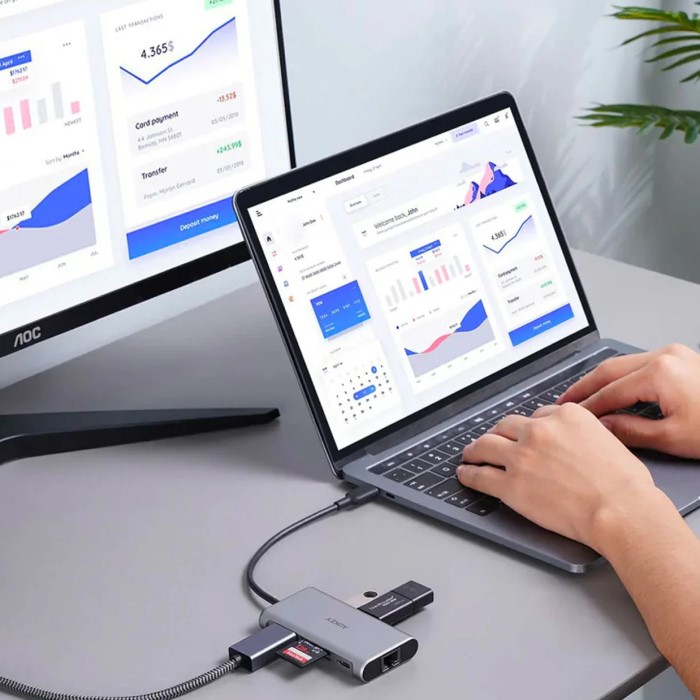
Moreover, you may encounter a situation where your ports do not match. For example, your computer might have HDMI. But your monitor only accepts DisplayPort. In this case, you need an adapter or a specific cable. An HDMI-to-DisplayPort cable solves this issue easily. Additionally, modern ultrabooks often rely on USB-C or Thunderbolt ports. These ports handle video output efficiently. However, you need a USB-C hub or dock.
This device expands your connectivity options significantly. A dock allows you to connect multiple peripherals. You can run dual monitors through a single cable. Consequently, your workspace remains clean and organized. You must also consider the resolution and refresh rate. Higher resolutions require higher bandwidth cables. A standard HDMI cable works for 1080p. But 4K gaming requires a high-speed HDMI 2.1 cable. Always check the cable specifications before buying. Do not settle for the cheapest option. A high-quality cable ensures a reliable connection. It prevents flickering or signal loss. Therefore, invest in good cables now. You will avoid frustration later.
Physical Connection and Cable Management
How to connect two monitors? Once you have the correct cables, the physical setup begins. First, place your monitors on the desk. You should position them for optimal viewing comfort. Ideally, the primary monitor should sit directly in front of you. The secondary monitor should sit slightly to the side. This arrangement minimizes neck strain. Next, connect the video cables to your computer. Insert one end of the cable into the graphics card port. Then, connect the other end to the first monitor. Repeat this process for the second monitor. Ensure the connections are secure. You should hear a click or feel a firm fit. Loose cables cause intermittent signal drops. Therefore, push them in firmly.
Furthermore, you must manage the power cables. Each monitor requires a power source. Connect the power cords to a surge protector. This protects your equipment from voltage spikes. Do not daisy-chain power strips. It creates a fire hazard. Instead, use a single, high-quality power strip. Once connected, power on the monitors. You should see the manufacturer’s logo appear. If the screen remains black, check the power button. Also, verify the input source settings on the monitor. You often need to select the correct input manually. Use the monitor’s built-in menu buttons. Navigate to the “Input” section. Select HDMI or DisplayPort accordingly. Consequently, the screen will activate.
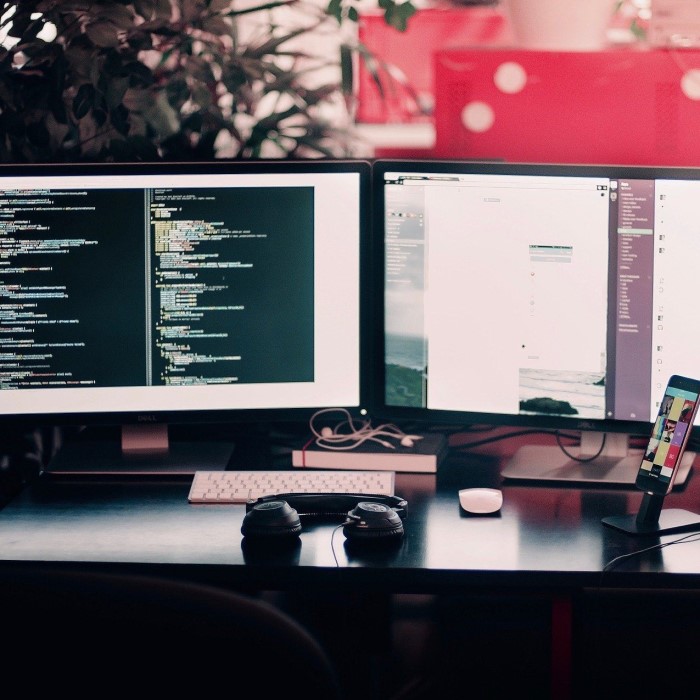
Additionally, consider cable management. A tangle of wires looks messy. It also collects dust. Use velcro ties or cable clips. Bundle the video and power cables together. Route them behind your desk or through a cable tray. A clean workspace improves focus. It also makes future upgrades easier. Taking time to organize now is worth the effort. You will appreciate the tidy environment.
Configuring Display Settings on Windows
How to connect two monitors? After connecting the hardware, you must configure the software. Windows makes this process relatively simple. First, right-click on your desktop background. Select “Display settings” from the context menu. A new window will open. This window shows a graphical representation of your monitors. You will see two rectangles labeled “1” and “2”. If you do not see them, click the “Detect” button. Windows will search for the connected displays. Once detected, you need to choose a display mode. Scroll down to the “Multiple displays” section. Here, you will find a dropdown menu. Select “Extend these displays”. This option treats the two monitors as one large desktop. It allows you to drag windows between screens.
Moreover, you should arrange the virtual monitors to match your physical setup. Click and drag the rectangles in the settings menu. If your second monitor is on the left, drag rectangle “2” to the left of rectangle “1”. This alignment ensures your mouse cursor moves naturally between screens. Otherwise, the mouse movement feels disjointed. You must also set the primary display. The primary display holds your taskbar and desktop icons. Select the rectangle representing your main monitor. Scroll down and check the box “Make this my main display”. This setting is crucial for gaming. Most games launch on the primary monitor.
Additionally, check the resolution settings. Each monitor should run at its native resolution. This ensures the sharpest possible image. Windows usually detects the native resolution automatically. However, it is good practice to verify this. Select each monitor from the diagram.
Configuring Display Settings on macOS
Mac users also enjoy robust dual monitor support. The setup process differs slightly from Windows. First, click the Apple icon in the top-left corner. Select “System Preferences” from the menu. Then, click on “Displays”. Your Mac will automatically detect the connected monitor. You will see two windows pop up. One window appears on each screen. This visual cue confirms the connection. By default, macOS often mirrors the displays. This means both screens show the exact same image. However, most users prefer an extended desktop. To change this, navigate to the “Arrangement” tab. You may need to click “Gather Windows” first.
Within the Arrangement tab, you will see a diagram of your screens. It looks similar to the Windows interface. To extend the desktop, ensure “Mirror Displays” is unchecked. Now, you can arrange the screen icons. Drag the white menu bar to the screen you want as the primary display. This action designates your main monitor. The other monitor becomes the secondary screen. You can also drag the screen icons to match your physical layout. This ensures proper mouse movement across screens. Furthermore, you can adjust the resolution here. Hold the “Option” key and click “Scaled”. This reveals more resolution options.
Moreover, macOS offers a feature called “Spaces”. This allows you to create separate desktops. You can use these across your dual monitors. It adds another layer of organization. You can swipe between different workspaces.
Troubleshooting Common Dual Monitor Issues
Sometimes, the setup does not go as planned. Users may encounter various technical glitches. One common issue is a blank screen. If the second monitor remains black, do not panic. First, check the power and video cables again. Ensure they are plugged in securely. Sometimes, the monitor is on the wrong input source. Use the monitor’s buttons to switch inputs. You might need to toggle between HDMI and DisplayPort. Consequently, the image will appear. Another frequent problem involves resolution mismatches. One screen might look blurry. This happens if the resolution is set incorrectly. Return to your display settings. Ensure both monitors use their native resolution.
Furthermore, drivers can cause problems. An outdated graphics driver may not support dual monitors. Visit the website of your graphics card manufacturer. Download the latest driver update. This often fixes compatibility issues. Another issue involves the mouse cursor. Sometimes, the cursor gets stuck between screens. This usually means the screen alignment is wrong. Go back to the display arrangement settings. Adjust the vertical alignment of the monitors. Drag the rectangles until they align perfectly. Then, the mouse will pass through smoothly.
Additionally, some users face performance lag. This can happen if the second monitor plays high-resolution video. Your graphics card might struggle with the load. Lower the resolution on the secondary monitor. Or, close unnecessary applications. This frees up resources. Also, check your refresh rate settings. If one monitor is 60Hz and the other is 144Hz, ensure they are set correctly. Mismatched refresh rates can cause stuttering. Finally, restart your computer. A simple reboot fixes many temporary software glitches. Troubleshooting requires patience. However, most solutions are straightforward. Follow these steps systematically. You will likely resolve the issue quickly.
Optimizing Your Workflow with Dual Screens
How to connect two monitors? Having two monitors is only useful if you utilize them effectively. You must optimize your workflow. Simply mirroring screens defeats the purpose. You should extend your display. Then, organize your applications strategically. Place your most-used apps on the primary screen. This keeps your focus centered. Use the secondary monitor for auxiliary tasks. For example, keep your email client open there. You can glance at it occasionally. It won’t interrupt your main work. Similarly, keep communication apps like Slack or Discord on the side screen. This setup minimizes distractions. You can focus on the main task.
Moreover, learn the keyboard shortcuts. Windows offers excellent shortcuts for window management. Press the Windows key and the Left or Right arrow. This snaps the current window to that side of the screen. It works across both monitors. This feature speeds up window arrangement significantly. You do not need to drag and drop every window. Additionally, consider using virtual desktops. This feature multiplies your available space. You can have one set of windows for work. You can have another set for personal use. Switching between them is instant.
Furthermore, customize your taskbar. You can choose to show the taskbar on all screens. Or, you can limit it to the primary display. This choice depends on your preference. A taskbar on both screens offers convenience. You can access pinned apps from anywhere. However, it takes up screen real estate. Experiment with these settings. Find what works best for you. Gaming on dual monitors is also popular. However, most games focus on a single screen. You can use the second screen for guides or streaming software. This “side-screen” approach enhances the gaming experience. Ultimately, the goal is efficiency. Two monitors provide the space. You must provide the organization. With practice, you will develop a fluid routine.
FAQ
How do I set up dual screen monitors?
To set up dual screen monitors, first connect both screens to your computer using the correct video cables. Then, right-click your desktop and select “Display settings” on Windows or go to “System Preferences” > “Displays” on Mac. Choose the “Extend these displays” option to use both screens as one large workspace.
How to connect 2 monitors to a PC with one HDMI?
If your PC only has one HDMI port, you have a few options. You can use a different port type, such as DisplayPort or USB-C, for the second monitor. Alternatively, you can purchase an HDMI splitter, though this typically mirrors the display. For extended desktop, a USB-to-HDMI adapter is the best solution.
Can you hook two monitors together?
You cannot daisy-chain monitors directly unless they support specific technologies like DisplayPort Multi-Stream Transport (MST). Most consumer monitors connect directly to the computer’s graphics card. You must run separate cables from the computer to each individual monitor.
Do I need two HDMI cables for dual monitors?
Not necessarily. You need two video cables, but they do not both have to be HDMI. You can use one HDMI cable and one DisplayPort cable, for example. The most important factor is that the cable type matches the available ports on both your computer and your monitors.
Conclusion: Embracing the Multi-Screen Lifestyle
The transition to a multi-screen setup is a significant upgrade. It revolutionizes the way you interact with your computer. You gain extra space for creativity and multitasking. The process involves several distinct steps. You verify your hardware ports. You configure the software settings. Each step is straightforward. This guide has explained exactly how to connect two monitors. Efficiency will increase immediately. You will enjoy a smoother workflow. Do not hesitate to expand your digital horizon. A dual monitor setup is the key to modern productivity.