
Introduction
Updating your graphics card is crucial for maintaining optimal gaming performance. How to update graphics card? Whether you’re experiencing graphical glitches, slow rendering, or simply want to enhance your visuals, knowing how to update your graphics card can solve many of your issues. This straightforward guide will walk you through the steps involved, making it easy for both novice and experienced gamers alike.
Graphics cards, or GPUs, are fundamental components in any gaming setup. They handle complex rendering tasks, ensuring smooth gameplay and stunning visuals. Keeping your drivers up to date ensures that you benefit from performance improvements and new features. In this article, we’ll explore why and how to update your graphics card effectively.
Importance of Updating Your Graphics Card
Keeping your graphics card updated is crucial for your computer’s performance. With the latest drivers, your graphics card can run new software more smoothly. It can also play the latest games with better graphics. Updates in graphics card drivers can fix bugs and enhance security features too. They make sure your system is safe from vulnerabilities. Don’t forget, updated drivers can also boost the speed and efficiency of your graphics card. This means it will work better for longer. In short, regular updates are key to getting the most out of your graphics card.
Identifying Your Graphics Card Model
Before you can update your graphics card, you need to know its model. Identifying the graphics card model is the first step in how to update the graphics card. Here are some simple methods to do this:
Check System Information
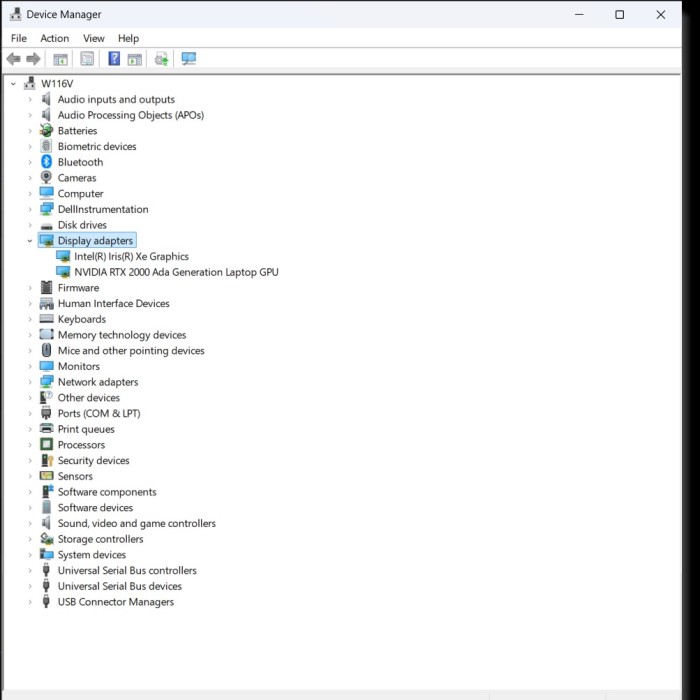
On Windows, you can find your graphics card model listed under ‘Device Manager’. Look for ‘Display Adapters’ to see the name of your graphics card.
Use a DirectX Diagnostic Tool
Press ‘Win + R’, type ‘dxdiag’ and hit enter. This opens the DirectX Diagnostic Tool. The ‘Display’ tab shows you the graphics card details.
Third-Party Software
Apps like GPU-Z or Speccy can also tell you about your graphics card. Install one of these programs and it will provide detailed information.
Knowing your graphics card model is crucial. This ensures you find and install the correct driver updates.
Checking For Graphics Driver Updates
Once you’ve identified your graphics card model, the next step is to check for updates. Staying current with your graphics driver is vital for optimal performance and security. Here’s how to ensure you’re up-to-date.
Using Device Manager
To update graphics drivers using Windows Device Manager, follow these detailed steps:
- Open Control Panel:
- Click on the Start menu (Windows icon) located in the bottom-left corner of your screen.
- Type Control Panel into the search bar and press Enter. This will open the Control Panel window.
- Navigate to System and Security:
- In the Control Panel, look for the option labeled System and Security. Click on it to access additional settings related to your system.
- Select System:
- Within the System and Security section, click on the System option. This will display information about your computer and its specifications.
- Open Device Manager:
- On the left side of the System window, you will see several options. Click on Device Manager. This will open the Device Manager window, where you can manage all installed hardware devices.
- Expand Display Adapters Section:
- In the Device Manager window, you will see a list of device categories. Find and click the small arrow (or plus sign) next to Display adapters to expand this section. This will reveal the graphics cards installed on your computer.
- Right-Click Your Graphics Card:
- Locate your graphics card in the expanded list. Once found, right-click on the name of your graphics card to open a context menu.
- Select Update Driver:
- In the context menu, choose the option labeled Update driver. This will initiate the process to check for driver updates.
- Choose How to Search for Updates:
- A new window will appear, presenting you with two options. Select Search automatically for updated driver software. This option allows Windows to search online for the latest drivers suitable for your graphics card.
Using Graphics Card Manufacturer’s Software
Most graphics card manufacturers provide dedicated software to manage updates. This is the recommended path:
- Visit your graphics card manufacturer’s website.
- Download their software, like NVIDIA’s GeForce Experience or AMD’s Radeon Software.
- Install and launch the application.
- The software will typically auto-detect your card and suggest updates.
- Follow the on-screen instructions to complete the update process.
Regularly checking for updates via Device Manager or the manufacturer’s app keeps your system robust. Both these methods can easily integrate into your routine maintenance. Remember to reboot your computer after updates to apply changes.
Methods of Updating Graphics Drivers
When looking into how to update graphics card drivers, there are two preferred methods you should consider. Here’s a simplified walkthrough of each.
Using Device Manager
The Device Manager in Windows is a tool that lets you view and manage hardware connected to your computer. To update your graphics drivers through it, follow these steps:
- Type ‘Device Manager’ in the Windows search box and open it.
- Click on ‘Display adapters’ to expand the list.
- Right-click on your graphics card and select ‘Update driver’.
- Choose ‘Search automatically for updated driver software’.
- Windows will search and install any found updates.
This method is straightforward but might not always fetch the latest drivers.
Using Graphics Card Manufacturer’s Software
Manufacturers like NVIDIA and AMD provide their own software tools that are essential for keeping your graphics card up-to-date. These tools offer the latest updates specifically designed for your graphics card model. Here’s how to effectively use these software applications:
- Visit the Manufacturer’s Website:
- Start by navigating to the official website of the graphics card manufacturer you own, such as NVIDIA or AMD. This ensures you access the most accurate and secure downloads.
- Download the Update Software:
- Look for the software tools available for your graphics card. For NVIDIA users, download GeForce Experience, and for AMD users, choose Radeon Software. These applications are specifically designed to manage updates for your graphics card.
- Install the Application:
- Once the download is complete, locate the installation file, and double-click it to begin the installation process. Follow the on-screen instructions to install the application on your computer.
- Run the Application:
- After installation, open the application. You may find it on your desktop or in your program list. Launching the software will allow it to perform its functions.
- Automatic Detection of Your Graphics Card:
- Upon launching, the software typically scans your system to automatically detect the installed graphics card. This feature saves you from the hassle of manually selecting your hardware.
- Prompt to Download Updates:
- Once your graphics card is detected, the software will present you with any available updates. Follow the prompts, which will guide you through the process of downloading and installing the updates seamlessly.
- Install Updates:
- After downloading the updates, the software will usually initiate the installation process. Make sure to follow any additional prompts to ensure a successful update.
- Restart Your Computer (if necessary):
- Some updates may require you to restart your computer to complete the installation. If prompted, save your work and restart the system.
Step-By-Step Process to Update Graphics Drivers
Updating your graphics card drivers can feel daunting if you are not tech-savvy. But fear not! Here’s a step-by-step guide to help you through the process.
Step 1: Verify Your Graphics Card Model
Start by confirming your graphics card model. Refer to the ‘Identifying Your Graphics Card Model’ section of this guide if you need help.
Step 2: Choose the Right Method for Updating
Choose between using Windows Device Manager or the manufacturer’s software. Use the manufacturer’s software for more recent updates.
Step 3: Download the Latest Driver
Visit your graphics card manufacturer’s website. Look for the ‘Drivers’ or ‘Support’ section. Download the latest driver for your model.
Step 4: Install the Driver
Run the downloaded file and follow the installation prompts. Agree to the terms and conditions when asked. Wait for the installation to finish.
Step 5: Restart Your Computer
After installing the update, restart your computer. This will apply the new drivers and finalize the update process.
Step 6: Check the Update’s Success
After rebooting, you can check if the driver is up to date. Use the DirectX Diagnostic Tool or the manufacturer’s software to verify.
By following these steps, you can ensure that your graphics card remains updated. Regularly check the manufacturer’s website for new updates. This will help you keep your system running smoothly and efficiently. When in doubt, reviewing these steps will assist you in how to update graphics card drivers successfully.
Troubleshooting Common Issues During Updates
Updating graphics drivers can sometimes lead to unexpected issues. If you encounter problems during the update process, consider the following tips to troubleshoot them:
Check Internet Connection
Make sure you have a stable internet connection. Interrupted downloads can cause incomplete or corrupt driver installations.
Disable Antivirus Temporarily
Some antivirus programs might interfere with the installation. Try disabling them briefly during the update.
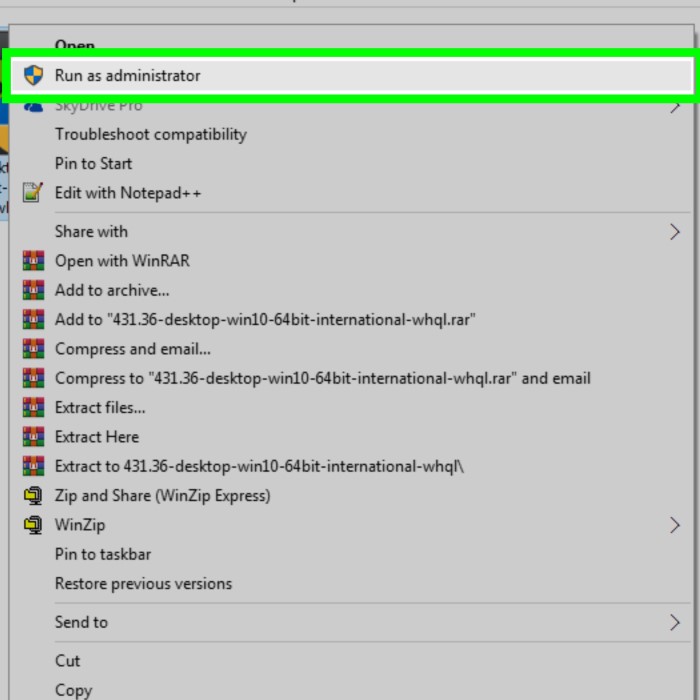
Run as Administrator
Ensure you have admin privileges when installing new drivers. Right-click the installer and select ‘Run as administrator’.
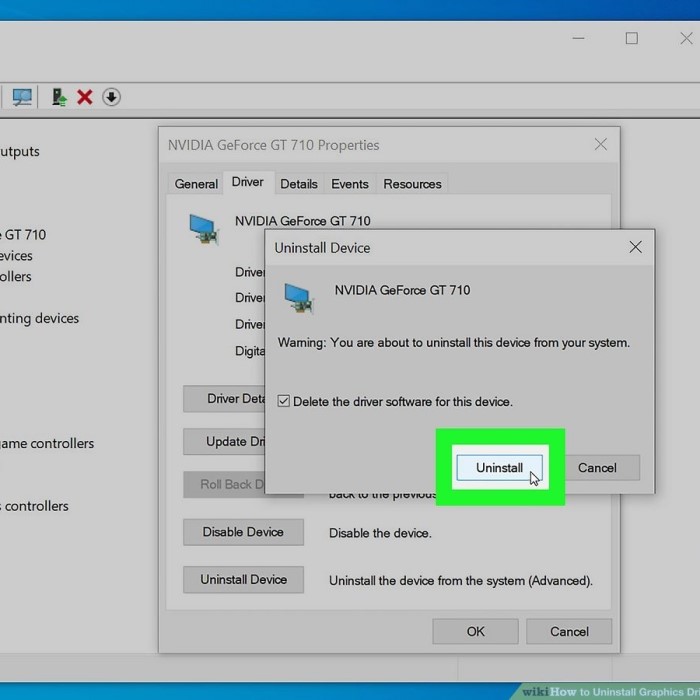
Reinstall the Driver
If the update fails, uninstall the current driver from ‘Device Manager’ and try the installation again.
Use the Correct Driver
Mismatched drivers can cause issues. Double-check that you have downloaded the correct driver for your graphics card model.
Update Operating System
Sometimes, the latest drivers need the most recent OS version. Ensure your Windows is up-to-date.
Contact Support
If you’re still experiencing trouble, reach out to the graphics card manufacturer’s support team.
By following these suggestions, you can resolve common issues you might face on how to update graphics card drivers. This ensures a smooth update process, allowing you to enjoy improved performance and security.
Benefits of Regular Graphics Driver Updates
Keeping your graphics drivers up-to-date has many benefits. Regular updates can lead to enhanced performance of your computer’s graphics capabilities. This means smoother visuals and faster rendering times for graphics-intensive tasks. It’s not just about games; video editing, graphic design, and 3D modeling software also benefit from updated drivers.
Improved System Stability
An updated graphics driver can increase your system’s stability. Outdated drivers might cause crashes and errors. New drivers fix these issues and improve system reliability.
Enhanced Security
Software updates often include security improvements. By updating your graphics driver, you protect your system from vulnerabilities that could be exploited.
Access to New Features
Graphics card manufacturers sometimes add new features through updates. Keeping your drivers updated allows you to use these enhancements.
Better Compatibility
When new software or games release, they may require the latest drivers for the best experience. Updating ensures compatibility with the latest technology.
Optimized Performance
Driver updates are designed to optimize your graphics card’s performance. This could result in better frame rates and higher quality graphics in games and applications.
By ensuing you know how to update graphics card drivers and perform the updates regularly, you can enjoy these benefits. This will help maintain your computer’s performance and extend the lifespan of your graphics card.
Conclusion: Maintaining an Updated Graphics Card
In wrapping up, understanding how to update graphics card drivers is essential. It’s a simple yet impactful step to heighten your computing experience. By keeping your drivers up-to-date, you’re guaranteeing peak performance, stability, and security of your system. Whether for gaming, professional graphics work, or general use, updated drivers keep you at the forefront of technology.
Through regular maintenance, you can avoid many common problems associated with outdated software. This includes system crashes, security risks, and incompatibilities with new applications. Embrace the habit of checking for driver updates as part of your routine computer care. Use the manufacturer’s software for updates or the Device Manager as outlined in this guide.
By following the step-by-step guide provided, even those not tech-savvy can update their graphics drivers with ease. When issues arise, remember the troubleshooting tips to tackle common problems. And, always ensure the updates are catered to your specific graphics card model.
In conclusion, keep your graphics drivers updated. It’s not just a recommended practice; it’s a cornerstone of good system health. Doing so will ensure you continue to enjoy improved performance and new features as they’re released. Put this guide to good use and maintain your graphics card for an optimal computing experience.
 Griley