
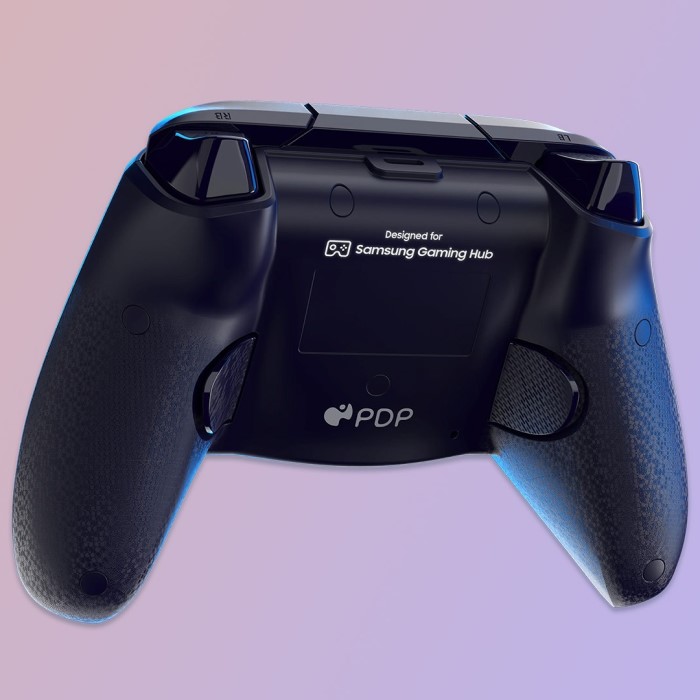
Introduction to Samsung Gaming Hub
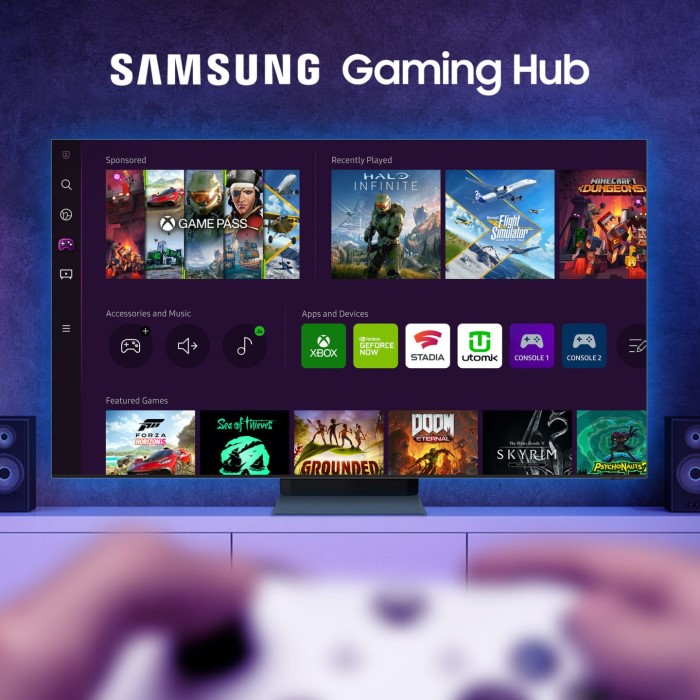
Samsung Gaming Hub offers a unified platform for gaming enthusiasts. It integrates gaming services, streaming platforms, and cloud-based games into a single interface. Users can easily access games, customize settings, and explore gaming features using supported devices. The hub focuses on simplicity and delivering the ultimate gaming experience.
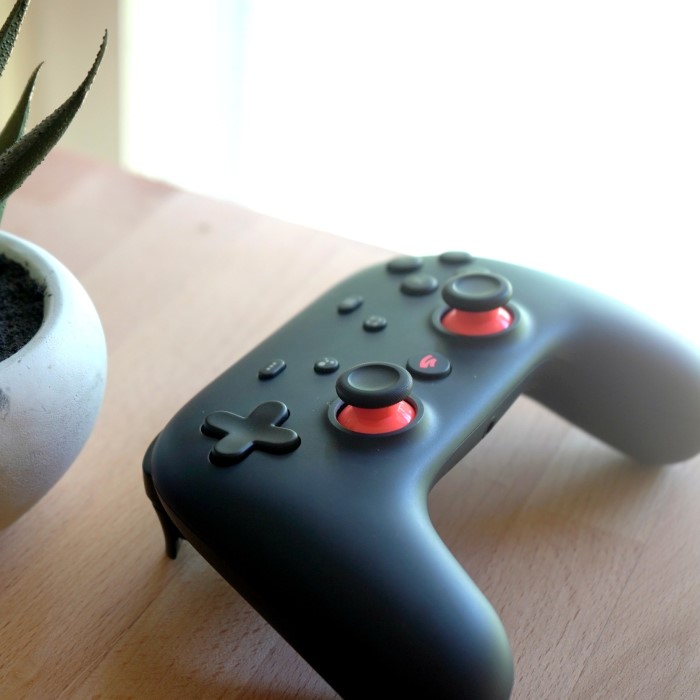
Overview of Gaming Features
Samsung Gaming Hub boasts an array of features tailored for gamers:
- Cloud Gaming Integration: Access a wide range of games through platforms like Xbox Cloud Gaming and Nvidia GeForce Now.
- Streaming Support: Stream your favorite titles directly without downloading.
- Multi-platform Compatibility: Seamlessly play games across TVs, monitors, and multi-screen setups.
- Game Recommendations: Personalized game suggestions based on preferences.
- Controller Support: Samsung Gaming Hub supports popular gaming controllers for immersive gameplay.
These features ensure users can enjoy gaming without the need for a console or high-end hardware.
Supported Devices and Platforms
Samsung Gaming Hub is available across select Samsung Smart TVs and monitors. The most recent models often have built-in support for Gaming Hub functionality. Some of the popular supported platforms include:
- Samsung Smart TVs: Models from 2022 and onwards, such as the Neo QLED and Crystal UHD series.
- Monitors: Samsung Odyssey series with gaming optimization.
- Streaming Platforms: Access supported games via cloud services like Stadia and Game Pass.
Samsung ensures compatibility across these devices while prioritizing user convenience and seamless setup.
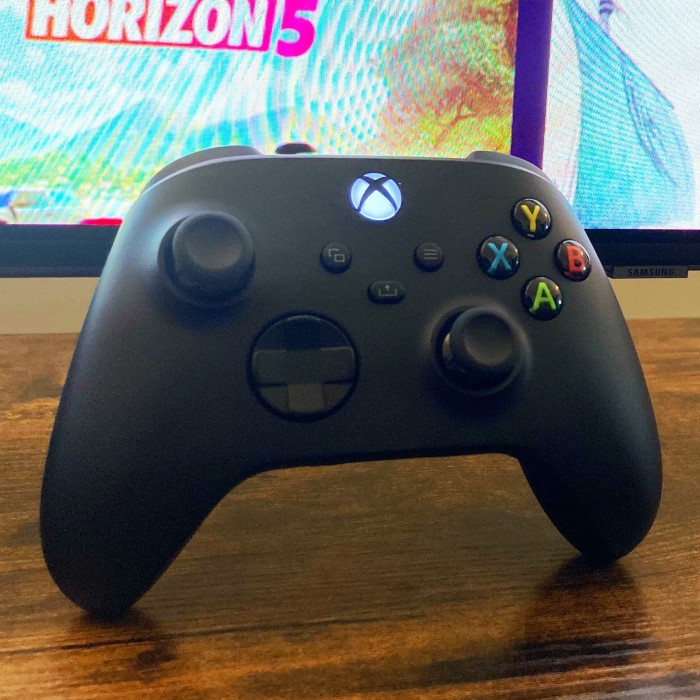
Preparing Your Controller
Samsung Gaming Hub thrives on simplicity, and setting up your controller is straightforward. Before starting, ensure that your controller is compatible and properly purchased to enhance your gaming experience.
Compatible Controllers for Samsung Gaming Hub
Samsung Gaming Hub supports a variety of popular controllers. These ensure responsive gameplay and seamless integration:
- Xbox Controllers: Xbox Wireless Controller and Xbox Elite Series controllers work flawlessly.
- PlayStation Controllers: DualShock 4 and PS5 DualSense controllers are supported.
- Generic Bluetooth Controllers: Many third-party Bluetooth controllers function well with Samsung Gaming Hub.
- Compatible Accessories: Specialty controllers, such as arcade sticks, are available for specific games.
Check Samsung’s official compatibility list for the latest updates on supported controllers. Ensuring compatibility avoids setup issues and potential delays.
Controller Purchase and Recommendations
Buying a suitable controller is crucial for top performance. Here are some tips for making the right choice:
- Consider Your Budget: Choose based on affordability and features essential for your gaming type.
- Prioritize Comfort: Ergonomic controllers improve long gaming sessions.
- Verify Compatibility: Confirm your selected controller works with Samsung Gaming Hub before buying.
- Opt for Trusted Brands: Trusted brands like Microsoft, Sony, and Logitech ensure durability and quality.
- Explore Bundle Deals: Some stores offer game-and-controller bundles for cost savings.
Investing in the right controller enhances your overall experience with Samsung Gaming Hub. Always select a reliable and comfortable device.
Setting Up the Controller
Setting up your controller for Samsung Gaming Hub is simple and quick. Follow the steps below to ensure a smooth gaming experience. Compatibility and connection quality are crucial for seamless play.
Pairing a Controller with Samsung Gaming Hub
To pair your controller with Samsung Gaming Hub, follow these steps:
- Power On Your Device: Turn on your Samsung Smart TV or monitor with Gaming Hub support.
- Enable Bluetooth: Access the settings menu on your device and activate Bluetooth functionality.
- Power On the Controller: Turn on your controller, ensuring it’s in pairing mode (refer to your controller’s manual).
- Search for Devices: In the Bluetooth menu, search for available devices. Your controller should appear in the list.
- Select Your Controller: Click on your controller’s name to connect. Wait for the “Connected” status.
- Test the Connection: Start navigating the Gaming Hub menu to confirm the controller is working.
Repeat the steps if the controller doesn’t connect initially. Ensure the controller is charged and within range.
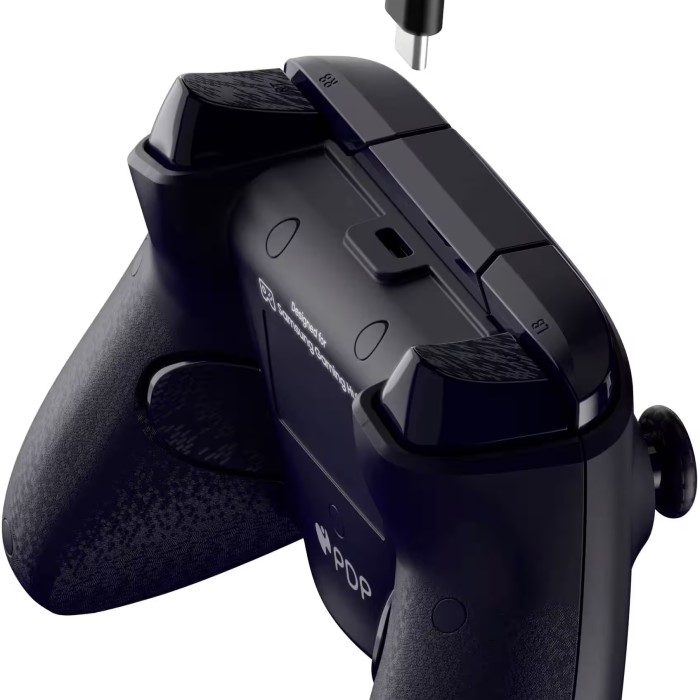
Troubleshooting Controller Connection Issues
Occasionally, pairing may face obstacles. Here’s how to fix common controller connection problems:
- Check Compatibility: Verify your controller is supported by Samsung Gaming Hub. Refer to the compatibility list.
- Update Firmware: Ensure your device and controller firmware are updated to the latest versions.
- Restart Both Devices: Turn off the controller and the Samsung device. Restart and try pairing again.
- Eliminate Interference: Remove nearby devices that may interfere, such as other Bluetooth accessories.
- Forget and Re-Pair: Delete the controller from the device’s Bluetooth list, then repeat the pairing steps.
- Test Alternative Controllers: If one controller fails to connect, try another supported model to isolate the issue.
If problems persist, consult Samsung Support or your controller manufacturer’s customer service for expert help.
Setting up and troubleshooting ensures an uninterrupted and smooth gaming experience on Samsung Gaming Hub.
Configuring Controls and Settings
Customizing controls enhances your experience with the Samsung Gaming Hub. Proper settings ensure smoother gameplay and better control.
Customizing Controller Settings
You can personalize controller settings for comfort and efficiency. Follow these steps to customize your setup:
- Open the Gaming Hub Settings: Access the settings menu on your Samsung Smart TV or monitor.
- Select Controller Options: Navigate to the controller settings section in the menu.
- Adjust Button Mapping: Remap buttons to preferred actions for a personalized layout.
- Set Sensitivity Levels: Fine-tune joystick and trigger sensitivity to match your playstyle.
- Activate Vibration Feedback: Enable or disable vibration for immersive feedback during gameplay.
- Save Changes: Confirm and save your adjustments to apply them instantly.
Test the adjusted settings in a game to ensure satisfaction. Revisit the menu as needed for further refinements.
Optimizing Gameplay with Controller Features
Optimize your controller’s features to boost gameplay. Here are tips for better performance:
- Enable Controller Profiles: Use profiles for different genres, like shooters or sports games.
- Use Turbo Modes: Activate turbo functions, if available, for repetitive actions.
- Activate Custom Shortcuts: Program shortcuts for quick access to specific in-game actions.
- Ensure Low Latency: Use the Samsung Gaming Hub Game Mode to minimize input lag.
- Check Battery Level: Keep your controller charged to prevent interruptions during games.
Experiment with settings and features to find what works best for you. Fine-tuning these options ensures more enjoyable and responsive gameplay.
Accessing Games via Samsung Gaming Hub
Samsung Gaming Hub simplifies how users access games through its intuitive interface. From cloud gaming to streaming, it offers countless ways to dive into your favorite titles instantly.
Navigating Samsung Gaming Hub is user-friendly and quick. Follow these steps to explore its features:
- Launch the Gaming Hub: Turn on your Samsung Smart TV or monitor and select the Gaming Hub option.
- Explore Game Categories: Browse curated categories such as new releases, popular titles, or top genres.
- Search for Games: Use the search feature to find games by title or keyword.
- Check Game Information: Review descriptions, screenshots, and gameplay videos to learn more about each game.
- Start Playing: Select “Play” for immediate access to cloud-based games or streaming services.
Efficient navigation ensures you spend less time browsing and more time playing.
Popular Games Compatible with Controller
Samsung Gaming Hub supports a wide array of controller-compatible games. Here are some popular options:
- First-Person Shooters (FPS): Titles like Halo Infinite and Call of Duty offer immersive controller support.
- Action-Adventure Games: Games such as Assassin’s Creed Valhalla and The Witcher 3 enhance gameplay with precise controls.
- Sports Games: FIFA and NBA 2K provide intuitive controls for real-time action.
- Racing Games: Forza Horizon and Dirt Rally offer responsive driving experiences.
- Indie Games: Experience charming titles like Hollow Knight and Stardew Valley with seamless controller compatibility.
With Gaming Hub, you can access new and iconic games customized to suit your preferences.
Enhancing Your Gaming Experience
Enhancing your gaming experience on Samsung Gaming Hub goes beyond basic setup. With the right accessories and optimization tips, you can achieve smoother gameplay, stronger immersion, and better overall enjoyment.
Additional Accessories for Controllers
Adding accessories to your gaming controller can greatly improve comfort and functionality. Here are some valuable options:
- Thumb Grips: Rubber grips for analog sticks provide better control and reduce slippage.
- Trigger Extenders: Extended triggers improve accuracy in shooting and racing games.
- Controller Skins: Custom skins enhance grip and protect the controller from scratches.
- Rechargeable Battery Packs: Replace disposable batteries with rechargeable packs for convenience and cost savings.
- Controller Stands: Keep your controller safe and organized when not in use.
- Clip-on Phone Holders: For cloud gaming with mobile screens, clips hold your phone securely.
These accessories boost comfort, accuracy, and convenience, creating an immersive experience for all gaming sessions.
Tips for Better Performance with Samsung Gaming Hub
Maximize the efficiency of Gaming Hub for a smoother and more enjoyable gaming experience:
Use Game Mode
- Activate Game Mode: Enable Game Mode on your Samsung device to enhance your gaming experience. This mode is specifically designed to prioritize gaming performance.
- Reduce Input Lag: By activating Game Mode, input lag is minimized, allowing for more responsive gameplay. This is particularly beneficial for fast-paced games where timing is crucial.
- Optimal Performance: Game Mode optimizes the processing settings of your Samsung device, ensuring that graphics and controls react quickly to your inputs, which can enhance your competitive edge.
Optimize Internet Speed
- Stable Connection: To ensure a smooth experience in cloud gaming, it’s vital to have a stable internet connection. This minimizes disruptions during gameplay.
- Use Wired Ethernet: For the best results, consider connecting your Samsung device to the internet via a wired Ethernet connection. This provides a consistently high-speed connection and reduces lag.
- 5GHz Wi-Fi: If wired access isn’t available, opt for a 5GHz Wi-Fi network instead of 2.4GHz. The 5GHz band offers faster speeds and less interference, leading to a more reliable gaming experience.
Adjust Display Settings
- Screen Resolution: Depending on your game and display capabilities, adjust the screen resolution to find the best balance between performance and visual quality. Higher resolutions provide clearer images but may require more processing power.
- Refresh Rate: Tweaking the refresh rate can lead to smoother visuals during gameplay. A higher refresh rate results in crisper motion, which is particularly noticeable in fast-paced action games.
- Check Compatibility: Ensure that your display supports the settings you choose. Some displays might have limitations that could affect performance and visual quality.
Update Software Regularly
- Stay Current: Regularly updating your Samsung Gaming Hub and controller firmware is essential for optimal performance. Updates often contain bug fixes and improvements that enhance overall functionality.
- Access Latest Features: Keeping your software up-to-date allows you to take advantage of the latest features and settings, which may enhance your gaming experience.
- Automatic Updates: Enable automatic updates if available, so you won’t miss critical patches or improvements. This ensures that your devices are always running the latest software.
Organize Game Library
- Sort Games Efficiently: Utilize the sorting options available in the Gaming Hub to organize your library. This makes it easier to find your favorite games quickly.
- Access Favorites Quickly: By creating folders or categories for your most-played games, you can streamline your gaming sessions. This reduces time spent navigating through a cluttered library.
- Manage Space: Regularly review your game library to remove titles you no longer play. This helps maintain an organized space and can improve loading times for your favorite titles.
Experiment with Controller Settings
- Sensitivity Adjustments: Adjust the sensitivity settings on your controller to suit your gaming style. Finding the right sensitivity can significantly impact your precision and reaction times.
- Button Mapping: Customizing button mapping allows you to set up your controller in a way that feels most natural to you. This personalization can enhance muscle memory and overall gameplay experience.
- Test Different Configurations: Don’t hesitate to experiment with various settings. What works best can vary widely from game to game, so finding the right combination can be key to improving your gameplay.
Take Breaks
- Frequent Short Breaks: Incorporate regular breaks into your gaming sessions. Stepping away every hour or so helps maintain your focus and keeps your mind fresh.
- Reduce Fatigue: Taking breaks can significantly reduce mental and physical fatigue, making your gaming experience more enjoyable in the long run.
- Stretch and Move: Use your break time to stand up, stretch, and move around. This can improve circulation and decrease the risk of strain from prolonged sitting.
Follow these tips to get the most out of your Samsung Gaming Hub, ensuring maximum fun and flawless gameplay.
FAQs and Support
Common Issues and Solutions
Setting up Samsung Gaming Hub can sometimes lead to minor problems. Here are common issues users face and solutions to resolve them:
- Controller Connection Issues:
- Ensure Bluetooth is enabled and the controller is in pairing mode.
- Restart both your Samsung device and the controller before retrying.
- Update the firmware on your device and controller to the latest version.
- Check for interference from other Bluetooth devices nearby.
- Games Not Loading Properly:
- Verify your internet connection is stable and fast enough.
- Clear cache on Samsung Gaming Hub through the settings menu.
- Ensure your Samsung TV or monitor software is updated.
- Unresponsive Buttons:
- Calibrate button mappings in the Gaming Hub’s controller settings.
- Test the controller with another game to check responsiveness.
- Audio Sync Problems:
- Adjust audio settings in the Gaming Hub menu.
- Use Game Mode to minimize latency issues.
- Lag During Gameplay:
- Activate Game Mode on your Samsung device to reduce input lag.
- Switch to wired internet or 5GHz Wi-Fi for added stability.
Where to Seek Help for Samsung Gaming Hub
If problems persist, take advantage of these support resources to get assistance:
- Samsung Customer Support:
- Contact Samsung via phone or email for product-specific help.
- Visit the official Samsung website and access live chat for immediate support.
- Gaming Hub Community Forums:
- Participate in Samsung forums where other users share fixes and tips.
- Look for threads specific to Samsung Gaming Hub or your device model.
- Controller Manufacturer Support:
- Reach out to your controller’s manufacturer for troubleshooting guidance.
- Download firmware updates or manuals from their official websites.
- Tutorials and Guides:
- Check online tutorials and Samsung blogs for setup walkthroughs.
- Refer to YouTube videos for visual explanations of Gaming Hub features.
- Warranty and Repairs:
- Utilize Samsung’s warranty coverage for hardware issues if applicable.
- Schedule repairs through authorized service centers near you.
Combining these solutions and resources ensures a hassle-free gaming experience with Samsung Gaming Hub.
Conclusion: Mastering Your Samsung Gaming Hub Controller
In conclusion, the Samsung Gaming Hub Controller setup is a straightforward process designed to enhance your gaming experiences. By following the guide, configuring the settings superbly, and readily troubleshooting common issues, you can unlock the full potential of your Samsung Gaming Hub.
Whether you’re exploring cloud gaming or diving into your favorite titles, this controller offers versatility and comfort, making it an essential companion for all gamers. So, get started today and elevate your gaming sessions with the Samsung Gaming Hub Controller!
 Griley