
Introduction
In today’s digital landscape, many people rely heavily on laptops for their daily tasks. Whether for work, study, or entertainment, the need for connectivity to various devices becomes paramount. This is where the concept of a docking station emerges. So, what is a docking station? Essentially, a docking station is a hardware device that allows a laptop to connect to multiple peripherals quickly and easily. By connecting your laptop to a docking station, you can use external monitors, keyboards, mice, printers, and other devices without the hassle of multiple cables. As remote work and hybrid work models evolve, more individuals are asking, Why does a laptop need a docking station? In this article, we will explore the benefits of docking stations, their functionality, and highlight top models available for laptop users.
Understanding the Functionality
How Operate
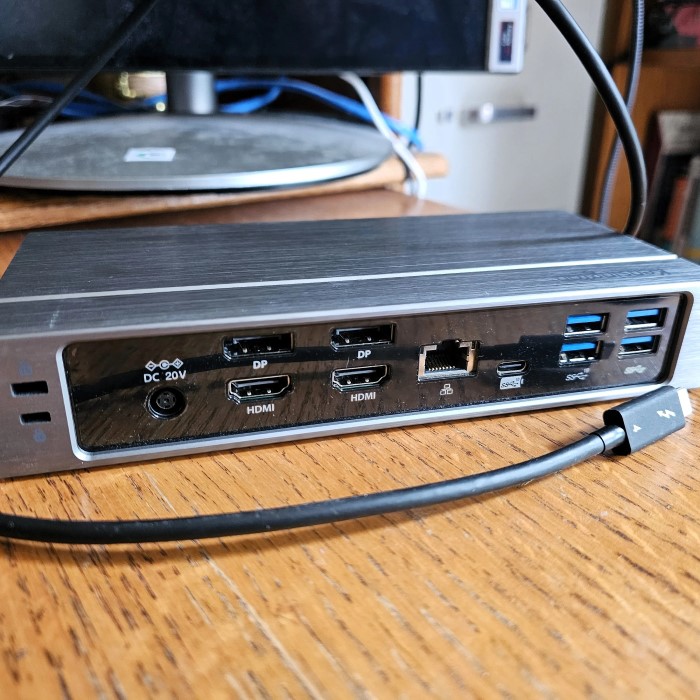
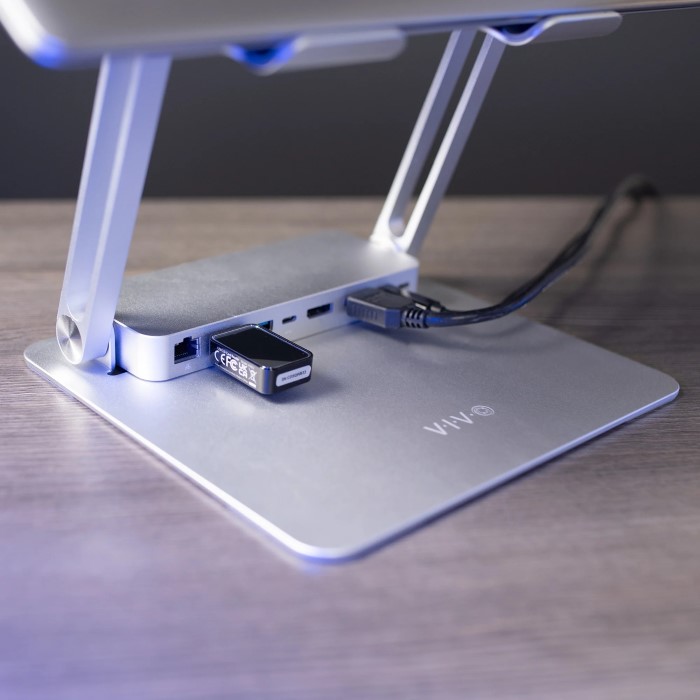
What is a docking station? Docking stations serve as a hub that expands the capabilities of your laptop. They typically connect through a USB-C or Thunderbolt port, allowing for data and power transfer in a single connection. By plugging your laptop into a station, you gain access to a variety of connection ports for external devices. Common ports include HDMI, DisplayPort, USB-A, USB-C, Ethernet, and audio jacks.
- Ease of Use: Many users find that connecting a laptop to a docking station simplifies their workspace. Instead of plugging and unplugging multiple cables, a single connection instantly links your laptop to everything you need.
- Power Supply: Many docking stations also provide power delivery (PD) to your laptop while in use. This means that your laptop can charge simultaneously, eliminating the need for an additional power adapter.
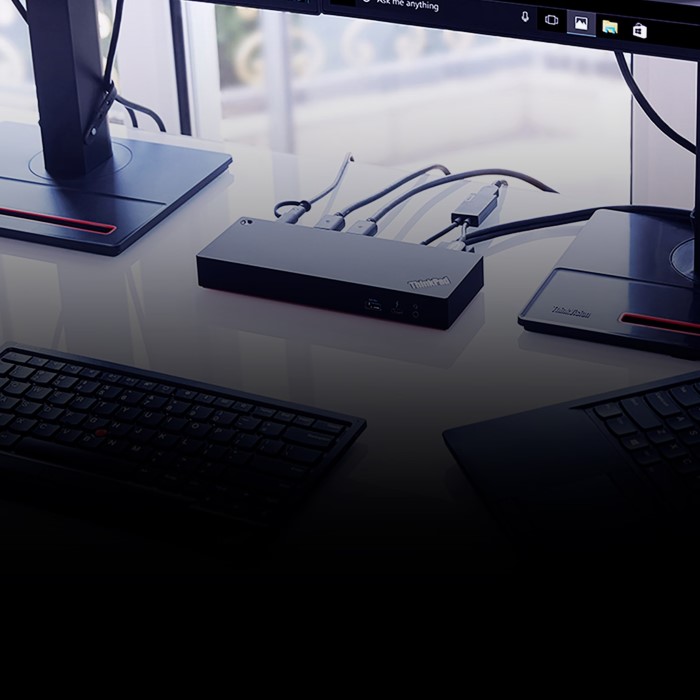
- Support for Multiple Displays: If you require a multi-monitor setup, stations can support dual or even triple displays. This capability allows you to expand your workspace and enhances productivity, especially for tasks such as design work, programming, or data analysis.
- Peripheral Connection: Beyond just monitors, docking stations allow other peripherals to be connected with ease. This includes wired mouse and keyboard setups, printers, external hard drives, and other devices that enhance a user’s workstation.

Advantages of Using
Streamlined Workflow
The primary advantage of using a docking station is the organization it brings to your workspace. For many professionals, switching from mobile to desktop setups can be cumbersome. Let’s explore some key benefits:
- Quick Setup: Docking stations allow you to quickly transition from a portable laptop setup to a stationary workstation. Just plug in your laptop and access all your devices instantly.
- Improved Productivity: With everything connected and ready to go, users can work more efficiently. The ability to use multiple monitors, along with a dedicated keyboard and mouse, allows you to multitask seamlessly.
- Enhanced Connectivity: As technology advances, so does the range of devices we use. A station provides various connection options, ensuring that your existing devices remain compatible with new technologies and ports.
- Space Efficiency: By using a docking station, you can keep your desk neat and tidy. Instead of having cables sprawled everywhere, a docking solution minimizes clutter and makes it easier to manage your workstation.
Common Questions
Do I Need a Docking Station for Dual Monitors?
Many users who utilize dual monitors will find that a station greatly simplifies the process. Not all laptops have the necessary ports for multiple displays. Thus, connecting them through a docking station can provide you with a hassle-free way to extend your desktop experience.
How Do I Know if I Need a Docking Station?
If your work requires you to frequently connect to various peripherals or switch between mobile and desktop modes, a docking station is likely a good investment. Additionally, if you find yourself using multiple monitors, a docking station will make it significantly easier to manage your setup.
What Is a WiFi Docking Station?
A WiFi docking station refers to a dock that enables wireless connectivity to networks and devices. This can particularly simplify setups where users desire a complete wireless experience by connecting their laptops to peripherals without the need for cables.
Top Models for Laptop Users
1. Dell D6000 Universal Dock
- Overview: The Dell D6000 is designed for versatility and supports up to three 4K displays. It is perfect for high-resolution tasks commonly needed in professional environments.
- Compatibility: This docking station is compatible with both USB-C and USB-A laptops, making it versatile for various setups.
- Connectivity Options: With multiple USB ports, HDMI, DisplayPort, and a Gigabit Ethernet port, this dock covers all connectivity needs.
2. CalDigit TS3 Plus
- Overview: This dock is particularly popular among creative professionals for its exceptional performance and premium build quality.
- Multiple Displays: The CalDigit TS3 Plus supports dual 4K monitors, making it ideal for graphic designers and other visualization tasks.
- Additional Features: The TS3 Plus also features an SD card reader, ultra-fast USB ports, and a robust legacy USB hub.
3. Anker PowerExpand Elite 13-in-1 Dock
- Overview: Anker is known for its high-quality products, and this dock exemplifies that with its extensive functionality and compact design.
- Power Delivery: It offers 85W power delivery, ensuring that your laptop charges quickly while in use.
- Versatility: With HDMI, USB-A, USB-C, and Ethernet ports, this dock allows connection of multiple devices without hassle.
How to Choose the Right Docking Station
Key Factors to Consider
When pondering how to choose a docking station for your laptop, a few considerations should guide your decision:
Port Selection
- Identify Required Ports: Start by identifying all the peripherals you intend to connect to your laptop via the docking station. Common devices include monitors, keyboards, mice, printers, and external storage.
- Check Connection Types: Evaluate the connection types of your peripherals. Devices may use USB-A, USB-C, HDMI, DisplayPort, Ethernet, or other connection types, so make sure the station has the necessary ports.
- Future-Proofing: Consider choosing a docking station with a variety of ports, including legacy options. This ensures compatibility even as you upgrade or add new devices in the future.
- Port Accessibility: Look at the positioning and accessibility of the ports on the station. Ports that are easy to reach can enhance your overall user experience, especially if frequently plugging or unplugging devices.
Power Delivery
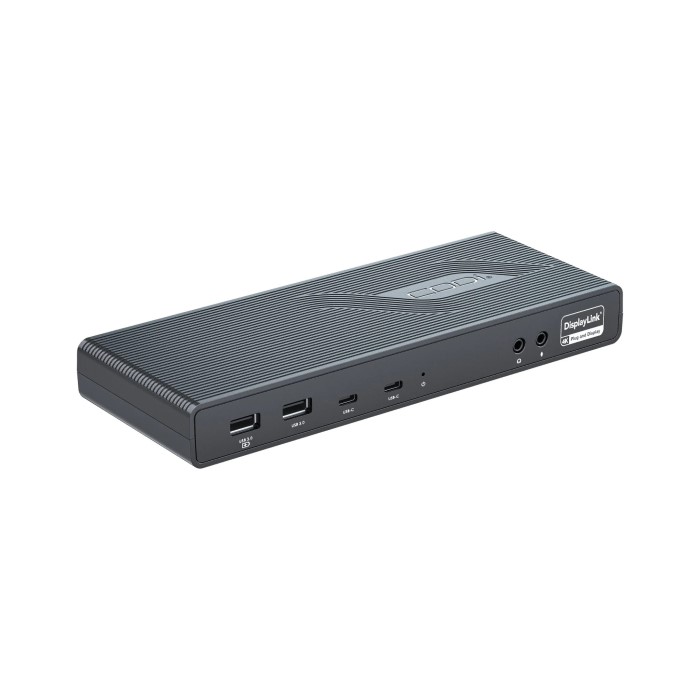
- Understanding Power Delivery: Power Delivery (PD) is a technology that allows the station to provide power to your laptop while it is connected. Check the wattage rating of the docking station’s power delivery capability.
- Sufficient Power Output: Ensure that the docking station can deliver enough power to charge your laptop. Charging a larger device typically requires higher wattage, so confirm that it matches your laptop’s requirements.
- Eliminating Extra Adapters: A station with power delivery can reduce cable clutter by eliminating the need for separate chargers. You can power your laptop and connect to peripherals all through a single cable.
- Enhanced Workflow: By keeping your laptop charged while connecting to other devices, you can streamline your workspace significantly and reduce the interruptions caused by low battery notifications.
Display Support
- Multiple Monitors Setup: If you need to connect multiple monitors, ensure the station supports the specific types of outputs you require. Check if it can handle HDMI, DisplayPort, or VGA connections.
- Resolution Support: Look for a docking station that can support the resolutions and refresh rates of your monitors. If you are using high-resolution displays, ensure that the dock can handle 4K, 2K, or other resolutions without compromising performance.
- Display Configuration: Determine how many monitors you plan to use and how they will be configured (e.g., extended desktop or mirrored display). Ensure that the station supports the desired setup.
- Technical Specifications: Read the technical specifications for the station to see if it can handle the bandwidth needed for multiple displays. This information is crucial for achieving smooth performance, especially when multitasking.
Build Quality and Size
- Durability: Opt for a station constructed from high-quality materials. A robust build can withstand daily usage and resist wear and tear, ensuring longevity and reliability.
- Design Considerations: Evaluate the design of the docking station, including whether it has ventilation for heat dissipation. A good design can prevent overheating issues, which can affect performance over time.
- Compactness: Choose a model that fits nicely on your desk. A compact design helps save desk space, which is especially important for smaller workspaces or when combining with other equipment.
- Aesthetic Fit: Consider the aesthetic appeal of the docking station. It should align with your workspace’s overall theme or design, whether modern, professional, or minimalist.
FAQ
- Why does a laptop need a docking station?
A laptop needs a docking station to simplify connections to multiple devices and to facilitate easy charging and access to peripherals. - Do I need a docking station for dual monitors?
Yes, a docking station can simplify connecting dual monitors without the hassle of multiple cables. - How do I know if I need a docking station?
If you often connect to various peripherals or need an efficient multi-monitor setup, a docking station would be beneficial. - What is a WiFi docking station?
A WiFi docking station allows wireless connections to networks and devices, offering a cable-free solution for your workspace.
Conclusion
In summary, understanding what is a docking station and how it functions can significantly enhance your productivity and workspace efficiency. With top models like the Dell D6000, CalDigit TS3 Plus, and Anker PowerExpand Elite available, there are plenty of options to suit various needs. As you contemplate integrating a docking station into your setup, reflect on your specific requirements and choose wisely. By embracing this technology, you can take your laptop usage to new heights, streamline your work processes, and create a highly efficient workspace.