
Understanding the Importance of Backing Up Your iPhone
In today’s digital era, your iPhone can serve as a vital repository of information. It houses an array of important data such as contacts, photos, messages, app data, and more. Losing this information can be incredibly distressing. Therefore, it’s crucial to develop a consistent backup strategy. One of the safest and simplest ways to do this is by backing up your iPhone to an external hard drive. This backup method provides enhanced security, ample storage, and easy accessibility. In this guide, we will explain how to backup iPhone to external hard drive, ensuring that your essential data is preserved and protected.
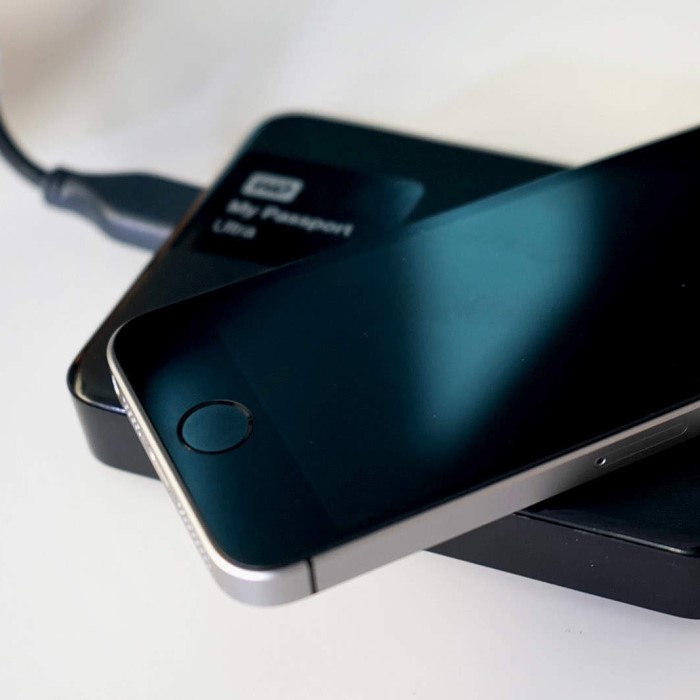
The Benefits of Backing Up to an External Hard Drive
Backing up your iPhone data to an external hard drive has numerous advantages that make it a practical choice for many users.
- Ample Storage Space: External hard drives typically offer much more storage capacity than both iPhones and cloud services. This means you can save not only your iPhone’s data but also other personal or family files that require backup.
- Faster Backup and Restore Speeds: Unlike cloud storage solutions that depend on your internet connection for uploads and downloads, external hard drives allow for quicker data transfers. This is particularly beneficial when dealing with large files, as the backup process can be completed much faster.
- Increased Data Control: By backing up your data to an external hard drive, you maintain full control over your files. You don’t have to rely on a cloud provider’s stability or bear the worry of sudden outages.
- Cost-Effectiveness: Although there’s an initial cost involved in purchasing an external hard drive, it pays off in the long run. You avoid ongoing subscription fees that many cloud storage services require.
Having outlined the advantages, let’s delve into how to effectively execute this essential backup process.
Preparing Your External Hard Drive
Before backing up your iPhone, it’s essential to prepare your external hard drive properly. Here are the key steps to ensure that your drive is ready for use:
Connect the Drive to Your Computer:
-
- Begin by locating the appropriate USB cable that matches your external hard drive.
- Carefully plug one end of the USB cable into the external hard drive.
- Connect the other end of the USB cable to an available USB port on your computer.
- If your external hard drive requires external power, check to ensure that it is properly plugged into a power source and turned on.
Format the Drive:
-
- If the external hard drive is brand new or has never been used with your computer before, it is likely necessary to format the drive for proper functionality.
- Before formatting, double-check that you are selecting the correct drive to avoid losing any data on other drives.
- Choose a file system that is compatible with your computer’s operating system:
- For Windows users, NTFS (New Technology File System) is recommended as it supports large files and advanced features.
- For Mac users, HFS+ (Mac OS Extended) is the best choice for compatibility.
- Follow the on-screen prompts to complete the formatting process, ensuring you understand that formatting will erase any existing data on the drive.
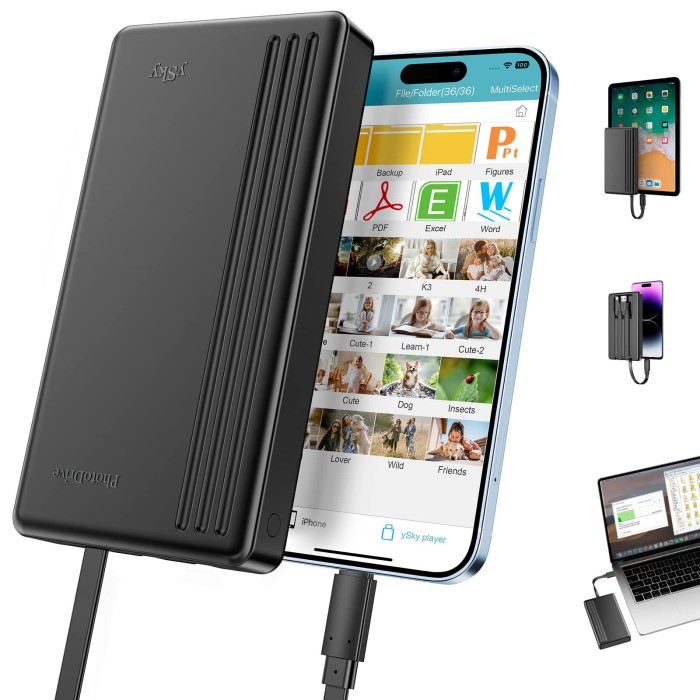
Check Available Space:
-
- After formatting the drive, it’s important to verify that it has enough available space for the data you plan to transfer.
- Determine the total size of the data on your iPhone that you wish to back up (this may include photos, videos, apps, and other files).
- Compare the size of the data from your iPhone with the available free space on the external hard drive.
- If there is insufficient space, consider deleting unused files from the hard drive or opting for a larger storage solution before proceeding with the backup.
How to Backup iPhone to External Hard Drive Using iTunes
One of the most common methods for backing up an iPhone is through iTunes. Below are the steps to back up your iPhone to an external hard drive using iTunes:
- Open iTunes: Launch iTunes on your computer. Ensure you have the latest version to avoid compatibility issues.
- Connect Your iPhone: Use a USB cable to connect your iPhone to your computer. If a prompt appears on your iPhone asking whether to trust the computer, accept it.
- Select Your Device: In the iTunes interface, click on the device icon that appears, which represents your iPhone.
- Choose Backup Options: Under the “Backups” section, select “This Computer” to instruct iTunes to save the backup locally.
- Change Backup Location: To specify the external hard drive as the backup destination, you will need to create a symbolic link. This process can be somewhat complex, particularly for those unfamiliar with command-line tools. If you are comfortable, refer to online guides on creating symbolic links for both macOS and Windows.
- Start the Backup: Click on “Back Up Now.” This action will initiate the backup process. You must wait until the backup process completes before disconnecting your iPhone.
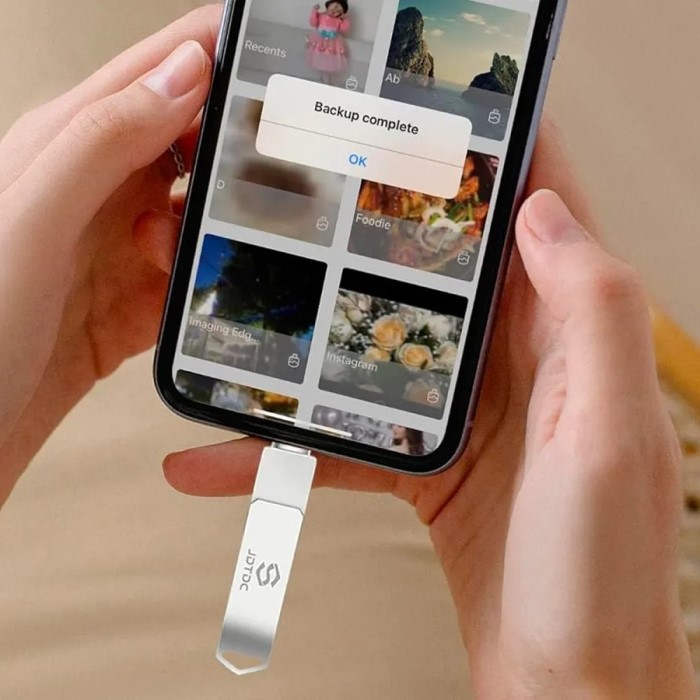
Alternative Method: Backing Up with Third-Party Software
In addition to iTunes, there are several third-party applications that can simplify backing up your iPhone directly to an external hard drive. Here are notable options:
iMazing
- User-Friendly Interface: iMazing boasts an intuitive interface that makes it accessible for users of all experience levels. Whether you are a tech-savvy individual or a novice, you will find the software easy to navigate.
- Flexible Data Selection: One of iMazing’s standout features is its flexibility in data transfer. You can choose specific types of data to back up, such as contacts, messages, photos, and app data. This targeted approach allows users to customize their backups according to their individual needs.
- External Hard Drive Integration: The software enables seamless integration with external hard drives. Simply point iMazing to your desired external storage location, and the software will handle the transfer process efficiently, allowing you to save space on your primary device.
- Advanced Features: In addition to standard backup capabilities, iMazing includes advanced features such as scheduled backups, data migration between devices, and the ability to extract specific data types from backups. These options enhance its overall functionality, making it a robust choice for users looking to manage their data.
AnyTrans
- Comprehensive Functionality: AnyTrans is celebrated for its extensive functionality regarding file management. It allows users to create not just backups, but also to transfer, manage, and organize files on their iPhones, making it a versatile tool for data handling.
- Efficient Backup Process: With AnyTrans, backing up your iPhone data is a streamlined experience. The software simplifies the process, allowing users to create full backups or select specific types of data, ensuring that it meets your specific requirements.
- Intuitive Interface: The user interface of AnyTrans is designed to be intuitive. Users can quickly locate features and follow on-screen prompts, making it easier to manage their data without unnecessary confusion.
- Cross-Platform Compatibility: AnyTrans supports backups across multiple devices and platforms. This means you can transfer data between your iPhone, iPad, and even Android devices without compatibility issues, making it a comprehensive tool for all your devices.
CopyTrans
- Celebrated Adaptability: CopyTrans is known for its high level of adaptability, allowing users to back up their iPhone data according to their preferences. Whether you want to back up a specific file type or all of your data, CopyTrans provides options to suit your needs.
- Easy Navigation: The navigation within CopyTrans is straightforward. Users can quickly access backup options and select their desired storage location with minimal effort. This ease of use reduces the time spent on managing data and enhances the overall experience.
- Direct Backup to Preferred Locations: One of CopyTrans’s key benefits is that it allows direct backing up of iPhone data to your chosen external storage location. Whether it’s an external hard drive or a USB drive, you have the freedom to decide where your backups will reside.
- Additional Data Management Features: Beyond backing up data, CopyTrans offers features for transferring music, photos, and other files from iPhones to computers and external devices. This added functionality makes it a valuable tool not just for backups but also for overall data management.
Most of these applications come with guides that make the backup process simple, so you can quickly save your data to your external hard drive.
Common Mistakes to Avoid When Backing Up
While learning how to backup iPhone to external hard drive, it’s essential to be mindful of common mistakes that can be avoided:
- Neglecting Regular Backups: Ensure that you back up your iPhone data regularly; failing to do so can lead to loss of new data. Establish a routine that suits your schedule for efficient backups.
- Not Verifying Backup Success: After completing the backup process, check to confirm that the backup was indeed successful. Verify that the data is accessible and intact.
- Ignoring Software Updates: It’s important to keep both iTunes and any third-party applications up to date. Updates often improve functionality and compatibility.
- Forgetting to Encrypt Sensitive Data: If your backup includes sensitive information, consider enabling encryption. This step ensures that your data remains safe from unauthorized access.
Data Recovery from Your Backup
In case you need to recover your data from an external hard drive backup, understanding the recovery process is critical:
- Connect Your External Hard Drive: Insert your external hard drive into your computer using the USB cable.
- Open iTunes: Start iTunes and click on the device icon representing your iPhone.
- Select Restore Backup: Under the “Summary” section, choose the “Restore Backup” option, and select the most recent backup from the list.
- Completion of Restore: Allow the restore process to complete. Your iPhone will restart once the recovery process finishes, bringing all your data back onto the device.
Conclusion
Now that you understand how to backup iPhone to external hard drive, you are better equipped to protect your precious data. By implementing a reliable backup strategy, you can significantly mitigate the risks associated with potential data loss. Regular backups not only safeguard your memories and important files but also offer convenience in recovering lost data. Whether you choose to utilize iTunes or third-party software, the key to ensuring data security lies in being proactive. Remember to periodically verify your backups to guarantee that your data remains secure and accessible whenever you need it. Emphasizing these practices will empower you to maintain the safety of your digital life effectively. So take action today and ensure that your valuable iPhone data is backed up securely to an external hard drive.