

Introduction: The Importance of a Quiet Keyboard
In a fast-paced digital world, distractions can hinder productivity. One of the main culprits for distraction is the sound of keyboard clicks, which can interrupt your concentration during important tasks. Learning how to turn off keyboard sound is a practical skill that can greatly enhance your computing experience. Whether you are typing emails, chatting with friends, or working on documents, having a silent keyboard can create a more pleasant environment for you and those around you.
This article will provide a step-by-step guide tailored to different devices, helping you navigate through the various settings to mute keyboard sounds effectively. By the end, you’ll be equipped with knowledge that empowers you to maintain a quieter workspace while enjoying all the functionality of your keyboard.
Why You Should Turn Off Keyboard Sound
1. Enhancing Focus and Productivity
Sound distractions, such as keyboard clicks, can divert your attention. Research indicates that a noisy environment can reduce productivity. Therefore, silencing your keyboard can help you stay focused and improve your efficiency.
2. Creating a Comfortable Environment
If you share your workspace with others, the sound of typing can become particularly bothersome. Reducing keyboard noise makes for a more harmonious atmosphere and shows consideration for your co-workers or family members.
3. Personal Preference
Many users simply prefer a silent input method. With the multitude of sound options available in digital devices, ensuring that your environment suits your preferences is essential for enjoying your time on your devices.
Steps to Turn Off Keyboard Sound on Different Devices
1. How to Turn Off Keyboard Sound on iOS Devices
How to turn off keyboard sound? Muting keyboard sounds on iPhones and iPads is simple and straightforward:
Open Settings
- Locate the Settings App: On your device’s home screen, look for the app icon labeled “Settings.” It typically resembles a gear or cogwheel.
- Tap the Icon: Once you find the Settings app, tap on the icon to open it. This will take you to the main Settings menu, where you can customize various device options.
- Scroll Through the Menu: Inside the Settings menu, scroll down the list of options. This menu contains various settings related to device functionality and preferences.
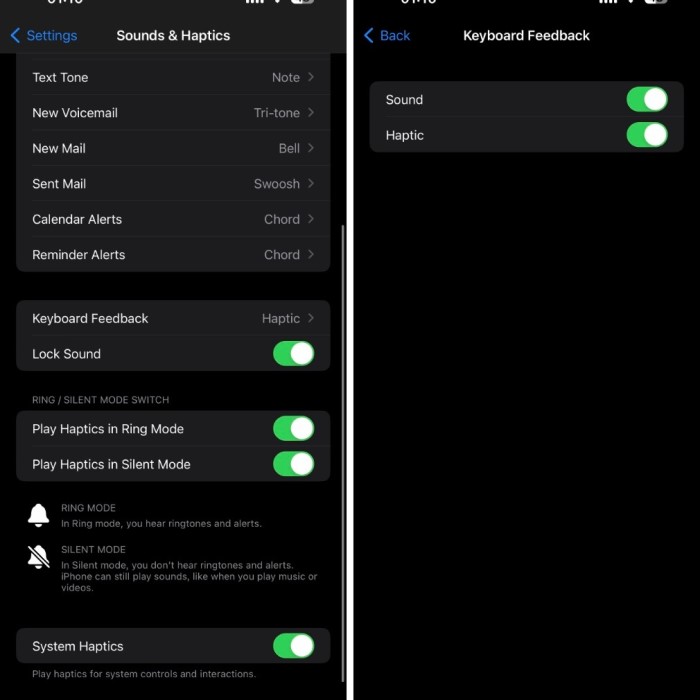
- Select “Sounds & Haptics”: Look for the option labeled “Sounds & Haptics.” This section controls all sound settings as well as vibration feedback for your device. Tap on it to access the sub-menu.
Disable Keyboard Clicks
- Find the Keyboard Clicks Option: Within the “Sounds & Haptics” menu, scroll down until you find the setting labeled “Keyboard Clicks.” This option is responsible for the sound produced when you type on the keyboard.
- Toggle the Switch Off: Next to “Keyboard Clicks,” you will see a toggle switch. If the switch is green or in the “on” position, tap it to turn it off. The toggle will change to gray or “off,” indicating that keyboard clicks have been successfully disabled.
Following these steps will silence the clicks that occur when typing on your iPhone or iPad.
2. Silencing Keyboard Sound on Android Devices
The process for Android devices may vary slightly depending on the manufacturer, but the general steps are similar:
Head to Settings:
-
- Locate the “Settings” application on your smartphone. This app is typically represented by a gear icon and can often be found on your home screen or in the app drawer.
- Tap on the “Settings” icon to open the application.
Select Sound and Vibration:
-
- Once you are in the “Settings” menu, scroll through the options available to find “Sound” or “Sound and Vibration.”
- Depending on your device, this section might be labeled slightly differently, so look for similar terms if you don’t find it immediately.
- Tap on “Sound” or “Sound and Vibration” to enter the sound settings menu.
Find Keyboard Sounds:
-
- In the sound settings, look for a section titled “Other Sounds” or something similar that includes more specific sound options.
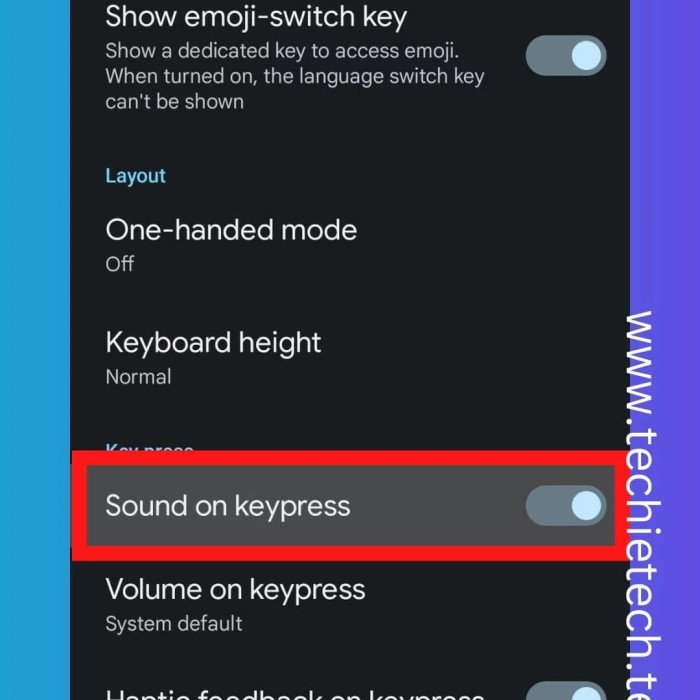
- Within this section, search for the option labeled “Sound on keypress” or “Keyboard sound.”
- Once located, toggle the switch next to this option to turn it off and disable keyboard sounds while typing.
By completing these steps, you’ll remove the sound from your keyboard entries on Android.
3. Disabling Keyboard Sound on Windows Computers
To mute keyboard sound on a Windows computer, follow these instructions:
- Open Settings: Click on the Start menu and select “Settings” (the gear icon).
- Navigate to Devices: Click on “Devices” and choose “Typing.”
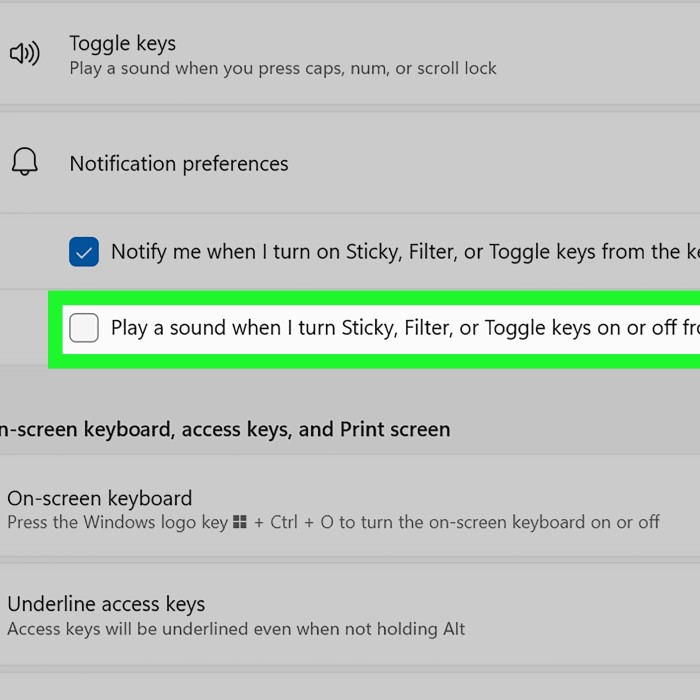
- Turn Off Keyboard Sounds: Find the option labeled “Play key sounds as I type” and turn it off.
This will prevent any sounds when typing on your Windows keyboard.
4. How to Turn Off Keyboard Sound on Mac
For Mac users, silencing keyboard sounds can be accomplished easily:
Access System Preferences:
-
- Locate the Apple logo in the top left corner of your screen.
- Click on the Apple logo to open a dropdown menu.
- From this menu, select “System Preferences.” This action will open a new window displaying various system settings.
Select Sound:
-
- In the System Preferences window, look for the “Sound” icon.
- Click on the “Sound” icon to access the sound settings. This section allows you to adjust audio output, input, and sound effects.
Uncheck Keyboard Sounds:
-
- Once you are in the “Sound” settings, navigate to the “Sound Effects” tab at the top of the window.
- In this tab, you will see various options related to sound effects.
- Find the option that says “Play sound effects through.”
- You should see a checkbox next to this option. Click on this checkbox to uncheck it, which will disable keyboard sound effects.
By following these steps, you will mute keyboard sounds during typing.
Exploring Additional Keyboard Management Tips
1. Use of Software Controls
Many keyboards come with additional software controls that allow for customization beyond basic hardware settings. Check if your keyboard has a configuration program that lets you adjust sound settings.
2. Keyboard Sound Preferences on External Keyboards
For external keyboards, especially gaming ones, there might be dedicated controls or software that can help you manage sounds better. Explore the manufacturer’s website or user manual to find specific instructions.
3. Creating a Peaceful Environment
Designate Quiet Time
- Set Specific Hours: Establish specific times during the day that are reserved for quiet work. For example, consider implementing a “quiet hour” during which all noisy activities are minimized.
- Communicate with Team Members: If you work in a shared space, let your colleagues know about the designated quiet times. This will help everyone understand the need for a more focused atmosphere and encourage them to minimize noise during those hours.
Implement Noise-Reducing Practices
- Use Noise-Canceling Headphones: Encourage the use of noise-canceling headphones to help block out ambient sounds. This can greatly improve concentration while simultaneously allowing for some flexibility in the work environment.
- Create a Quiet Workspace: If possible, set up a designated workspace that is designed to minimize disturbances. This might involve choosing a location away from high-traffic areas or using sound-absorbing materials like curtains and carpets.
Manage Keyboard Sound
- Mute Keyboard Clicks: As previously discussed, turning off keyboard sounds is a crucial step in reducing overall noise. By following the appropriate steps on devices, you can help create a quieter typing atmosphere.
- Consider Soft Keyboards: For those who type on devices like tablets or smartphones, using a soft keyboard can also help reduce noise. Many apps offer keyboards with quieter response sounds, which can contribute to a more peaceful work experience.
Encourage Mindfulness and Focus
- Promote Mindful Practices: Encourage mindfulness techniques, such as deep breathing or short meditation sessions, to foster a calm work environment. Engaging in these practices can enhance concentration and reduce stress.
- Limit Distractions: Encourage team members to limit distractions from conversations, phone notifications, or other electronic devices to maintain a peaceful atmosphere conducive to focused work.
Create a Supportive Culture
- Foster Respect for Quiet Spaces: Cultivate a workplace culture that respects and values quiet time. Highlight the benefits of concentration and focus, reinforcing the notion that a peaceful environment aids productivity.
- Provide Resources: Offer resources, such as guides or apps, that promote focus and mindfulness. Support employee initiatives that contribute to a quieter workspace, showcasing a commitment to well-being.
Frequently Asked Questions
How do I make my keyboard sound silent?
To make your keyboard sound silent, navigate to your device’s sound settings and toggle off options related to keyboard sounds, clicks, or keypress sounds based on your device type.
How do I mute the keyboard on my iPhone?
To mute the keyboard on your iPhone, go to “Settings,” select “Sounds & Haptics,” and toggle off the “Keyboard Clicks” option.
How do I put off keyboard sound on Samsung?
To remove keyboard sound on Samsung devices, open “Settings,” select “Sounds and Vibration,” then find “Other Sounds” options and toggle off “Keyboard sound.”
Conclusion: Enjoy a Quieter Typing Experience
In conclusion, knowing how to turn off keyboard sound is a valuable skill that can enhance your typing experience across various devices. Whether you are using a smartphone, tablet, or computer, the steps to disable keyboard sounds are straightforward and user-friendly.
By silencing your keyboard, you can create a more focused, peaceful work environment that respects the needs of those around you. Clear communication is essential, and having a sound-free environment can significantly contribute to your productivity.
As you follow these steps to manage your keyboard settings, consider personalizing your devices to fit your preferences further. The absence of disruptive sounds will foster a serene atmosphere, enhancing your engagement with your devices. Armed with this knowledge on how to mute keyboard sounds, feel empowered to take control of your digital experience. Enjoy typing in peace!