

Introduction: Why Use a GoPro as a Webcam?
In today’s digital age, many people are seeking high-quality video solutions for their online meetings, live streams, and video conferences. You may ask yourself, how to use gopro as webcam? The versatility of GoPro cameras has made them popular not only for capturing action-packed moments but also for video streaming. Utilizing your GoPro camera as a webcam can significantly enhance the quality of your video presence. In this guide, we will explore the steps required to set up your GoPro as a webcam, including the necessary equipment and tips for optimal performance.
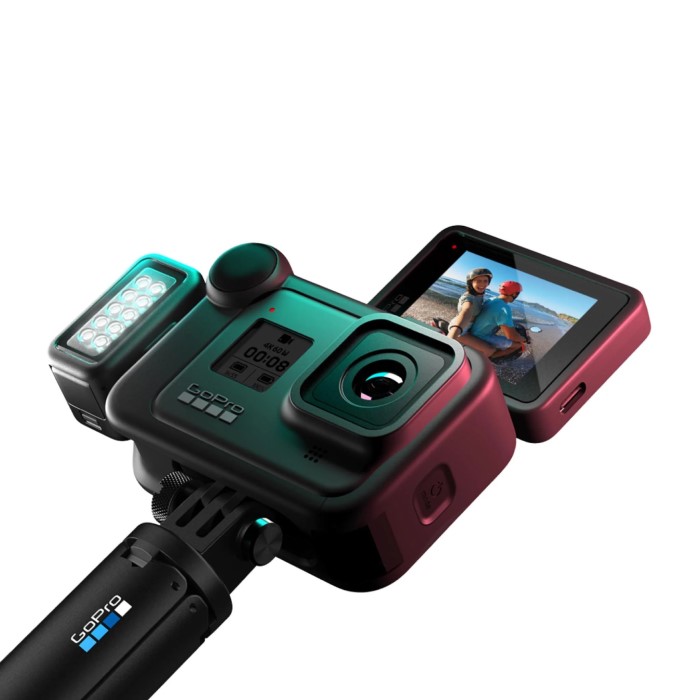
Benefits of Using a GoPro as a Webcam
Using a GoPro as a webcam offers several advantages. Below are some key benefits that make it a great choice:
Superior Video Quality
GoPro cameras are known for their high-resolution video capabilities. They capture sharp details and vibrant colors. This greatly enhances the overall video experience compared with traditional webcams.
Wide-Angle Perspective
GoPros come with wide-angle lenses. These lenses capture more of the scene and create a dynamic viewing experience. Wide angles are particularly helpful for streaming or conferencing in large spaces.
Compact and Durable Design
GoPros are lightweight and portable. You can easily mount or position them anywhere. Their rugged design ensures durability, even in challenging environments.
Easy Integration with Streaming Platforms
Recent GoPro models support webcam mode. This makes them compatible with popular streaming platforms like Zoom, Twitch, and Microsoft Teams. The straightforward setup avoids unnecessary complications.
Versatile Features
GoPro cameras offer additional features like built-in stabilization and various shooting modes. These features improve video quality and adjust to different lighting conditions seamlessly.
Multi-Purpose Utility
When not used as a webcam, GoPros excel in capturing action shots and videos. This multi-functionality makes the investment more worthwhile.
If you’re wondering how to use GoPro as a webcam, its perks like superior quality and added flexibility make it an excellent choice.
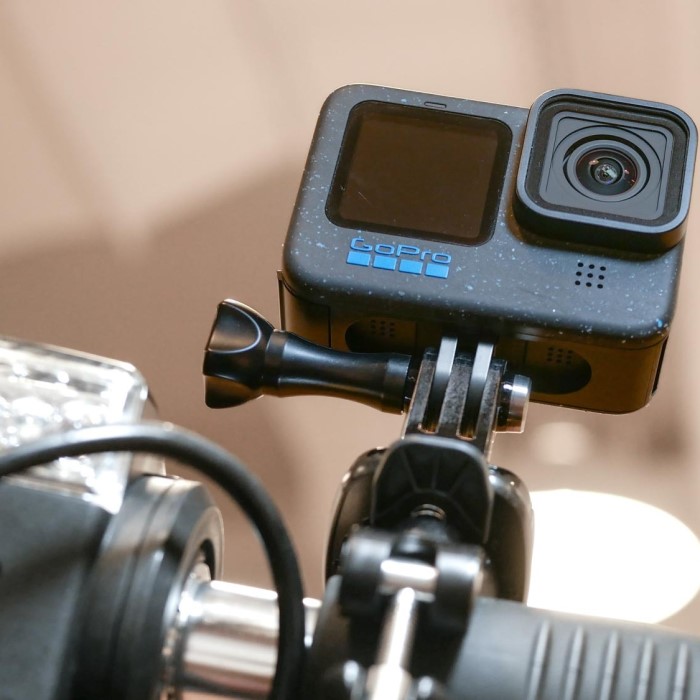
Compatibility: GoPro Models That Support Webcam Mode
Not all GoPro models support webcam mode. It’s crucial to check your model before proceeding. Recent GoPro cameras come equipped with features that work as webcams. These models offer seamless integration with computers.
GoPro Models Compatible with Webcam Mode
HERO10 Black: Supports webcam mode and provides great video quality.
HERO9 Black: Widely used for webcam functions and streaming.
HERO8 Black: Needs specific firmware updates for webcam mode.
HERO7 Black: Requires third-party software for webcam setup.
Key Considerations
- Firmware Updates: Some models need updated firmware for webcam functionality. Check for the latest version.
- Connectivity Options: Ensure your model supports USB connections to PCs or Macs.
- Built-in Webcam Mode: HERO8 and newer models have built-in webcam mode for easy setup.
Choosing a compatible GoPro model makes the process simpler. Verify your GoPro version and software before moving forward.
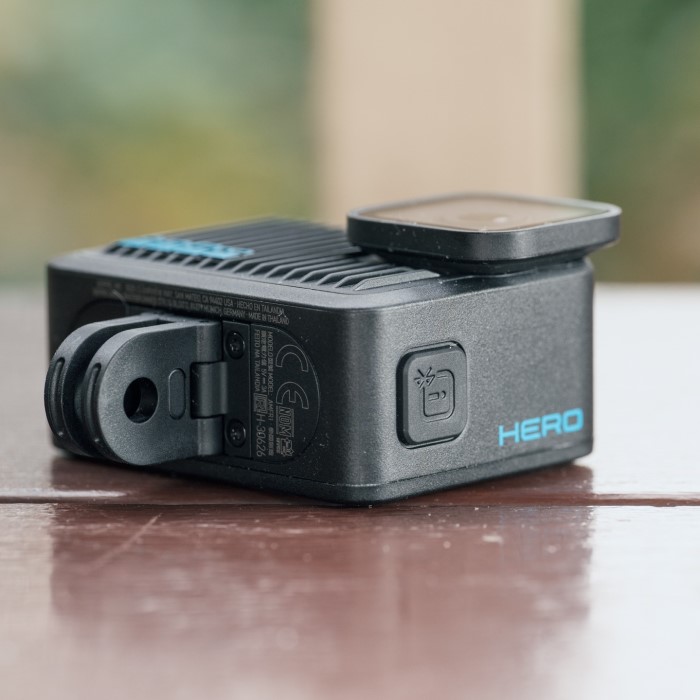
Equipment and Software Needed to Setup
Setting up your GoPro as a webcam requires specific equipment and software. Below is a comprehensive list:
Required Hardware
- GoPro Camera: Choose a compatible model like HERO8, HERO9, or HERO10.
- USB-C Cable: Use a high-quality USB-C cable to connect the GoPro to your computer.
- Mount or Tripod: Secure your GoPro for stable positioning during use.
- External Microphone (Optional): For enhanced audio quality, use an external mic.
Essential Software
- GoPro Webcam Utility: Install this official software from GoPro for seamless integration.
- Firmware Update: Update your GoPro to the latest firmware for webcam functionality.
- Streaming Software (Optional): Applications like OBS Studio can provide additional features.
Computer Requirements
- Operating System: Ensure compatibility with macOS or Windows.
- Strong USB Ports: Use USB 3.0 or higher for stable connections.
- Internet Connection: A reliable network is essential for streaming or video calls.
Gathering the right equipment and software ensures your GoPro setup is smooth. This preparation is crucial for the best webcam performance.
How to Enable Webcam Mode on Your GoPro
How to use gopro as webcam? Enabling webcam mode on your GoPro is a straightforward process. Follow these steps to activate the feature:
- Update Your GoPro Firmware: Start by ensuring your GoPro firmware is up to date. Visit GoPro’s official website, download the latest version, and follow the instructions to install it on your camera. Updated firmware enables compatibility and stability for webcam functionality.
- Download GoPro Utility: GoPro offers a dedicated software called Webcam Utility. Download it to your computer. It’s available for both macOS and Windows. The software is essential for linking your GoPro to your computer.
- Power On Your GoPro: Turn on your GoPro camera and ensure it’s set to video mode. This is the default mode required for webcam operation.
- Connect Your GoPro to Your Computer: Use a high-quality USB-C cable to connect your GoPro to your PC or Mac. Ensure the connection is secure and stable. USB 3.0 ports are recommended for the best performance.
- Select Webcam Mode on GoPro Settings: On the GoPro’s screen or settings menu, choose the “Webcam Mode” option. Confirm your selection by following any on-screen prompts.
- Check the GoPro Webcam Feed: Open the GoPro Webcam Utility on your computer. Once connected, you should see a preview of your GoPro feed in the software. This ensures the camera is working correctly in webcam mode.
Once the webcam mode is enabled, your GoPro is ready to be used as a high-quality webcam. You can now use it with video conferencing tools, streaming platforms, or recording software for crisp, professional results.
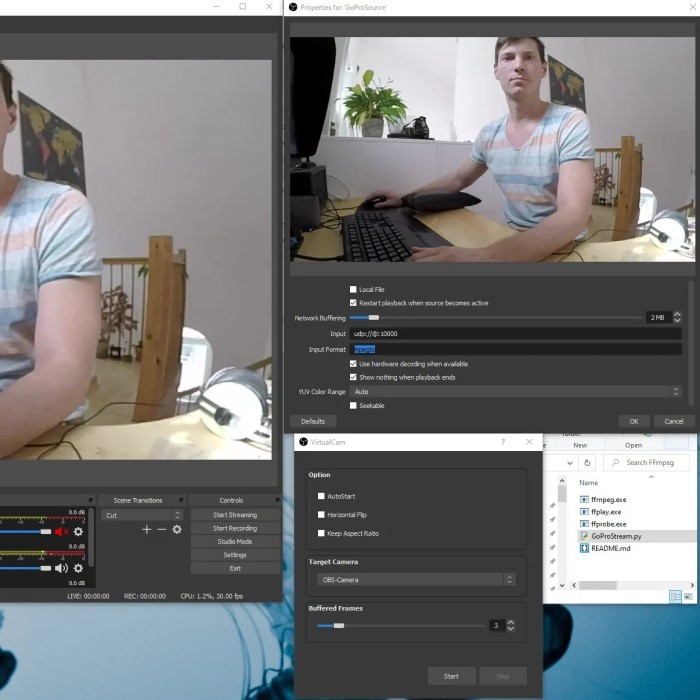
Connecting Your GoPro to a PC or Mac
Connecting your GoPro to a PC or Mac is a simple yet important step. Ensure you follow these instructions for a smooth setup:
Gather Required Equipment
- Use a quality USB-C cable to link your GoPro to the computer.
- Ensure your computer has USB 3.0 or higher ports for fast and stable data transfer.
Check Compatibility
- Verify that your GoPro model supports webcam mode.
- Confirm that your computer’s operating system is compatible with GoPro Webcam Utility (macOS or Windows).
Connect the GoPro to Your Computer
- Turn on your GoPro and set it to video mode.
- Attach one end of the USB-C cable to the GoPro and the other to your computer.
- Confirm the connection is secure to avoid interruptions.
Launch GoPro Webcam Utility
- Open the GoPro Webcam Utility software installed on your computer.
- Wait for the software to detect your GoPro camera. Ensure the camera feed appears.
Test the Connection
- Confirm webcam functionality by previewing the video feed on the utility.
- Adjust lighting or positioning if needed for optimal video quality.
Following these steps will connect your GoPro seamlessly to your PC or Mac, enabling it for webcam use.
Setting Up GoPro Webcam on Popular Live Streaming Platforms
Using your GoPro as a webcam with live streaming platforms is straightforward. Here’s how you can set it up on popular platforms:
Zoom
- Open the Zoom application on your computer.
- Go to ‘Settings’ and click on ‘Video.’
- Select ‘GoPro Webcam’ from the camera dropdown menu.
- Start or join a meeting to use your GoPro as your video source.
Microsoft Teams
- Launch Microsoft Teams on your PC or Mac.
- Navigate to ‘Settings’ and click on ‘Devices.’
- Under ‘Camera,’ choose ‘GoPro Webcam’ from the available options.
- Test the camera feed in a team meeting or call.
Twitch
- Install streaming software like OBS Studio, required for Twitch streaming.
- Open OBS Studio and add a new source by selecting ‘Video Capture Device.’
- Name it ‘GoPro Webcam’ and choose the GoPro source.
- Adjust settings like resolution and frame rate if needed.
- Log into Twitch, connect OBS, and begin your live stream.
Google Meet
- Open Google Meet in your preferred web browser.
- Click on ‘Settings’ in the meeting window.
- Select your ‘GoPro Webcam’ from the camera options.
- Join or start a meeting to use your GoPro for video calls.
YouTube Live
- Ensure your GoPro is connected and working with the GoPro Webcam Utility.
- Go to YouTube Studio and select ‘Go Live.’
- Choose ‘Stream’ and link with OBS Studio or similar software.
- Set up ‘Video Capture Device’ in OBS and select ‘GoPro Webcam.’
- Adjust details and start live streaming.
Following these steps ensures smooth integration with live streaming platforms. Enjoy high-quality video for meetings or streaming sessions.
Troubleshooting Common Issues with GoPro Webcam Setup
Setting up your GoPro as a webcam is usually smooth, but issues can occur. Here’s how to troubleshoot common problems:
GoPro Not Connecting to Computer
- Check USB-C Cable: Ensure the cable is working and securely connected.
- Restart Devices: Restart both your GoPro and computer to refresh connections.
- Update Software: Confirm that GoPro Webcam Utility and firmware are updated.
- Switch USB Ports: Use a different USB port, preferably USB 3.0.
Feed Not Showing
Enable Webcam Mode
- Navigate to the GoPro settings menu on your device.
- Search for the option labeled “Webcam Mode” or similar.
- If it is not already selected, toggle the switch to enable this mode.
- Confirm that your GoPro is properly connected to your computer via USB.
- Restart your GoPro to ensure the settings take effect, if necessary.
Verify Camera Source
- Open your video application, such as Zoom, Skype, or OBS.
- Access the settings menu within the application.
- Look for the section labeled “Video” or “Camera.”
- From the list of available cameras, select “GoPro Webcam.”
- If the option is not visible, restart the application or recheck your GoPro connections.
Check Lighting
- Evaluate the lighting conditions in your recording environment.
- Aim for soft, diffused lighting by using natural light or softbox lights.
- Avoid harsh shadows or overly bright spots in your setup.
- Position the light source in front of you to illuminate your face evenly.
- Test your webcam feed after adjusting the lighting to ensure optimal visibility.
Poor Video Quality
- Adjust Resolution: Optimize resolution settings in GoPro Utility.
- Clean Lens: Wipe the GoPro lens to remove dirt or smudges.
- Use Stable Mount: Position your GoPro on a sturdy tripod for a steady feed.
Unsupported Computer Software
- Update Operating System: Ensure macOS or Windows meets GoPro Utility requirements.
- Reinstall Utilities: Remove and reinstall the webcam utility for compatibility fixes.
Lag or Disconnection
- Verify Internet Speed: Slow networks can cause video lags.
- Close Background Apps: Reduce strain on the computer by closing unused applications.
- Use Quality Cable: Cheap USB cables may disrupt connection stability.
By following these steps, you can resolve most GoPro webcam issues. Ensure updates and proper setup for smooth use.
Tips to Optimize Video Quality and Performance
To get the best results from your GoPro webcam, follow these tips to optimize video quality and performance:
Position Your GoPro Correctly
- Mount the GoPro at eye level for a natural view.
- Use a stable tripod or mount to avoid movements or vibrations.
- Ensure the camera captures you in the center of the frame.
Optimize Lighting
- Use natural light or place a soft artificial light in front of you.
- Avoid backlighting, which can cast shadows and darken the video.
- Test lighting conditions before important calls or streams.
Adjust GoPro Settings
- Set the resolution to 1080p for sharp and smooth video quality.
- Enable features like stabilization on compatible models for steady footage.
- Use the correct field of view (wide, narrow, or linear) based on your setup.
Ensure Proper Connectivity
- Use a high-quality USB-C cable for stable GoPro-to-computer connections.
- Connect to a USB 3.0 port for faster and more reliable data transfer.
- Regularly check cables and ports for wear that could affect connection.
Keep Your GoPro Lens Clean
- Wipe the GoPro lens with a microfiber cloth for clear visuals.
- Avoid touching the lens to reduce smudges or fingerprints.
Maintain a High-Performance Setup
- Close unnecessary apps on your computer to improve speed during video calls or streaming.
- Ensure your computer meets GoPro Webcam Utility requirements for smooth operation.
- Use a reliable internet connection for consistent video performance.
Test Before Going Live
- Check the webcam feed before joining a meeting or live stream.
- Adjust positioning, lighting, and settings for the best appearance.
By following these tips, your GoPro webcam will deliver professional-quality video and performance every time.
Conclusion
In conclusion, knowing how to use gopro as webcam can elevate your video conferencing experience significantly. With high-quality video, portability, and a stylish edge, the GoPro serves as an excellent choice for professional or personal use. By following the outlined steps and utilizing the tips provided, you can make the most out of your GoPro webcam setup. Whether for online meetings or live streams, enhancing your video presence has never been easier. Now that you’re equipped with the knowledge, you can confidently explore the world of video communication with your GoPro!
 Griley