

Introduction: The Need for a Bigger Keyboard
Have you ever struggled to type on your iPhone because the keyboard appeared too small? You’re not alone. Many users encounter this frustration, especially when sending text messages or writing emails. Fortunately, learning how to make keyboard bigger on iPhone is simpler than you might think. This guide will provide you with helpful tips to enhance your typing experience on your iPhone.
Why Adjusting Keyboard Size Matters
Small keyboards can impact typing speed and accuracy. Adjusting the keyboard size can improve usability and comfort.
Benefits of a Bigger Keyboard on iPhone
- Improved Typing Accuracy: Larger keys reduce the chance of hitting the wrong letters.
- Faster Typing Speed: Bigger keys are easier to hit, boosting efficiency.
- Better Accessibility: People with larger fingers find bigger keyboards more comfortable.
- Enhanced Comfort: Reduces strain for prolonged use, especially for text-heavy tasks.
Common Issues with Default Keyboard Size
- Typing Errors: Small keys make it easy to hit the wrong letters.
- Finger Fatigue: Extended use can strain fingers due to cramped layouts.
- Accessibility Challenges: Users with vision or coordination issues may struggle.
- Limited Customization: The default keyboard size cannot be directly resized without adjustments.
Built-in iPhone Features for Keyboard Adjustment
Adjusting your iPhone’s keyboard size can significantly enhance your typing experience. Apple offers built-in features that help you customize your display and text settings, indirectly affecting keyboard usability. Let’s explore two effective solutions.
Enabling Display Zoom
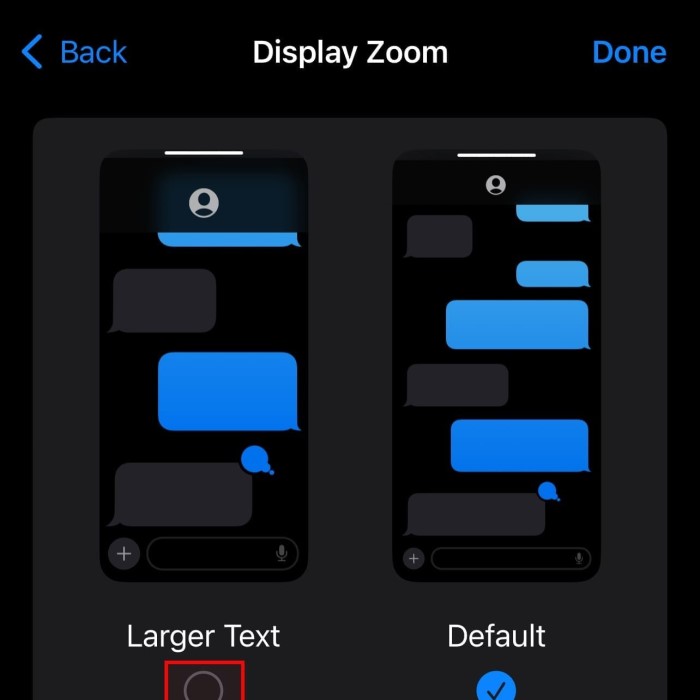
Display Zoom is a feature that increases the size of on-screen elements, including the keyboard. Here’s how you can enable it:
- Go to Settings: Open the Settings app on your iPhone.
- Select Display & Brightness: Scroll down and tap “Display & Brightness.”
- Choose View under Display Zoom: Tap “View” in the Display Zoom section.
- Select Zoomed: Switch to the “Zoomed” option and tap “Set” to apply the changes.
- Restart Your iPhone: Your iPhone may restart for the changes to take effect.
This feature enlarges buttons and text, making typing easier and more comfortable. It’s especially useful if you struggle with small keys.
Adjusting Text Size Settings
Text size adjustments can also indirectly impact the keyboard’s usability. Here’s how to do it:
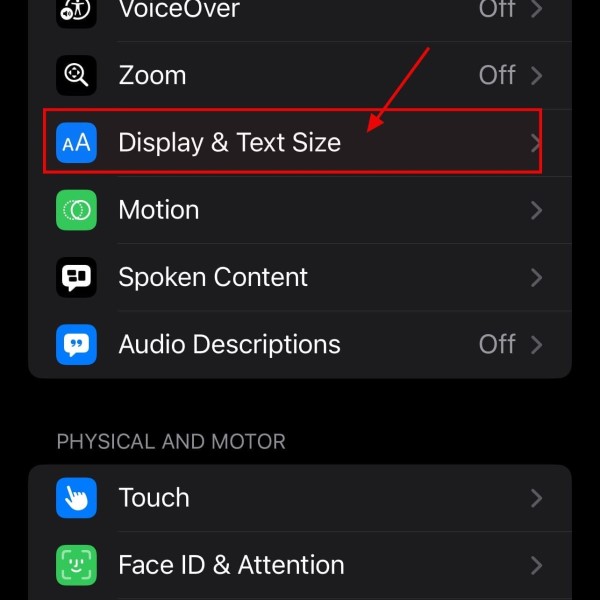
- Open Settings: Head to the “Settings” on your iPhone.
- Navigate to Accessibility: Tap “Accessibility” for customization options.
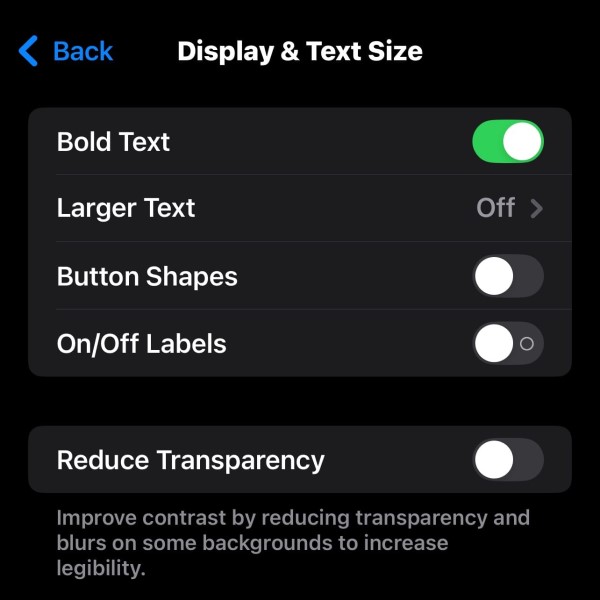
- Choose Display & Text Size: Under Accessibility, select “Display & Text Size.”
- Adjust Text Size: Use the slider to make text larger or smaller as needed.
While this doesn’t specifically resize the keyboard, it changes how text appears across your device. This can improve overall visibility and usability during typing.
By leveraging these features, you can make your iPhone keyboard more user-friendly and better suited to your needs.
Exploring Third-Party Keyboard Apps
How to make keyboard bigger on iphone? If the built-in options don’t meet your needs, third-party keyboard apps offer enhanced customization. These apps allow you to change the size, layout, and features of your iPhone keyboard. Many users find them helpful for improving typing accuracy and speed.
Popular Apps for Custom Keyboard Sizes
Gboard:
- Resizing Options: Gboard enables users to easily resize the keyboard according to their preferences, allowing for a more comfortable typing experience.
- Gesture Typing: This feature allows users to type by sliding their fingers over the keys, making it faster and more efficient to input text without lifting fingers.
- Multilingual Support: Gboard supports multiple languages, allowing users to switch between languages seamlessly and type in different languages without having to change keyboards.
SwiftKey:
- Predictive Text: SwiftKey uses advanced AI algorithms to anticipate text input, offering word suggestions as the user types, which helps in speeding up the typing process.
- Customizable Keyboard Size: Users can adjust the keyboard size to their liking, accommodating different screen sizes and personal preferences for a better typing experience.
Fleksy:
- Advanced Customization: Fleksy allows users to personalize their keyboards with various options, including different layouts and styles to match their aesthetic preferences.
- Adjustable Key Sizes: Users can modify the size of the keys to reduce typing errors and enhance comfort, particularly useful for those with larger fingers or those who prefer more touchable buttons.
- Themes: Fleksy offers a wide range of themes allowing users to change the appearance of their keyboard, making it visually appealing and personalized.
Typewise:
- Larger Keys: Typewise features larger-than-average keys that provide a spacious typing environment, which can greatly decrease the likelihood of pressing the wrong key.
- Reduce Typing Errors: With a design that accommodates larger keys, Typewise helps minimize common typing mistakes, facilitating a smoother texting experience.
- Improved Workflow: The keyboard layout enhances overall productivity by ensuring that users can type efficiently and accurately, making it ideal for those who type frequently on their devices.
These apps are easy to use and provide more flexibility compared to the default keyboard.
How to Install and Use Third-Party Keyboards
- Download App: Find and download a keyboard app from the App Store.
- Enable Keyboard: Go to “Settings,” then “General,” and tap “Keyboard.”
- Add New Keyboard: Select “Keyboards” and tap “Add New Keyboard.” Choose your downloaded app.
- Grant Full Access: Enable “Allow Full Access” if required by the app.
- Select Keyboard: When typing, press the globe icon to switch to your custom keyboard.
By following these steps, you can create a typing experience tailored to your needs. Third-party keyboards are perfect for users seeking more control and personalization.
Tips for Optimizing Typing Experience
How to make keyboard bigger on iphone? Enhancing your typing experience goes beyond adjusting keyboard size. Fine-tuning keyboard settings and adopting smart features can greatly improve speed, accuracy, and comfort. Let’s explore two effective strategies to optimize typing on your iPhone.
Customizing Keyboard Layouts
Customizing your keyboard layout can improve both accessibility and efficiency. iPhones offer built-in options and third-party enhancements for layout adjustments.
- Switch to One-Handed Mode:
- Open the keyboard while typing.
- Press and hold the globe or emoji key.
- Select the left-hand or right-hand layout for easier one-handed typing.
- Enable or Disable Features:
- Go to “Settings” > “General” > “Keyboard.”
- Toggle features like “Predictive Text” or “Auto-Correction” to suit your preferences.
- Use Third-Party Keyboards:
- Apps like SwiftKey or Gboard allow for full layout customization.
- You can resize keys, rearrange layouts, and even add shortcut rows.
Using Gestures and Shortcuts for Easier Typing
Gestures and shortcuts streamline your workflow by making typing quicker and less taxing.
- Swipe to Type:
- Many third-party keyboards, like Gboard or SwiftKey, support swipe typing.
- Drag your finger across letters to form words, saving time.
- Quick Access to Numbers and Symbols:
- Touch and hold a key to reveal hidden symbols and numbers.
- This eliminates the need to switch keyboards during typing.
- Text Replacement Shortcuts:
- Go to “Settings” > “General” > “Keyboard” > “Text Replacement.”
- Add shortcuts like “omw” for “on my way” to save typing effort.
- Double-Tap Spacebar for Periods:
- Quickly end a sentence by pressing the spacebar twice.
- Undo and Redo with Gestures:
- Swipe three fingers left to undo and right to redo while typing.
Using gestures and shortcuts transforms your iPhone keyboard into a powerful typing tool. By combining these actions with customized layouts, you can achieve a smoother, faster, and more comfortable typing experience.
Troubleshooting Keyboard Size Adjustments
While adjusting your iPhone keyboard size can improve typing comfort, issues may arise. Troubleshooting these can ensure a seamless typing experience.
Resolving Issues with Third-Party Keyboards
Third-party keyboard apps offer customization but sometimes present technical problems. Here’s how to solve common issues:
- Keyboard Not Showing Up:
- Go to “Settings” > “General” > “Keyboard.”
- Ensure the app is added under “Keyboards.”
- Restart your iPhone if the problem persists.
- App Crashes or Lags:
- Update the app through the App Store.
- Check for iOS updates under “Settings” > “General” > “Software Update.”
- Reinstall the keyboard app if the issue continues.
- Limited Customization:
- Open the app’s settings and enable customization features.
- Verify “Allow Full Access” is turned on in keyboard settings.
- Keyboard Not Switching Properly:
- Double-tap the globe icon to cycle through keyboards.
- Ensure the third-party app is the default keyboard.
Ensuring Compatibility Across Apps
Some apps may not fully support custom keyboards. Use these tips to handle compatibility issues:
- Test Compatibility:
- Test the keyboard in different apps to identify problem areas.
- Use Default Keyboard as Backup:
- Switch to the iPhone’s default keyboard when issues occur.
- Tap the globe icon to access the default keyboard instantly.
- Enable Full Access for Third-Party Apps:
- Go to “Settings” > “General” > “Keyboard.”
- Ensure “Allow Full Access” is toggled for the third-party app.
- Contact App Support:
- Reach out to the app developer for advice on compatibility fixes.
Troubleshooting ensures a smooth typing experience, whether you rely on built-in features or third-party solutions.
Frequently Asked Questions
Can You Resize the Default iPhone Keyboard?
No, the default iPhone keyboard cannot be directly resized. Apple does not provide built-in features to adjust the keyboard’s size itself. However, indirect methods like enabling Display Zoom or changing text size settings can enhance usability. These features make on-screen elements, including the keyboard, appear larger and easier to use. For more control, third-party keyboard apps offer customization options for resizing and layout adjustments.
Are External Keyboard Accessories Useful for iPhones?
Yes, external keyboard accessories can be highly useful for iPhones. They provide a larger, physical typing surface, which improves comfort and speed. Bluetooth keyboards are portable and easy to connect. These accessories are ideal for long typing sessions, such as drafting emails or working on documents. External keyboards eliminate errors caused by small keys on the default iPhone keyboard. They also support advanced functionality, making typing more efficient for professional tasks.
Alternative Solutions for Better Typing Experience
If adjusting your iPhone keyboard size doesn’t fully solve your typing concerns, alternative solutions might help. These options provide greater flexibility and can enhance your overall typing ease.
Using Voice-to-Text Features
Voice-to-text features allow you to type without using your keyboard. Apple’s built-in dictation functionality makes transcription fast and seamless.
Activate Dictation:
- Access Settings: Begin by unlocking your device and locating the “Settings” app on your home screen. Tap to open it.
- Navigate to General: In the Settings menu, scroll down and select “General” to access general device settings.
- Open Keyboard Settings: Within the General settings, find and tap on “Keyboard” to view keyboard-related options.
- Enable Dictation: Look for the “Dictation” option in the Keyboard settings and toggle it to turn it on. This allows your device to recognize and process voice input.
Start Speech Input:
- Open a Text Field: Go to any app where you can input text, such as Messages, Notes, or Email.
- Tap the Microphone Icon: On the keyboard that appears, locate the microphone icon, usually found on the bottom-right corner. Tap this icon to initiate the speech input feature.
Speak Clearly:
- Articulate Your Words: Begin speaking your message clearly and at a moderate pace to ensure accurate transcription.
- Break Down Your Input: Consider speaking in short phrases or sentences rather than long paragraphs, which can help the dictation software understand better.
- Use Proper Punctuation: Remember to say punctuation marks, such as “comma,” “period,” “question mark,” etc., where necessary. This will help maintain the structure and clarity of your text.
Edit Transcriptions:
- Review the Transcribed Text: After you’ve finished dictating, take a moment to read through the text that has been transcribed to check for any errors or inaccuracies.
- Make Corrections: Use your keyboard to edit any mistakes or to add any missing words or punctuation to ensure the final text reflects what you intended to say.
- Save Your Changes: Once you’ve made all necessary edits, remember to save your changes by tapping the relevant button in the app you are using, so your text is properly recorded.
Voice typing is perfect for lengthy texts or quick replies. It can reduce strain and save time, especially if typing on a small screen feels cumbersome.
Exploring External Bluetooth Keyboards
External Bluetooth keyboards improve typing accuracy and comfort. They offer physical keys and more space.
- Choose a Keyboard: Select a compact and compatible Bluetooth keyboard for your iPhone.
- Pair Keyboard: Open “Settings,” tap “Bluetooth,” and connect your keyboard.
- Switch Typing Mode: Use the keyboard for emails, messages, or document editing.
- Enjoy Larger Keys: External keyboards make typing faster, especially during long sessions.
These keyboards are portable and ideal for heavy typing tasks. They make professional or creative work on iPhones more efficient.
By using voice-to-text and external keyboards, you can greatly enhance your typing experience on your iPhone.

Conclusion: Enhancing Your Typing Experience
Learning how to make keyboard bigger on iPhone not only improves usability but also enhances your overall experience while using your phone. Whether you’re typing notes, sending messages, or scrolling through social media, a larger keyboard can make a significant difference. You can follow the steps outlined above to make necessary adjustments.
Once you know how to resize your keyboard, you can enjoy a more comfortable and efficient texting or typing experience. Don’t hesitate to explore additional accessibility features that can further enhance your interaction with your iPhone.
By implementing these settings and considering third-party options, you’re now equipped with the knowledge to tailor your iPhone experience to better suit your needs. Embrace these changes today and enjoy a more user-friendly device!
 Griley