
Introduction
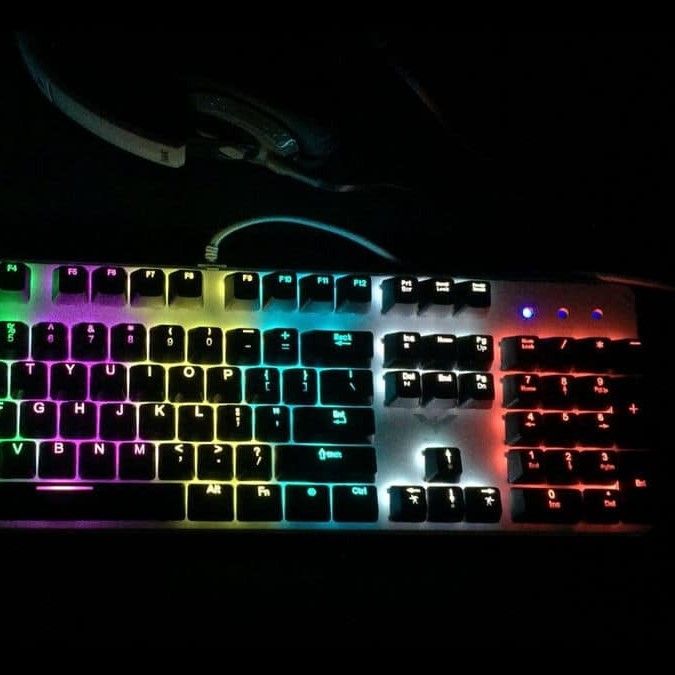
In today’s tech-savvy world, personalizing your devices helps create a unique environment. If you want to learn how to change keyboard color, you’re in the right place! Customizing the colors of your keyboard can enhance your setup’s aesthetic appeal and improve your overall user experience. This article dives into various methods for changing your keyboard color, whether you use a laptop, a standalone keyboard, or even a mechanical one.

Understanding Keyboard Customization
Before we get into the specifics of changing keyboard colors, it’s essential to understand what keyboard customization entails. Customizing your keyboard color can mean altering the backlight settings or changing the theme in keyboard software. Most modern keyboards, especially those aimed at gamers, come equipped with RGB lighting features. This allows you to set specific colors for individual keys or the entire keyboard. Not only does this enhance the visual appeal, but it can also improve visibility in dim lighting conditions.
How to Change Keyboard Color on Different Devices
Desktop Keyboards
- Using Software: How to change keyboard color? Most gaming keyboards come with dedicated software that allows users to customize their keyboards extensively. After installing the software, navigate to the lighting section. Here, you can choose different effects, colors, and even set different lighting modes based on your specific needs. For instance, you can select “wave,” “breathing,” or static colors. It’s a straightforward process, and you should find a user-friendly interface to guide you.
- Manual Settings: Some keyboards allow you to change the color manually using specific key combinations. For example, pressing the “Fn” key alongside a function key designated for lighting can instantly swap colors. Refer to your keyboard’s manual for the exact key combinations, as these will vary by manufacturer.
- Firmware Updates: Occasionally, manufacturers release firmware updates that enhance keyboard functionality, including RGB lighting. Ensure your keyboard firmware is up to date for optimum performance. This may require installing software from the manufacturer’s website, where you can find updates for download.
Laptops
- Using Built-In Settings: Many modern laptops feature backlit keyboards that allow users to change colors through built-in settings. This can usually be accessed via the “Function” key combined with other keys labeled with lighting symbols. This is the simplest way to alter keyboard lights on the go without additional software.
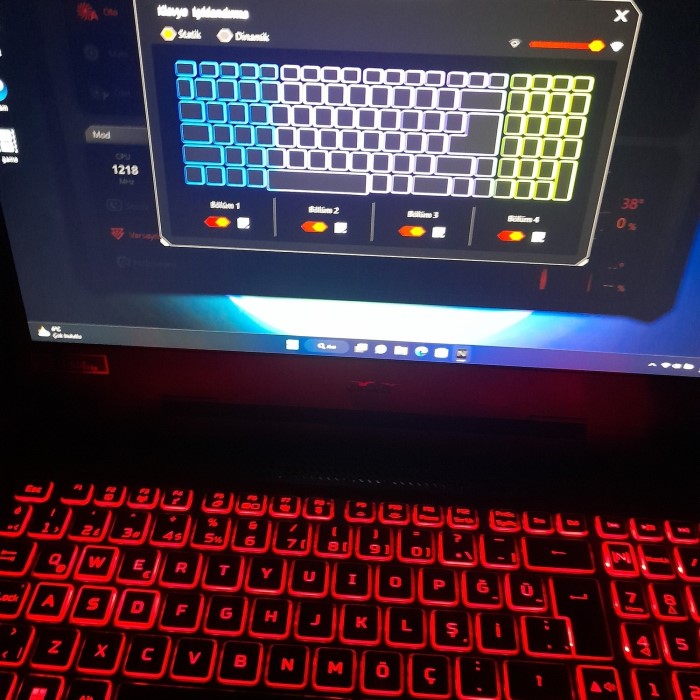
- Manufacturer Software: Some laptop brands provide proprietary software for customizing keyboard settings. For example, Dell laptops often have the Alienware Command Center, where users can change the keyboard color. Navigate to the keyboard settings within the software to find color options.
- Operating System Settings: On some laptops, keyboard backlighting options can also be adjusted through Windows settings. Go to “Settings,” select “Devices,” then “Typing.” Here, you might find options specific to backlit keyboards.
Advanced Customization: RGB Keyboards
For those who crave more than just basic color changes, RGB keyboards provide a realm of possibilities. Here’s how you can take your keyboard customization to the next level:
- Customization Profiles: Many RGB keyboards allow you to create or download profiles online. These profiles often come pre-set with various effects and colors that can be easily uploaded to your keyboard. This can be an exciting way to explore different aesthetics quickly.
- Third-Party Software: While most keyboards come with their software, there are also third-party programs. These can provide additional features, like game synchronization or sound-reactive lighting effects. Programs like Razer Synapse or Corsair iCUE have extensive capabilities for customizing your keyboard.
- Community Resources: Several online communities offer tips and settings shared by other enthusiasts. Joining forums or groups can provide you with inspiration and pre-made settings for your keyboard color changes.
How to Change Keyboard Theme Color
One common question among users is, “How to change keyboard theme color?” For many software-supported keyboards, this is usually found within the same customization software. Here’s a general approach:
- Open Customization Software: Launch the software connected to your keyboard.
- Select Theme Options: Navigate to the section or tab labeled “Themes.”
- Choose Your Favorite Theme: Browse through the available themes. Click to apply your selection.
- Save Changes: Most software will require you to save changes before exiting. Ensure you do so to keep your new theme.
Changing Light Modes
Another frequent question is, “How do I change the light mode on my keyboard?” This process varies but can usually be done through the customization software or via key commands:
- Identify Light Mode Settings: In your software, locate the “Lighting” or “Effects” tab, which usually lists different modes available.
- Select Your Preferred Mode: You can often choose from options such as Static, Breathing, Wave, or Reactive.
- Testing Different Modes: You may want to experiment with various modes to find what looks best for your setup.
Controlling LED Lights on Your Keyboard
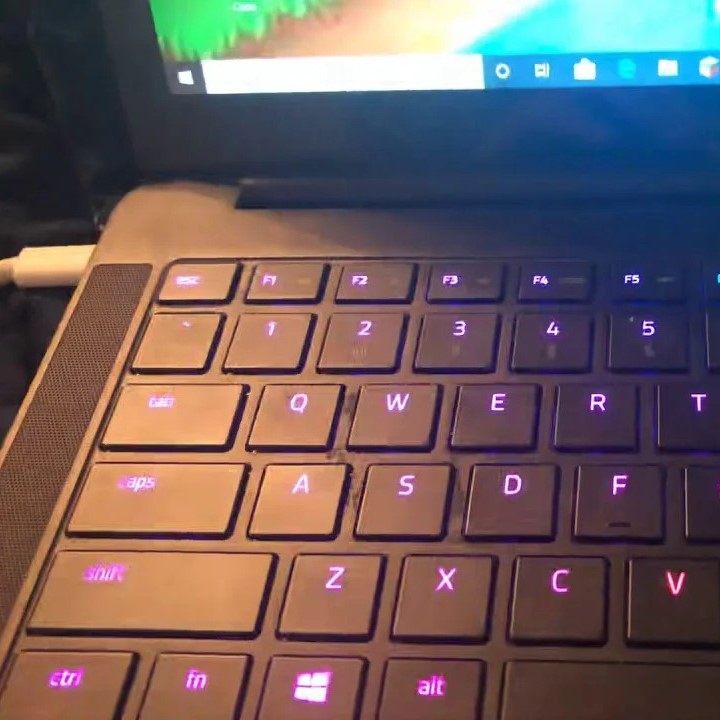
Understanding how to control the LED lights can significantly enhance your experience. Here’s how to do it:
- Software Configuration: Use the keyboard software to adjust the brightness of the LEDs. You can often find sliders that let you set the intensity.
- Key Commands: Some keyboards have key commands that allow you to quickly reduce or increase brightness without opening the software. Check the manual for specific commands.
- Color Customization: Within the software, you can usually select individual key colors if your keyboard supports it. Highlighting critical keys can improve accessibility and usability.
Switching the Light On Your Keyboard
Many users wonder, “How do I switch the light on my keyboard?” Different manufacturers utilize various methods for toggling lights:
Direct Key Commands
- Key Combination Usage: Typically, keyboard backlighting is controlled using a combination of keys. Most commonly, this involves pressing the “Fn” key alongside a designated function key—often labeled with a light bulb or sun icon. This combination toggles the keyboard backlight on or off, or it may cycle through different brightness levels.
- Special Function Keys: In addition to basic toggles, some function keys might offer specific lighting effects or adjustments. For instance, they may allow you to switch between different light modes, such as static, breathing, or color cycle. It is essential to familiarize yourself with these icons and functions to take full advantage of your keyboard’s capabilities.
- Model-Specific Instructions: Because the layout and functionality can vary between different keyboard models and manufacturers, it’s crucial to consult your specific model’s manual for precise instructions. The manual will provide updated information on key combinations and any additional features unique to your keyboard.
Settings Menu
- Accessing Keyboard Settings: For many laptops and integrated keyboards, you can manage keyboard lighting through the settings menu in your operating system. This is typically found in the control panel or system preferences, depending on whether you are using Windows, macOS, or another operating system.
- On-Screen Display Options: Within the keyboard settings, you may find an on-screen display (OSD) that allows you to adjust various parameters related to backlighting. Here, you can change settings such as brightness levels, ambient light sensitivity, and the overall behavior of the keyboard light.
- Saving Preferences: After making adjustments in the settings menu, make sure to save your changes. Some operating systems will automatically apply adjustments, while others may require you to confirm or click a “Save” button.
Power and Sleep Modes
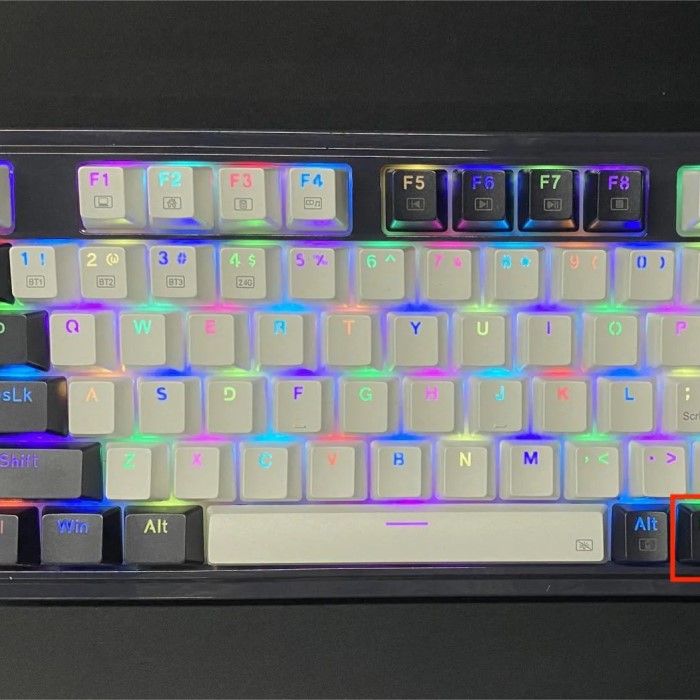
- Impact of Power Settings: Keyboard lights are often affected by your device’s power settings, particularly on laptops. Many systems are designed to conserve battery life by dimming or turning off the keyboard backlight when the battery gets low or when the device enters a sleep mode.
- Adjusting Power Settings: To ensure your keyboard backlight remains on, navigate to your device’s power settings. Here, you can adjust the settings related to sleep mode and performance, ensuring that the keyboard backlight remains illuminated while the device is active.
- Disabling Power-Saving Options: If you frequently use your keyboard in low-light conditions, consider disabling any aggressive power-saving options that might unintentionally disable your keyboard lighting. Adjusting these settings can help maintain visibility without impacting your workflow.
FAQ Section
How to change keyboard theme color?
You can change your keyboard theme color by using the manufacturer’s software. Open the software, navigate to the theme settings, and select your preferred theme.
How do I change the light mode on my keyboard?
To change the light mode, access the customization software and select the lighting effects you prefer, such as breathing or static modes.
How do I control the LED lights on my keyboard?
Control the LED lights through your keyboard software, where you can adjust brightness and select colors. Some keyboards have key commands for quick adjustments.
How do I switch the light on my keyboard?
Switch the light on your keyboard by using the designated key commands, usually involving the “Fn” key and a function key. Check your keyboard’s manual for specific instructions.
Conclusion: Personalizing Your Keyboard Color
Knowing how to change keyboard color enables you to personalize your tech quickly and efficiently. Whether you’re a gamer, a professional, or simply someone looking to beautify your workspace, customizing your keyboard can be a fun and rewarding experience. By utilizing the tools and methods mentioned in this article, you can easily enhance your keyboard’s aesthetic appeal and functionality. So, don’t hesitate! Start your customization journey today and bring your keyboard to life with color!