
Introduction: The Frustrations of Monitor Detection Issues
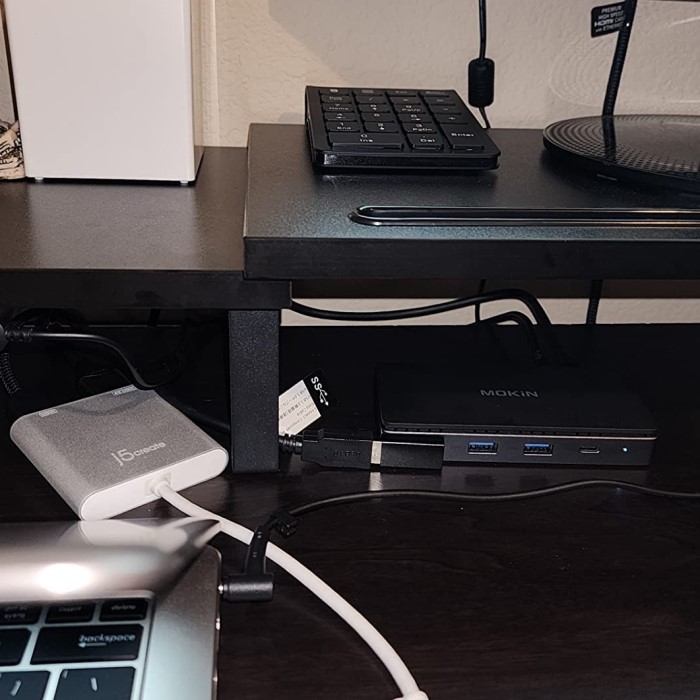
Have you ever faced the frustration of your docking station not detecting monitor connections? This is a common concern among users who rely on docking stations to enhance their productivity by connecting multiple monitors. When your docking station fails to recognize an external display, it can disrupt your workflow and lead to inefficiencies. However, fear not! This comprehensive guide will walk you through common causes of monitor detection issues with docking stations and provide effective troubleshooting tips to help you regain the functionality of your monitor setup.
Understanding the Role of a Docking Station
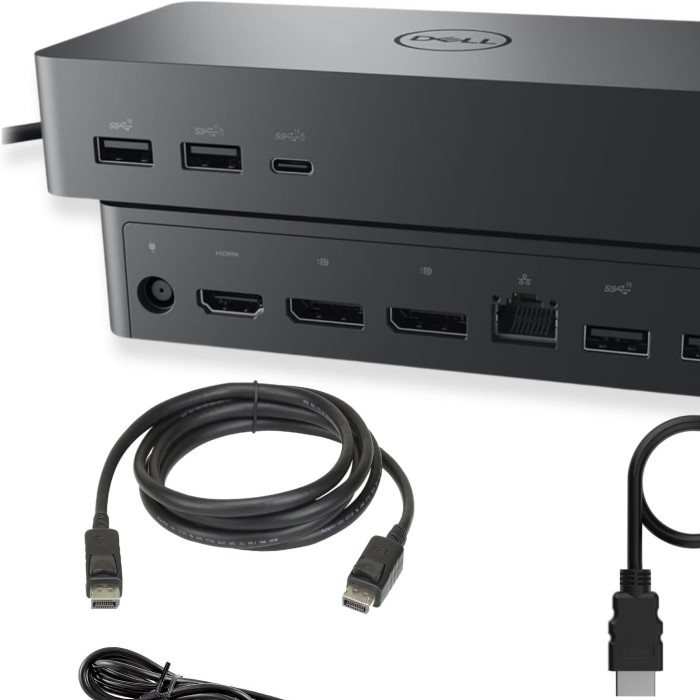
A docking station amplifies the functionality of your laptop or tablet by allowing multiple peripherals and devices to connect through a single interface. By serving as a hub, it enables users to easily connect to monitors, keyboards, mice, and other essential accessories in a more organized manner.
- Connectivity Variety: Docking stations usually come with multiple ports such as USB-A, USB-C, HDMI, and DisplayPort. This variety provides users with flexibility in connecting various devices.
- Improved Workspaces: They help create a clutter-free workspace, enabling users to manage their devices efficiently.
- Enhanced Productivity: The ability to connect multiple monitors allows users to multitask effectively, improving overall productivity levels.
Common Reasons Your Docking Station May Not Detect a Monitor
Incompatible Cables and Ports
- Cable Type and Compatibility: Check whether you are using the appropriate cables for your connections. Using HDMI with a USB-C docking station or vice versa can lead to detection failures. Always ensure the cable matches the ports on both the docking station and monitor.
- Faulty Adapters: If you are using an adapter, verify that it is compatible with your docking station and external monitor. Incompatible or low-quality adapters may not facilitate proper communication.
- Physical Connections: Inspect all cables and connections to ensure they are securely connected. Loose connections often result in the docking station failing to detect the external monitor.
 Driver Issues
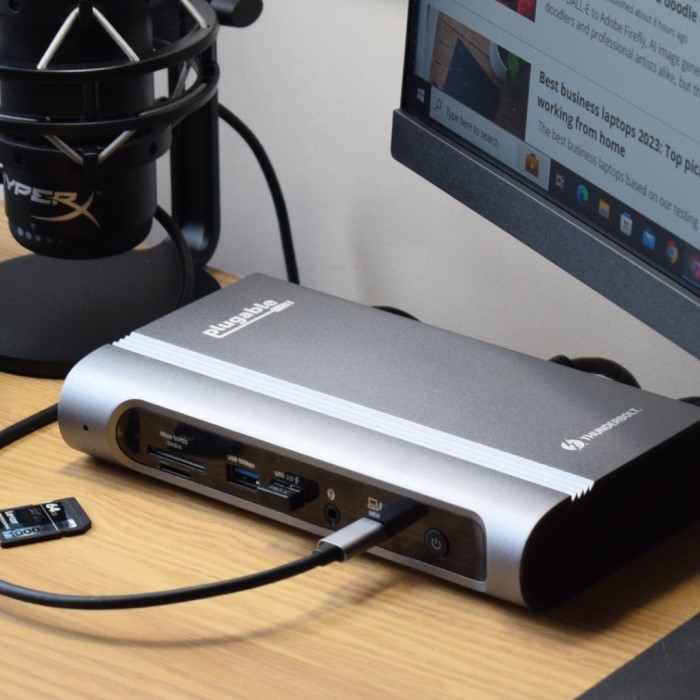
- Outdated Drivers: Docking stations often rely on specific drivers to function correctly. If your drivers are out of date, the docking station might not recognize the connected monitor. Check the manufacturer’s website for any driver updates.
- Operating System Compatibility: Confirm that the drivers are compatible with your operating system. Updates or changes in the operating system can affect driver performance, leading to recognition issues.
- Device Manager Inspection: Use the Device Manager on your computer to check whether the docking station is recognized. Look for any warning symbols that may indicate driver malfunctions. Updating or reinstalling these drivers may resolve the problem.
Power Supply Issues
Insufficient Power Supply
- Understand Power Requirements: Many docking stations require a dedicated power adapter to function optimally. Familiarize yourself with your docking station’s power specifications to ensure it receives adequate support.
- Check Your Connections: If your docking station draws power solely from your laptop, it may struggle to function effectively in detection scenarios. Always verify that the docking station is plugged into a reliable power source.
- Look for Power Indicators: Inspect the docking station for any LED indicators that show it is receiving power.
- Confirm Proper Setup: Make sure all connections are secure. A loose connection can cause power supply problems, leading to failure in detecting external devices like monitors.
Power Cycling the Docking Station
- Disconnect from Power Source: Begin by unplugging the docking station from the electrical outlet. This step is essential in initiating a power cycle, allowing the device to reset itself.
- Wait for a Short Duration: Allow the docking station to remain disconnected for a brief period, typically about 10-15 seconds. This waiting time helps clear any residual power within the device.
- Reconnect the Docking Station: After the waiting period, plug the docking station back into the power source. This action restores power and initiates a fresh start for the device.
- Check for Resolution: Once reconnected, monitor whether the docking station successfully detects external devices. This power cycling process often resolves minor issues related to device recognition.
Use the Original Adapter
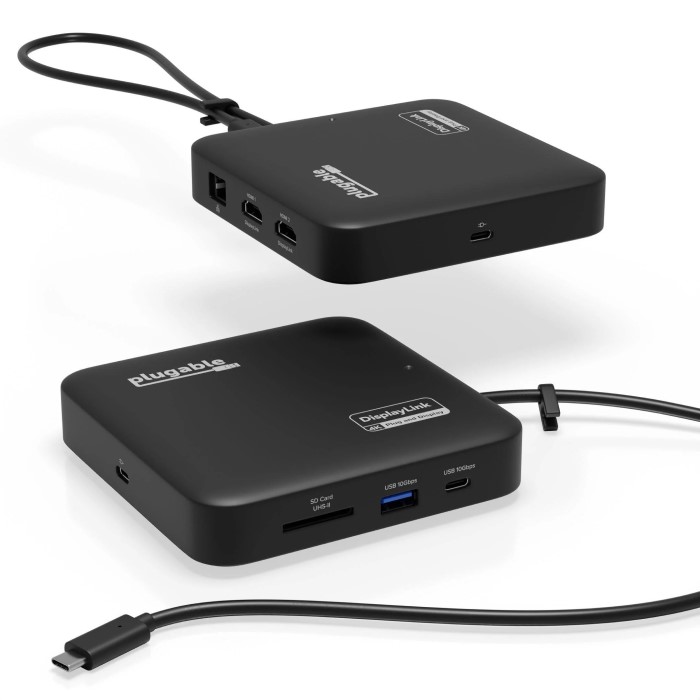
- Prioritize the Manufacturer’s Adapter: Always use the original power adapter that came with your docking station. This ensures compatibility and performance, providing the correct voltage and power requirements.
- Avoid Third-Party Adapters: Using third-party adapters can lead to insufficient power supply, risking the performance and functionality of your docking station. Such adapters may not deliver the appropriate power needed for optimal operation.
- Inspect the Adapter: Regularly check the original adapter for any signs of wear or damage. A faulty adapter can impede the docking station’s ability to receive power, which may lead to connection issues.
- Replace when Necessary: If your original adapter is lost or damaged, consider purchasing a replacement from the manufacturer. This step guarantees that you maintain the required power levels for your docking station to function effectively.
Troubleshooting Steps to Address Monitor Detection Issues
Verify Physical Connections
- Examine Every Connection: Carefully check the docking station not detecting monitor. Ensure they are firmly connected to both the docking station and the monitor. Loose or slightly misaligned cables can prevent proper detection.
- Test with Different Cables: If possible, switch out the cables you are currently using for a different set. This can help identify whether a faulty cable is the underlying issue.
- Connect Monitors Directly: If the docking station is still not detecting the monitor, try connecting the monitor directly to the laptop. This action helps determine whether the problem is with the monitor, cables, or the docking station itself.
Adjust Display Settings
- Access Display Settings: Right-click on your desktop and select “Display settings” (for Windows users). From there, click “Detect” to prompt your device to search for external monitors manually. This process may help the system recognize an unresponsive display.
- Adjust Display Arrangement: Ensure that the external monitor is correctly arranged within your display settings. Occasionally, the system may not identify a monitor if it is not arranged properly or configured.
- Check Monitor Input: Verify that the external monitor is set to the correct input source (e.g., HDMI or DisplayPort). Using the monitor’s menu, confirm it reflects the source you’ve connected.
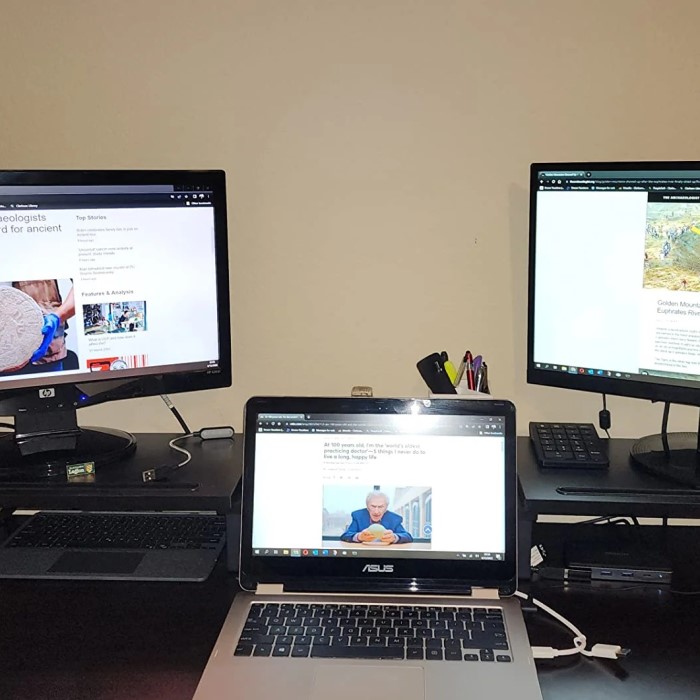
Restart Equipment
Reboot the Laptop
- Initiate a Simple Restart: Begin the process by clicking on the “Start” menu and selecting the “Restart” option. This straightforward action can effectively reset the connection between your laptop and the docking station.
- Clear Temporary Issues: A reboot can clear temporary glitches that may prevent the docking station from recognizing the connected monitor. This quick troubleshooting step often resolves minor recognition issues swiftly.
- Re-establish Connections: During the reboot process, the operating system refreshes all connections. Upon startup, your laptop attempts to re-establish communication with the docking station, which can help in resolving connectivity problems.
Unplug and Reconnect the Docking Station
- Shutdown Your Laptop: Safely turn off your laptop by selecting the “Shut Down” option from the Start menu. This step ensures that the device fully powers down before you make any changes.
- Unplug All Connections: Once your laptop is shut down, carefully disconnect the docking station from all cables. This includes unplugging both the power supply and any connected devices, such as monitors and USB peripherals.
- Wait a Few Moments: Allow a short pause—around 10-15 seconds—before reconnecting the docking station. This waiting period helps the devices reset and clears any temporary settings that may have caused issues.
- Reconnect Everything: After waiting, plug the docking station back into the power source, then reconnect all peripherals and finally the laptop itself. This process provides the docking station with a fresh start and may resolve any previous connection faults.
Monitor Power Cycle
- Identify the Power Supply: If your external monitor has a separate power supply, locate the power button. This will allow you to perform a power cycle, which is often necessary for troubleshooting display recognition issues.
- Turn Off the Monitor: Press the power button to turn off the external monitor completely. Ensure that the screen goes dark, confirming that it has powered down successfully.
- Wait a Few Seconds: Allow the monitor to remain off for several seconds—typically between 10 to 30 seconds. This wait time enables the device’s internal systems to reset.
- Turn the Monitor Back On: After waiting, press the power button again to turn the monitor back on. This power cycle can refresh the monitor’s ability to recognize the docking station connection and may resolve detection problems.
Frequently Asked Questions
Why are my monitors not being detected?
Several potential issues could cause monitors to be undetected, including faulty cables, outdated drivers, and incorrect input settings. Ensuring that all connections are secure and checking settings often resolves these detection issues.
How do I reset my docking station?
To reset your docking station, disconnect it from both your laptop and its power source. Wait a few seconds before reconnecting everything. This process can help refresh the connection and fix minor issues.
Why is USB-C not detecting the HDMI monitor?
If USB-C isn’t detecting an HDMI monitor, the cause could involve incompatible cables, issues with adapters, or driver problems. Using a quality USB-C to HDMI adapter and updating necessary drivers may resolve the issue.
Conclusion: Successfully Troubleshooting Your Docking Station
Having a docking station not detecting monitor can be a frustrating issue, but understanding its causes and potential solutions can help you regain your productivity. By addressing common problems like cable compatibility, driver updates, and power supply issues, you can effectively troubleshoot and resolve monitor detection failures.
Additionally, following the troubleshooting steps outlined in this article can guide you to a quick resolution. With a properly functioning docking station, you can maximize your workspace efficiency, seamlessly manage multiple devices, and enhance your overall productivity. Don’t let connectivity issues hinder your progress—explore these solutions today and enjoy a seamless multi-monitor experience!