
Understanding External Hard Drive Formatting for Mac
When it comes to using an external hard drive with your Mac, formatting is a crucial first step. Proper formatting ensures that the drive can communicate effectively with macOS, allowing you to store and access files seamlessly. Formatting not only organizes your data but also optimizes the performance and longevity of your device. In this article, we will cover how to format external hard drive for mac, discuss the tools you need, and offer tips to prevent common pitfalls.
Why Format an External Hard Drive for Mac?
Formatting an external hard drive for Mac is essential for optimal performance and compatibility. This process ensures that the drive works seamlessly with macOS systems and provides efficient storage options. Let’s dive into the key reasons behind formatting your external drive for use on a Mac.
Compatibility with macOS Systems
Mac computers use unique file systems like APFS and HFS+. These formats are designed specifically for macOS. Without compatible formatting, your Mac may not fully recognize or use the external drive. Formatting ensures smoother operations and prevents errors when transferring files.
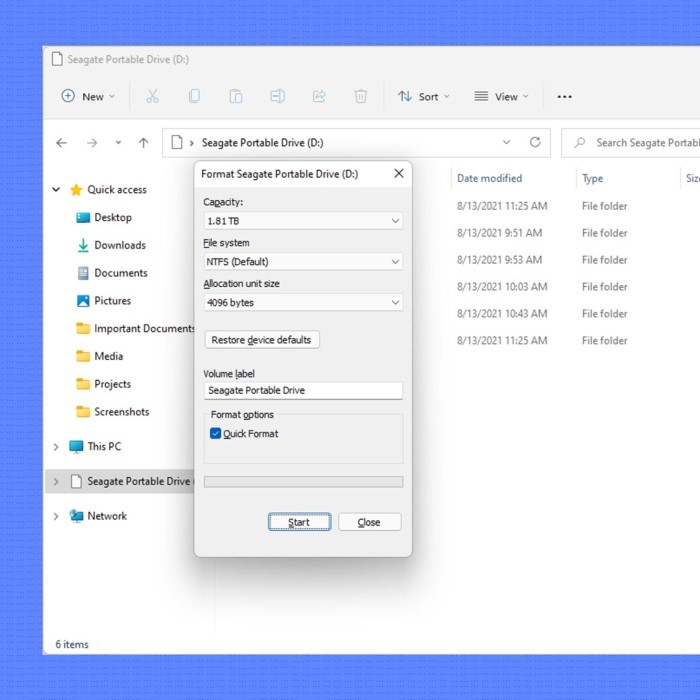
Additionally, macOS can read but not write to some Windows file systems like NTFS. By reformatting, you can eliminate these limitations. A compatible file system allows full read/write access, giving you complete control over your files.
Benefits of Optimized File Systems
Using a Mac-optimized file system offers multiple advantages. It significantly improves data transfer speeds. Tasks like file copying, saving, and uploading become faster and more efficient.
Optimized formatting also enhances data security. Apple-specific formats like APFS provide built-in encryption features. This adds an extra layer of protection for sensitive data.
Moreover, formatting for macOS helps reduce fragmentation. Optimized drives last longer and function more reliably over time, keeping your data safe and accessible.
Common File System Formats for Mac
When formatting an external hard drive for Mac, choosing the correct file system format is crucial. Each format offers specific features and compatibility levels. Let’s explore the common file system formats suited for macOS.
HFS+ (Mac OS Extended)
HFS+ is a widely used file system for macOS. It has been a standard for years. This format is ideal if your drive will mainly connect to Macs running older macOS versions like macOS High Sierra or earlier. It supports large files and offers efficient storage management.
HFS+ also includes journaling. Journaling helps protect your data from corruption in case of power loss. However, it does not provide modern features like enhanced encryption or better file handling available in APFS.
APFS (Apple File System)
APFS is the latest file system designed specifically for macOS. It works with macOS High Sierra and later versions. APFS offers faster performance compared to HFS+. Data transfers, application launches, and file management are noticeably quicker.
This format also provides advanced encryption for better data security. Another advantage is space optimization. APFS allows features like cloning, snapshots, and virtualization to use storage efficiently. However, it might not work well for drives frequently used on older macOS or Windows systems.
ExFAT and FAT32
ExFAT and FAT32 are universal file systems compatible with both Mac and Windows. These formats are excellent if you need to switch between macOS and Windows frequently.
ExFAT supports large files beyond 4GB, making it more practical for modern needs. FAT32, on the other hand, works better for older devices but has a 4GB file size limit. Unlike APFS or HFS+, these formats don’t support journaling or encryption, which may affect data security.
Choosing the best file system format depends on how you plan to use your drive. Each option has unique advantages and limitations, so consider your specific requirements before formatting.
Preparing to Format Your External Hard Drive
How to format external hard drive for mac? Before you format your external hard drive for Mac, proper preparation is essential. This ensures a smooth process and protects your existing data. Let’s examine two key steps.
Backing Up Your Data
Backing up your data is crucial before formatting. Formatting erases all existing files on the drive. To keep your important data safe, make sure to create a backup.
- Transfer files to another storage device: Use another external hard drive or cloud storage.
- Check your backup: Verify that all important files have been successfully transferred.
This step ensures that your data is protected from accidental loss during formatting.
Checking Hard Drive Compatibility
Ensure that your hard drive is compatible with macOS before starting the process. Some external drives are preformatted for Windows and may need formatting for Mac use.
- Check the file system: Look at the current file system type on your drive (e.g., NTFS, FAT32).
- Test the drive: Connect the drive to your Mac to see if it’s recognized.
- Research compatibility: Make sure the drive supports macOS-specific formats like HFS+ or APFS.
By addressing these steps, you minimize potential issues when formatting your external hard drive for Mac. Proper preparation makes the process seamless and efficient.
Steps to Format an External Hard Drive for Mac
Formatting an external hard drive for Mac is straightforward when following the correct steps. This guide outlines the necessary actions to ensure success.
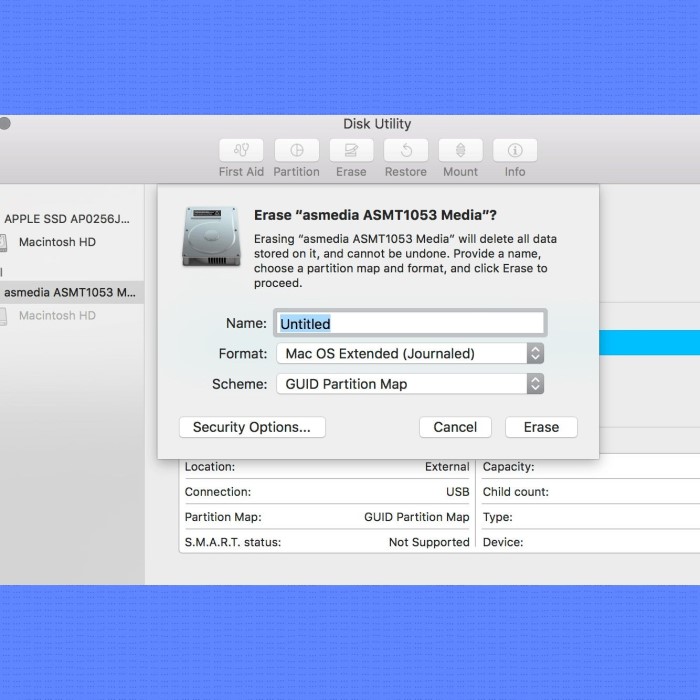
Accessing Disk Utility
Disk Utility is a built-in tool on macOS for managing drives. Follow these steps to access it:
- Open “Applications”, then go to “Utilities”.
- Locate and launch “Disk Utility”.
- You’ll see all connected drives listed in the left-hand panel.
Disk Utility is the starting point for formatting your external hard drive.
Selecting the Drive to Format
Once inside Disk Utility:
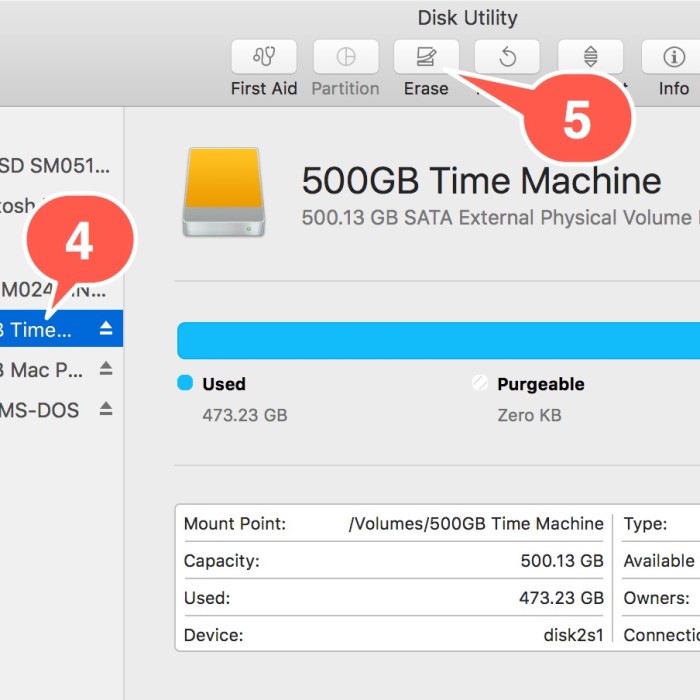
- Identify your external hard drive in the list. Ensure the correct drive is selected.
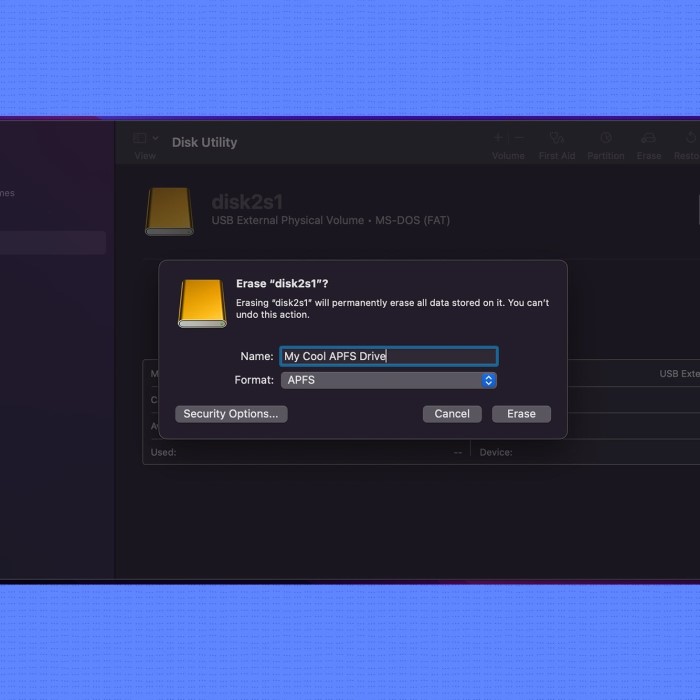
- Highlight the drive, then click “Erase” at the top right.
Double-check you’ve selected the right drive to avoid accidental data loss.
Choosing the Desired File System Format
Next, select a file system format. Common options include:
- APFS: Best for macOS High Sierra or newer.
- HFS+: Ideal for older macOS versions.
- ExFAT: Perfect for cross-platform compatibility with Windows.
Match the file system format to your intended use.
Completing the Formatting Process
After selecting the format:
- Name your drive for easy identification.
- Click “Erase” to begin formatting.
- Wait for the process to finish. Avoid disconnecting the drive during formatting.
Once completed, your drive is ready for use with macOS.
By following these steps, you’ll efficiently format your external hard drive for Mac.
Choosing the Best File System Format for Your Needs
Selecting the right file system format is essential for optimizing external hard drive performance. It ensures compatibility with macOS and determines how you’ll use the drive. Below, we’ll discuss when to use specific formats like APFS, ExFAT, and FAT32.
When to Use APFS
APFS is ideal if the external drive will primarily work with newer macOS systems. It’s especially suited for macOS High Sierra and later versions. Here are the main benefits:
- Faster performance: APFS provides quick data transfer and file management.
- Advanced security: Built-in encryption features protect sensitive data.
- Space efficiency: APFS uses cloning and snapshots for storage optimization.
If your drive won’t be shared with Windows or older macOS versions, APFS is a great choice. However, avoid this format for drives frequently used with other operating systems.
When to Use ExFAT or FAT32
ExFAT and FAT32 are excellent for drives shared between macOS and Windows. They provide universal compatibility, making them highly versatile. Here’s how they differ:
- ExFAT: Supports large files over 4GB, perfect for modern needs. Ideal for cross-platform use between macOS and Windows.
- FAT32: Works better for older devices but has a 4GB file size limit. It’s frequently used for smaller drives.
Unlike APFS, these formats don’t offer journaling or encryption features, which may reduce data security. Choose ExFAT for large files or FAT32 for smaller applications on legacy systems.
Selecting the correct file system format depends on your specific requirements. Consider how you’ll use your external drive and the devices it will connect to before making your choice.
Troubleshooting Formatting Issues
Formatting an external hard drive for Mac may sometimes encounter issues. These problems can block smooth operations. Let’s explore solutions for two common issues: permission errors and unrecognized drives.
Resolving Permission Errors
Permission errors occur when macOS prevents access to the external drive. Follow these steps to fix them:
Check Admin Privileges
Verify that you are logged into your computer using an administrator account.
To check this, go to the “System Preferences” and click on “Users & Groups.”
Ensure your account type is marked as “Admin.”
If you are not using an admin account, log out and log back in with an administrator account.
Inspect Drive Ownership
Locate the external hard drive in Finder and right-click (or Control-click) on the drive icon.
From the context menu that appears, select “Get Info.”
A new window will open displaying various information about the drive.
Look for the section titled “Sharing & Permissions” at the bottom of this window.
Check to see who has ownership of the drive and what permissions are set.
Unlock Permissions
If you see a lock icon in the “Sharing & Permissions” section, this indicates that changes cannot be made at this moment.
Click on the lock icon to unlock it.
You will be prompted to enter your administrator password.
After entering your password, the settings will become editable.
Apply Changes
In the “Sharing & Permissions” section, find your user account listed.
From the dropdown menu next to your account name, select “Read & Write” access to ensure you can modify files on the drive.
To ensure that these permissions apply to all items within the drive, look for an option that says “Apply to enclosed items” and click it.
Confirm any prompts that appear to finalize the changes.
After applying the changes, close the “Get Info” window and check if you now have the required access to the drive.
For persistent issues, use Disk Utility to repair the drive. Select the drive, click “First Aid,” and let it scan and resolve errors.
What to Do If Your Hard Drive Isn’t Recognized
Unrecognized drives can result from incompatibility or hardware issues. Here’s how to resolve this:
- Restart your Mac: Reboot the system and reconnect the drive.
- Test the drive: Use a different Mac or cable to check if the drive works.
- Verify file system format: Ensure the drive uses a macOS-compatible format like APFS or HFS+.
- Check drivers: Confirm that firmware or drivers for the external drive are up-to-date.
- Use Disk Utility: Open Disk Utility and see if the drive appears. If listed, format it again.
If none of these methods work, the hard drive might be faulty and need replacement. Proper troubleshooting helps maintain functionality and prevents data loss.
Maintaining Your External Hard Drive After Formatting
Proper maintenance is essential to keep your external hard drive functioning well after formatting.
Regular Backups
Regular backups prevent data loss and keep your files safe. Follow these simple steps:
- Backup frequently: Schedule automatic backups to save your latest data regularly.
- Use reliable storage: Choose cloud services or other hard drives as backup destinations.
- Verify backups: Ensure all files are copied correctly and can be accessed anytime.
Consistent backups protect important files and help recover data during unexpected drive failures.
Ensuring Compatibility with Other Devices
Maintaining compatibility ensures smooth operation when connecting your drive to various devices.
- Check file system format: Ensure your drive matches the file system of the intended device.
- Update firmware: Regularly update the external hard drive’s firmware for improved compatibility.
- Test connections: Use quality cables and ports for reliable interaction with different computers.
By maintaining compatibility, you increase the versatility of your drive for everyday use.
Making backups and ensuring device compatibility keeps your external hard drive efficient and secure.
Conclusion: Be Prepared for Your Next Project
Knowing how to format external hard drive for Mac is essential for maximizing your device’s capabilities. Utilizing tools like Disk Utility simplifies the formatting process while ensuring optimal compatibility with macOS. By being aware of common mistakes and troubleshooting methods, you can navigate potential challenges effectively.
Now that you’re armed with the knowledge to format your external hard drive, you’re ready to set up your device properly. Make sure to keep best practices in mind, ensuring smooth operations for all your storage needs. Prepare today for the challenges of tomorrow’s projects!
 Griley