
Introduction
Apple AirPods have revolutionized how we listen to music and take calls. They offer unparalleled convenience and seamless integration with Apple devices. However, even the best technology encounters occasional glitches. You might face connection failures or audio issues. Consequently, knowing how to reset AirPods is an essential skill for every owner. A reset acts as a powerful troubleshooting step. It clears existing settings and resolves deep-seated software conflicts. Furthermore, it prepares the device for a fresh start. This process is often the only solution when standard fixes fail. Therefore, understanding the correct procedure saves time and frustration.
In this comprehensive guide, we will explore the technical reasons behind these issues. Additionally, we will provide step-by-step instructions for every model. You will learn to distinguish between a simple restart and a full factory reset. We aim to empower you with the knowledge to maintain your audio equipment. Ultimately, a properly reset pair of AirPods performs like new.
Understanding the Technical Need for a Reset
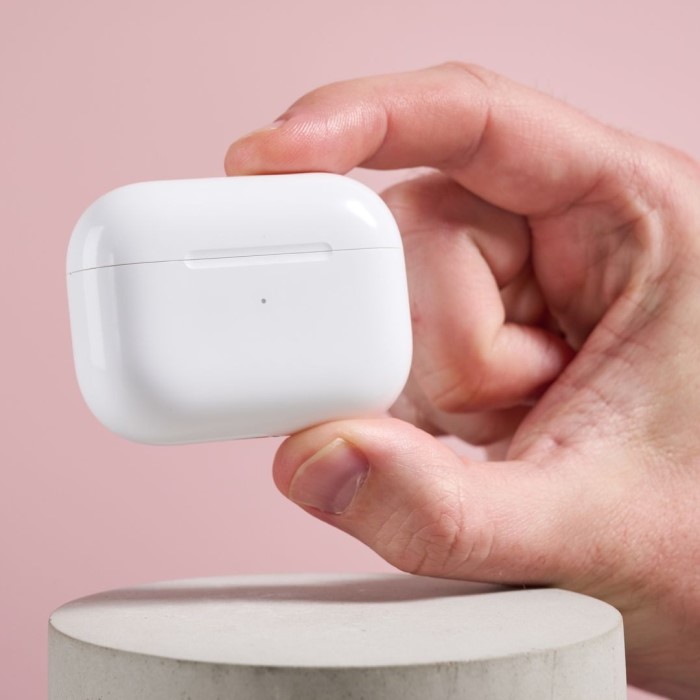
Modern wireless earbuds rely on complex software to function. They maintain connections with multiple devices simultaneously. Consequently, the internal memory can become cluttered with old data. This data includes Bluetooth pairings and user preferences. Over time, this accumulation leads to performance degradation. Therefore, a reset becomes necessary to clear this digital clutter. It essentially wipes the slate clean. Furthermore, a reset recalibrates the battery sensors. Sometimes, your AirPods might display incorrect battery percentages. This is a common software calibration error. A full reset often corrects this misleading data.
Moreover, interference from other devices can corrupt the connection profile. You might notice your AirPods refusing to connect to your iPhone. Or perhaps they connect but no sound plays. These are clear indicators of a corrupted pairing file. Consequently, the system requires a complete flush of the settings. Think of it as rebooting a sluggish computer. It forces the hardware to reload the operating system. In addition, a reset is crucial if you plan to sell your AirPods. It removes your Apple ID link. This ensures the new owner can set them up easily. Therefore, a reset serves both troubleshooting and security purposes. It restores the factory default state. This process is vital for maintaining the longevity and usability of your device.
Essential Preparations Before You Begin
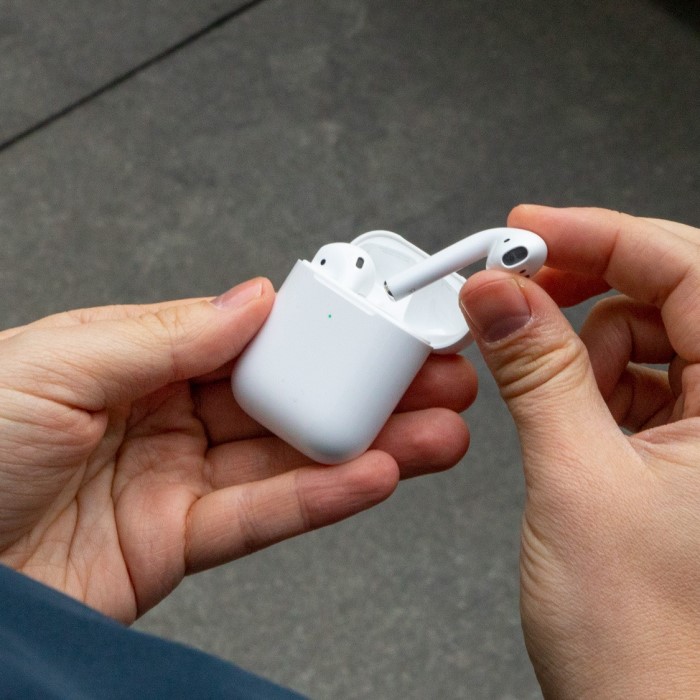
Before initiating the reset process, you must perform a few checks. These steps ensure the reset completes successfully. First, you must check the battery level of your AirPods. A reset cannot finish if the battery is critically low. Therefore, place the AirPods in their charging case. Let them charge for at least 15 minutes. This ensures they have enough power to save the new settings. Furthermore, you should inspect the charging case itself. The case must have sufficient charge. If the case dies during the process, the AirPods may enter an error state.
In addition, cleanliness plays a vital role in charging. You should examine the bottom of each AirPod stem. Look for debris in the charging case contacts. Dirt can prevent the AirPods from charging properly. Consequently, the reset button might not respond. Use a soft, dry cloth to clean the contacts. You can also use a wooden toothpick to gently remove grime. Moreover, you need to unpair the AirPods from your device manually. Go to the Bluetooth settings on your iPhone. Tap the “i” icon next to your AirPods. Select “Forget This Device.” This step clears the connection from your phone’s memory. It prepares both devices for a fresh pairing. Skipping this step can lead to recurring issues. Therefore, preparation is just as important as the reset itself.
Step-by-Step Guide for Standard AirPods Models
This section covers the standard AirPods (1st, 2nd, and 3rd generation) and AirPods Pro. The process is consistent across these models. First, place both AirPods into the charging case. Close the lid firmly. Wait for 30 seconds. This pause allows the system to recognize the earbuds. Then, open the lid. Do not remove the AirPods. Next, bring the case close to your iPhone. A setup animation should appear on the screen. However, you will not proceed with the setup yet.
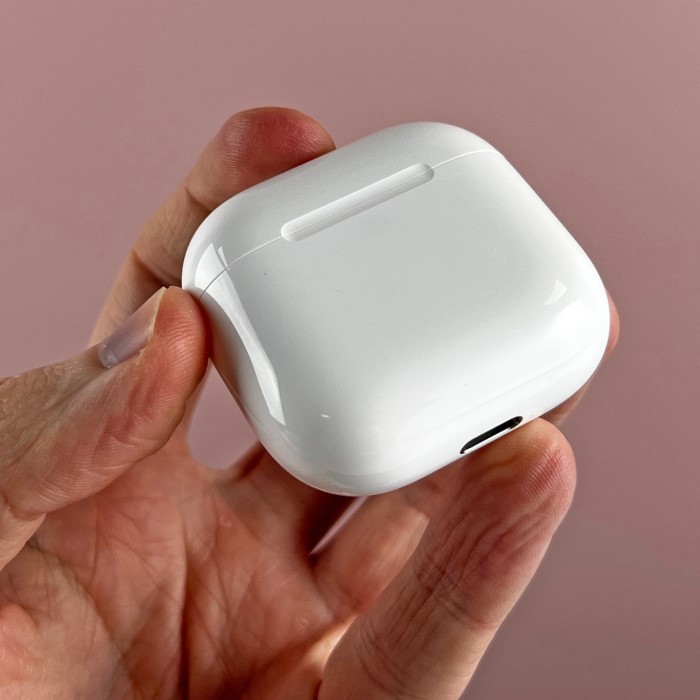
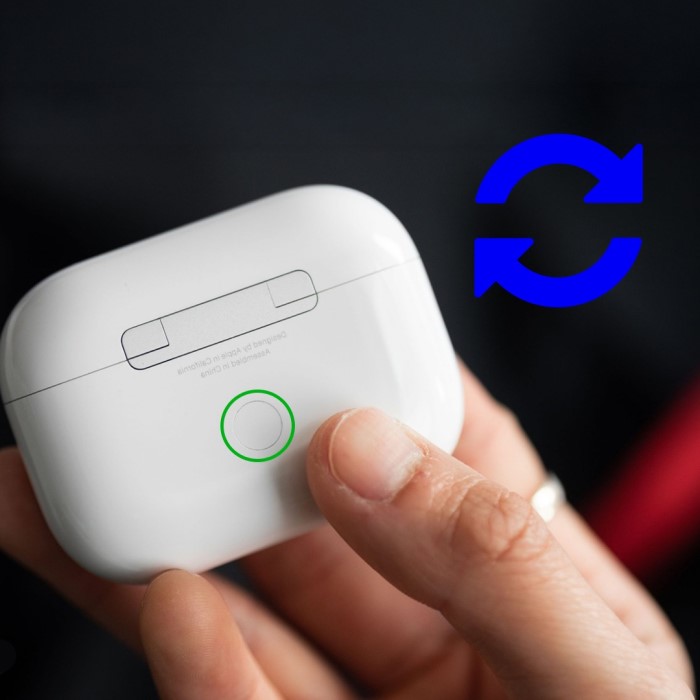
Furthermore, locate the setup button on the back of the case. It is a small, circular button. Press and hold this button. You must hold it for approximately 15 seconds. Watch the status light on the case. It usually sits between the two earbud slots. On older models, it is inside the lid. The light will initially flash amber. This indicates an error or old settings. Continue holding the button. Eventually, the light will flash white. This signals that the AirPods have entered pairing mode. Then, the light will flash amber again briefly. Finally, it will turn white and stay steady or continue flashing. This sequence indicates a successful reset. Consequently, you can now release the button. The AirPods are now restored to factory settings. You can now re-pair them with your device. Follow the on-screen instructions to complete the setup. This process resolves the majority of connectivity glitches.
Special Instructions for AirPods Max
AirPods Max function differently from the earbud models. They are over-ear headphones with larger batteries and different controls. Therefore, the reset method varies slightly. First, ensure the headphones have adequate charge. Then, locate the noise control button and the Digital Crown. You will find these on the right ear cup. To reset, you must manipulate both buttons simultaneously. Press and hold the noise control button. At the same time, press and hold the Digital Crown. You must hold both buttons down for about 15 seconds.
Furthermore, keep your eyes on the LED indicator light. This light is located near the charging port. You will see the light flash amber. Continue holding the buttons. Do not release them yet. Wait until the light flashes white. This color change indicates the reset is complete. Consequently, you can release the buttons. Your AirPods Max have now been restored to factory settings. You will need to pair them with your devices again.
Moreover, if you merely wish to restart the device rather than reset it, the process is shorter. A simple restart does not erase settings. You simply hold the noise control button and Digital Crown for a shorter duration. However, for serious issues, the full reset is superior. It clears all stored connections. Therefore, it is the recommended path for troubleshooting. Remember to remove the headphones from your iCloud account if you plan to sell them. This ensures the new owner can use them without issues. The process is straightforward but requires precision.
Troubleshooting Scenarios Where a Reset Fails
Sometimes, a standard reset does not solve the problem. You might press the button, but the light does not flash. This indicates a deeper issue. First, check the charging case battery again. If the case battery is dead, the reset circuit will not work. Therefore, plug the case into a power source. Wait a few minutes. Then try the reset process again. Furthermore, one AirPod might work while the other fails. This suggests a potential hardware failure in the malfunctioning unit. Try cleaning the contacts again thoroughly.
In addition, software glitches on your iPhone can prevent a reset. Ensure your iPhone runs the latest version of iOS. Outdated software can cause compatibility conflicts. Consequently, updating your phone might resolve the issue. You should also try resetting the network settings on your phone. Go to Settings > General > Transfer or Reset iPhone > Reset > Reset Network Settings. This clears all Bluetooth connections and Wi-Fi passwords. It provides a completely fresh environment for the AirPods to connect.
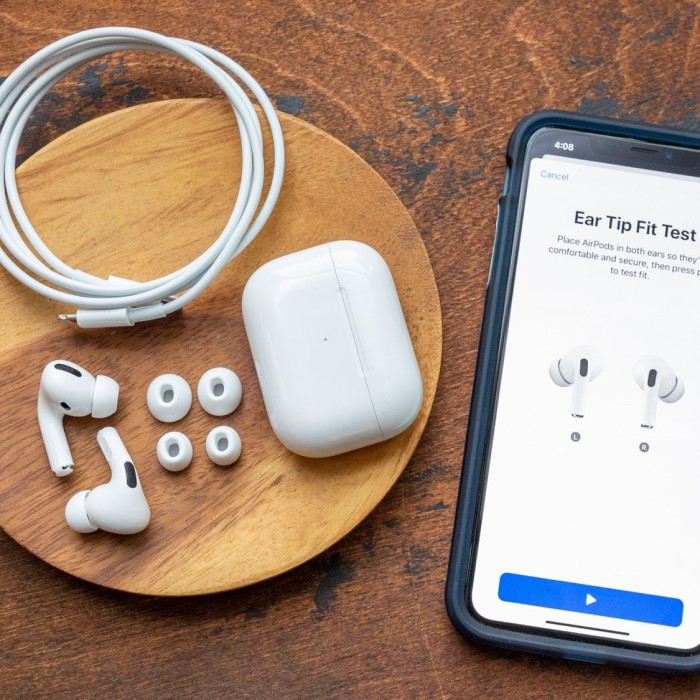
Moreover, if the amber light never appears, the AirPods might not be seated correctly. Check for obstructions in the case. Sometimes, the silicone ear tips on AirPods Pro can loosen. This prevents the stem from reaching the connector. Ensure the tips are secure. If none of these steps work, hardware damage is likely. Water damage or a dead battery could be the culprit. In this case, you should contact Apple Support. They can run diagnostic tests. Therefore, knowing when to stop troubleshooting is important. Persisting with a hardware failure can cause more damage.
How to Reset AirPods for a New Owner
Selling or giving away your AirPods requires proper preparation. You must ensure your personal data is unlinked. First, unpair the AirPods from your iPhone via Bluetooth settings. This removes them from your device list. However, this is not enough for Apple’s ecosystem. The AirPods are likely linked to your Apple ID via iCloud. Therefore, you must remove them from your account. Open the “Find My” app on your device. Locate your AirPods in the devices list. Tap on them. Select “Remove This Device.” This step is crucial. It disables the “Find My” tracking feature.
Furthermore, a factory reset is the final mandatory step. Follow the reset procedures outlined earlier in this guide. Hold the setup button until the light flashes amber, then white. This confirms the settings are erased. Consequently, the AirPods are now ready for a new user. The new owner can hold the case near their iPhone. The standard setup animation will appear. They will be able to name the AirPods and set up features.
Moreover, forgetting to remove the device from iCloud causes problems. The new owner might see a message saying the AirPods are linked to another Apple ID. This triggers “Activation Lock” for the AirPods. They will be unable to use the device. Therefore, always verify the removal process. Check your iCloud settings one last time. Ensure the AirPods no longer appear in your device list. This ensures a smooth transition. It protects your privacy and guarantees the new owner receives a functional product. Taking these steps fosters trust and prevents future complications.
Long-Term Care and Maintenance Tips
Knowing how to reset your AirPods is useful. However, preventing issues is even better. Regular maintenance extends the life of your device. First, clean your AirPods regularly. Earwax and dust accumulate in the speaker meshes. This can muffle sound and cause connection errors. Therefore, use a soft, dry, lint-free cloth. You can lightly dampen the cloth with fresh water. Do not use soap or household cleaners. Furthermore, ensure the AirPods are completely dry before placing them in the charging case. Moisture can damage the electrical contacts.
In addition, store your AirPods properly. Always keep them in the case when not in use. This protects them from physical damage. It also keeps the battery charged. Avoid exposing your AirPods to extreme temperatures. Extreme heat or cold degrades the battery capacity. Consequently, you might experience shorter listening times. Moreover, update the firmware regularly. Apple releases firmware updates to fix bugs. These updates install automatically when the AirPods are charging near your iPhone. Therefore, keep your AirPods close to your connected device often.
Furthermore, manage your battery health. Try not to drain the battery to 0% frequently. Lithium-ion batteries prefer partial discharge cycles. Charging them frequently is better for longevity. If you plan to store them for a long time, leave them at 50% charge. This prevents the battery from entering a deep discharge state. By following these care tips, you reduce the need for frequent resets. A well-maintained pair of AirPods provides years of reliable service. Therefore, incorporate these habits into your routine.
FAQ Section
How do I fully reset my AirPods?
To fully reset, place your AirPods in the case and close the lid for 30 seconds. Then, open the lid and hold the setup button on the back for 15 seconds. Wait for the status light to flash amber, then white. This restores factory settings.
How do I reset AirPods to a new owner?
First, go to Bluetooth settings and “Forget This Device.” Then, remove the AirPods from your Apple ID in the “Find My” app. Finally, perform a full factory reset by holding the button until the light flashes white. The AirPods are now ready for a new owner.
Can you reset AirPods that you found?
You can reset found AirPods, but they might remain linked to the owner’s Apple ID. If “Find My” is enabled, the owner can track them. A reset clears the settings, but Activation Lock may prevent you from pairing them to your device permanently.
How do you fix AirPods that won’t connect or reset?
First, ensure the case and AirPods are charged and clean. Try resetting your iPhone’s network settings. If the light does not flash, the issue may be hardware-related. In this case, contact Apple Support for repair or replacement options.
Conclusion
Apple AirPods are remarkable pieces of engineering. However, they are not immune to technical difficulties. Connection drops and charging errors are common frustrations. Fortunately, most of these problems vanish with a simple reset. This guide has provided you with the detailed steps needed to restore your device. We covered standard models, the AirPods Max, and essential troubleshooting tips. Furthermore, we discussed the importance of removing the device from iCloud for new owners. Remember, the reset process acts as a refresh for the internal software. It clears corrupted data and recalibrates the hardware.
Therefore, you should not hesitate to use this method when problems arise. Regular maintenance also plays a critical role. Keeping your devices clean and updated prevents many common glitches. By following this advice, you ensure a superior audio experience. You now possess the knowledge to manage your technology effectively. Ultimately, mastering how to reset AirPods empowers you to keep your music playing without interruption.