
Introduction
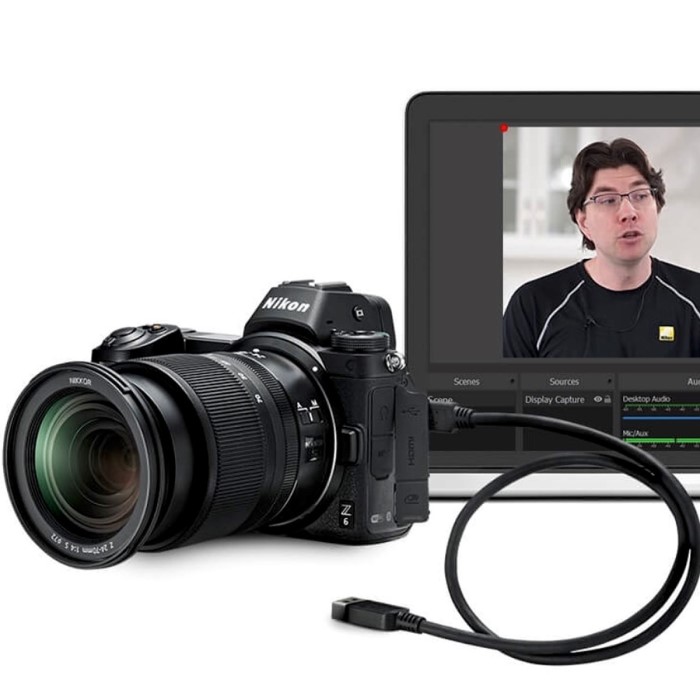
The Nikon Webcam Utility has changed the landscape of video streaming and online communication with its ability to transform Nikon cameras into high-quality webcams. This exciting functionality allows users to capture stunning video quality during virtual meetings or live streams. However, users may encounter some common issues when setting up or using the nikon webcam utility. This article aims to provide comprehensive troubleshooting insights for some of the most frequent challenges users face in 2025. By implementing these solutions, you can enhance your webcam experience and utilize your Nikon camera like a pro.
Understanding
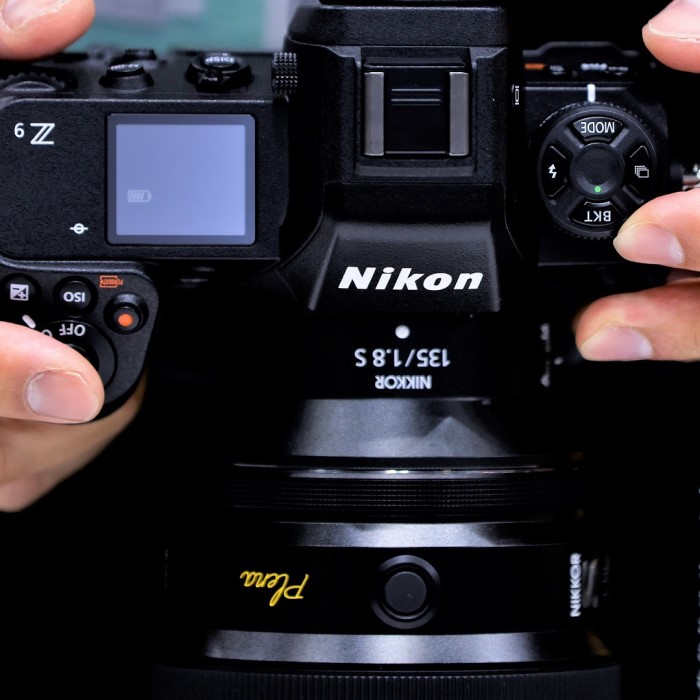
Before diving into troubleshooting, it’s important to understand what the nikon webcam utility is and how it works.
1. What Is the Nikon Webcam Utility?
The Nikon Webcam Utility is a software application that allows users to connect compatible Nikon cameras to their computers for use as webcams. This innovative solution enhances video quality in various use cases, from online meetings to live streaming and content creation.
2. Key Features
The utility offers several useful features, including video format adjustments, resolution settings, and real-time adjustments for exposure and focus. Users can benefit from these settings to tailor their video output according to their specific needs. The utility works seamlessly with popular video conferencing and streaming platforms, making it a versatile tool for users.
3. Compatibility
The software supports various Nikon camera models, but it’s essential to ensure your camera is compatible before attempting to use it as a webcam. The official Nikon website provides a list of supported models, ensuring users can find the right solution for their needs.
Understanding the fundamentals of the Nikon Webcam Utility is crucial for effective troubleshooting. By familiarizing yourself with its features and functions, you can identify potential issues, leading to quicker resolutions.
Common Issues
Despite the utility’s benefits, users often report encountering several common issues. Below, we explore these problems and offer actionable solutions.
1. Camera Not Recognized by the Utility
One of the most reported issues is the camera not being recognized by the Nikon Webcam Utility. This can occur for various reasons, including improper connection, outdated software, or incorrect selection of devices.
Solution
- Check Connections: Ensure that the camera is correctly connected to your computer. Use a reliable USB cable and check that the camera is powered on.
- Update Utility: Verify that you have the latest version of the Nikon Webcam Utility installed. Check the official website for updates, as newer versions may contain bug fixes and enhancements.
- Restart Devices: If your camera is still not recognized, restart both your camera and computer. This action can resolve minor connection issues.
2. Poor Video Quality
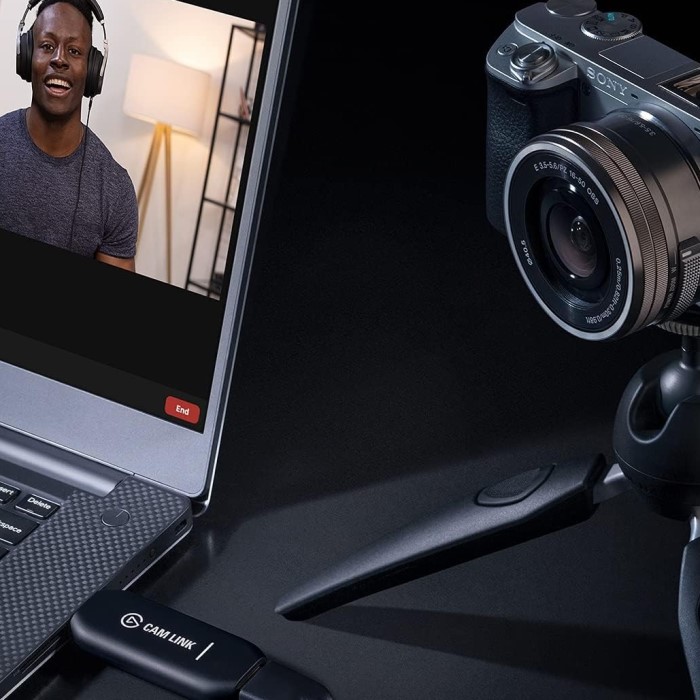
Users may experience poor video quality during streaming or video calls. Factors such as lighting, resolution settings, or connection speed can influence overall video quality.
Solution
- Adjust Resolution Settings: Open the Nikon Webcam Utility and confirm that the video quality settings are configured to a higher resolution. Consider experimenting with different settings to optimize your video output.
- Improve Lighting: Good lighting is essential for capturing clear video. Aim for natural light or use additional lighting sources to enhance your video’s appearance.
- Check Internet Connection: A weak or unstable internet connection can impact streaming quality. Ensure you have a stable connection while using the webcam.
3. Audio Issues
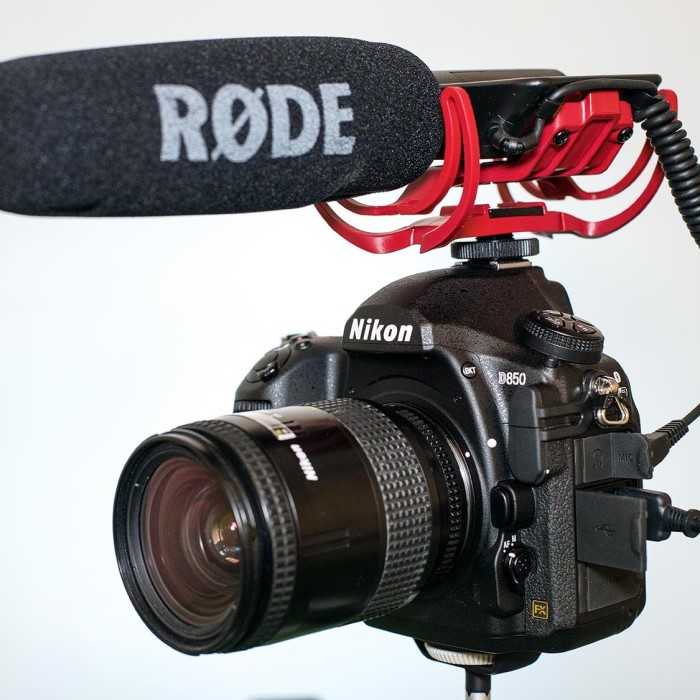
While the Nikon Webcam Utility focuses primarily on video, users may encounter audio problems during streaming or video calls. This might occur due to incorrect audio settings or compatibility issues.
Solution
- Select Audio Source: Ensure that your preferred microphone is set as the audio input source within your streaming software. Check the audio settings to confirm that the correct device is selected.
- Test Your Microphone: Conduct a test call or recording to confirm that your microphone is functioning correctly. Adjust the audio levels as necessary within the software settings.
- Update Sound Drivers: Outdated audio drivers may cause compatibility issues. Visit your computer manufacturer’s website to download the latest sound drivers.
4. Frequent Disconnections
Users may experience their camera disconnecting unexpectedly during usage. This is often due to power management settings, USB port issues, or cable problems.
Solution
Disable Power Saving Settings
- Access Power Settings: Begin by navigating to your computer’s power settings. On Windows, you can do this through the Control Panel, while on Mac, you can find it in System Preferences.
- Select the Power Plan: Look for your active power plan, which often defaults to “Balanced” or “Power Saver.” Click on the option to modify or edit the selected power plan.
- Adjust USB Settings: In the advanced settings section, locate the USB settings. You may find an option labeled “USB selective suspend setting.” Disable this feature, as it can cause USB ports to power down when not in use, leading to disconnections.
- Apply Changes: After making adjustments, ensure you apply the changes before exiting the settings menu. This ensures that the new configurations take effect immediately.
Use Different USB Ports
- Switch to Alternate Ports: If you experience disconnections, start by unplugging your camera from its current USB port. Then, connect it to a different USB port on your computer.
- Test Multiple Ports: It’s advisable to test various ports, especially if your computer has both USB 2.0 and USB 3.0 options. Some devices perform better on specific USB ports, so experimenting can help identify the most reliable connection.
- Observe Device Recognition: After switching ports, pay attention to whether the camera is recognized by the computer. This can help determine if a specific port was causing the connection issue.
- Identify Defective Ports: If a particular port consistently fails to recognize your camera, consider it potentially faulty. It’s best to avoid using it for your important devices.
Inspect Cables
- Examine USB Cable Condition: Look closely at the USB cable that connects your camera to the computer. Check for any visible signs of wear and tear, such as frayed ends, cuts, or kinks.
- Check for Loose Connections: Ensure that the connections at both ends (camera and computer) are secure. Loose cables can lead to unreliable connections and unexpected disconnections.
- Test with Different Cables: If you suspect the cable is damaged, try using a different USB cable to connect your camera. This simple step can help you determine whether the original cable is the source of the problem.
- Purchase Quality Cables: If you need a replacement, consider investing in high-quality USB cables that are known for durability. Using reputable brands can reduce the likelihood of future connection issues.
Optimizing Your Experience
Once common issues have been addressed, you can take additional steps to improve your overall experience with the nikon webcam utility.
1. Experiment with Settings
Take the time to explore the various settings available within the Nikon Webcam Utility. Adjusting exposure, focus, and frame rates allows you to find the best configuration for your specific needs.
2. Use a Tripod
Stability is key when it comes to video quality. Using a tripod to stabilize your Nikon camera can prevent unnecessary shaking, leading to a more professional appearance during streams or recordings.
3. Engage with Communities
Join online forums or communities dedicated to streaming and camera discussions. Engaging with others can provide valuable insights, tips, and troubleshooting advice that can enhance your experience further.
4. Regular Updates
Check periodically for updates not only for the Nikon Webcam Utility but also for your camera’s firmware. Keeping your software and firmware current can ensure optimal performance and compatibility.
Frequently Asked Questions
To further assist you, let’s address some common questions users have about the Nikon Webcam Utility.
How do I use my Nikon camera as a webcam?
To use your Nikon camera as a webcam, download and install the Nikon Webcam Utility. Connect your camera to your computer via USB and select it as the video source in your preferred streaming or video conferencing software.
What is the webcam utility for Nikon?
The Nikon Webcam Utility is software that allows compatible Nikon cameras to function as webcams by enabling high-quality video output for online meetings, streaming, and content creation.
Is the Nikon webcam utility free?
Yes, the Nikon Webcam Utility is available for free. Users can download it from Nikon’s official website to utilize their cameras as webcams at no cost.
How to connect Nikon camera to laptop?
Connect your Nikon camera to your laptop using a USB cable. Ensure the camera is turned on and set to the appropriate mode for the Webcam Utility to recognize it. Follow the installation instructions provided with the utility.
Conclusion
In summary, the nikon webcam utility offers remarkable flexibility and quality for streaming and video communication. While users may encounter common issues such as camera recognition problems, poor video quality, or audio discrepancies, the solutions outlined in this article provide clear paths to troubleshooting these challenges. By optimizing your setup and understanding how to utilize this utility effectively, you can ensure a smooth and enjoyable experience. Whether for virtual meetings, live streaming, or content creation, the Nikon Webcam Utility enhances your capabilities significantly. Happy streaming, and may your videos shine with clarity and creativity!