
Introduction: Understanding the Issue
If you are experiencing the frustration of wondering “why is my hard drive not showing up mac?”, you are not alone. Many Mac users encounter this problem at some point. A hard drive not appearing can stem from various issues ranging from simple connectivity problems to deeper software or hardware failures. Understanding the reasons behind this issue is the first step in troubleshooting it. This article will provide you with an in-depth guide to help you resolve hard drive issues on your Mac, ensuring you can access your important files again.
Common Reasons Why Hard Drives Don’t Show Up on Mac
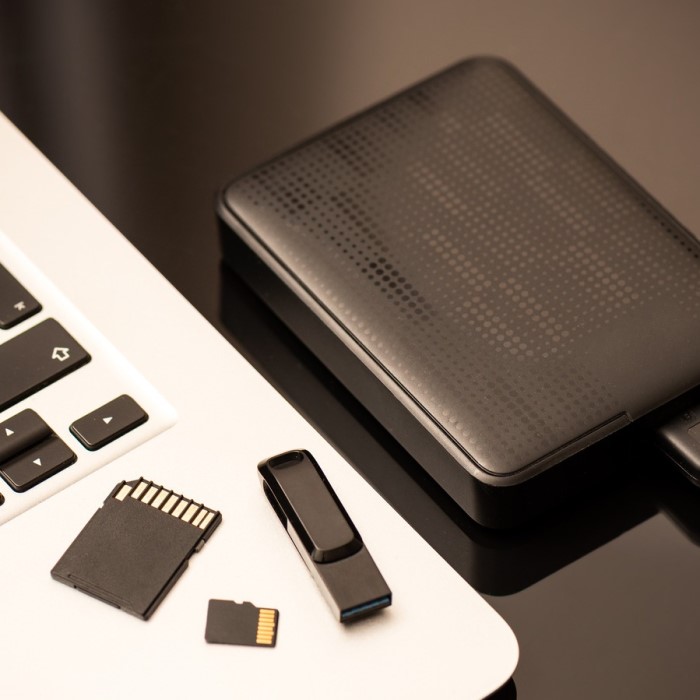
Why is my hard drive not showing up mac? There are many reasons why your hard drive may not appear on your Mac. Each issue can have distinct solutions. Here are the most common causes:
Connection Issues or Faulty Cables
Physical connection problems are a frequent cause. Loose or defective USB or Thunderbolt cables can interrupt communication. Incorrectly connected cables can also lead to the issue. Always check both ends of the cable for secure attachment. Damaged cables or faulty ports might require replacement. Using a different cable or port can help identify the problem.
Disk Utility and Partition Problems
Sometimes, a hard drive does not appear due to drive partitioning errors. Incorrect or corrupted partitions can cause macOS to fail to detect the drive. Use the Disk Utility app to check if the drive is listed. If it’s visible but not mounted, a mounting issue might exist. Running First Aid in Disk Utility can often resolve these issues.
Compatibility of File System Formats
File system format mismatches can also cause detection issues. For example, macOS does not natively support NTFS in write mode. Drives formatted for Windows might not function properly on a Mac. Reformatting the drive to a compatible macOS format like APFS or Mac OS Extended is often necessary. Remember to back up your data before reformatting.
External Hard Drive Power Supply Issues
External hard drives may need extra power to function. If using a passive USB connection, the drive might not receive enough power. Drives with a dedicated power source should be plugged into a reliable power outlet. If the drive has a power adapter, ensure it works correctly. Faulty power supplies can also cause intermittent disconnections and detection problems.
Understanding these common reasons can help you diagnose and resolve why your hard drive is not showing up on your Mac.
Steps to Diagnose Hard Drive Problems
Diagnosing why your hard drive is not showing up on a Mac is critical. Follow these steps to identify potential issues and find a solution.
Checking Physical Connections and Ports
Start by inspecting the hard drive’s physical connections. Ensure the USB or Thunderbolt cable is securely attached at both ends. Check for visible damage to the cable or the port on your Mac. If possible, try using a different cable or port to rule out hardware issues. Damaged or loose connections are common reasons for drive detection problems.
Testing the Hard Drive on Another Device
Connect the hard drive to another computer to verify its functionality. This step helps confirm whether the issue lies with the drive or your Mac. If the drive works on another device, the problem may be with your Mac’s ports, software, or settings. If the drive doesn’t work on another device, it could indicate a drive-specific issue, such as hardware failure.
Using Disk Utility to Identify Issues
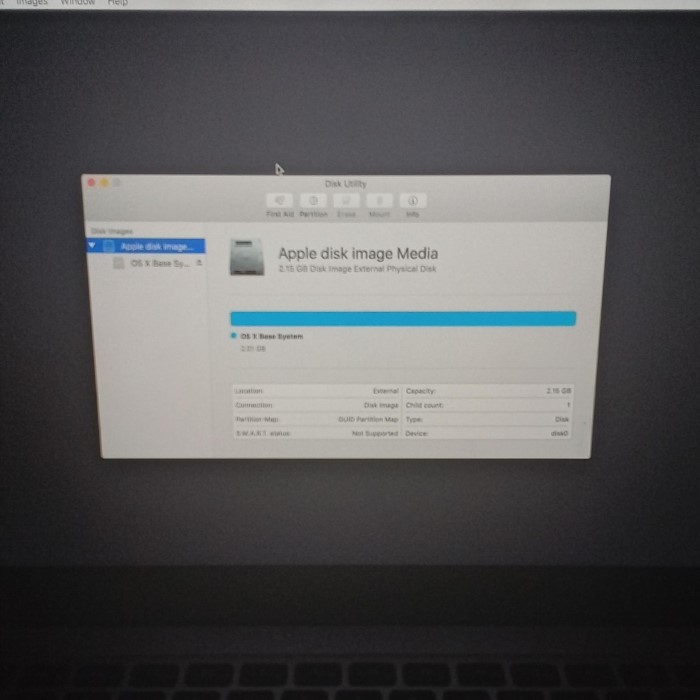
Open the Disk Utility app on your Mac to check for detection problems. Look for the hard drive name in the list of connected devices. If the drive is listed but not mounted, click “Mount” to attempt access. Use the “First Aid” tool in Disk Utility to diagnose and repair file system errors. This step can fix common issues, such as corrupted partitions, blocking detection.
How to Fix Hard Drives Not Showing Up
If your Mac doesn’t recognize your hard drive, several fixes can address this issue. Below are solutions to restore access and functionality.
Repairing the Drive Using Disk Utility
Open Disk Utility from Applications > Utilities. Locate your hard drive in the list. If the drive is visible but unmounted, click “Mount.” Use “First Aid” to scan for and repair errors. This tool resolves partition corruption, file system errors, and mounting issues. Always attempt this before proceeding with further troubleshooting.
Update macOS and Drivers
An outdated macOS or driver may prevent the hard drive detection. Check for system updates under System Preferences > Software Update. Ensure drivers for your external drive are current. Updating often fixes compatibility problems and restores device functionality. Restart your Mac after installing updates.
Reformatting the Hard Drive
If the file system format is incompatible, reformatting may solve the issue. Back up your data before proceeding. Open Disk Utility, select the drive, and click “Erase.” Choose a Mac-compatible format like APFS or Mac OS Extended. Confirm and wait for the reformatting process to complete. Ensure that your critical data is safely stored elsewhere before taking this step.
Checking for Third-Party Software Conflicts
Third-party software can interfere with drive detection. Disable or uninstall apps related to drive management or system utilities. Restart your Mac and check if the issue persists. Software conflicts are often resolved by removing or updating the conflicting program. Always check compatibility before reinstalling software.
Recovering Data From an Inaccessible Hard Drive
If your hard drive is inaccessible, recovering data becomes critical. Data recovery tools and backup creation can help minimize data loss before troubleshooting further.
Tools for Data Recovery on macOS
Several reliable tools can assist in recovering lost or inaccessible data on macOS:
- Disk Drill: This tool specializes in recovering files from damaged or lost partitions. It supports various file formats and devices. Disk Drill is user-friendly and ideal for those unfamiliar with data recovery.
- Data Rescue: Known for its powerful scanning capabilities, Data Rescue helps recover inaccessible files. It also provides pre-scan previews, enabling users to select which files to recover.
- EaseUS Data Recovery Wizard: This tool provides efficient recovery of deleted, lost, or inaccessible data. It works on both internal and external drives. Its clean interface makes it easy to navigate.
- PhotoRec: PhotoRec is open-source software that excels at recovering specific file types. It’s a great choice for users comfortable with more technical tools.
Using these tools quickly and carefully enhances the chances of successful recovery.
Steps to Create a Backup Before Troubleshooting
Before troubleshooting inaccessible drives, creating a backup prevents further data loss:
- Use Target Disk Mode: If you have another Mac, connect it to your device via Target Disk Mode. This mode allows the inaccessible drive to be read as an external drive. Transfer the data to another device.
- Clone the Drive: Use cloning software like Carbon Copy Cloner to duplicate the inaccessible drive. This creates an exact replica, safeguarding your data during troubleshooting.
- Utilize Time Machine: If Time Machine backups are active, restore the latest backup. Time Machine eases recovering previous versions of files.
- Store Backup Externally: Keep backup data on an external drive or cloud storage. This adds extra protection against internal system failures.
Taking these steps prioritizes data protection, ensuring files remain intact throughout the recovery process.
Preventing Future Hard Drive Issues
Taking steps to prevent hard drive problems ensures smooth usage and prolongs its lifespan. Here’s how you can minimize potential issues.
Proper Maintenance and Storage Practices
- Keep the Hard Drive in a Dust-Free Environment: Dust can cause overheating and connection problems.
- Avoid Physical Damage: Handle the drive gently. Avoid dropping or exposing it to shocks.
- Safeguard Against Moisture: Keep the drive in a dry, cool place to avoid overheating or condensation.
- Eject Safely Before Disconnecting: Always eject the drive properly to prevent file corruption.
- Use Protective Cases: For portable drives, use shockproof cases to guard against accidental damage.
- Limit Usage in Extreme Temperatures: Avoid exposing the drive to high heat or freezing conditions.
Regular macOS Updates and Health Checks
- Keep macOS Updated: Install the latest system updates. Updates often fix bugs and compatibility issues.
- Run Disk Utility Checks Regularly: Use Disk Utility to detect and fix minor errors before they escalate.
- Monitor Disk Space: Avoid filling the drive completely. Leave at least 10-15% free space.
- Use Antivirus Software: Protect your Mac from malware that could corrupt the drive.
- Check for Drive Health Tools: Utilize tools to monitor drive performance and detect warnings early.
- Backup Important Data Regularly: Always keep backups to prevent data loss during unforeseen failures.
Following these practices keeps your hard drive functioning well, preventing expensive repairs or data loss.
When to Seek Professional Help
Sometimes, managing hard drive issues on your own might not be effective. Severe hardware failures or complex errors can require expert assistance. Knowing when to seek help can save time and prevent further damage.
Signs That Indicate Severe Hardware Damage
- Unusual Sounds: Clicking or grinding noises from the hard drive often indicate mechanical problems.
- Complete Drive Failure: The drive doesn’t show up in Disk Utility or other devices despite multiple attempts.
- Repeated Data Loss: Files frequently disappear or become corrupted without any apparent reason.
- Physical Damage: Visible cracks, dents, or burnt spots on the drive often require immediate inspection.
- Overheating or Burnt Smell: Excess heating or electrical smell indicates internal component failure.
- Frequent Disconnections: Constantly losing connection even with secure cables and stable power supply.
If you experience these symptoms, avoid further use and consult a professional.
Choosing a Reliable Data Recovery Service
Check Reviews and Reputation
Researching companies online is essential for identifying trustworthy services.
Look for customer reviews and testimonials on platforms like Google, Yelp, and Trustpilot.
Take note of how many reviews a company has received and the overall rating they maintain.
Consider feedback regarding previous experiences, particularly those related to data recovery success rates.
A strong reputation, backed by positive reviews, indicates that the service has a track record of reliability and customer satisfaction.
Certified Technicians
When seeking data recovery services, prioritize companies that employ trained and certified data recovery experts.
Certifications from recognized organizations demonstrate that the technicians possess the necessary skills and knowledge.
Ensure that the technicians have experience in handling various data recovery scenarios and types of storage media.
Trained professionals are more likely to use effective techniques, minimizing the risk of further data loss during recovery.
Cleanroom Facilities
Professional data recovery services often have cleanroom facilities specifically designed to prevent contamination during repairs.
Cleanrooms are sterile environments that minimize dust, airborne particles, and other contaminants that could damage sensitive components.
Ensure that the service providers employ proper environmental controls and rigorous standards in their cleanrooms.
The use of cleanrooms increases the chances of successful recovery, especially for physical damage or issues with hard drives and SSDs.
No Recovery, No Fee Policy
Many reputable data recovery services operate under a “no recovery, no fee” policy.
This means that you will only be charged if the service is successful in recovering your data.
This policy reduces the financial risk associated with data recovery, providing peace of mind to customers.
Be sure to read the terms of the policy carefully to understand any conditions that may apply.
Consultation Option
Seek recovery centers that offer free consultations to discuss your data loss issues.
A consultation allows you to understand the potential recovery options and costs involved.
Look for clear pricing structures during the consultation, which helps avoid hidden fees later on.
A professional consultation also provides an opportunity to gauge the expertise and customer service of the recovery center.
Data Security Practices
Verify that the data recovery service implements robust data protection strategies to ensure your information remains confidential.
Look for policies regarding data handling, storage, and destruction to prevent unauthorized access.
Reputable companies often have non-disclosure agreements (NDAs) in place to protect sensitive data.
Data security should be a priority, especially if you are dealing with confidential or sensitive information.
Quick Turnaround Time
When selecting a data recovery service, consider the turnaround time for completing the recovery process.
Choose companies known for their efficient solutions without sacrificing quality or thoroughness.
Inquire about their average recovery times and whether they offer expedited services if needed.
A quick turnaround can be crucial, especially for businesses that rely on timely access to critical data.
Seeking professional help ensures proper handling of severe cases, safeguarding your valuable data and hardware.
Conclusion: Resolving Hard Drive Issues
In summary, if you find yourself wondering “why is my hard drive not showing up mac?”, remember there are several steps to troubleshoot and resolve the issue. By checking connections, utilizing Disk Utility, and ensuring proper formatting, you can often restore access to your drive. If problems persist, consider seeking help from professionals. With the right approach, you can overcome hard drive challenges and ensure your data is safe and accessible.
 Griley