
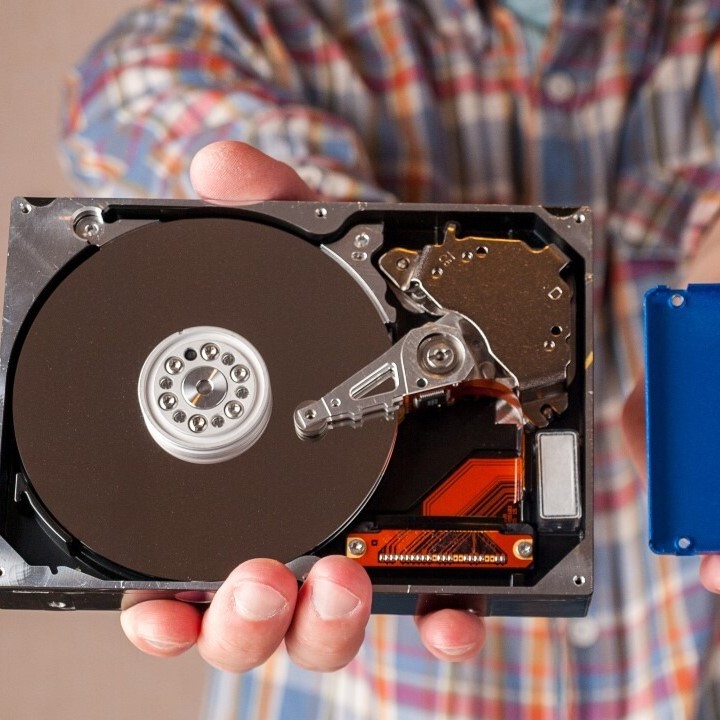
Introduction: Understanding Hard Drive Defragmentation
As technology advances, the need for efficient computing becomes more crucial. Over time, hard drives can become fragmented, leading to slower performance and longer load times. Therefore, understanding how to defragment hard drive effectively is vital for enhancing your computer’s efficiency. Defragmentation is the process of rearranging fragmented data on your hard drive, making it easier for your computer to access files quickly. This article will explore the when, why, and how of defragmenting your hard drive, ensuring you have all the information needed to optimize your device’s performance.
What is Defragmentation?
Defragmentation is a technical process that reorganizes fragmented data on a hard drive. When you save files, delete them, or move them around, your drive can become fragmented. This fragmentation leads to data being scattered across the drive rather than stored in contiguous spaces.
- Impact of Fragmentation: As files become fragmented, the computer takes longer to access them. When data is spread out, the drive head has to work harder, causing delays.
- Consequences of Fragmentation: A fragmented hard drive can lead to slower boot times, lagging applications, and increased wear on the drive. Regular defragmentation reduces these issues, improving overall performance.
- Types of Drives: It’s important to note that traditional Hard Disk Drives (HDDs) benefit the most from defragmentation. Solid State Drives (SSDs), however, do not require defragmentation. In fact, defragging an SSD can reduce its lifespan by causing unnecessary write cycles.
When Should You Defragment Your Hard Drive?
How to defragment hard drive? Knowing when to defragment your hard drive can make a significant difference in performance. Here are key indicators:
- Performance Degradation: If your computer starts to slow down or experiences lag while opening applications, it might be time for defragmentation.
- Regular Maintenance Schedule: Establishing a regular maintenance routine is beneficial. For most users, defragmenting every few months can help keep performance smooth. However, if you frequently transfer large files or install/uninstall software, consider defragging more often.
- Fragmentation Level: Many operating systems provide tools that show the fragmentation level of your drive. Generally, if fragmentation exceeds 10%, it’s a good idea to perform a defragment.
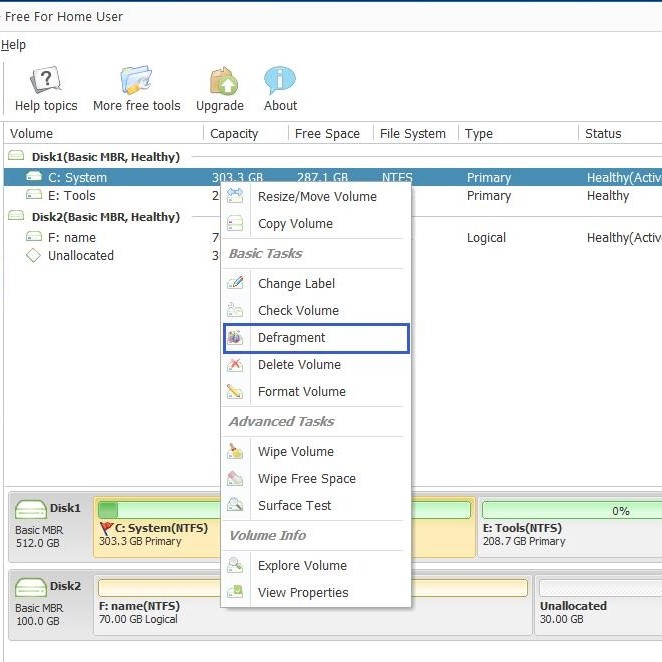
Why Should You Defragment Your Hard Drive?
Understanding the reasons behind defragmentation can help you appreciate its importance in maintaining your computer. Here’s why you should consider it:
- Improved Efficiency: Defragmenting can lead to faster load times for files and applications. A well-organized hard drive means the system can access files quicker, enhancing overall system performance.
- Extended Hardware Lifespan: Regularly defragmented drives experience less strain. This reduces wear and tear on the hardware, potentially extending its lifespan.
- Optimized Space Usage: Defragmentation can also free up disk space by consolidating file storage. This means less wasted space, improving the efficiency of the file system.
How to Defragment Your Hard Drive
Now that you understand the importance of defragmentation, let’s discuss the steps to perform this process effectively:
Backup Your Data
One of the most crucial steps in preparing to defragment your hard drive is backing up your data. This precaution protects your essential files and ensures your information is safe in case of unforeseen issues. Here’s how to do it effectively:
- Identify Critical Files: Start by identifying which files are vital to you. These may include documents, photos, videos, and any other personal data that you cannot afford to lose.
- Choose a Backup Method: You have several options for backing up your data:
- External Hard Drive: Connect an external hard drive to your computer and copy your important files onto it. This method provides a physical copy of your data.
- Cloud Storage: Use cloud services such as Google Drive, Dropbox, or OneDrive for off-site backups. Upload your files to the cloud for access from any device with internet connectivity.
- Backup Software: Consider using backup software that can automate the backup process. Many programs allow you to schedule regular backups, ensuring that your data remains updated.
- Perform the Backup: Execute the backup method you chose once you’ve selected the essential files. Double-check to ensure that all critical data is safely backed up.
- Verification: After the backup is complete, verify that your files have been copied successfully by accessing a few sample files from the backup location. This verification step minimizes the risk of relying on a corrupted or incomplete backup.
Access the Defragmentation Tool
Most operating systems come equipped with built-in defragmentation tools that simplify the process of optimizing your hard drive. Here’s how to access and use this tool, particularly for Windows users:
Open the Start Menu
Accessing the defragmentation tool begins with the Start Menu:
- Locate the Search Bar: Click on the Start button located in the bottom-left corner of your screen. This brings up the Start Menu.
- Search for Defragmentation Tool: Type “Defragment” in the search bar. This action will display related applications, making them easy to find.
- Launch the Application: Click on the “Defragment and Optimize Drives” application from the list. This opens the defragmentation utility where you can manage and optimize your drives.
Select Your Drive
After launching the defragmentation tool, it’s time to select the drive you want to defragment.
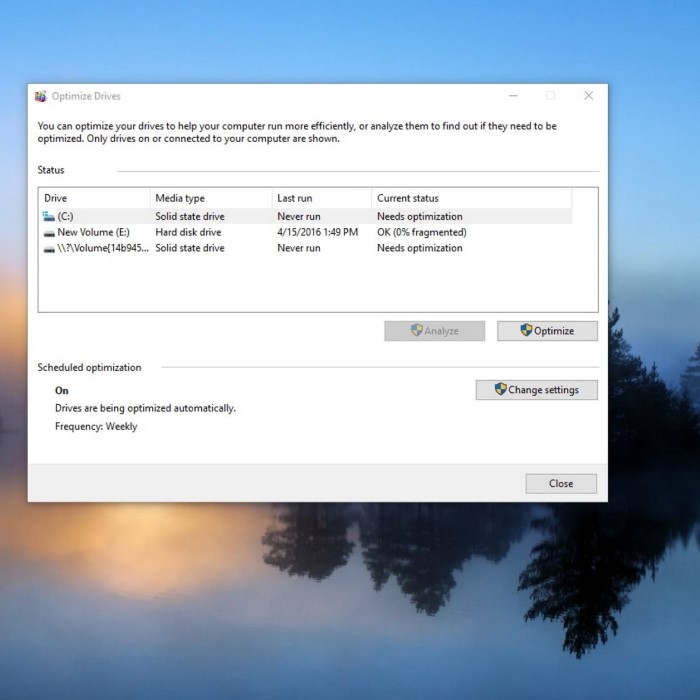
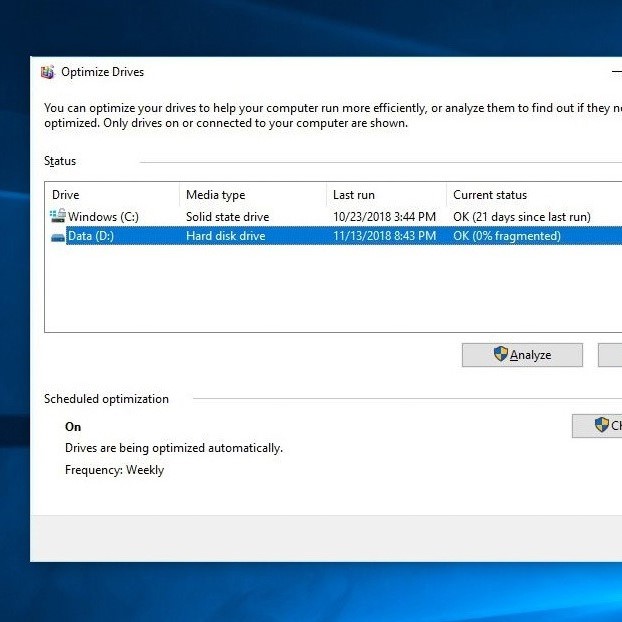
- View Available Drives: In the application window, you will see a list of all drives connected to your computer, both internal and external.
- Choose Your Drive: Most users typically want to defragment their primary drive, usually labeled “C:”. This drive typically contains the operating system and most program files. Select the appropriate drive by clicking on it.
- Understand Drive Information: The application may also show the current fragmentation level and the amount of space used on the selected drive. This information helps you assess whether defragmentation is necessary.
Analyze Your Drive
Before initiating the defragmentation process, analyzing your drive’s current state is an essential step.
- Locate the Analyze Button: Within the defragmentation tool, look for a button labeled “Analyze”. This feature allows the software to evaluate your drive’s fragmentation level.
- Click to Analyze: After selecting your drive, click the “Analyze” button. The tool will begin scanning the drive to determine how fragmented it is.
- Wait for Analysis to Complete: The analysis may take a little time, depending on the size of the drive and the amount of data it contains. Be patient and allow the software to complete the scan.
- Review the Results: Once the analysis is complete, the application will display the fragmentation percentage. If your drive is fragmented beyond a certain threshold—typically around 10%—it is advisable to proceed with the defragmentation.
Run Defragmentation
If your analysis indicates significant fragmentation, it’s time to run the defragmentation process.
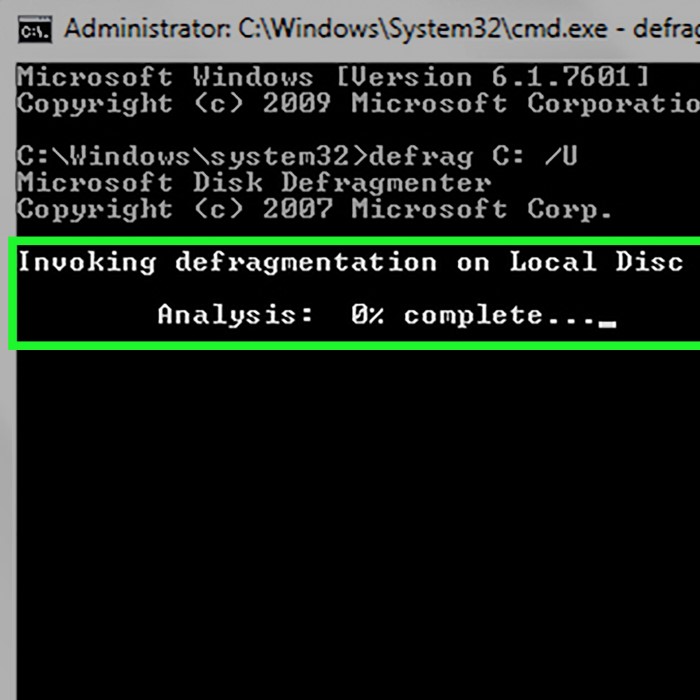
- Locate the Optimize Button: Once you have analyzed your drive, search for the “Optimize” button within the application. This feature initiates the defragmentation process.
- Click to Start: Click on the “Optimize” button to begin defragmenting your selected drive. The software will start reorganizing the fragmented data and consolidating free space.
- Wait for Completion: Depending on the drive size, the amount of data, and the level of fragmentation, the process may take anywhere from a few minutes to several hours. During this time, avoid using heavy applications to allow the process to complete smoothly.
- Monitor the Progress: Many defragmentation tools provide a progress bar or indicator. You can monitor how much of the process has been completed and approximately how much time is left.
Schedule Regular Defragmentation
To ensure your hard drive remains organized and optimized, consider setting up a schedule for regular defragmentation.
- Look for Scheduling Options: In most defragmentation tools, there are options that allow you to automate the defragmentation process. Locate the settings or schedule section in the application.
- Set Up a Regular Schedule: Choose how often you want the defragmentation process to run—options may include daily, weekly, or monthly. For typical users, a monthly schedule is often sufficient.
- Consider System Usage: When setting the schedule, consider when your computer is least likely to be in use. Running defragmentation during off-peak times, such as late at night or early in the morning, can minimize interruptions.
- Confirm and Save: After setting your schedule, confirm and save your settings. This step ensures that your hard drive will be regularly maintained without manual intervention.
Benefits of Regular Defragmentation
Regularly defragmenting your hard drive can lead to numerous benefits for overall performance. Here are some key advantages:
- Enhanced Speed: As previously mentioned, defragmentation directly correlates with increased speed and efficiency. Accessing files becomes quicker, allowing applications to load faster.
- Reduced Lag: By minimizing fragmentation, you reduce the likelihood of system lag and stuttering during operation. This is particularly beneficial for tasks that involve large files, such as video editing or gaming.
- Better User Experience: A smoothly functioning computer provides a more satisfying user experience. Fewer delays and faster operations can significantly enhance daily activities, whether for work or leisure.
FAQs about Defragmentation
Is it good to defragment your hard drive?
Yes, regular defragmentation is beneficial for traditional hard drives as it improves performance and extends lifespan. However, SSDs should not be defragmented.
How do I completely defrag my hard drive?
Use your operating system’s built-in defrag tool, analyze your drives, and follow the prompts to optimize and defragment.
Does defragging speed up a computer?
Yes, defragmenting a hard drive can significantly speed up a computer, leading to reduced load times for applications and files.
Is 0% fragmented good?
Yes, a 0% fragmentation level indicates that files are stored contiguously on the drive. This is optimal and means the drive is organized effectively.
Conclusion: Embrace Regular Defragmentation for Optimal Performance
In conclusion, understanding how to defragment hard drive is an essential skill for maximizing your computer’s efficiency. By periodically analyzing the state of your hard drive and performing defragmentation when needed, you can enhance performance, prolong the life of your hardware, and improve your overall user experience.
Remember that defragmentation is particularly important for traditional Hard Disk Drives (HDDs), while Solid State Drives (SSDs) do not require this process. Keeping your system organized leads to better performance and a smoother experience, especially as you navigate the digital world.